
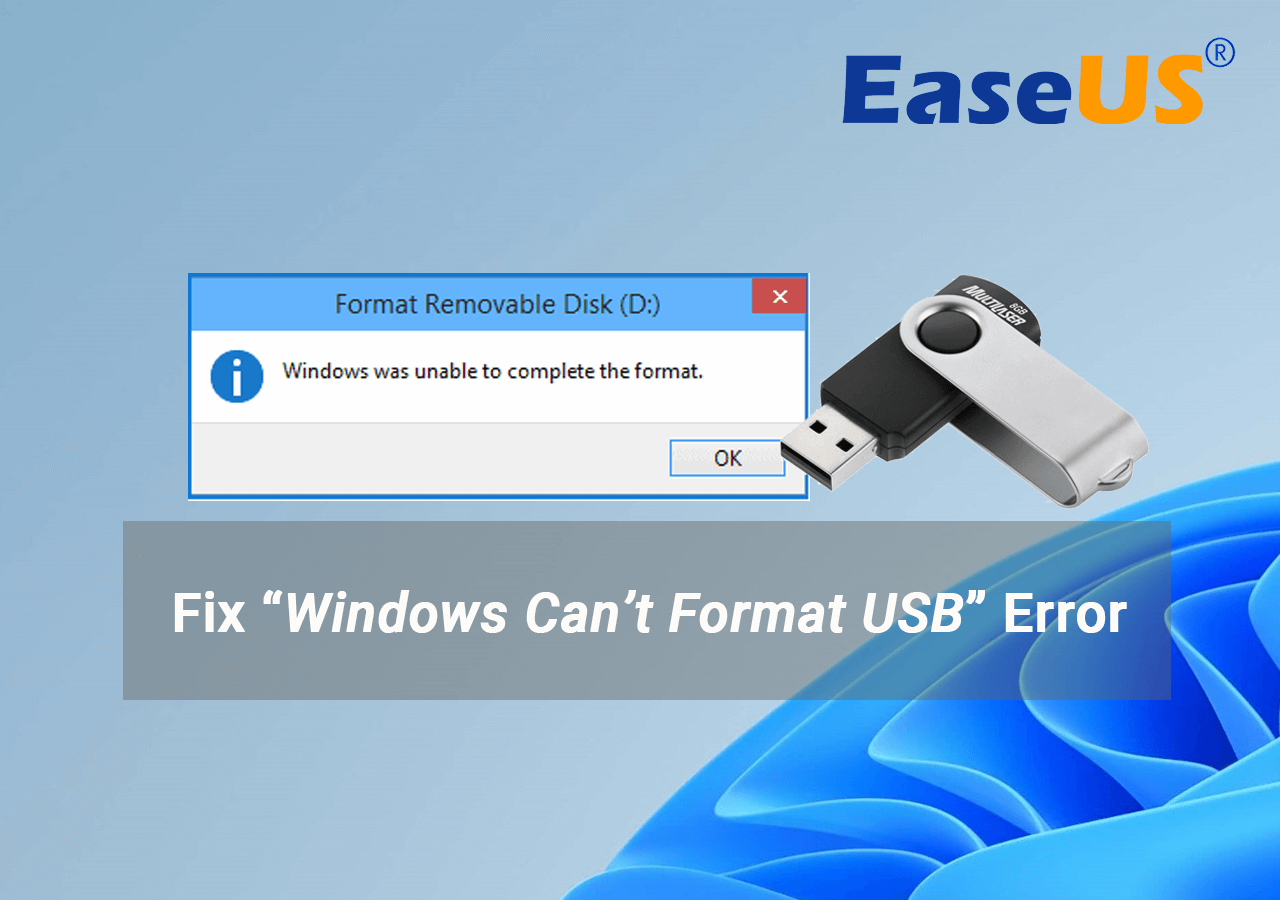
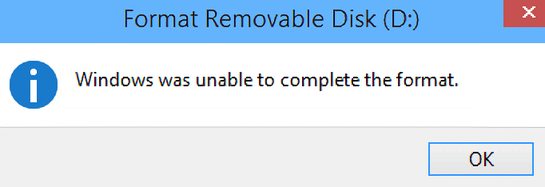
Have you ever tried to format a USB or external hard drive and got the message, “Windows was unable to complete the format”? It can be very frustrating. You want to use your drive, but Windows just stops you.
Don’t worry. This article will explain why this happens and how to fix it. The steps are easy to follow, even if you are not very good with computers.
Why Does This Error Happen?
There are many reasons why Windows cannot finish formatting your drive. Some common reasons are:
- The drive is write-protected.
- The USB or external drive has bad sectors or errors.
- The drive is not showing correctly in Windows.
- The USB port is not giving enough power to the drive.
- The drive has a virus or malware.
- The drive has a damaged partition or file system.
Knowing the cause can help you fix the problem faster. Now, let’s look at simple ways to fix this.
Step 1: Check and Remove Write Protection
Some USB drives and SD cards have a small switch. This switch can stop you from changing files. It is called write protection. If the switch is ON, Windows cannot format the drive.
Look for a small switch on your drive or card. Make sure it is turned OFF. If there is no switch, try this:
- Press Windows + R to open the Run box.
- Type
cmdand press Enter to open the Command Prompt. - Type
diskpartand press Enter. - Then type
list diskand press Enter. You will see all drives. - Find your external drive number (like Disk 1 or Disk 2).
- Type
select disk X, replace X with your disk number, then press Enter. - Type
attributes disk clear readonlyand press Enter. - Type
exitand press Enter to close diskpart.
Now try formatting your drive again in Windows Explorer.
Step 2: Use Disk Management to Format the Drive
Sometimes, Windows Explorer cannot format the drive. You can use Disk Management. It is a tool inside Windows for managing drives.
- Press Windows + X and select Disk Management.
- Find your external drive in the list. It may show as unallocated or with a strange file system.
- Right-click on the drive or its partition.
- If you see Delete Volume, click it to remove the old partition.
- Right-click on the unallocated space and choose New Simple Volume.
- Follow the wizard to create a new partition and format the drive.
- Choose the file system as NTFS or FAT32.
This method often fixes the problem by starting fresh with your drive.
Step 3: Use the Command Prompt to Format
If Disk Management did not work, try formatting using Command Prompt.
- Open Command Prompt as an administrator. (Search for cmd, right-click, and choose Run as administrator.)
- Type
format X: /FS:NTFSand press Enter. Replace X with your drive letter. - If you want FAT32 file system, type
format X: /FS:FAT32instead. - Wait for the process to finish. It may take some time.
If you see errors, try the next step.
Credit: www.easeus.com
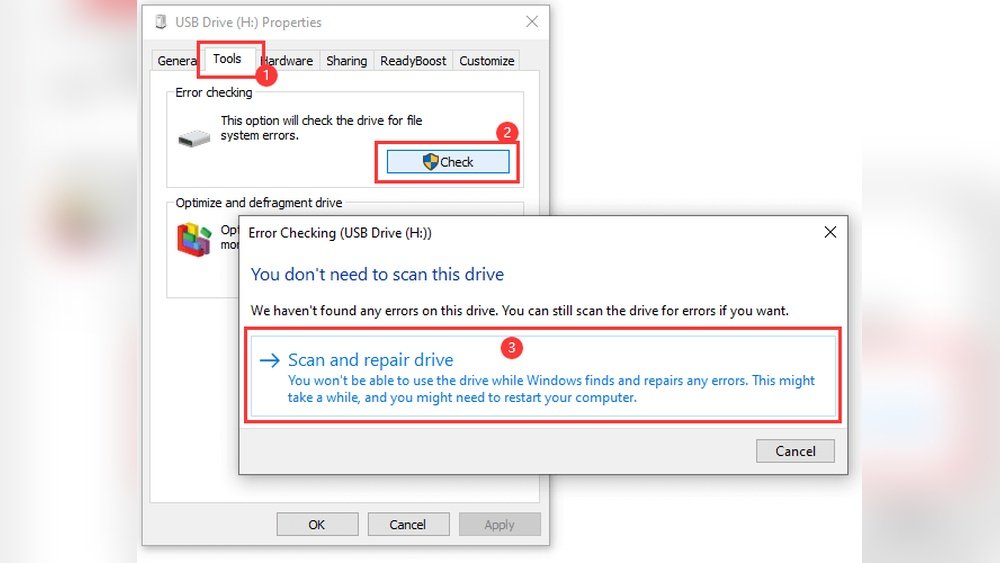
Step 4: Check and Fix Drive Errors with CHKDSK
Your drive might have errors or bad sectors. Windows has a tool called CHKDSK. It can find and fix these errors.
- Open Command Prompt as administrator.
- Type
chkdsk X: /f /rand press Enter. Replace X with your drive letter. - The tool will scan and fix errors. This may take a long time.
- After it finishes, try formatting again.
This method often fixes many problems on external drives.
Credit: support-in.wd.com
Step 5: Change the Drive Letter
Sometimes Windows cannot format a drive because it has a drive letter problem.
- Open Disk Management.
- Right-click your external drive and choose Change Drive Letter and Paths.
- Click Change and pick a new letter, like Z or Y.
- Click OK and close Disk Management.
- Try formatting the drive again.
Changing the letter can help Windows recognize the drive better.
Step 6: Try a Different USB Port or Computer
Sometimes the USB port does not give enough power to the drive.
Try these simple tips:
- Unplug the drive and connect it to a different USB port.
- Use a USB port directly on your computer, not a hub.
- If possible, try the drive on another computer.
If the drive works on another computer, your first PC may have a problem.
Step 7: Scan for Viruses and Malware
Viruses can stop your drive from formatting. Scan both the external drive and your PC.
- Use a trusted antivirus program.
- Run a full scan on your PC.
- Scan the external drive as well.
After removing viruses, try formatting the drive again.
Step 8: Use Third-Party Software to Format
If Windows tools fail, you can use third-party software. These tools can fix hard-to-format drives.
Some popular tools are:
- EaseUS Partition Master
- MiniTool Partition Wizard
- AOMEI Partition Assistant
These programs have easy guides. Download from their official websites. Use the format or wipe option.
Step 9: If All Else Fails, Consider Drive Health
If you still cannot format, the drive might be damaged beyond repair.
External drives have parts that can fail over time. Bad sectors or hardware failure can stop formatting.
You can check drive health with software like CrystalDiskInfo. It shows if the drive is bad.
If the drive is damaged, you may need to replace it.
Summary Table of Fixes
| Problem Cause | Fix Method | Notes |
|---|---|---|
| Write Protection | Turn off switch or use diskpart to clear readonly | Check physical switch first |
| Partition Errors | Use Disk Management to delete and create new partition | Follow wizard carefully |
| File System Errors | Run CHKDSK to fix errors | May take time |
| Drive Not Recognized | Change drive letter in Disk Management | Pick an unused letter |
| USB Port Power Issue | Try different USB port or computer | Use direct ports, not hubs |
| Virus or Malware | Scan with antivirus software | Scan both PC and drive |
| Windows Tools Fail | Use third-party partition software | Download from official sites |
| Drive Hardware Damage | Check drive health, replace if needed | Use CrystalDiskInfo or similar |
Final Tips
- Always safely eject your drive before removing it.
- Keep backups of important files to avoid data loss.
- Do not interrupt the format process once it starts.
- Regularly scan your drives to keep them healthy.
- Use quality USB drives and cables for best results.
Fixing the “Windows was unable to complete the format” error is possible. Just follow these steps one by one. Most problems have simple solutions.
If you still have trouble, it might be best to ask a professional or replace the drive.
We hope this guide helps you use your external drives without issues.
Frequently Asked Questions
How To Solve Windows Was Unable To Complete The Format?
Run Command Prompt as admin and enter “diskpart,” then clean and create a new partition. Check and disable write protection. Try formatting again or use CHKDSK to fix disk errors.
Why Can’t I Format An External Hard Drive?
You can’t format an external hard drive if it’s write-protected, corrupted, or has bad sectors. Use disk tools or remove write protection to fix it.
How To Fix Unable To Format Usb Drive?
Check and disable USB write protection using CMD’s “attributes disk clear readonly. ” Scan and repair errors with CHKDSK. Change the USB port or drive letter. Remove any partitions, then reformat. Scan for viruses to ensure no interference. Use data erasure tools if needed.
How Do I Fix My External Hard Drive Asking To Format?
Run CHKDSK to scan and repair disk errors. Remove write protection using Command Prompt. Change the drive letter or USB port. Backup data, then reformat the drive using Disk Management. Use data recovery software if needed before formatting.