
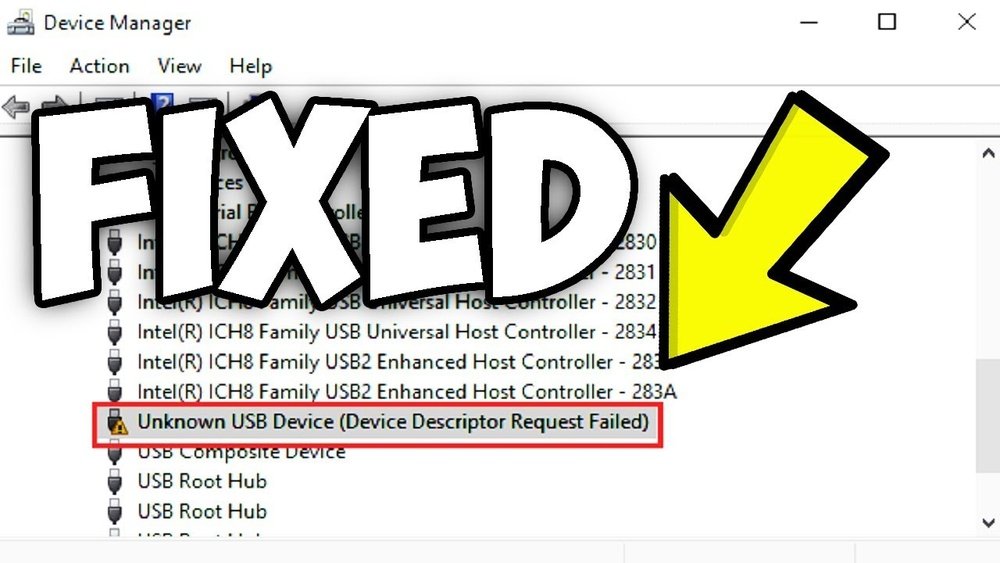
Have you ever plugged a USB device into your computer and seen an error? One common message is “Unknown USB Device (Device Descriptor Request Failed)”. This means Windows cannot recognize the USB device. It might stop your device from working.
This problem can happen for many reasons. Your USB device might be damaged, your computer may have a driver issue, or the USB port could be faulty. Don’t worry. You can fix it by following some simple steps.
What Does This Error Mean?
The error means Windows tried to get information from the USB device. But it failed. The “device descriptor” is like an ID card for the USB device. If Windows cannot read it, the device shows as unknown.
This stops your device from working correctly. It can happen with USB flash drives, keyboards, mice, or other devices.
Before You Start: Basic Checks
Try these quick checks first. They are easy and often solve the problem.
- Try another USB port: Plug your device into a different USB port on your computer.
- Try a different cable: If your device uses a cable, try using a new or different USB cable.
- Test the device on another computer: This helps check if the device itself is okay.
- Restart your computer: Sometimes a simple restart fixes USB issues.
If these steps do not work, try the fixes below.
Fix 1: Use Device Manager to Scan for Hardware Changes
Device Manager is a tool in Windows that shows all connected devices. You can use it to refresh your USB device list.
- Press Windows + R keys to open the Run box.
- Type
devmgmt.mscand press Enter. This opens Device Manager. - At the top, click your computer name.
- Click Action in the menu, then choose Scan for hardware changes.
- Wait a moment. Windows will try to find your USB device again.
This often helps Windows recognize the device properly.
Fix 2: Update USB Drivers
Drivers are software that help Windows communicate with devices. Old or broken drivers can cause errors.
- Open Device Manager as explained before.
- Look for Universal Serial Bus controllers and expand it.
- Find any device with a yellow exclamation mark or named Unknown USB Device.
- Right-click the device and select Update driver.
- Choose Search automatically for updated driver software.
- Follow the instructions to update the driver.
If Windows cannot find a new driver, visit the device maker’s website to download the latest driver.
Fix 3: Uninstall and Reinstall USB Controllers
Sometimes USB controllers need a fresh start. You can uninstall and let Windows reinstall them.
- Open Device Manager.
- Expand Universal Serial Bus controllers.
- Right-click each USB Root Hub and select Uninstall device.
- Do the same for all USB Host Controller devices.
- After uninstalling, restart your computer.
- Windows will automatically reinstall the USB controllers.
Note: Your mouse or keyboard might stop working during this process. Use keyboard shortcuts if needed.
Fix 4: Disable USB Power Saving Settings
Windows may turn off USB devices to save power. This can cause errors.
- Open Device Manager.
- Expand Universal Serial Bus controllers.
- Right-click a USB Root Hub and select Properties.
- Go to the Power Management tab.
- Uncheck Allow the computer to turn off this device to save power.
- Click OK.
- Repeat for all USB Root Hubs.
This stops Windows from turning off your USB devices.
Fix 5: Disable USB Selective Suspend Setting
This setting lets Windows turn off USB ports to save power. Turning it off can help.
- Open the Control Panel.
- Go to Power Options.
- Next to your selected power plan, click Change plan settings.
- Click Change advanced power settings.
- Find and expand USB settings.
- Expand USB selective suspend setting.
- Set both On battery and Plugged in to Disabled.
- Click Apply and then OK.
Now your USB ports will stay powered on.
Fix 6: Clear USB Device History in Registry
Windows stores USB device info in the registry. Clearing old data can help.
Warning: Be careful when editing the registry. A wrong change can cause problems.
- Press Windows + R, type
regedit, and press Enter. - Navigate to this key:
HKEY_LOCAL_MACHINE\SYSTEM\CurrentControlSet\Enum\USB - Right-click the USB folder and choose Export to save a backup.
- After backing up, right-click the USB folder again and choose Delete.
- Close Registry Editor and restart your computer.
This will remove old USB device info. Windows will create new data when you reconnect devices.

Credit: support.bradyid.com
Fix 7: Check for Windows Updates
Windows updates often fix device problems.
- Click the Start menu and select Settings.
- Go to Update & Security.
- Click Check for updates.
- Download and install any updates.
- Restart your computer if needed.
Other Tips
- Make sure your USB device is not physically damaged.
- Try cleaning the USB port gently with a soft brush.
- If your device has its own power supply, check that it is working.
- If the device still does not work, it might be broken.
Summary Table: Quick Fixes for USB Device Error
| Fix | Steps | Why It Helps |
|---|---|---|
| Try different port or cable | Use another USB port or cable | Port or cable may be faulty |
| Scan for hardware changes | Use Device Manager to refresh devices | Windows can detect devices again |
| Update drivers | Update USB drivers in Device Manager | Fix outdated or corrupted drivers |
| Uninstall and reinstall USB controllers | Uninstall from Device Manager, restart PC | Reset USB controllers and fix errors |
| Disable power saving | Turn off USB power saving in Device Manager | Prevents Windows from turning off USB |
| Disable USB selective suspend | Change power plan settings | Keeps USB ports powered on |
| Clear USB device registry | Delete USB registry key and restart | Removes old device info causing conflicts |
| Update Windows | Install latest Windows updates | Fixes bugs and improves device support |

Credit: learn.microsoft.com
Final Thoughts
Fixing the “Unknown USB Device (Device Descriptor Request Failed)” error can be simple. Start with basic checks. Try different ports, cables, and restart your PC.
Use Device Manager to scan for changes and update drivers. Disable USB power saving settings. If needed, clear old USB data in the registry.
These steps will help Windows recognize your USB device again. If your device still fails, it might be broken.
Take your time. Follow each step carefully. Soon, your USB devices should work without problems.
Frequently Asked Questions
How To Resolve Unknown Usb Device Device Descriptor Request Failed?
Try different USB ports and cables, then restart your PC. Use Device Manager to update or reinstall USB drivers. Disable USB selective suspend in Power Options to prevent power saving issues. Scan for hardware changes to refresh device detection. These steps usually fix the device descriptor request failed error.
How Do I Force A Usb To Recognize?
Try different USB ports or cables and restart your PC. Open Device Manager, click Action > Scan for hardware changes. Update or reinstall USB drivers. Disable USB selective suspend in Power Options. These steps force Windows to recognize the USB device.
How To Fix Hp Usb Error?
To fix an HP USB error, try different USB ports and cables. Restart your PC. Update or reinstall USB drivers via Device Manager. Disable USB selective suspend in Power Options. Scan for hardware changes to refresh connections. These steps usually resolve the “Unknown USB Device” error quickly.
How To Repair A Corrupted Usb?
To repair a corrupted USB, try different ports and cables, then restart your PC. Use Device Manager to update or reinstall USB drivers. Disable USB selective suspend in power settings. Scan for hardware changes and uninstall faulty USB controllers. These steps refresh the connection and fix corruption issues.