
If your computer is slow or hot, the CPU might be working too hard. The “System” process can use a lot of CPU power. This problem can come from two main causes: malware or Windows updates. In this article, we will explain how to find out the cause and how to fix it.
What is High CPU Usage?
CPU stands for Central Processing Unit. It is the brain of your computer. It does all the work and calculations. When the CPU is busy, it uses more power. High CPU usage means the CPU is working near its full capacity. This can make your computer slow or hot.
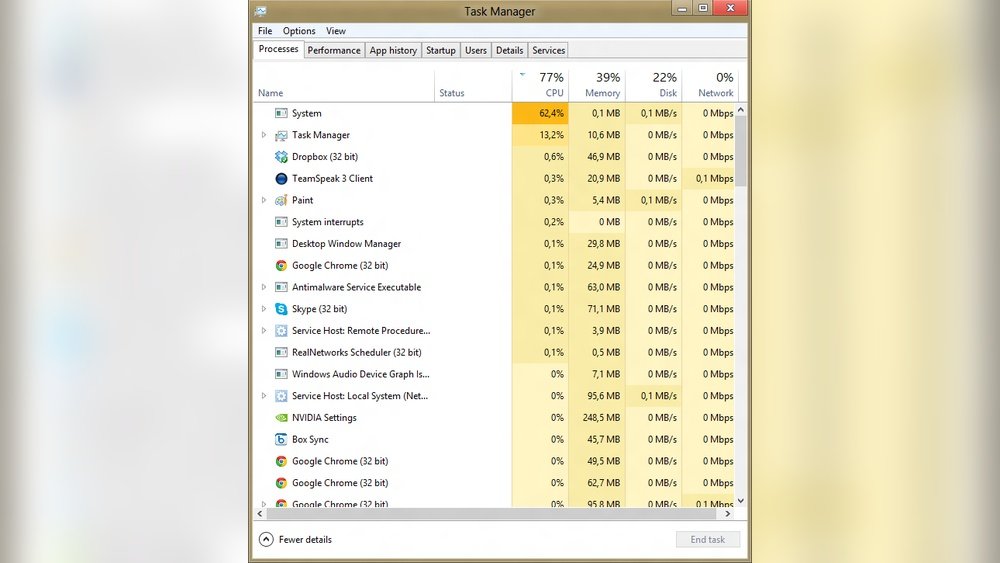
Sometimes, the “System” process uses too much CPU. This process is important. It controls many parts of Windows. But if it uses too much CPU, something is wrong.
Two Main Causes: Malware vs. Windows Updates
High CPU usage by the system process can come from:
- Malware: Bad software that harms your computer.
- Windows Updates: Sometimes, updates run in the background and use CPU.
Let’s look at each cause and how to fix it.
Malware: The Hidden Threat
Malware is software made to damage your PC or steal your data. Some malware hides inside system processes. This makes the system process use more CPU than normal.
Signs of malware include:
- Computer is slow even after restart.
- Strange pop-ups or ads.
- Programs open by themselves.
- High CPU usage by “System” or unknown processes.
How to Check for Malware
Follow these steps:
- Open Task Manager by pressing Ctrl + Shift + Esc.
- Look for processes using a lot of CPU.
- If you see strange names or very high CPU usage, it may be malware.
- Run a full scan with your antivirus program.
If you don’t have an antivirus, you can use Windows Defender. It is free and built into Windows.
Remove Malware
After scanning, follow these tips:
- Delete or quarantine infected files.
- Update your antivirus software.
- Restart your computer after cleaning.
- If malware keeps coming back, consider professional help.
Windows Updates: The Usual Suspect
Windows updates are important. They fix bugs and keep your system safe. But sometimes, updates can use a lot of CPU power. This happens especially when updates download or install.
Common update-related processes are:
- TiWorker.exe (Windows Update Worker)
- svchost.exe running Windows Update services
- Antimalware Service Executable (Windows Defender scanning during updates)
How to Check if Windows Update is Using CPU
Open Task Manager and look for these processes using CPU. If they are high, your PC is updating.
Fix High CPU from Windows Updates
Follow these steps:
- Wait: Updates can take time. Let them finish.
- Restart your computer after updates complete.
- Manually check for updates: Go to Settings > Update & Security > Windows Update.
- If updates are stuck, try the Windows Update Troubleshooter.
- Limit background activity: Set your PC to Metered Connection to slow updates.
Other Causes of High CPU Usage by System Process
Sometimes, high CPU is not malware or updates. Other causes include:
- Driver problems: Old or bad drivers can cause CPU to work hard.
- Hardware issues: Faulty devices may cause system interrupts.
- Startup programs: Too many apps starting with Windows.
How To Fix These Problems
Update Drivers
Drivers help your PC parts work together. Old drivers can cause high CPU usage. To update drivers:
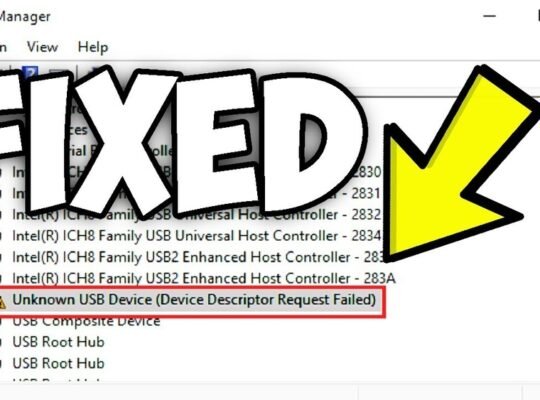
- Open Device Manager.
- Find devices with a yellow mark.
- Right-click and choose Update driver.
- Follow the steps to search online for updates.
Check Hardware
Hardware problems can cause system interrupts. These interrupts use CPU power.
Try this:
- Disconnect extra devices like USB drives or printers.
- Restart your PC and see if CPU usage drops.
- If yes, one device may have a problem.
Manage Startup Programs
Many programs start when Windows boots. This can slow your PC.
To fix it:
- Open Task Manager.
- Go to Startup tab.
- Disable programs you don’t need at startup.
- Restart your PC.
Credit: uptimerobot.com
Quick Tips to Fix High CPU Usage System Process
| Step | Action | Purpose |
|---|---|---|
| 1 | Restart your PC | Clear temporary problems |
| 2 | Run antivirus scan | Find and remove malware |
| 3 | Check Windows Update status | See if updates use CPU |
| 4 | Update device drivers | Fix driver-related CPU use |
| 5 | Disable unnecessary startup apps | Reduce background CPU load |
| 6 | Disconnect extra devices | Check for hardware interrupts |
When to Get Help
If you try all steps and CPU is still high, ask for help. You can:
- Contact a friend who knows computers.
- Visit a local computer repair shop.
- Ask questions on trusted online forums.
Do not ignore high CPU usage. It can damage your PC over time.

Credit: gaoamanda40.medium.com
Summary
High CPU usage by the system process can be caused by malware or Windows updates. Malware hides in your PC and uses CPU power. Windows updates run in the background and use CPU too.
To fix the problem:
- Restart your PC first.
- Check for malware with antivirus scans.
- Check Windows Update status and let it finish.
- Update your drivers.
- Manage startup programs.
- Check hardware devices.
Following these simple steps can help your PC run better. Be patient and check carefully.
Frequently Asked Questions
How To Fix High Cpu Usage On Windows?
Restart your PC to clear temporary issues. Disable unnecessary startup programs via Task Manager. Update drivers and scan for malware. Adjust Windows Defender scheduled scans. If problems persist, consider reinstalling Windows for a clean start.
How Do I Fix High Cpu Usage By Antimalware?
Open Task Manager and temporarily end the Antimalware Service Executable process. Schedule scans during off-hours. Update Windows and drivers. Disable unnecessary startup programs. Run a full malware scan to ensure system health. Restart your PC to apply changes and reduce CPU usage.
Why Is My Cpu 100% After Windows Update?
Your CPU hits 100% after a Windows update due to background tasks like installing updates or indexing files. Outdated drivers or malware can worsen usage. Check Task Manager, update drivers, scan for malware, and restart your PC to reduce high CPU load.
Is Cpu Usage 90% Bad?
CPU usage at 90% can slow your PC and cause overheating. It’s often a sign of heavy tasks or issues like malware or outdated drivers. Monitor usage, close unnecessary programs, scan for malware, and update drivers to improve performance and prevent damage.