
Have you ever tried to connect your laptop to the internet, but it just won’t let you? Sometimes, your laptop gets stuck in airplane mode. This means all wireless connections like Wi-Fi and Bluetooth are off. It can be very frustrating. But don’t worry! This guide will help you fix the problem step by step.
What Is Airplane Mode?
Airplane mode is a setting on laptops and phones. When you turn it on, it stops all wireless signals. This helps when you are on a plane or want to save battery.
Sometimes, airplane mode gets stuck on. When this happens, you cannot turn it off easily. Your laptop may refuse to connect to Wi-Fi or Bluetooth devices.
Why Does Airplane Mode Get Stuck?
There are two main reasons your laptop might stay stuck in airplane mode:
- Physical switch problem: Some laptops have a small switch or button that controls airplane mode.
- Software issue: Problems in the laptop’s system or drivers can cause airplane mode to stay on.
We will look at both ways to fix this problem.

Credit: www.softwarehubs.com
Physical Switch vs. Software: What Is the Difference?
| Type | Description | How It Works |
|---|---|---|
| Physical Switch | A real button or switch on your laptop. | It turns airplane mode on or off by hardware control. |
| Software | A setting inside your laptop’s operating system. | You toggle airplane mode on or off with your mouse or keyboard. |
Knowing which type your laptop uses will help fix the problem faster.

Credit: www.youtube.com
How to Check for a Physical Switch
Some laptops have a small switch on the side or front. It may also be a special key on the keyboard.
Look for these signs:
- A small button with a wireless icon or an airplane symbol.
- Function keys (like F2, F3, or F7) with an airplane or antenna icon.
If you find a switch, try moving it or pressing it. Sometimes it is easy to miss.
Using The Function Keys
Function keys work with the Fn key on your keyboard.
Try this:
- Hold down the Fn key.
- Press the key with an airplane or wireless symbol.
- Release both keys and see if airplane mode turns off.
This can turn off airplane mode when the physical switch is stuck.
How to Fix Airplane Mode Using Software Settings
If your laptop does not have a physical switch, or it didn’t work, check software settings.
Step 1: Turn Off Airplane Mode In Settings
Here is how to do it in Windows 10 or 11:
- Click the Start button.
- Select Settings (gear icon).
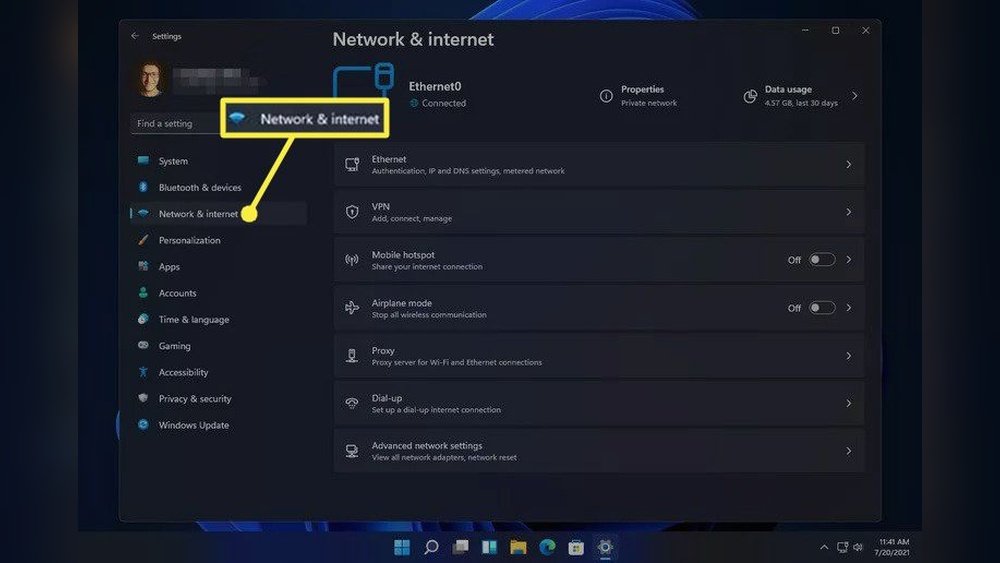
- Go to Network & Internet.
- Click Airplane mode on the left side.
- Find the switch that says Turn this on to stop all wireless communication.
- Click the switch to turn it off.
If this does not work, try restarting your laptop.
Step 2: Restart Your Laptop
Sometimes a simple restart fixes many problems.
Follow these steps:
- Save all your work.
- Click Start.
- Select Restart.
- After the laptop restarts, check if airplane mode is off.
Step 3: Use The Network Troubleshooter
Windows has a tool to find and fix network problems.
Here is how to use it:
- Press the Windows key and Q at the same time.
- Type Network troubleshooter in the search box.
- Click Find and fix network problems.
- Follow the instructions on the screen.
This may fix airplane mode if it is stuck due to software issues.
Step 4: Update Or Reinstall Wireless Drivers
Wireless drivers help your laptop talk to Wi-Fi devices. Sometimes they get old or broken.
To update or reinstall drivers:
- Press Windows key + X.
- Select Device Manager.
- Find Network adapters and click the arrow to expand.
- Right-click your wireless adapter and choose Update driver.
- Choose Search automatically for updated driver software.
- If no update is found, right-click and select Uninstall device.
- Restart your laptop; Windows will reinstall the driver.
This can fix problems caused by bad drivers.
What If These Steps Don’t Work?
If your laptop is still stuck in airplane mode, try this:
- Check BIOS settings: Some laptops allow disabling wireless in BIOS.
- Reset network settings: This will remove saved Wi-Fi but may fix issues.
- Contact support: If nothing works, ask a technician for help.
How To Reset Network Settings
Follow these steps in Windows 10 or 11:
- Open Settings.
- Go to Network & Internet.
- Click Status on the left menu.
- Scroll down and click Network reset.
- Click Reset now and confirm.
- Your laptop will restart and reset network settings.
Summary: Fixing Airplane Mode Stuck Issues
Here is a quick list to check and fix your laptop:
| Step | What to Do | Why |
|---|---|---|
| 1 | Check physical switch or function keys. | Turn off airplane mode hardware control. |
| 2 | Turn off airplane mode in settings. | Control airplane mode via software. |
| 3 | Restart your laptop. | Fix temporary software glitches. |
| 4 | Run the network troubleshooter. | Find and fix network problems. |
| 5 | Update or reinstall wireless drivers. | Fix driver-related issues. |
| 6 | Reset network settings if needed. | Clear problematic network configurations. |
Final Tips
- Always keep your laptop updated.
- Do not force the physical switch too hard.
- Use simple steps first before more complex ones.
- Ask for help if you do not understand something.
Fixing a laptop stuck in airplane mode is possible. Whether it is a physical switch or software issue, you can solve it. Follow the steps carefully. Your laptop will connect to Wi-Fi again soon.
Frequently Asked Questions
How To Fix Airplane Mode Stuck On Laptop?
Restart your laptop to reset network settings. Check for a physical airplane mode switch or function keys. Run Network Troubleshooter in Settings. Update or reinstall wireless adapter drivers via Device Manager. Disable airplane mode in BIOS if needed. This usually resolves the airplane mode stuck issue.
Why Is My Computer Not Letting Me Turn Off Airplane Mode?
Your computer may have a physical wireless switch enabled or a function key locking Airplane mode. Restart the device to reset settings. Run the Network Troubleshooter and update wireless drivers in Device Manager to fix the issue.
How To Disable Airplane Mode Switch?
To disable the Airplane mode switch, open Settings, go to Network & Internet, select Airplane mode, and toggle it off. Restart your device if needed. Check for a physical wireless switch and ensure it’s off. Update wireless drivers via Device Manager for persistent issues.
How To Force Turn Off Airplane Mode?
To force turn off Airplane mode, restart your device first. Check and toggle any physical wireless switches. Use the Quick Settings panel to disable Airplane mode. If stuck, update or reinstall wireless drivers via Device Manager. Run the Network Troubleshooter for additional help.