
Is your Windows 11 PC taking too long to start? You are not alone. Many people face slow boot times. This can be very annoying. But don’t worry. This guide will help you fix it step by step.
Why Does Windows 11 Boot Slowly?
When you turn on your computer, it loads many programs. Some programs start right away. These are called startup apps. If too many apps start at once, your PC slows down.
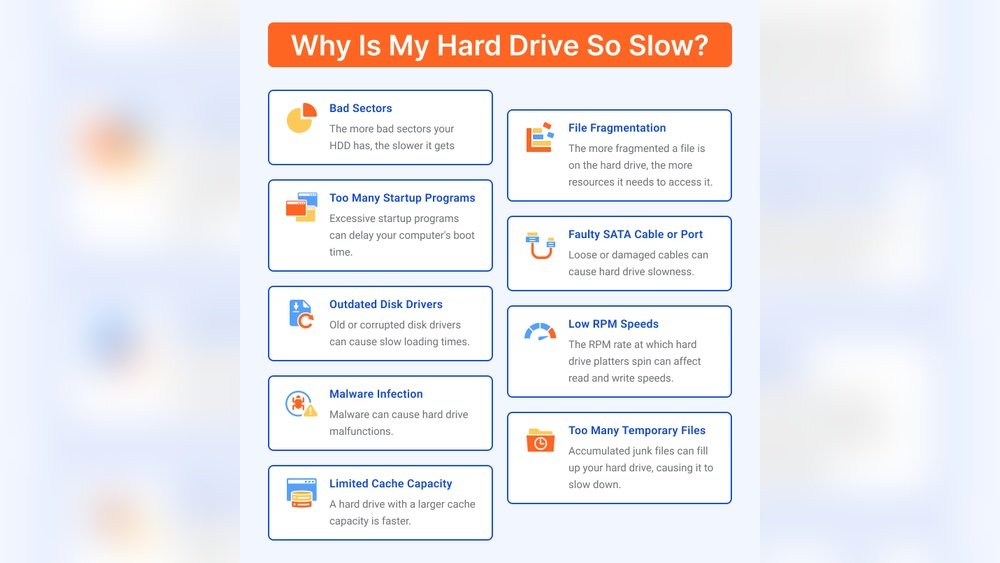
Another reason for slow boot time is the health of your hard drive (HDD). If your hard drive is old or damaged, it works slowly. This makes the computer take longer to start.
So, the two main reasons for slow boot are:
- Too many startup apps
- Hard drive (HDD) problems
What Is the Difference Between Startup Apps and HDD Health?
| Topic | Startup Apps | HDD Health |
|---|---|---|
| What is it? | Programs that run when PC starts | Condition of your computer’s hard drive |
| How it affects boot | More apps = slower start | Bad health = slow read/write speed |
| How to fix | Disable unneeded startup apps | Check and repair or replace HDD |
Step 1: Check and Manage Startup Apps
Startup apps can slow your computer. Some apps are useful. Others are not needed right away. You can turn off apps you don’t need.
How To See Startup Apps On Windows 11
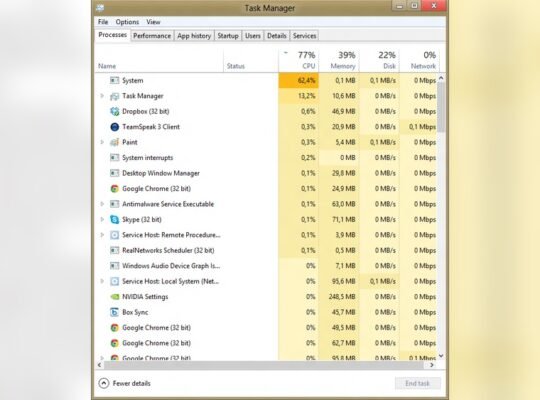
- Press Ctrl + Shift + Esc to open Task Manager.
- Click the Startup tab.
- Look at the list of apps.
- Check the Status column to see which apps start with Windows.
- Check the Startup impact column to see how much they slow your PC.
Disable Unneeded Startup Apps
- Right-click on an app you don’t need at startup.
- Select Disable.
- Repeat for other apps you want to stop from starting automatically.
Keep important apps enabled, like antivirus software. But disable apps like game launchers, chat apps, or update tools if you don’t use them often.
Step 2: Check HDD Health
Your hard drive stores all your data. If it is slow or damaged, your PC boots slowly. You can test the health of your HDD easily.
How To Check Hdd Health Using Windows Tools
- Open File Explorer.
- Right-click on your main drive (usually C:).
- Select Properties.
- Click the Tools tab.
- Under Error checking, click Check.
- Follow the instructions to scan and fix errors.
Use Command Prompt For A Deep Check
- Press Windows key + S.
- Type cmd.
- Right-click Command Prompt and choose Run as administrator.
- Type
chkdsk /f /rand press Enter. - You may need to restart your PC for the scan to run.
This scan looks for bad sectors and fixes them. If your HDD has many bad sectors, it may need replacement.
Step 3: Use Disk Cleanup and Defragmentation
Cleaning your disk helps free space and speed up your PC. Defragmentation arranges data for faster access.
How To Run Disk Cleanup
- Open File Explorer.
- Right-click your main drive (C:).
- Click Properties.
- Click Disk Cleanup.
- Select files to delete, like temporary files.
- Click OK to remove them.
How To Defragment Your Hdd
- Press Windows key + S.
- Type Defragment.
- Select Defragment and Optimize Drives.
- Choose your HDD and click Optimize.
Note: SSDs do not need defragmentation. Do not defrag SSDs.
Step 4: Enable Fast Startup
Windows 11 has a feature called Fast Startup. It helps your PC start faster.
- Open Control Panel.
- Click Hardware and Sound.
- Click Power Options.
- Click Choose what the power button does.
- Click Change settings that are currently unavailable.
- Under Shutdown settings, check Turn on fast startup.
- Click Save changes.
This can reduce boot time by saving some system information to disk.
Step 5: Consider Upgrading Your Hardware
If your PC still boots slowly, hardware might be the problem. Here are two easy upgrades:
- Add more RAM: More RAM helps the PC run faster.
- Switch to SSD: SSDs boot much faster than HDDs.
SSDs are newer and faster drives. They make Windows start in seconds. If you have an old HDD, upgrading to SSD is a good idea.

Credit: www.maketecheasier.com

Credit: www.youtube.com
Summary: Startup Apps or HDD Health?
Both startup apps and HDD health affect boot time. Try these tips:
- Disable apps you don’t need at startup.
- Check your hard drive for errors.
- Run disk cleanup and defragmentation.
- Enable fast startup in power settings.
- Think about hardware upgrades if needed.
By following these steps, your Windows 11 PC should boot faster.
Final Tips to Keep Your PC Fast
- Keep Windows updated regularly.
- Scan for viruses and malware often.
- Remove apps you don’t use.
- Restart your PC sometimes to clear memory.
Slow boot is common, but easy to fix. Take your time and try these fixes. Your PC will thank you.
Frequently Asked Questions
How To Fix Slow Boot Time In Windows 11?
Disable unnecessary startup apps via Task Manager. Enable Fast Startup in Power Options. Clean disk and defragment HDD. Update Windows and drivers. Scan for malware. Consider upgrading to an SSD for faster boot times.
How Fast Is Windows Boot On Ssd Vs Hdd?
Windows boots in about 10-20 seconds on an SSD, while HDDs take 30-60 seconds or more. SSDs offer 2-3 times faster startup.
Why Does Windows 11 Take So Long To Wake Up?
Windows 11 wakes slowly due to many startup apps, outdated drivers, or HDD instead of SSD. Disable unnecessary startup programs and enable fast startup to improve wake speed.
Why Is My Pc Taking Longer Than Usual To Boot Up?
Your PC may boot slowly due to many startup apps, fragmented hard drives, outdated drivers, or malware. Disable unused startup programs, run disk cleanup, update drivers, and scan for malware to improve boot time. Consider upgrading to an SSD for faster startup.