
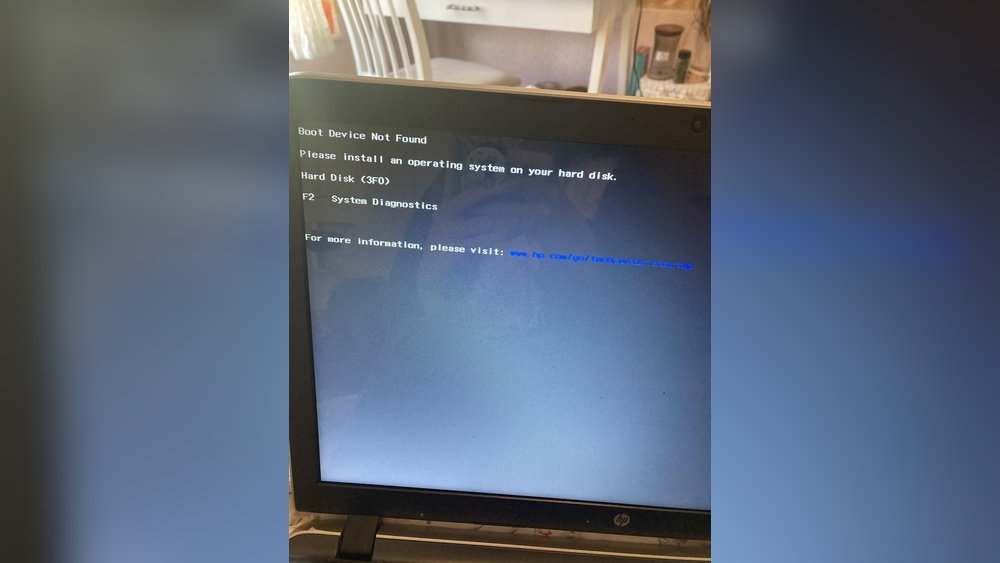
Dropping a laptop can be scary. You might see a message like “Operating System Not Found” when you turn it on. What does it mean? And how can you fix it? This guide will help you understand the problem and give simple steps to try and fix it.
What Does “Operating System Not Found” Mean?
When you start a laptop, it looks for something called an operating system. This is the software that lets you use your computer. If the laptop cannot find it, it shows this message. It means the laptop cannot start normally.
Usually, the operating system is stored on the hard drive or SSD inside your laptop. When you drop your laptop, this part can get damaged. Or the connection between parts can become loose. That is why the laptop cannot find the operating system.
Why Does Dropping a Laptop Cause This Problem?
- The hard drive or SSD might be physically damaged.
- Internal cables or connections can come loose.
- The laptop’s BIOS settings might change or reset.
- Other parts inside the laptop could be affected.
Not all drops cause this problem. But if you see the error after a drop, it is likely your storage device or connection is the cause.
Step 1: Stay Calm and Do a Simple Restart
Sometimes, the laptop might just need a restart. Turn it off completely. Wait for 10 seconds. Turn it on again. See if the error still shows.
If the error remains, move to the next steps.
Step 2: Remove All External Devices
External devices like USB drives, DVDs, or memory cards can confuse the laptop. Remove them all. Then restart the laptop again. Sometimes the computer tries to start from these devices instead of the hard drive.
Step 3: Enter the BIOS or UEFI Settings
BIOS or UEFI is a special menu your laptop uses to check hardware. You can check if your hard drive is detected here. To enter BIOS:
- Turn off the laptop.
- Turn it on and quickly press the BIOS key. Common keys are F2, Delete, or Esc.
- Look for a screen called Boot or Storage.
Check if your hard drive or SSD shows up in the list. If it does not, the drive might be damaged or disconnected.

Credit: www.youtube.com
Step 4: Check Boot Order
In BIOS, find the Boot Order or Boot Priority list. This list shows where the laptop looks first to start the operating system.
Make sure your hard drive or SSD is the first device. If it is not, change it to be first. Save the changes and restart your laptop.
If the laptop still shows the error, continue to the next step.
Step 5: Open the Laptop and Check the Hard Drive Connection
If you feel comfortable opening your laptop, you can check if the hard drive is connected well. Sometimes the drop makes the cables loose.
How to check:
- Turn off the laptop and unplug it.
- Remove the battery if possible.
- Open the back cover carefully.
- Find the hard drive or SSD.
- Check if the cables are tight and connected.
- Reattach any loose cables gently.
- Close the cover and restart the laptop.
If the hard drive is damaged or does not show, you might need a new one.
Step 6: Run a Hard Drive Test
Some laptops have a built-in hard drive test in BIOS. Look for a menu called Diagnostics or Tools. Run the hard drive test if available.
If the test finds errors, the hard drive is damaged. You will need to replace it.
Step 7: Use Windows Recovery Tools
If your hard drive is detected and connected, the problem might be with the operating system itself. You can try to fix it using Windows recovery tools.
To do this, you need a Windows recovery USB or DVD. Here is how:
- Find another working computer.
- Download the Windows Media Creation Tool from Microsoft’s website.
- Create a recovery USB or DVD.
- Insert this media into your broken laptop.
- Turn on the laptop and boot from the USB or DVD.
- Choose “Repair your computer” from the options.
- Select “Troubleshoot” > “Advanced Options” > “Startup Repair”.
This tool tries to fix boot problems automatically. If it works, your laptop should start normally again.
Step 8: Restore System or Reinstall Windows
If Startup Repair fails, you can try to restore your system or reinstall Windows.
System Restore: This option returns your laptop to an earlier time when it worked well.
Reinstall Windows: This will erase your files but can fix serious problems.
Use the same recovery USB or DVD for these steps. Choose the option that fits you best.
Step 9: Replace the Hard Drive
If your hard drive is broken, you need to replace it. You can buy a new hard drive or SSD.
After replacing, you must install Windows again. Use your recovery USB or DVD to install a fresh copy of Windows.
Remember to back up important files if possible before replacing the drive.

Credit: www.reddit.com
Step 10: Get Professional Help if Needed
If you are not comfortable opening your laptop or trying these steps, ask a professional.
A computer repair shop can check for damage and fix or replace parts safely.
Summary Table: Fixing “Operating System Not Found” After Drop
| Step | Action | What to Expect |
|---|---|---|
| 1 | Restart the laptop | Simple fix, laptop may start normally |
| 2 | Remove external devices | Fix boot confusion from USB/DVD |
| 3 | Enter BIOS and check hard drive | See if hard drive is detected |
| 4 | Set boot order to hard drive first | Laptop boots from the correct device |
| 5 | Check hard drive connection inside laptop | Fix loose cables, may restore function |
| 6 | Run hard drive diagnostics | Find out if hard drive is damaged |
| 7 | Use Windows Recovery for startup repair | Fix system boot problems |
| 8 | Restore system or reinstall Windows | Recover or reset operating system |
| 9 | Replace hard drive if broken | New drive, reinstall Windows needed |
| 10 | Seek professional help if unsure | Safe repair by experts |
Important Tips to Remember
- Always backup your data regularly.
- Be gentle when opening your laptop.
- Use the correct BIOS key for your laptop model.
- Keep the recovery USB or DVD ready for emergencies.
- Do not force parts if they do not come out easily.
- Ask for help if you do not understand any step.
Final Thoughts
Seeing “Operating System Not Found” after a drop is worrying. But with patience, many problems can be fixed. Check the hard drive, boot settings, and try recovery tools. Sometimes, you need a new hard drive or expert help.
Remember, your laptop is a machine. It can break but can also be repaired.
Take your time. Follow the steps carefully. Your laptop might work well again.
Frequently Asked Questions
How To Fix Laptop Operating System Not Found?
Restart the laptop and enter BIOS. Ensure the hard drive is detected and set as the first boot device. Remove external drives. If the hard drive is damaged, replace it and reinstall the operating system.
Can A Laptop Be Fixed After Being Dropped?
A dropped laptop can often be fixed depending on the damage. Check the hard drive, screen, and connections first. Replace damaged parts or reinstall the operating system. Professional repair may be necessary for severe hardware issues.
How To Restore Operating System On Laptop?
Access Windows Recovery Environment by restarting and pressing the recovery key. Select Troubleshoot > Advanced options > System Restore. Choose a restore point and follow prompts to restore your laptop’s operating system. Ensure your hard drive is functional and properly connected before restoring.
How To Reinstall Windows On A Broken Laptop?
Create a Windows installation USB using another PC. Replace or repair the damaged hard drive. Boot from the USB and follow on-screen instructions to reinstall Windows. Ensure BIOS recognizes the new drive.