
Do you have a 2-in-1 laptop? Does your screen act weird sometimes? Does it touch itself without you doing anything? This is called ghost touching. It can be very annoying. But don’t worry. You can fix it. One way is by disabling the HID device. In this article, I will explain how to do this in simple steps.
Credit: www.dell.com
What Is Ghost Touching?
Ghost touching happens when your laptop screen acts like it is touched. But you did not touch it. The screen may move or open things by itself. This makes it hard to use your laptop. It is more common on 2-in-1 laptops. These laptops have touch screens and can work as tablets.
Why does ghost touching happen? There can be many reasons:
- Screen is dirty or wet.
- Screen is broken or cracked.
- Touch screen drivers are not working well.
- Hardware problems inside the laptop.
- Conflicts with some devices called HID devices.
Sometimes, the problem comes from the HID device. This device helps your laptop understand touch and other input. Disabling it can stop ghost touches.
Credit: www.wps.com
What Is a HID Device?
HID means Human Interface Device. It is a device that helps you interact with your computer. Examples are keyboards, mice, and touchscreens. Your laptop uses HID devices to read touches on the screen.
When the HID device has problems, it may cause ghost touching. By turning off the right HID device, you can stop unwanted touches. But be careful. Disabling the wrong device can stop your screen from working.
How to Fix Ghost Touching by Disabling HID Device
Follow these easy steps. You do not need to be an expert. Just read and do carefully.
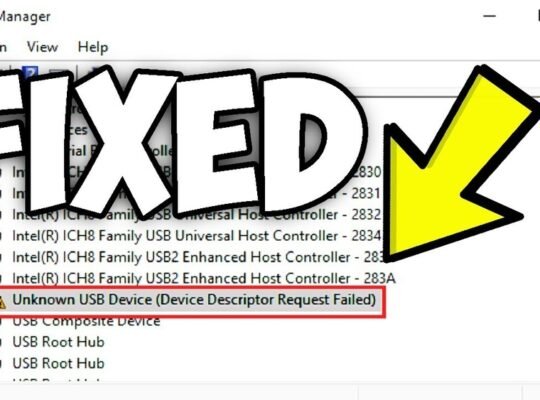
Step 1: Open Device Manager
First, you need to open the Device Manager. This tool shows all devices on your laptop.
- Click on the Start button (the Windows logo).
- Type Device Manager in the search box.
- Click on the Device Manager app from the list.
Step 2: Find The Hid Devices
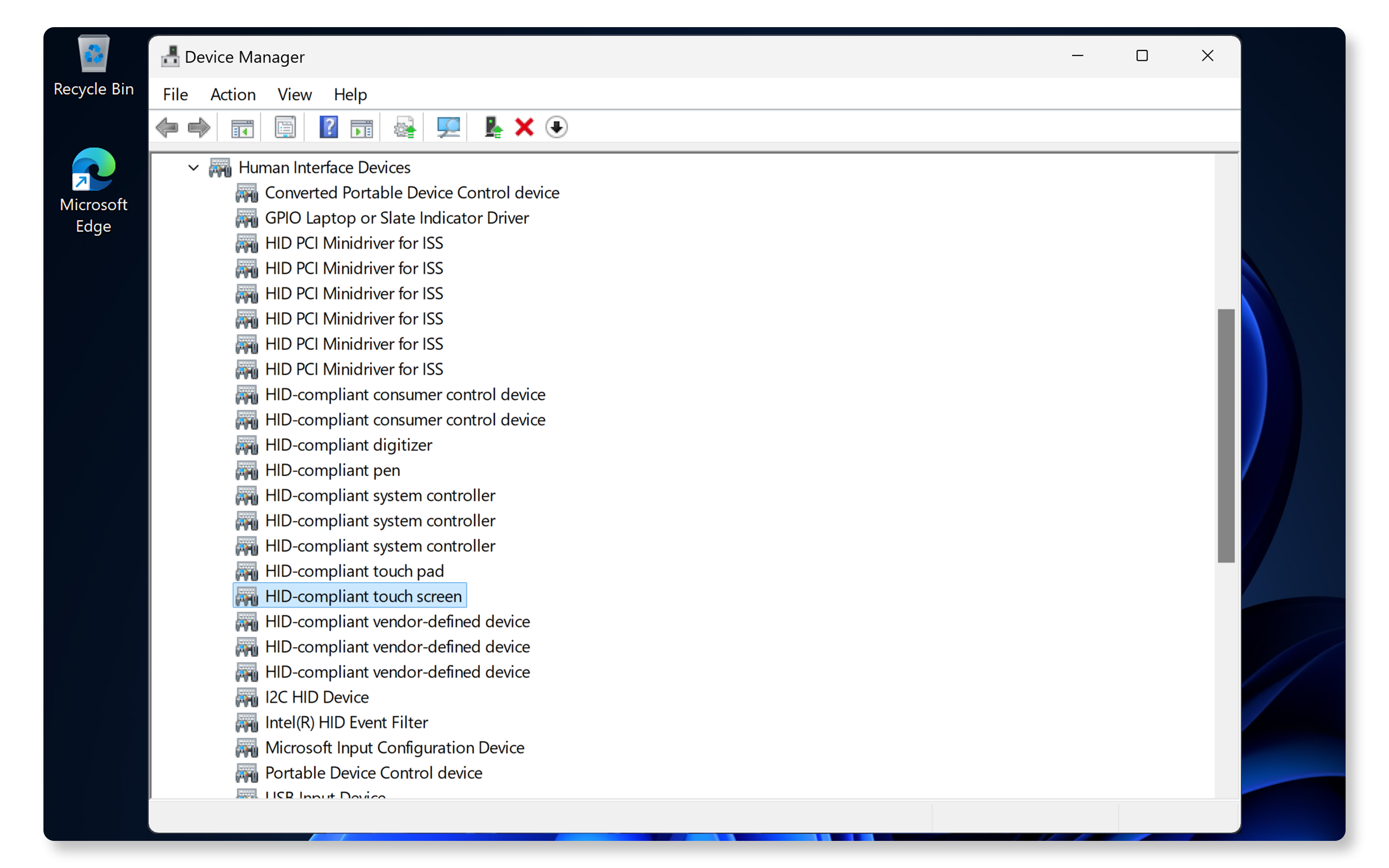
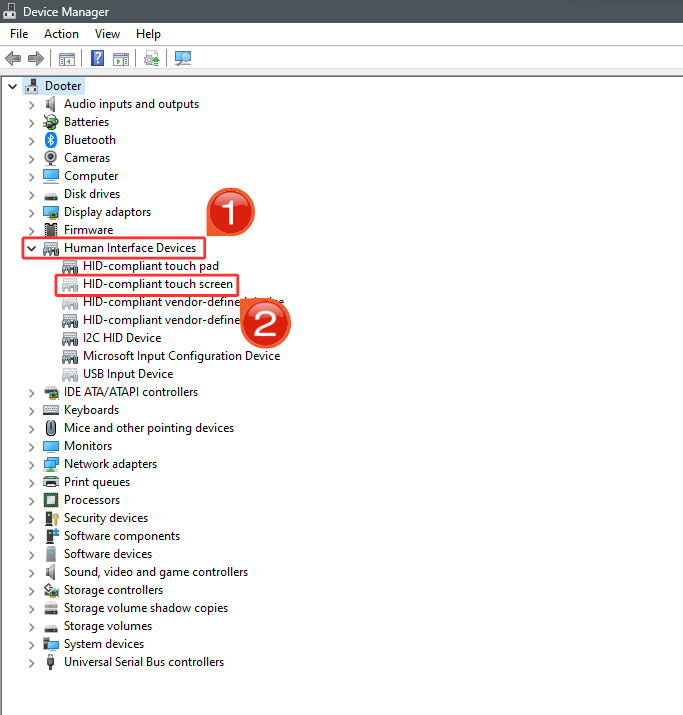
In Device Manager, you will see many categories. Look for Human Interface Devices and click the arrow to expand it.
You will see a list of devices with names like:
- HID-compliant touch screen
- HID-compliant device
- USB input device
The HID-compliant touch screen is usually the device that controls your laptop’s touch.
Step 3: Disable The Hid-compliant Touch Screen
Right-click on the HID-compliant touch screen. A menu will open.
- Click Disable device.
- A warning message may appear. Click Yes to confirm.
Now, your touch screen will stop working. This stops ghost touching. But your laptop screen will not respond to touch anymore.
Step 4: Check If Ghost Touching Stops
After disabling, watch your screen. If ghost touches stop, you fixed the problem.
If the problem stays, try disabling other HID devices one by one. But only do this if you know what you are doing.
Step 5: Re-enable The Hid Device If Needed
If you want to use your touch screen again, you can enable the device.
- Go back to Device Manager.
- Find the disabled HID-compliant touch screen. It will have a small down arrow icon.
- Right-click it and choose Enable device.
Your touch screen will work again. But ghost touches may return.
Other Tips to Fix Ghost Touching
If disabling HID devices does not fix your ghost touch problem, try these tips:
- Clean the screen: Use a soft, dry cloth. Dirt or water can cause ghost touches.
- Restart your laptop: Sometimes a restart can fix temporary issues.
- Update your drivers: Go to your laptop’s website. Download and install the latest touch screen drivers.
- Check for Windows updates: Updates can fix bugs causing ghost touches.
- Calibrate the touch screen: Search for “Calibrate” in Windows and follow instructions.
- Remove screen protector: Sometimes screen protectors cause wrong touches.
- Reset your laptop: If nothing works, a reset may help. Save your files first.
When to Seek Help
If ghost touching still happens, it may be a hardware problem. Your laptop screen or touch sensor may be damaged.
In this case, you should take your laptop to a repair shop. Professionals can fix or replace parts.
Summary Table: Steps to Fix Ghost Touching by Disabling HID Device
| Step | Action | What to Expect |
|---|---|---|
| 1 | Open Device Manager | See list of hardware devices |
| 2 | Find Human Interface Devices | See HID-compliant touch screen device |
| 3 | Disable HID-compliant touch screen | Touch screen stops working, ghost touch stops |
| 4 | Check if ghost touching stops | Confirm problem is fixed |
| 5 | Enable device if needed | Touch screen works again |
Final Thoughts
Ghost touching on 2-in-1 laptops is a common problem. It can make your laptop hard to use. Disabling the HID-compliant touch screen device often fixes it. But you lose touch screen use.
If you want to keep your touch screen, try cleaning, updating drivers, and calibrating first. If these do not work, disabling the HID device is a good test.
Always be careful when changing device settings. If you are unsure, ask for help. Your laptop is important. Take good care of it.
Now, you know how to fix ghost touching by disabling the HID device. Give it a try. It might help you use your laptop better.
Frequently Asked Questions
What Causes Ghost Touching On 2-in-1 Laptop Screens?
Ghost touching happens due to hardware faults or driver issues. It can also be caused by faulty HID devices.
How Do I Disable The Hid Device To Stop Ghost Touches?
You can disable the HID device via Device Manager in Windows. Look for Human Interface Devices, right-click, and choose Disable.
Can Updating Drivers Fix Ghost Touch Issues On My Laptop?
Yes, updating touchscreen and HID drivers often resolves ghost touching problems. Use Device Manager or the laptop maker’s website.
Will Disabling Hid Devices Affect My Laptop’s Touch Functionality?
Disabling some HID devices can stop ghost touches but may limit touch features. Choose carefully which devices to disable.