

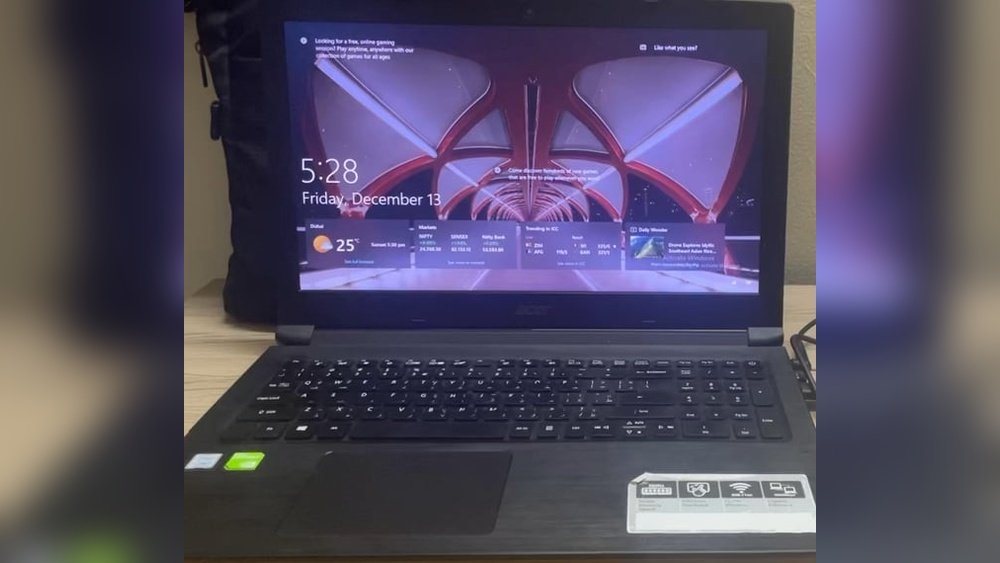
Is your laptop trackpad moving the cursor all by itself? This problem can be very annoying. Sometimes, the cursor jumps or moves without you touching the trackpad. One common cause is a grounding issue. In this article, you will learn what grounding issues are and how to fix them. The steps are easy to follow. No special tools or skills are needed.
What Is a Grounding Issue?
Grounding means giving electricity a safe path to the ground. This helps protect your laptop from electric shocks and strange behavior. If your laptop is not grounded well, electricity can build up inside it. This causes the trackpad to act strange. The cursor might move or jump without your touch. This is called an erratic or ghost touch.
Signs of Grounding Issues with Your Trackpad
- The cursor moves by itself.
- Clicks happen without pressing the trackpad.
- The problem happens only when the laptop is plugged in.
- Touchpad stops working when on battery power.
Why Does This Happen?
When your laptop is plugged into a power outlet, the power should be grounded. If it is not, electric charge builds up inside the laptop. This charge confuses the trackpad sensors. The sensors think you are touching the trackpad, even if you are not. This causes the cursor to jump or move on its own.
How to Check if Your Trackpad Has Grounding Problems
Try this simple test:
- Unplug the laptop from the power outlet.
- Use the trackpad and see if the cursor moves by itself.
- If the cursor stops moving on its own, the problem may be grounding.
- If the problem stays, the issue could be something else.
Step-by-Step Guide to Fix Grounding Issues
Follow these steps to fix your trackpad problem caused by grounding issues:
1. Use A Properly Grounded Power Outlet
Not all power outlets have good grounding. Try plugging your laptop charger into a different outlet. Choose one that is known to have proper grounding. You can ask an electrician to check your home outlets.
If you do not have access to a grounded outlet, try using a surge protector. Surge protectors can help protect your laptop and reduce electrical noise.
2. Try A Different Power Adapter
Your laptop charger might be faulty. Sometimes, a broken charger causes grounding problems. If you can, borrow a charger that fits your laptop. Plug it in and check if the trackpad still moves by itself.
If the problem stops, your charger is likely the cause. Replace it with a new one from the laptop brand or a trusted seller.
3. Keep The Charger Cord Away From The Laptop
Sometimes, the charger cable can cause interference. Try moving the charger cord away from the laptop body. You can also try using a longer extension cable for the charger. This helps reduce electric noise near the laptop.
4. Check For Dust Or Dirt On The Trackpad
Dust, dirt, or moisture can cause the trackpad to act strangely. Use a soft cloth to clean the trackpad gently. Avoid pressing too hard. Also, keep your hands dry while using the laptop.
5. Update Or Reinstall Trackpad Drivers
Sometimes, the trackpad driver can cause problems. A driver is software that helps the laptop talk to the trackpad. If the driver is old or broken, the trackpad may behave oddly.
Here is how to update or reinstall the driver:
- Open Device Manager on your laptop.
- Find the section called Mice and other pointing devices.
- Right-click your trackpad device and select Update driver.
- If updating does not work, select Uninstall device, then restart your laptop.
- Windows will reinstall the driver automatically after restart.
6. Disable The Trackpad When Using An External Mouse
If you use an external mouse, try turning off the trackpad. This can prevent the cursor from jumping. You can disable the trackpad in the laptop settings.
To do this:
- Go to Settings > Devices > Touchpad.
- Turn off the touchpad or check “Leave touchpad on when a mouse is connected” if available.
7. Check The Physical Connection Inside The Laptop
If you feel comfortable opening your laptop, check the trackpad cable. Sometimes, the cable is loose or damaged. If loose, push it gently back into place.
Warning: Only do this if you know how to open your laptop safely. Otherwise, ask a technician for help.
Credit: www.reddit.com
Extra Tips to Avoid Trackpad Problems
- Keep your laptop on hard, flat surfaces.
- Avoid using it on soft surfaces like beds or pillows.
- Use a laptop cooling pad to reduce heat build-up.
- Do not place magnets or metal objects near the laptop.
- Keep your laptop and charger cables organized and away from clutter.
Summary Table: Grounding Issue Fixes
| Problem Cause | Fix | Notes |
|---|---|---|
| Ungrounded power outlet | Use a grounded outlet or surge protector | Ask electrician if unsure about grounding |
| Faulty power adapter | Try another charger | Use original or certified charger |
| Interference from charger cable | Move cable away or use extension | Reduces electrical noise |
| Dirty or wet trackpad | Clean with soft, dry cloth | Keep hands dry |
| Driver issues | Update or reinstall trackpad driver | Use Device Manager |
| Loose internal cable | Check and reconnect cable | Only if you can open laptop safely |

Credit: www.reddit.com
Final Thoughts
A trackpad moving on its own is often due to grounding issues. It happens when electricity does not flow properly to the ground. This causes the trackpad sensors to get confused. Fixing grounding problems is usually simple. Start by using a grounded power outlet. Try a different charger if needed. Keep cables away from the laptop. Also, clean your trackpad and update drivers.
If the problem still happens, you may want to ask a professional. Sometimes, hardware parts need repair or replacement. But most grounding issues can be solved with these easy steps.
Remember, a good grounding system keeps your laptop safe and working well. It also protects you from electric shocks. Take care of your laptop and use it on safe power sources. This will help your trackpad work smoothly without jumping or moving by itself.
Frequently Asked Questions
How To Fix Touchpad On Laptop Moving On Its Own?
Check and secure the touchpad’s physical connections. Update or reinstall touchpad drivers. Use a properly grounded power outlet. Try a different power adapter or outlet. Clean the touchpad surface and remove any debris.
How To Fix Grounding Issues In Laptop?
Use a properly grounded power outlet or a surge protector. Try a different power adapter. Check and secure touchpad connections. Update or reinstall touchpad drivers. Avoid static buildup by keeping the laptop on non-conductive surfaces.
How To Fix Ghost Touch On Laptop Touchpad?
Fix ghost touch on a laptop touchpad by updating or reinstalling touchpad drivers. Test different power outlets to avoid grounding issues. Gently press the space between the spacebar and touchpad to reset temporarily. If needed, tighten touchpad screws or try another power adapter to stop erratic behavior.
How To Fix Trackpad Spazzing Out?
To fix a spazzing trackpad, check grounding by using a different power outlet or adapter. Update or reinstall touchpad drivers. Tighten touchpad screws and clean the surface. Disable or enable touchpad settings in the control panel for better responsiveness.







