

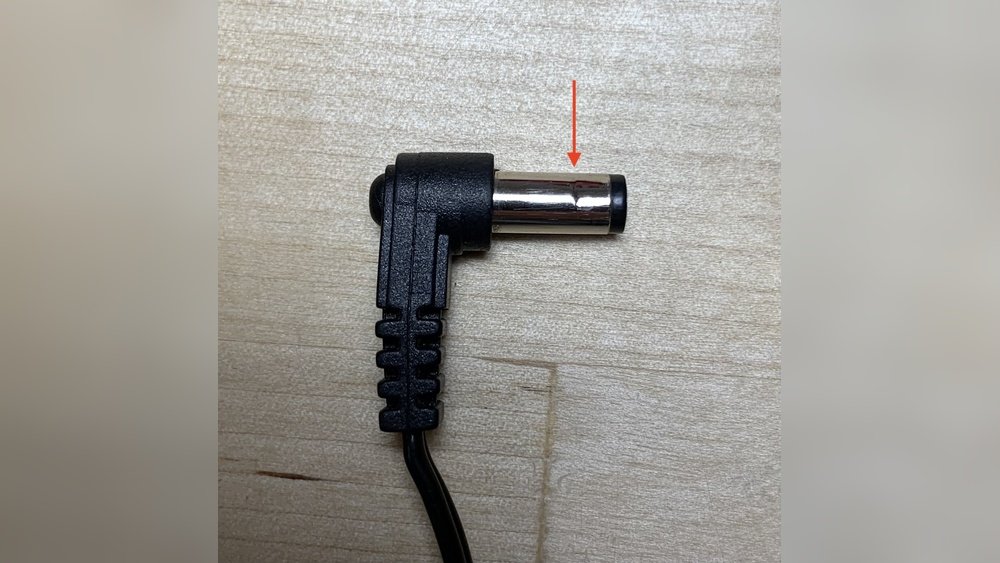
Is your laptop turning off when you move it? This problem often happens when the power jack inside your laptop is loose. The power jack is the part where you plug in your charger. If it is loose or damaged, your laptop may lose power and shut down suddenly.
This article will explain what causes this issue and how you can fix it. Don’t worry if you are not a tech expert. The steps are easy to follow. Keep reading!

Credit: www.certosoftware.com
What is a Power Jack?
The power jack is a small part inside your laptop. It connects the power from your charger to the laptop’s battery and system. It looks like a small round hole on the side of your laptop where you plug in the charger.
Inside the laptop, the power jack is soldered or attached to the motherboard. When the jack becomes loose or broken, the connection to the charger is weak or lost. This can make your laptop turn off when you move it.
Why Does the Laptop Turn Off When Moved?
- Loose power jack: The jack may have come loose from the motherboard.
- Broken power jack: The part inside the laptop may be damaged or broken.
- Loose charger cable: The charger cable may not fit tightly into the jack.
- Battery issues: A bad battery can cause power loss when moving the laptop.
Most often, the problem is a loose or broken power jack inside the laptop. When you move the laptop, the charger connection breaks for a moment. This makes the laptop shut down.
Signs of a Loose Internal Power Jack
How do you know if your laptop has this problem? Look for these signs:
- Your laptop charges only when the charger cable is in a certain position.
- The laptop turns off or restarts when you move or lift it.
- The charger plug feels loose or wiggles inside the laptop’s jack.
- The laptop’s battery is not charging properly.
- You see physical damage or looseness near the charging port.

Credit: www.hp.com
What You Need to Fix a Loose Power Jack
Before you start, gather these tools and parts:
- A small screwdriver set for laptops
- A replacement power jack (if needed)
- Electrical tape or a small piece of paper for a temporary fix
- Soldering kit (only if you want to do a full repair)
- Patience and care
If you are not comfortable opening your laptop, it is okay to ask for help from a technician. But some fixes you can do yourself.
Step-by-Step: How to Fix a Loose Power Jack
Step 1: Check The Charger And Cable
Sometimes the problem is the charger or its cable. Try using another charger if you can. Check if the charger plug fits tightly into your laptop.
If the cable is loose or damaged, replace it. This might fix the problem without opening the laptop.
Step 2: Tighten The Screws On The Laptop Bottom
Turn off your laptop and unplug it. Flip it over and check the screws on the bottom cover. Sometimes, a loose cover can cause power issues.
Use a screwdriver to gently tighten all screws. Make sure the cover is snug. Then, test if the laptop still turns off when moved.
Step 3: Open The Laptop Carefully
If the problem remains, you need to open the laptop. First, turn off and unplug it. Remove the battery if possible.
Use the screwdriver to remove the screws holding the bottom cover. Keep the screws safe. Gently lift the cover off.
Step 4: Locate The Power Jack
Inside, look for the power jack. It is near where the charger cable plugs in on the laptop’s side.
Check if the jack is loose or pushed back. Sometimes, the jack moves away from the motherboard.
Step 5: Fix The Loose Power Jack
If the jack is loose but still attached, you can try to secure it. Use a small piece of paper or thin cardboard as a spacer. Put it behind the jack to hold it in place.
You can also use electrical tape to keep the jack from moving. This is a simple and temporary fix.
Test the laptop by plugging in the charger and moving the laptop gently. If it does not turn off, the fix worked.
Step 6: Replace The Power Jack (if Needed)
If the power jack is broken or damaged, you may need to replace it. This is harder and needs more skills.
You need to desolder the old jack from the motherboard and solder a new one. If you do not know how to solder, ask a professional to do it.
Replacing the jack will stop the laptop from turning off when moved.
Tips to Avoid Power Jack Problems
- Always plug and unplug your charger carefully.
- Do not pull the charger cable hard.
- Keep the laptop on a flat surface when charging.
- Check your charger and cable regularly for damage.
- Use only the charger made for your laptop model.
What If the Laptop Still Turns Off?
If your laptop still shuts down when moved, the problem might be different. It could be a loose battery connection or a motherboard issue.
Try removing the battery and running the laptop only on the charger. If it stays on, the battery might be the problem.
Sometimes, the laptop has a safety switch inside. If this switch is loose, it can shut down the laptop. Tightening the bottom cover screws may help.
If none of these fixes work, it is best to take the laptop to a repair shop.
Summary Table: Fixing a Laptop That Turns Off When Moved
| Problem | Possible Cause | Easy Fix | Advanced Fix |
|---|---|---|---|
| Laptop turns off when moved | Loose power jack | Use paper or tape to hold jack in place | Replace power jack by soldering |
| Charger cable loose | Damaged or worn cable | Try a new charger cable | Repair or replace charger cable |
| Battery loose or bad | Battery not connected well | Remove and reinsert battery | Replace the battery |
| Laptop cover loose | Loose screws on bottom | Tighten all screws | Use spacer to keep cover firm |
Final Words
A laptop that turns off when moved is often caused by a loose internal power jack. It is a common problem but can be fixed with care. Start with simple checks like the charger and screws. If needed, open the laptop to check the power jack.
Temporary fixes like using tape or paper can help. For a permanent fix, replace the power jack or get professional help.
Remember to handle your laptop gently. Keep your charger and battery in good condition. This will help your laptop last longer and work better.
Fixing this problem yourself can save you time and money. But do not force anything. If unsure, ask a technician.
Frequently Asked Questions
How Do You Fix A Loose Charging Port On A Laptop?
To fix a loose laptop charging port, tighten or replace the internal power jack. Avoid moving the cable abruptly. Seek professional repair if needed.
How To Fix A Loose Laptop Headphone Jack?
To fix a loose laptop headphone jack, insert a small piece of paper or tape inside the jack. This tightens the connection and stabilizes the plug. Avoid forcing the headphone plug, which may cause damage. For persistent issues, consider professional repair or jack replacement.
When I Lift My Laptop, It Shuts Down.?
Your laptop likely has a loose internal power jack or cable. Tighten screws or replace the power jack to fix shutdowns when moved.
How To Power On A Laptop With A Broken Power Button?
To power on a laptop with a broken power button, connect the charger and open the lid. Some laptops power on automatically. Use an external keyboard’s power key or short specific motherboard pins carefully. Seek professional repair if unsure.







