
Is your laptop stuck in a recovery loop? This means it keeps restarting and trying to fix itself but never succeeds. It can be very frustrating. But don’t worry. We will guide you step-by-step to fix this problem using advanced startup options.

Credit: www.youtube.com
What Is a Recovery Loop?
A recovery loop happens when your laptop tries to repair Windows automatically. It restarts again and again but cannot start Windows properly. This often happens after a failed update or a system error.
Why Does This Happen?
- Corrupted system files.
- Failed Windows updates.
- Hardware problems, like a bad hard drive.
- Virus or malware damage.
Knowing the cause can help you fix it more easily.
Before You Start: Basic Tips
Try these easy steps first. Sometimes, they solve the problem quickly.
- Remove all USB devices and external drives.
- Turn off your laptop and unplug it from power.
- Hold the power button for 10 seconds to do a hard reset.
- Turn on the laptop again.
If the problem remains, continue with the steps below.
Step 1: Access Advanced Startup Options
Advanced Startup Options let you repair Windows without reinstalling it. Here is how to open it:
- Turn off your laptop.
- Turn it on and as soon as you see the Windows logo, press and hold the power button to force shutdown.
- Repeat this 2 or 3 times until you see Preparing Automatic Repair on screen.
- Wait for Windows Recovery Environment (WinRE) to load.
You should now see options like Continue, Troubleshoot, and Turn off your PC.
Step 2: Use Startup Repair
Startup Repair can fix many common problems. Here’s how:
- Click Troubleshoot.
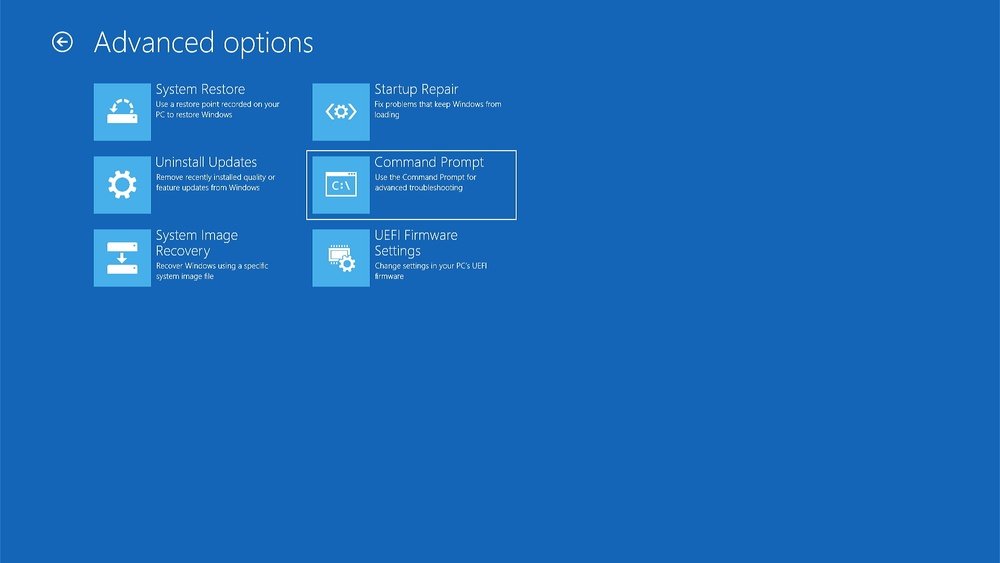
- Select Advanced options.
- Choose Startup Repair.
- Select your user account and enter the password if asked.
- Wait while Windows tries to fix the problem.
If this works, your laptop will restart normally. If not, try the next step.
Step 3: Use System Restore
System Restore takes your laptop back to a previous time when it worked well. This does not delete your personal files.
- Go back to Advanced options.
- Select System Restore.
- Pick a restore point with a date before the problem began.
- Follow the instructions to restore your system.
This may fix the recovery loop if caused by a bad update or software change.
Step 4: Boot Into Safe Mode
Safe Mode starts Windows with only basic drivers. You can uninstall bad apps or updates here.
- From Advanced options, choose Startup Settings.
- Click Restart.
- After restart, press number 4 or F4 to enter Safe Mode.
Once in Safe Mode:
- Go to Settings > Apps to uninstall recent apps.
- Open Control Panel > Programs > View Installed Updates and uninstall recent updates.
- Run system checks: open Command Prompt as administrator, then type
sfc /scannowand press Enter. - Next, type
chkdsk C: /f /r /xto check the hard drive for errors.
After these steps, restart your laptop normally.
Step 5: Uninstall Recent Updates
If a recent Windows update caused the problem, uninstall it.
- Go to Troubleshoot > Advanced options.
- Click Uninstall Updates.
- Choose either the latest quality update or feature update to remove.
After uninstalling, restart your laptop and check if it works.

Credit: learn.microsoft.com
Step 6: Check Hardware
Sometimes, hardware causes the recovery loop. You can check a few things:
- Make sure your hard drive or SSD is connected well.
- If comfortable, open the laptop and remove RAM sticks one by one. Restart each time to find a faulty stick.
- Try to boot without the hard drive. If laptop starts without it, the drive may be bad.
If you find hardware issues, a professional repair may be needed.
Step 7: Reset This PC
If nothing else works, use the Reset option. This reinstalls Windows but can keep your files.
- Go to Troubleshoot > Reset this PC.
- Choose Keep my files if you want to save data.
- Follow the instructions to reset Windows.
This often fixes serious problems but takes time.
Summary Table: Troubleshooting Steps
| Step | Action | Purpose |
|---|---|---|
| 1 | Access Advanced Startup Options | Open repair tools |
| 2 | Use Startup Repair | Fix common startup problems |
| 3 | Use System Restore | Undo recent changes |
| 4 | Boot into Safe Mode | Remove bad apps or updates |
| 5 | Uninstall Updates | Remove faulty Windows updates |
| 6 | Check Hardware | Find hardware failures |
| 7 | Reset This PC | Reinstall Windows, keep files |
When to Ask for Help
If you try all these steps and the laptop still loops, it might be a serious issue. It could be a broken hard drive or other part. If you are not sure, get help from a computer technician. They have tools and skills to fix hard problems.
Final Tips
- Always back up your important files when possible.
- Keep your Windows updated to avoid problems.
- Use antivirus software to protect your laptop.
- Handle hardware carefully if you open your laptop.
Fixing a recovery loop can take time. Be patient and follow each step carefully. Your laptop can work again.
Frequently Asked Questions
What To Do If Laptop Is Stuck In Boot Loop?
Disconnect all peripherals and perform a hard reset by holding the power button. Access Windows Recovery Environment (WinRE) via Advanced Startup Options. Use Startup Repair or System Restore. Boot into Safe Mode to uninstall recent updates and run system scans.
Check hardware like RAM or hard drive if needed.
How To Reset Pc From Advanced Startup?
To reset your PC from Advanced Startup, go to Troubleshoot > Reset this PC. Choose to keep or remove files, then follow prompts to complete.
How To Get Out Of Windows Recovery Loop?
To exit a Windows recovery loop, unplug all peripherals and restart. Use Advanced Startup Options to run Startup Repair or System Restore. Boot into Safe Mode to uninstall recent updates or run disk checks. If needed, reset the PC from WinRE, keeping files if possible.
Is Boot Loop A Serious Problem?
Yes, a boot loop is serious as it prevents normal startup and may indicate software or hardware issues. It requires timely troubleshooting.