
It is frustrating when your laptop has no sound. You want to watch videos or listen to music. But nothing comes out. What can you do? Sometimes the problem is with the speaker. Other times, it is a software setting. This guide will help you understand both.
First Step: Check Basic Things
Before changing anything, look at simple things. These can fix the problem quickly.
- Is the volume low or muted? Look at the speaker icon on your screen. Click it. Make sure the volume bar is up. No red mark or cross should be there.
- Are headphones or speakers plugged in? Sometimes, the sound goes to other devices. Unplug headphones or Bluetooth speakers.
- Restart your laptop. A quick restart can fix many small problems.
Check Your Laptop Speakers
Sometimes the speakers themselves have a problem. Here is how to check them.
- Listen carefully. Tap gently near where the speaker is. Can you hear a faint sound?
- Use headphones. Plug in your headphones. If sound works there, the problem is with speakers.
- Look for damage. Are there cracks or dirt on the speaker grills? Clean gently if dusty.
If speakers seem broken, you may need to get them fixed or use headphones for now.
Check Software Settings for Sound
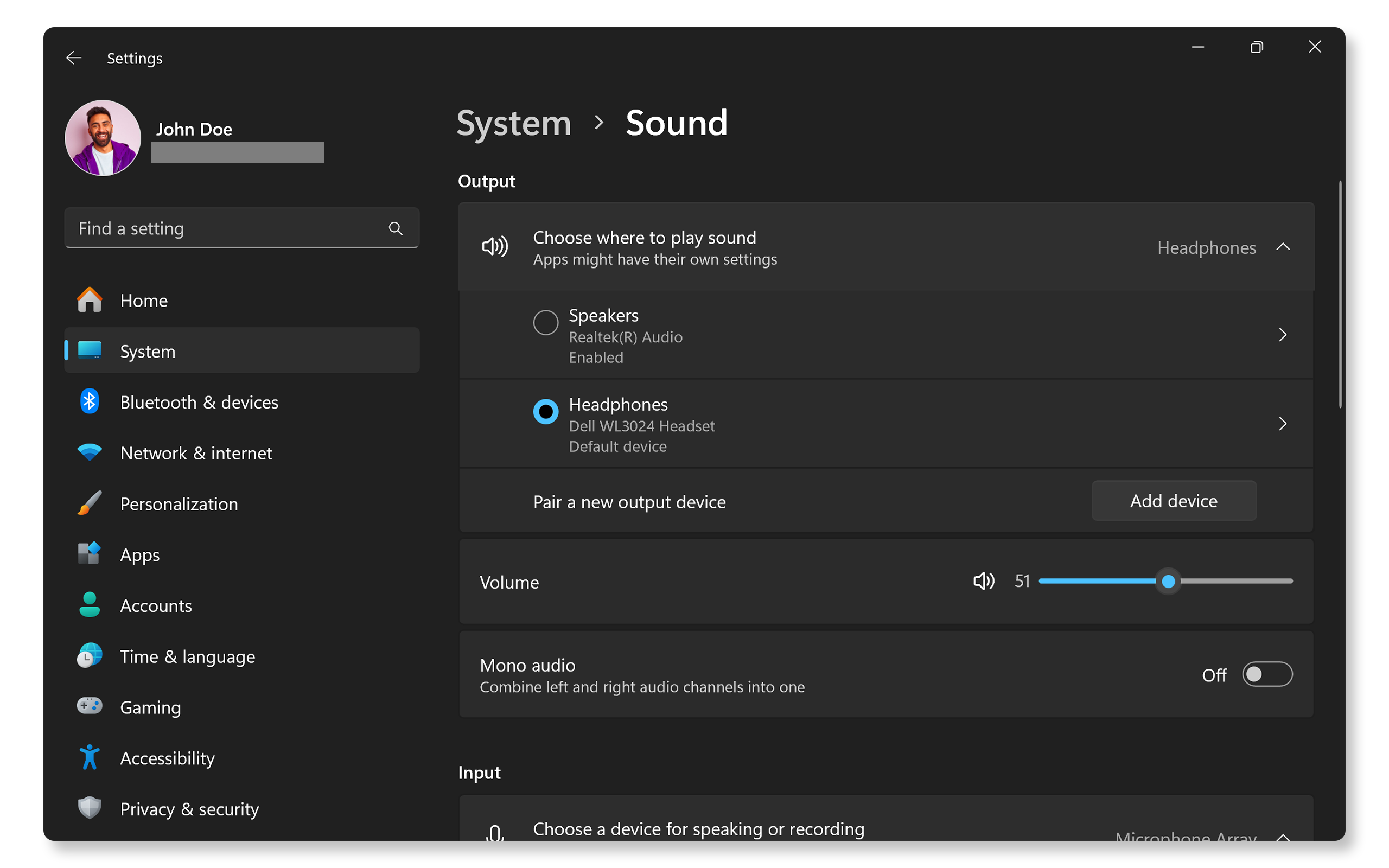
Most sound problems are about software settings. Here is what you do.
Step 1: Open Sound Settings
Right-click on the speaker icon in the taskbar at the bottom right of your screen. Select “Open Sound settings” or “Sound Control Panel”.
Step 2: Check Playback Device
In the Sound window, go to the “Playback” tab. You will see a list of devices. Find your laptop speakers.
| Device | Status | What to do |
|---|---|---|
| Laptop Speakers | Green checkmark | Good. This means it is the default device. |
| Laptop Speakers | No checkmark | Right-click and choose “Set as Default”. |
| Headphones or other device | Selected | Change to laptop speakers if you want sound there. |
Step 3: Test The Sound
Right-click your default device (like speakers). Choose “Test”. You should hear a sound. If not, there is still a problem.
Credit: www.dell.com
Run the Built-in Troubleshooter
Windows has a tool to find and fix sound problems.
- Go to Sound settings.
- Find the “Troubleshoot” button under the Output section.
- Click it. Follow the instructions on screen.
This tool can fix common issues like wrong output device or driver errors.
Update or Reinstall Audio Drivers
Drivers are software that help your laptop talk to speakers. Sometimes they get old or broken.
How To Update Drivers:
- Press the Windows key + X.
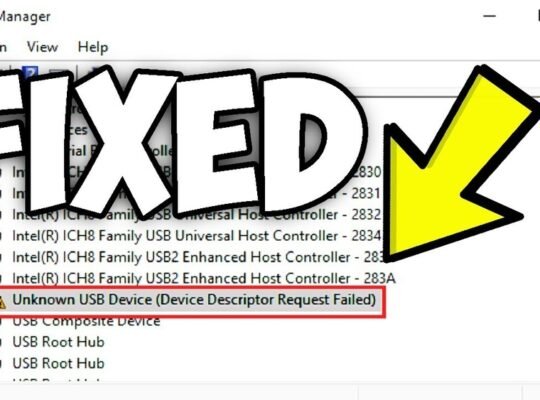
- Choose “Device Manager”.
- Find “Sound, video and game controllers”.
- Right-click your audio device (like Realtek or Intel).
- Choose “Update driver”.
- Pick “Search automatically for updated driver software”.
If updating does not work, try to uninstall and reinstall:
- Right-click the audio device in Device Manager.
- Choose “Uninstall device”.
- Restart your laptop.
- Windows will reinstall the driver automatically.
Check Sound Services
Sometimes Windows audio services stop working. You can restart them.
- Press Windows key + R to open Run.
- Type services.msc and press Enter.
- Find “Windows Audio”.
- Right-click it and choose “Restart”.
- Do the same for “Windows Audio Endpoint Builder”.
After that, check your sound again.
Reset Sound Settings
If you changed many settings before, you can reset them to default.
- Go to Start > Settings > System > Sound.
- Scroll down to “Advanced sound options”.
- Click “App volume and device preferences”.
- Click “Reset” to return all sound devices and volume to default.
This helps if some app or setting is causing trouble.
Extra Tips to Try
- Check for Windows updates. Sometimes updates fix sound problems.
- Try playing sound in Safe Mode. This finds if other software blocks sound.
- Scan for viruses. Malware can cause sound issues.
- Use external speakers or headphones. This can work if internal speakers fail.
Summary: Speaker Vs. Software Configuration
| Problem Type | Signs | How to Fix |
|---|---|---|
| Speaker Problem | No sound even after software checks. No sound on headphones. Physical damage visible. | Clean speakers. Use headphones. Get speakers repaired or replaced. |
| Software Problem | Sound missing but speaker works. Wrong output device selected. Muted volume or driver errors. | Check volume and mute. Select correct output device. Run troubleshooter. Update or reinstall drivers. |
Knowing the difference helps you fix the problem faster. Start with simple checks. Then move to software settings. Finally, look at hardware.

Credit: www.wikihow.com
Final Words
Sound issues on laptops are common. But you can fix most at home. Follow these steps carefully. Take your time. If nothing works, ask a professional for help.
Now you know how to fix no sound on your laptop. Good luck!
Frequently Asked Questions
Why Does My Laptop Suddenly Have No Sound?
Your laptop may have no sound due to muted volume, wrong playback device, or outdated drivers. Restart and run the audio troubleshooter. Check sound settings to ensure speakers are set as default and not muted. Updating or reinstalling audio drivers often resolves the issue.
Is My Sound Muted In Software Settings?
Check your software sound settings by clicking the speaker icon in the taskbar. Ensure volume isn’t muted or too low. Verify the correct playback device is selected. Unmute any muted apps in the volume mixer. Adjust settings to restore sound if muted in software.
How To Fix Laptop Speakers With No Sound?
Check the volume and ensure it’s not muted. Restart your laptop. Verify the correct playback device is selected. Update or reinstall audio drivers. Run the Windows Audio Troubleshooter. Disconnect external audio devices. Inspect speakers or headphone jacks for damage.
How Do I Restore My Sound Settings On My Laptop?
Open Start > Settings > System > Sound. Scroll to Advanced, click Volume mixer, then click Reset to restore sound settings to default.