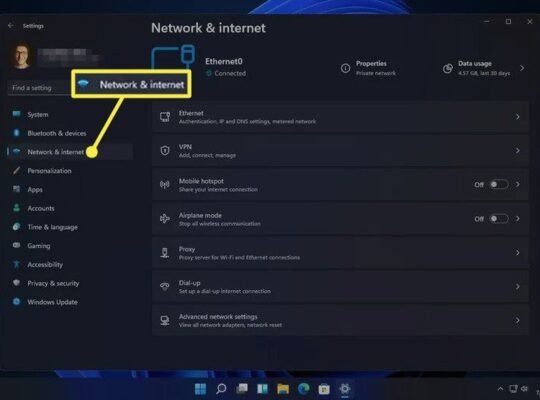
Is your laptop trackpad multi-touch gestures not working? This can be very frustrating. You want to use two fingers to scroll or three fingers to switch apps, but nothing happens. Don’t worry. This guide will help you fix the problem step by step. The steps are easy and do not need special skills.
What Are Multi-Touch Gestures?
Multi-touch gestures let you use more than one finger on your laptop trackpad. You can do things like:
- Scroll up and down with two fingers
- Zoom in and out by pinching
- Switch between apps by swiping with three or four fingers
When these gestures don’t work, it can make your work slower.
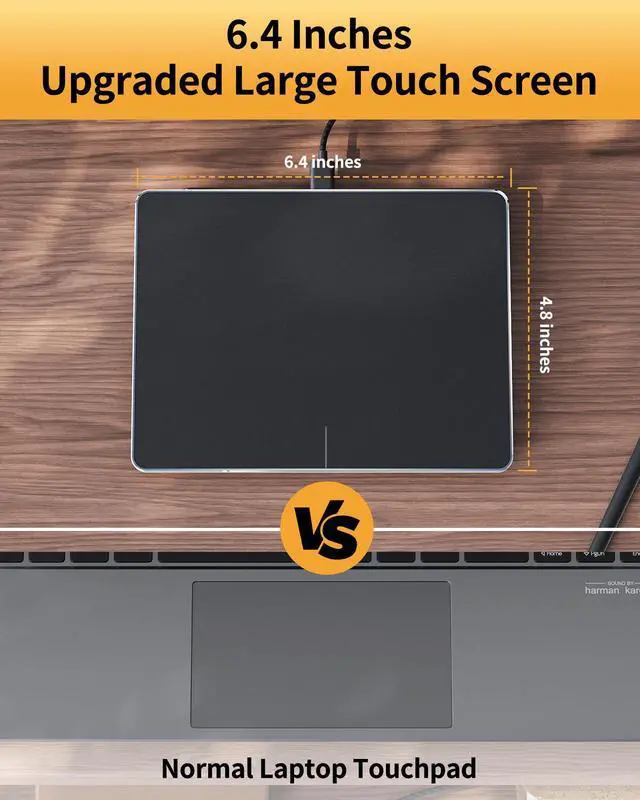
Credit: pando.es
Common Reasons Why Gestures Stop Working
Many things can cause this problem. Some common reasons are:
- Touchpad settings are turned off
- Driver software is outdated or corrupted
- Windows or system updates changed settings
- External mouse or devices interfere
- Touchpad hardware has issues
Let’s look at how to fix these issues.
Step 1: Check Your Touchpad Settings
First, check if the gestures are turned on in your laptop settings. Follow these steps:
- Click on the Start menu (the Windows icon).
- Select Settings.
- Click on Bluetooth & devices.
- Choose Touchpad from the list.
- Look for options like “Three-finger gestures” or “Four-finger gestures.”
- Make sure they are turned On.
If you see a Reset button, click it to restore default settings. If it is greyed out, first change a setting, then click Reset.
Step 2: Restart Your Laptop
Sometimes, a simple restart fixes many problems. Save your work and restart your laptop. Check if the gestures work after restarting.
Step 3: Disconnect External Devices
External devices like a mouse or Bluetooth devices may stop the trackpad from working correctly. To fix this:
- Unplug any external mouse or keyboard.
- Turn off Bluetooth temporarily.
- Check if the trackpad gestures start working.
Credit: www.guidingtech.com
Step 4: Update or Reinstall Touchpad Drivers
Drivers are software that help your laptop hardware work correctly. If they are old or damaged, gestures may not work. To update or reinstall drivers:
- Right-click the Start button.
- Choose Device Manager.
- Find Mice and other pointing devices.
- Look for your touchpad device (it may say Synaptics, ELAN, or HID).
- Right-click it and choose Update driver.
- Select Search automatically for drivers.
- Follow the instructions to install updates.
- If no update is found, right-click and choose Uninstall device.
- Restart your laptop. Windows will reinstall the driver.
Step 5: Run Windows Update
Windows updates often fix bugs and improve hardware support. To check for updates:
- Go to Settings.
- Click Windows Update on the left side.
- Click Check for updates.
- Download and install any updates available.
- Restart your laptop after updates.
Step 6: Use the Built-in Troubleshooter
Windows has a tool to find and fix problems. To use it:
- Open Settings.
- Go to System and then Troubleshoot.
- Select Other troubleshooters.
- Find Keyboard or Hardware and Devices troubleshooter.
- Click Run and follow the instructions.
Step 7: Check Touchpad Sensitivity
Sometimes, touchpad sensitivity is too low. To change it:
- Go to Settings > Bluetooth & devices > Touchpad.
- Find Sensitivity.
- Change it to Medium or High.
- Test if gestures work better now.
Step 8: Enable Precision Touchpad
If your laptop supports it, use a precision touchpad. It offers better gesture control. To check:
- Open Device Manager.
- Under Mice and other pointing devices, see if it says Precision Touchpad.
- If not, your laptop may not have one.
- If yes, make sure drivers are updated (see Step 4).
Step 9: Adjust Gestures in Touchpad Software
Some laptops have special touchpad software like Synaptics or ELAN. To check:
- Look for the touchpad icon in the system tray (bottom right).
- Open the touchpad control panel.
- Find gesture settings.
- Make sure multi-finger gestures are enabled.
- Save changes and test the trackpad.
Step 10: Check for Hardware Problems
If nothing works, your touchpad hardware may be damaged. Signs include:
- Touchpad does not respond at all
- Cursor moves erratically
- Physical damage on the trackpad surface
In this case, contact a professional to repair or replace the touchpad.
Summary Table: Steps to Fix Trackpad Gestures
| Step | Action | Reason |
|---|---|---|
| 1 | Check and enable touchpad gestures in settings | Gestures might be turned off |
| 2 | Restart your laptop | Fix temporary software glitches |
| 3 | Disconnect external devices | External devices can block touchpad |
| 4 | Update or reinstall touchpad drivers | Drivers may be outdated or corrupted |
| 5 | Run Windows Update | Updates fix bugs and improve support |
| 6 | Use Windows troubleshooter | Automatic problem detection and fixing |
| 7 | Adjust touchpad sensitivity | Sensitivity too low stops gestures |
| 8 | Enable precision touchpad if available | Better gesture recognition |
| 9 | Check touchpad software settings | Gestures may be disabled in software |
| 10 | Check for hardware issues | Physical damage may block gestures |
Final Thoughts
Fixing laptop trackpad multi-touch gestures is often simple. Start with settings and driver updates. If needed, use troubleshooting tools. Remember to keep your system updated. If hardware is broken, ask a technician for help. With these steps, your touchpad gestures can work again smoothly.
Frequently Asked Questions
Why Is My Multi Gesture Touchpad Not Working?
Your multi-gesture touchpad may not work due to disabled gestures, outdated drivers, or conflicting external devices. Check touchpad settings and enable gestures. Update or reinstall drivers, disconnect external mice, and restart your laptop to fix the issue.
Why Is My 4 Finger Gesture Not Working?
Your 4-finger gesture may not work because it’s disabled in touchpad settings. Enable it via Settings > Bluetooth & devices > Touchpad. Update drivers, restart your laptop, and disconnect external mice to fix the issue. Resetting touchpad settings can also restore gesture functionality.
Why Are My Gestures Not Working On My Laptop?
Your laptop gestures may not work due to disabled touchpad settings, outdated drivers, or conflicting external devices. Check settings, update drivers, and disconnect peripherals. Restart your laptop and enable multi-finger gestures in the touchpad settings for proper functionality.
Why Is My 3 Finger Swipe Not Working?
Your 3-finger swipe may not work if gestures are disabled or the touchpad driver is outdated. Enable gestures in Settings > Bluetooth & devices > Touchpad. Update or reinstall the touchpad driver and restart your laptop to fix the issue.