

Do you find your WiFi dropping every now and then? It can be very annoying. Sometimes the internet stops working for a few seconds. Then it comes back again. This is called intermittent WiFi dropout. But don’t worry. You can fix it.
In this article, you will learn why WiFi drops happen. We will also explain how to fix two main causes: channel interference and antenna problems. The steps are simple and easy to follow.
What Are Intermittent WiFi Dropouts?
Intermittent WiFi dropouts mean your internet connection breaks often. You may lose connection for a few seconds or minutes. Then it returns. It makes watching videos, playing games, or working online hard.
Many things cause this problem. But two common reasons are channel interference and antenna issues.
Why Does Channel Interference Cause WiFi Dropouts?
WiFi uses radio waves to send signals. These waves use channels to send data. Imagine channels are like lanes on a road. If many cars use one lane, traffic slows down. The same happens with WiFi channels. If many networks use one channel, signals get crowded.
This crowding is called interference. It makes your WiFi slow or disconnect. Interference comes from other WiFi devices, microwaves, cordless phones, and more.
How To Check For Channel Interference
You can check your WiFi channels with free apps. These apps show which channels are busy. Use apps like WiFi Analyzer on phones or other simple tools on computers.
When you see a busy channel, you can change your WiFi to a less busy one.
Fixing Channel Interference
Follow these simple steps to reduce interference:
- Step 1: Open your router’s settings page on a computer or phone.
- Step 2: Find the WiFi channel option. It is usually under wireless settings.
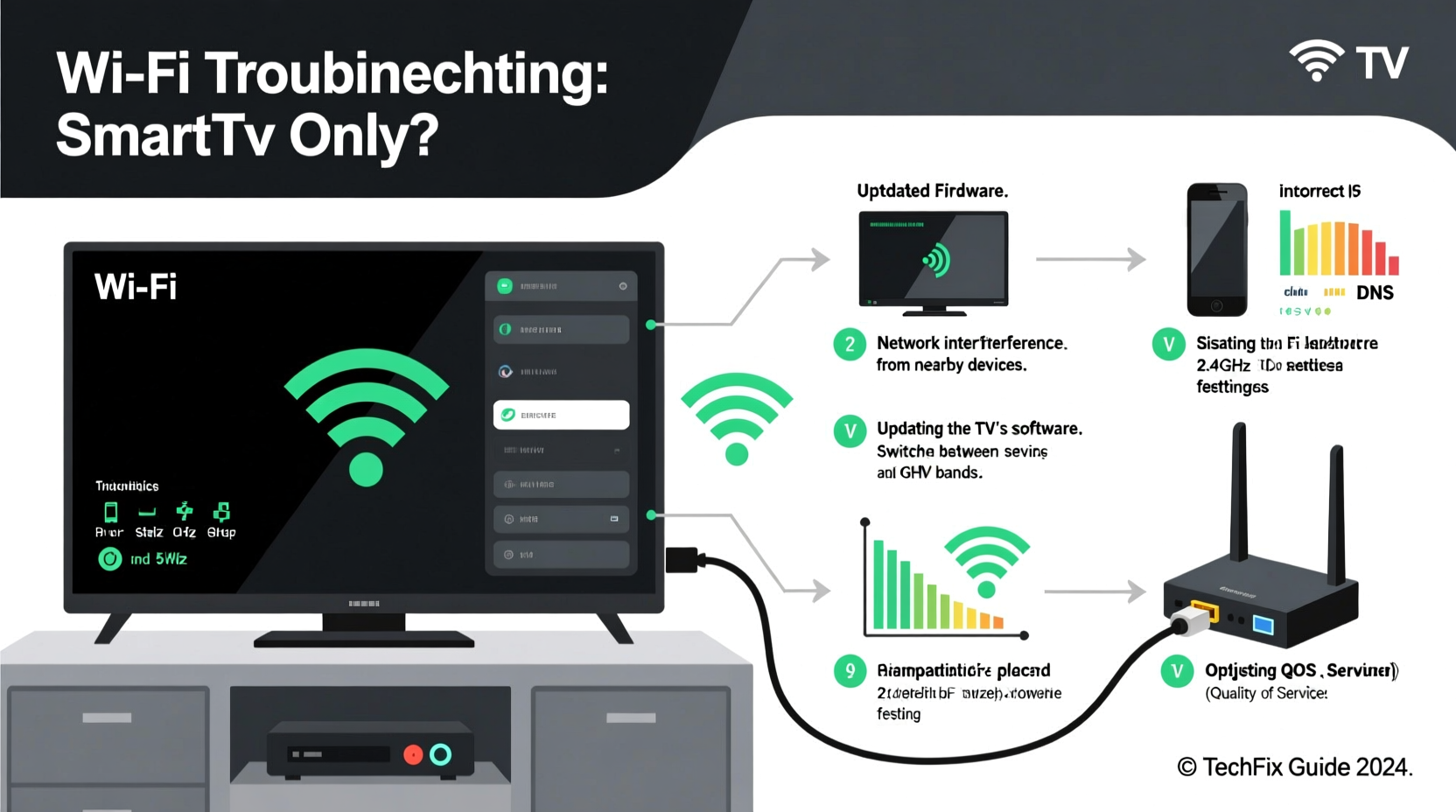
- Step 3: Change the channel to one with less traffic. For 2.4 GHz WiFi, channels 1, 6, and 11 are best.
- Step 4: Save the settings and restart your router.
- Step 5: Test your WiFi. It should be more stable now.
If you have a 5 GHz WiFi, it has more channels and less interference. Try switching to 5 GHz if your device supports it.
Credit: www.alibaba.com
What Are Antenna Issues?
Your router has antennas. These send and receive WiFi signals. Sometimes antennas are not positioned well. Or they might be damaged. This weakens your WiFi signal and causes dropouts.
How To Fix Antenna Problems
Here are some easy fixes you can try:
- Check Antenna Position: Make sure antennas are straight up or angled slightly. This helps cover a larger area.
- Move Your Router: Place the router in a higher, open spot. Avoid walls and metal objects.
- Replace Antennas: If antennas look damaged, buy new ones. Many routers allow antenna replacement.
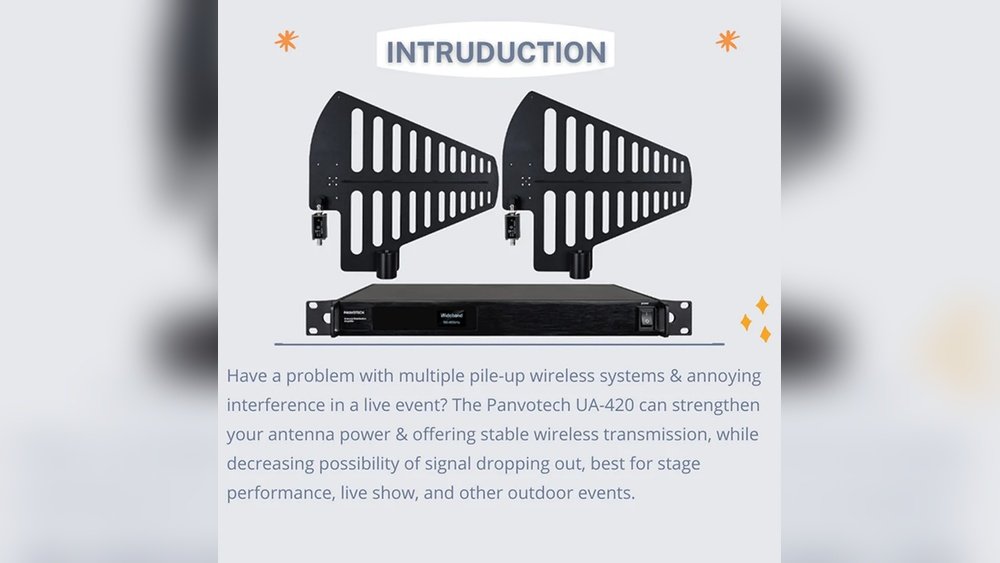
- Use External Antennas: Some routers support stronger external antennas. These improve signal strength.
- Try a WiFi Extender: If your home is big, use an extender to cover dead zones.

Credit: tvpartstoday.com
Other Tips to Improve Your WiFi Stability
Besides fixing interference and antenna, try these tips:
| Problem | Easy Fix |
|---|---|
| Old Router Firmware | Update your router’s software regularly. |
| Too Many Devices | Disconnect devices not in use. |
| Distance from Router | Move closer to the router or use extenders. |
| Wrong Frequency Band | Use 5 GHz band for faster speed and less interference. |
| Network Congestion | Change WiFi channels or limit heavy downloads. |
Step-by-Step Guide to Fix Your WiFi
Here is a simple plan to fix your WiFi dropouts:
- Step 1: Check your WiFi signal strength near your device.
- Step 2: Use a WiFi analyzer app to check channel crowding.
- Step 3: Log into your router and change to a less busy channel.
- Step 4: Adjust your router antennas for better coverage.
- Step 5: Move your router to a better spot if needed.
- Step 6: Update router firmware to the latest version.
- Step 7: Remove devices not in use from the network.
- Step 8: Test your internet connection again.
Why Does Moving the Router Help?
Walls, furniture, and appliances block WiFi signals. Metal objects and mirrors reflect signals and cause interference. Placing the router high and in the open helps signals travel better. This reduces dropouts and speeds up your internet.
When to Call Your Internet Provider
If you try everything and WiFi still drops, it might be a bigger problem. Sometimes the issue is with your internet provider. Their network may be unstable.
Contact your provider. Tell them about the problem. They can check your line and help fix it.
Summary
Intermittent WiFi dropouts are caused by many things. Channel interference and antenna issues are common reasons. Check WiFi channels and change to less crowded ones. Adjust antenna position or replace broken antennas. Move your router to a better place. Update firmware and limit devices on the network.
These simple steps help keep your WiFi stable and fast. You can enjoy the internet without sudden breaks. Remember, patience is key. Sometimes small changes bring big improvements.
Frequently Asked Questions
Why Is My Wi-fi Connection Dropping Intermittently?
Your Wi-Fi drops due to router issues, interference, outdated firmware, or device driver problems. Move the router, update firmware, and change channels to fix it.
How To Fix Wi-fi Channel Interference?
Change your router’s Wi-Fi channel to a less crowded one. Place the router away from other electronics. Limit nearby device connections. Update your router’s firmware regularly. Use 5 GHz band for less interference and better speed.
How To Fix Fluctuating Wi-fi Signal?
Restart your router and update its firmware. Change Wi-Fi channels to reduce interference. Move the router to a central, open location. Limit connected devices and secure your network with a strong password. Monitor signal strength and contact your ISP if issues persist.
What Is The Most Common Cause Of Intermittent Wireless Connectivity?
The most common cause of intermittent wireless connectivity is Wi-Fi interference from nearby devices or crowded channels. Moving closer to the router or changing channels often fixes it.







