

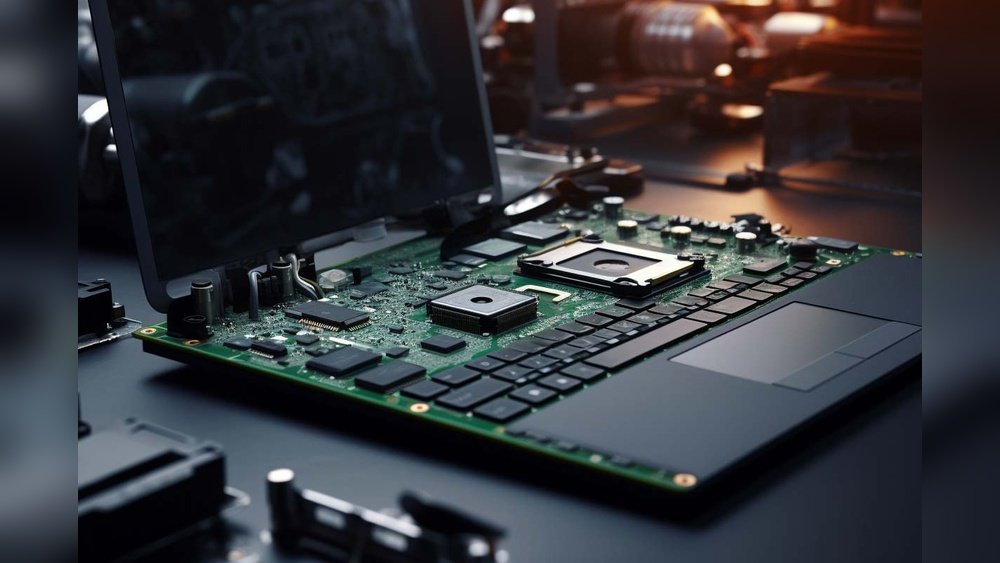
Many laptop users face the problem: battery not charging. You plug in your charger, but the battery stays the same. It feels frustrating. Why does this happen? Is it a software problem or a hardware issue? This guide will help you find out. It will also show you easy steps to fix it.
Understanding the Problem
When your laptop says “plugged in but not charging”, it means the computer sees the charger. But the battery does not get power. This can happen because of many reasons.
- Software faults: Problems with drivers or power settings.
- Hardware faults: Broken charger, bad battery, or dirty ports.
Knowing the cause helps you fix the issue faster.

Credit: www.docphonefix.com
Quick Software Checks and Fixes
Software problems are easier to fix. Let’s start with them.
1. Restart Your Laptop
First, unplug the charger and turn off your laptop. Wait for one minute. Then, plug the charger back in and turn the laptop on. Sometimes, a simple restart solves the problem.
2. Reinstall Battery Drivers
Battery drivers help your laptop manage charging. These drivers can get corrupted or outdated.
Follow these steps:
- Right-click the Start button.
- Select Device Manager.
- Find and expand Batteries.
- Right-click Microsoft AC Adapter and choose Uninstall device.
- Right-click Microsoft ACPI-Compliant Control Method Battery and uninstall it too.
- Restart your laptop.
Windows will reinstall the drivers automatically.
3. Check Power Settings
Your laptop may have power software from the maker. Programs like Dell Power Manager or Lenovo Vantage can stop charging to save battery life.
Open these apps and check if charging limits are set. Turn off any setting that stops charging.
4. Run Windows Power Troubleshooter
Windows has a tool to find power problems. Here is how to run it:
- Go to Settings.
- Click Update & Security.
- Select Troubleshoot.
- Choose Power and run the troubleshooter.
The tool will try to fix any software problem related to power.
Hardware Checks and Fixes
If software fixes do not work, the problem may be hardware. Here is what to check.
1. Inspect Your Charger And Cable
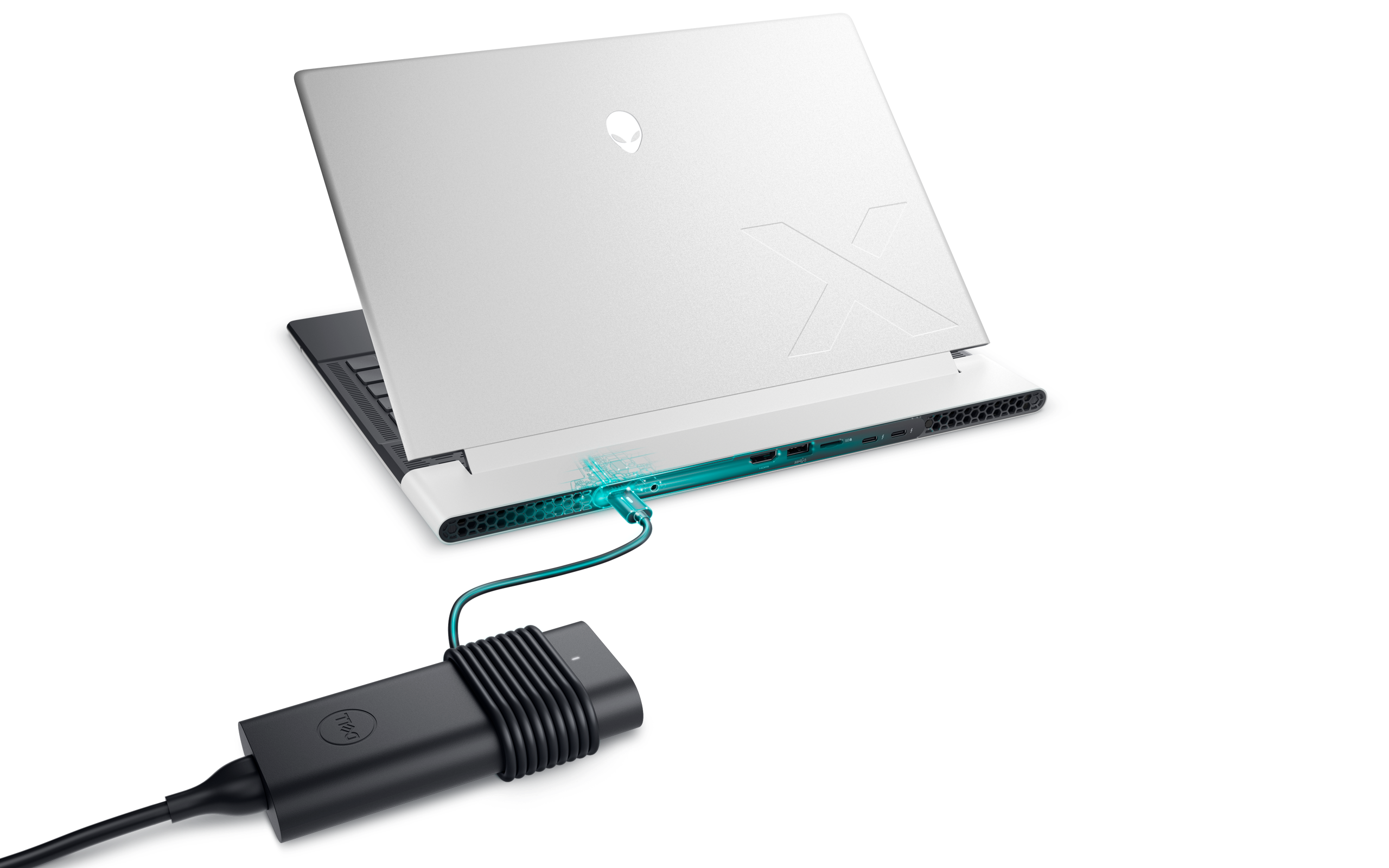
Look closely at your charger and cable. Are there any cuts or bends? Damaged cables can stop charging.
Try a different charger if possible. Also, plug into a different wall outlet. Sometimes, the outlet is the problem.
2. Clean The Charging Port
Dust or dirt can block the charging port. Use a toothpick or soft brush to clean the port gently.
Be careful not to damage the pins inside.
3. Check Battery Health
Your battery may be old or broken. You can check battery health in the BIOS/UEFI menu.
- Turn off your laptop.
- Turn it on and press the key for BIOS (usually F2, F10, or Delete).
- Look for Battery Health or a similar section.
- Check the status. If it says poor or bad, your battery may need replacement.
4. Remove And Reinsert Battery (if Possible)
Some laptops let you remove the battery. If you can, try this:
- Turn off the laptop and unplug the charger.
- Remove the battery carefully.
- Press and hold the power button for 30 seconds to drain leftover power.
- Reinsert the battery and plug in the charger.
- Turn on the laptop.
This can reset battery connections.
Power Cycle Your Laptop
Power cycling helps fix some hardware faults.
- Turn off your laptop.
- Unplug charger and remove battery if possible.
- Press and hold power button for 30 seconds.
- Reinsert battery and plug charger back in.
- Turn on the laptop.
This resets power settings inside the laptop.
Summary Table: Software vs. Hardware Faults
| Type | Cause | Fix Steps | Signs |
|---|---|---|---|
| Software Fault |
|
|
|
| Hardware Fault |
|
|
|
When to Ask for Help
If you try all the fixes and the battery still won’t charge, it may be time to get expert help.
Contact a laptop repair shop or the manufacturer. They can test your laptop parts. If needed, they can replace the battery or charger.
Trying to fix hardware yourself can cause more damage. Be safe.
Credit: www.dell.com
Final Tips to Keep Your Battery Healthy
- Avoid letting your battery drain to zero often.
- Keep your laptop cool. Heat hurts batteries.
- Use the original charger or a trusted brand.
- Keep your laptop software updated.
Good care helps your battery last longer.
Frequently Asked Questions
How To Troubleshoot Laptop Battery Not Charging?
Check all cable connections and power outlet. Clean charging port gently. Restart laptop and reinstall battery drivers via Device Manager. Verify power settings and run power troubleshooter. Inspect battery health in BIOS/UEFI. Replace charger or battery if hardware faults persist.
How To Reset Laptop Battery Driver?
To reset your laptop battery driver, open Device Manager and expand Batteries. Right-click “Microsoft ACPI-Compliant Control Method Battery” and select “Uninstall device. ” Restart your laptop to let Windows automatically reinstall the driver. This often fixes battery driver issues quickly.
How To Check Laptop Battery Hardware?
Restart your laptop and enter BIOS/UEFI settings. Find the Battery Health section under Overview or General. Review the battery status to check hardware condition.
Why Is My Laptop Saying It’s Plugged In But Not Charging?
Your laptop shows “plugged in but not charging” due to faulty charger, dirty port, old battery, overheating, or driver issues. Check connections, clean ports, reinstall battery drivers, and review power settings to fix it. Replace hardware if problems continue.
Conclusion
When your laptop battery does not charge, it can be a software or hardware problem. Start with simple software fixes like restarting and reinstalling drivers. If that does not work, check your charger, port, and battery health.
Cleaning ports and power cycling your laptop often helps. If the problem stays, ask a professional for help.
Use this guide to find the cause and fix your charging problem step by step.







