

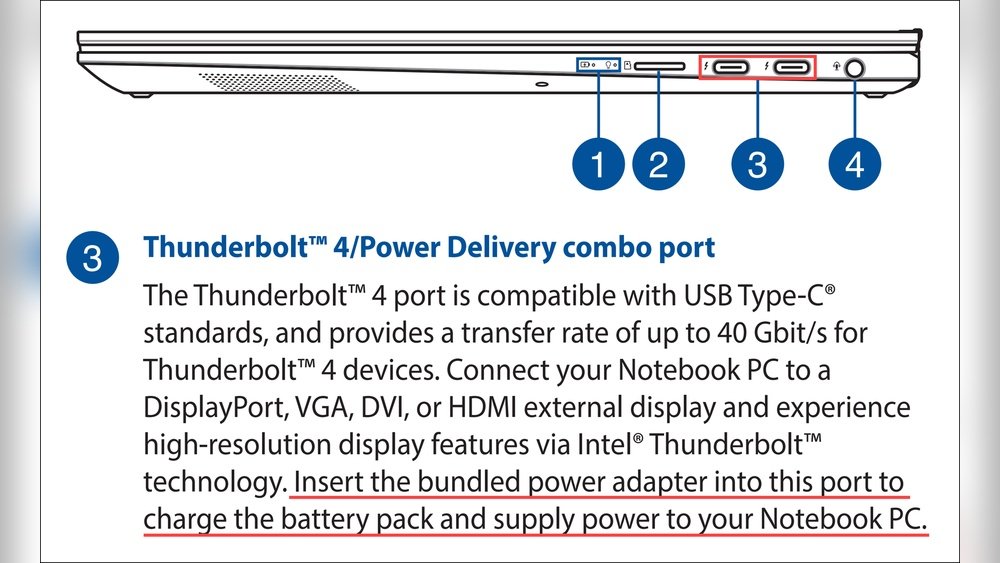
Have you ever seen the message “Not Charging” on your Windows laptop? It can be very confusing. Your laptop is plugged in, but the battery does not charge. Why does this happen? And how can you fix it? In this article, we will explain the common causes and simple steps to solve this problem.
What Does “Not Charging” Mean?
The message “Not Charging” means your laptop is connected to power, but the battery is not getting charged. Sometimes, the battery percentage stays the same or even goes down. This can happen for many reasons. It can be a small problem or a sign of a bigger issue.

Credit: www.pcmag.com
Common Causes of the “Not Charging” Error
Let’s look at the most common reasons why your laptop shows “Not Charging”.
- Loose or Damaged Charging Cable: The charger or cable might be loose or broken. If the cable is not connected well, the battery cannot charge.
- Wrong Charger: Using a charger not made for your laptop can cause this problem. The laptop may not get the right power.
- Dirty Charging Port: Dirt or dust in the charging port can block the connection. This stops the laptop from charging the battery.
- Battery Issues: The battery itself can be old or damaged. Over time, batteries lose their ability to hold power.
- Software Problems: Sometimes, Windows or the laptop’s software can cause charging errors. The battery driver or settings might be wrong.
- Power Settings: Windows power settings might stop the battery from charging to save energy.
How to Fix the “Not Charging” Error
Now, let’s see how you can fix this error step by step. Try these simple ideas first.
1. Check Your Charging Cable And Adapter
- Make sure the charging cable is plugged in firmly.
- Look for any damage on the cable or adapter.
- If possible, try another charger made for your laptop.
- Test the charger on another device to see if it works.
Sometimes, a bad cable or adapter is the main problem.
2. Clean The Charging Port
The charging port can get dirty or blocked by dust. Follow these steps:
- Turn off your laptop and unplug it.
- Use a small brush or a toothpick to clean the port gently.
- Do not push too hard to avoid damage.
- Try charging again after cleaning.
3. Restart Your Laptop
Sometimes, a simple restart can fix charging errors. Follow this:
- Close all programs and turn off the laptop.
- Unplug the charger and remove the battery if possible.
- Wait for 1-2 minutes, then put the battery back.
- Plug in the charger and turn on the laptop.
This process removes any small glitches.
4. Perform A Hardware Reset (power Drain)
This method removes leftover power from your laptop. Steps:
- Turn off the laptop completely.
- Unplug the charger and remove the battery if you can.
- Press and hold the power button for 15-20 seconds.
- Put the battery back and plug in the charger.
- Turn on your laptop and check the charging status.
This often fixes small power problems.
5. Update Or Reinstall Battery Drivers
Windows uses software called drivers to manage the battery. Sometimes they need updating.
- Press Windows key + X and select Device Manager.
- Find Batteries and expand it.
- Right-click on Microsoft ACPI-Compliant Control Method Battery.
- Select Update driver or Uninstall device.
- If you uninstall, restart your laptop to reinstall the driver automatically.
After this, check if the battery charges.
6. Calibrate Your Battery
Battery calibration helps Windows show the correct battery level. Follow these steps:
- Charge your laptop to 100% without unplugging.
- Unplug and use the laptop until the battery is empty and it turns off.
- Charge it again to 100% without interruption.
This resets the battery gauge but does not fix hardware problems.
7. Check Windows Power Settings
Windows power settings can affect charging. Try this:
- Open Control Panel and go to Power Options.
- Click on Change plan settings next to your current plan.
- Click on Change advanced power settings.
- Find Battery and check the settings for low battery and critical battery actions.
- Make sure the settings do not stop charging.
Credit: www.youtube.com
When to Replace the Battery
If none of the fixes work, your battery might be old or broken. Batteries lose power after many charges. You can check battery health in Windows:
- Open Command Prompt as an administrator.
- Type
powercfg /batteryreportand press Enter. - Windows saves a report in your user folder.
- Open the report to see battery health and capacity.
If the battery capacity is low, consider replacing it.
Tips to Care for Your Laptop Battery
To avoid charging problems, take good care of your battery:
- Do not keep the laptop plugged in all the time.
- Use the charger made for your laptop.
- Keep the charging port clean and free of dust.
- Do not let the battery drain completely too often.
- Avoid using the laptop in very hot or cold places.
Summary Table: Quick Fixes for “Not Charging” Error
| Problem | Fix |
|---|---|
| Loose or damaged cable | Check and replace the charger or cable |
| Dirty charging port | Clean port gently with a brush or toothpick |
| Battery driver error | Update or reinstall battery drivers in Device Manager |
| Power glitches | Perform hardware reset (power drain) |
| Battery calibration needed | Charge fully, discharge, then charge fully again |
| Old or damaged battery | Check battery health and replace if needed |
Final Thoughts
The “Not Charging” error can be frustrating. But most times, it is easy to fix. Start with simple steps like checking cables and cleaning ports. Then try software fixes like driver updates and battery calibration. If these do not work, your battery might need replacing.
Taking good care of your battery helps avoid this problem. Use the right charger and keep your laptop clean. Remember, batteries wear out with time. If you see charging problems often, think about a new battery.
With these tips, you can keep your Windows laptop charging well and working longer.
Frequently Asked Questions
Why Is My Laptop Saying Not Charging?
Your laptop may say “not charging” due to a loose or damaged cable, dirty charging port, or incompatible charger. Battery aging can also cause this issue. Try reconnecting the charger, cleaning the port, or resetting the battery to fix it.
How Do I Fix A Charging Error?
Check all connections and clean charging ports from dust. Test with another charger or cable. Perform a hardware reset by unplugging and restarting. Calibrate the battery by fully charging it without interruption. Replace the battery if problems persist or capacity is low.
How To Reset The Battery Of A Laptop?
To reset a laptop battery, shut down and unplug the laptop. Remove the battery if possible. Reinsert the battery and plug in the charger. Power on the laptop. For non-removable batteries, press the reset pinhole button if available. Calibrate by fully charging without interruption.
What Are Signs Of A Failing Laptop Battery?
Signs of a failing laptop battery include rapid battery drain, unexpected shutdowns, and the laptop not charging fully. The battery may also overheat or show a “plugged in, not charging” message. Reduced battery life and swelling are key indicators of battery failure.







