

Is your laptop only turning on when it’s plugged in? That can be frustrating, especially when you need to work on the go.
The good news is, this problem might not mean you need a new battery. Sometimes, your laptop’s battery just needs a simple fix called calibration. You’ll learn exactly how to calibrate your battery to bring your laptop back to life.
Keep reading, and you’ll discover easy steps that can save you time and money—getting your laptop running smoothly again without a hassle.
Symptoms Of Battery Issues
Battery issues often show clear signs. These signs help you know if the laptop battery needs attention. Recognizing symptoms early can save time and cost. It also helps prevent sudden shutdowns and data loss. Below are common symptoms to watch for.
Laptop Shuts Down When Unplugged
The laptop turns off immediately once you remove the power cord. It does not run on battery power at all. This means the battery cannot hold any charge. The device relies completely on external power to function.
Battery Not Charging Properly
The battery icon may show charging, but the percentage does not increase. Sometimes it stays at a low level even after hours of charging. This suggests the battery or charger is faulty. The laptop might also overheat during charging.
Inconsistent Battery Percentage
The battery level jumps suddenly from high to low or vice versa. The percentage may drop fast without heavy use. This causes confusion about how much battery life remains. It indicates the battery sensor or calibration is off.

Credit: thelaptopscout.com
Causes Of Power Problems
Power problems in laptops can stop your device from working properly. The laptop might only turn on when plugged into the charger. This issue often comes from a few common causes. Understanding these causes helps in fixing the laptop and improving battery life.
Faulty Battery
The battery may be old or damaged. Over time, batteries lose their ability to hold a charge. A faulty battery can cause the laptop to shut down without power supply. Sometimes, the battery connections become loose or dirty. This stops the battery from charging or delivering power properly.
Charging Circuit Malfunction
The charging circuit controls power flow to the battery. If this circuit breaks, the battery will not charge. Damage can happen from power surges or physical impact. A faulty charging circuit makes the laptop depend on the charger to work.
Software Glitches
Software controls battery management and power usage. Bugs or outdated drivers can cause wrong battery readings. The laptop may think the battery is empty even when it is charged. Restarting or updating software can fix these power issues.
Battery Calibration Basics
Battery calibration helps your laptop show the correct battery level. Over time, the battery meter can lose accuracy. This causes your laptop to shut down suddenly or only work when plugged in. Calibrating the battery resets this meter. It improves battery performance and reliability.
Why Calibration Matters
The battery sensor can get confused with use. It may think the battery is fuller or emptier than it is. Calibration corrects this problem. It helps your laptop know the real battery charge. This stops unexpected shutdowns and charging issues. A well-calibrated battery extends laptop life.
When To Calibrate
Calibration is useful if your laptop acts strange on battery power. For example, sudden shutdowns or inaccurate battery percentage. Also, after installing a new battery or updating the operating system. Calibrate your battery every few months to keep it accurate. Doing this regularly keeps your laptop running smoothly.
Step-by-step Calibration Process
Battery calibration helps your laptop show the right battery level. It fixes issues like the laptop only working when plugged in. The process involves charging and discharging the battery fully. Follow these simple steps to calibrate your battery correctly.
Fully Charge The Battery
Plug your laptop into the charger. Let the battery charge to 100%. Wait until the charging light turns off or shows full. Avoid using the laptop while charging. This step ensures the battery reaches its maximum capacity.
Discharge Completely
Unplug the charger. Use the laptop normally to drain the battery. Keep using it until the laptop shuts down by itself. Do not plug it back in during this step. This helps reset the battery’s power gauge.
Recharge Without Interruptions
Plug the charger back in after the laptop turns off. Charge the battery to 100% again without using the laptop. Do not unplug or interrupt the charging process. This final step completes the calibration cycle.
Using Built-in Battery Tools
Using built-in battery tools can help fix a laptop that only works when plugged in. These tools check your battery’s health and guide you to calibrate it properly. Both Windows and Mac have simple ways to see battery status and improve performance.
Windows Battery Report
Windows has a hidden battery report tool that shows detailed battery information. It reveals your battery’s full charge capacity and its design capacity. This helps you know if the battery is worn out or needs calibration.
To create the battery report, open Command Prompt as an administrator. Type powercfg /batteryreport and press Enter. The report saves as an HTML file in your user folder. Open it with a browser to see your battery details.
Look for the “Battery capacity history” section. If the full charge capacity is much lower than the design capacity, your battery needs calibration or replacement. Following this report’s data can guide you through the calibration process.
Mac Battery Health Management
Macs have a built-in Battery Health Management feature. It helps extend battery life by reducing the peak charge level. This feature works in the background to keep your battery healthy over time.
To check this, click the Apple menu and open “System Preferences.” Then select “Battery” and click “Battery Health.” You will see the current battery condition and if the management feature is active.
If your Mac only works when plugged in, try turning off Battery Health Management temporarily. This allows the battery to charge to 100% and recalibrate itself. Remember to turn it back on to protect your battery later.
Additional Troubleshooting Tips
Sometimes, fixing a laptop battery issue needs more than just calibration. There are simple steps that can help improve your laptop’s battery performance. Try these additional troubleshooting tips to see if they solve the problem.
Updating Battery Drivers
Outdated battery drivers can cause charging problems. Open Device Manager on your laptop. Find the “Batteries” section and expand it. Right-click on “Microsoft ACPI-Compliant Control Method Battery.” Choose “Update driver” and follow the instructions. This process helps your laptop communicate better with the battery.
Checking Power Settings
Power settings affect how your laptop uses the battery. Go to Control Panel or Settings and select “Power & Sleep.” Make sure your laptop is set to use battery power efficiently. Adjust settings like screen brightness and sleep time. Lowering these can extend battery life and fix some charging issues.
Performing A Battery Reset
A battery reset can clear errors and fix charging problems. Turn off your laptop and unplug it. Remove the battery if possible. Press and hold the power button for 30 seconds. Reinstall the battery and plug in the charger. Turn on the laptop and check if the battery works properly.
When To Replace The Battery
Knowing when to replace your laptop battery can save you time and frustration. A battery that only works when plugged in often signals it is losing its ability to hold a charge. Replacing the battery at the right moment keeps your laptop running smoothly and extends its life.
Signs Of Battery Wear
Watch for quick drops in battery percentage. The laptop may shut down suddenly without warning. The battery might get hot during use or charging. You might see messages saying the battery needs service. These signs show the battery is wearing out and needs replacement.
Choosing The Right Replacement
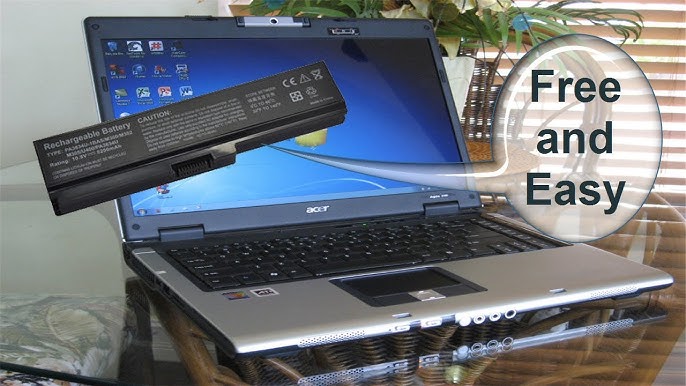
Pick a battery that matches your laptop model exactly. Check the voltage and capacity to ensure compatibility. Use batteries from trusted brands or the laptop maker. Avoid cheap, generic batteries; they can damage your laptop. Proper replacement ensures safety and good battery life.

Credit: www.youtube.com
Credit: www.youtube.com
Frequently Asked Questions
How Do I Know If My Laptop Battery Needs Calibration?
If your laptop only works when plugged in, the battery may be misreporting charge levels. Calibration resets the battery’s sensor, ensuring accurate charge readings and improving performance.
What Are The Steps To Calibrate A Laptop Battery?
Fully charge your laptop, then unplug and use it until the battery drains completely. Recharge it to 100% without interruption. This process helps recalibrate battery sensors for accurate charge status.
Can Battery Calibration Fix A Laptop That Won’t Hold Charge?
Battery calibration can improve charge reporting but won’t fix a physically damaged battery. If your battery no longer holds charge, replacement is likely necessary for proper operation.
How Often Should I Calibrate My Laptop Battery?
Calibrate your laptop battery every 2-3 months to maintain accurate charge readings. Regular calibration helps prolong battery life and prevents sudden shutdowns due to incorrect battery status.
Conclusion
Fixing a laptop that only works when plugged in takes patience. Battery calibration helps the device read power levels correctly. This step can improve battery performance and longevity. Always follow the instructions carefully for best results. If problems persist, consider checking the battery or charger.
Small fixes often save money and frustration. Keep your laptop healthy by calibrating the battery regularly. This simple task keeps your laptop running on battery power longer. Easy to do and worth the effort.







