
Many laptops can connect to WiFi, but sometimes they have trouble with the 5GHz band. You may see your laptop connect to 2.4GHz but not 5GHz. This can be frustrating. Don’t worry. This guide will help you fix it step by step.
Why Use 5GHz WiFi?
WiFi usually works on two bands: 2.4GHz and 5GHz. The 2.4GHz band goes far but is slower. The 5GHz band is faster but works in a smaller area. If you want better speed, use 5GHz.
However, some laptops find it hard to connect to 5GHz. This is often because of settings in your laptop or router. Let’s understand how to fix this.
What Is Band Steering?
Band steering is a feature in many modern routers. It helps your device pick the best WiFi band automatically. If your laptop tries to use 2.4GHz but 5GHz is better, band steering can switch it for you.
Sometimes, band steering causes problems. Your laptop may get stuck on 2.4GHz even if 5GHz is better. We will learn how to fix this.
Check If Your Laptop Supports 5GHz
First, check if your laptop can use 5GHz WiFi. Some older laptops only support 2.4GHz.
- Press Windows + R keys.
- Type
cmdand press Enter. - In the command window, type
netsh wlan show driversand press Enter. - Look for Radio types supported.
If you see 802.11a or 802.11ac, your laptop supports 5GHz. If not, your laptop may not connect to 5GHz at all.
Restart Your Laptop and Router
Sometimes, a simple restart fixes WiFi issues. Turn off your laptop and router. Wait for 30 seconds. Then turn them back on. Try connecting again.
Forget and Reconnect to Your WiFi Network
Your laptop may have saved wrong WiFi info. To fix this:
- Go to Settings > Network & Internet > WiFi.
- Select Manage Known Networks.
- Find your WiFi network name (SSID).
- Click Forget.
- Restart your laptop.
- Connect to your WiFi network again by entering the password.
Update Your WiFi Adapter Driver
Old drivers can cause problems. Update your WiFi driver to help your laptop connect better.
- Press Windows + X keys.
- Select Device Manager.
- Find Network adapters and expand it.
- Right-click on your WiFi adapter.
- Choose Update driver.
- Select Search automatically for updated driver software.
- Follow the instructions if updates are found.
Change Your WiFi Adapter Settings
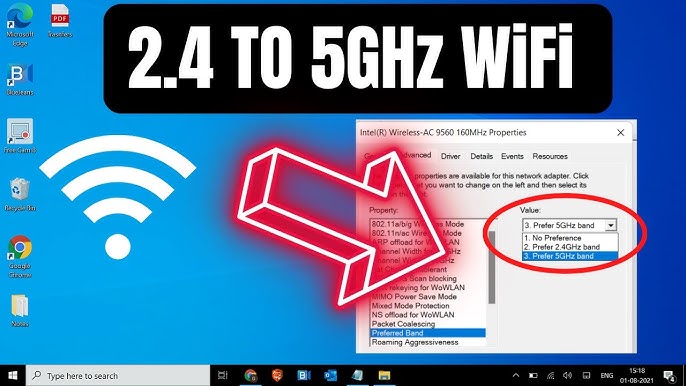
Your laptop’s WiFi adapter may be set to avoid 5GHz. Let’s check this:
- Open Device Manager.
- Right-click your WiFi adapter and select Properties.
- Go to the Advanced tab.
- Find Preferred Band or Band in the list.
- Change it to Prefer 5GHz or Auto.
- Click OK and close Device Manager.
Set Your Router to Separate SSIDs
Many routers use the same name (SSID) for both 2.4GHz and 5GHz bands. This makes band steering possible but can cause problems.
You can give each band a different name. This way, you can choose 5GHz manually.
- Open your router’s settings page. Usually, type
192.168.1.1or192.168.0.1in a browser. - Log in with your username and password.
- Find the Wireless or WiFi settings.
- Look for 2.4GHz and 5GHz SSID names.
- Change one SSID name (for example, add “_5G” at the end for 5GHz).
- Save changes and restart your router.
Now, connect your laptop to the 5GHz SSID directly.

Credit: community.tp-link.com
Disable Band Steering on Your Router
If band steering causes problems, try turning it off.
- Go to your router’s settings page.
- Find the Band Steering option. It may be under Wireless or Advanced Settings.
- Turn band steering off or disable it.
- Save and restart your router.
Now, connect to the 5GHz WiFi network using its SSID.
Network Reset on Windows
If nothing works, try a network reset on your laptop. This deletes all network settings and starts fresh.
- Go to Settings > Network & Internet > Status.
- Scroll down and click Network reset.
- Click Reset now and confirm.
- Your laptop will restart.
- After restart, connect to your WiFi again.
Credit: www.youtube.com
Check Router and Laptop Compatibility
Some old routers or laptops do not work well with band steering. Check your router’s manual or website for details.
If your router has a firmware update, install it. This can fix bugs.
Summary of Steps to Fix 5GHz WiFi Connection
| Step | What to Do | Why |
|---|---|---|
| 1 | Check if laptop supports 5GHz | Older laptops may not use 5GHz |
| 2 | Restart laptop and router | Fix temporary glitches |
| 3 | Forget and reconnect WiFi | Clear wrong saved info |
| 4 | Update WiFi adapter driver | Fix driver bugs |
| 5 | Change WiFi adapter settings to prefer 5GHz | Force adapter to use 5GHz |
| 6 | Separate SSIDs for 2.4GHz and 5GHz | Choose band manually |
| 7 | Disable band steering on router | Stop automatic band switching |
| 8 | Reset network on laptop | Fix deep network issues |
Final Tips
- Keep your laptop and router firmware updated.
- Place your router in an open area for better signal.
- Avoid walls and metal objects between router and laptop.
- If your laptop still can’t connect, try using a USB WiFi adapter that supports 5GHz.
Fixing WiFi problems can take time. Follow these steps calmly. Soon, your laptop will connect to fast 5GHz WiFi.
Frequently Asked Questions
Why Can’t My Laptop Connect To 5ghz Wi-fi?
Your laptop may not support 5GHz Wi-Fi or its adapter driver might be outdated. Check settings, update drivers, or reset the network.
How To Force A Pc To Connect To A 5ghz Band?
Open Device Manager, find your Wi-Fi adapter, right-click, select Properties, then Advanced. Set the preferred band to 5GHz. Restart your PC to apply changes.
Why Is My 5ghz Band Not Working?
Your 5GHz band may not work due to outdated drivers, incorrect router settings, or device incompatibility. Restart your router and update Wi-Fi drivers to fix it. Ensure your device supports 5GHz and remove and reconnect to the network for better results.
How To Change Wi-fi Band To 5ghz In Laptop?
Open Device Manager, find your Wi-Fi adapter, right-click and select Properties. Under Advanced, set Preferred Band to 5GHz. Restart your laptop.