
Is your laptop microphone too quiet? Do people find it hard to hear you? This problem is common but easy to fix. In this article, you will find simple steps to increase your microphone volume. We will explain how to change gain settings and use boost tips. No need to be a tech expert. Just follow the easy instructions below.
Credit: www.youtube.com
Why Is My Laptop Microphone So Quiet?
There are many reasons your microphone may sound low. Sometimes the microphone is too far from your mouth. Other times, the microphone volume is set too low in your computer. Sometimes, the wrong microphone is chosen. Or the drivers may be out of date. Here are some main reasons:
- Microphone volume is low in Windows settings.
- Microphone boost is off or too low.
- Wrong microphone selected on your laptop.
- Microphone not close enough to your mouth.
- Audio enhancements are causing problems.
- Driver software is old or missing.
Let’s fix these issues step by step.
Basic Checks: Hardware and Connection
Before changing your computer settings, check the physical parts of your mic first.
- Check Volume Knob: Some headsets or microphones have a volume or gain knob. Turn it up.
- Correct Port: Make sure your mic is plugged into the right port. Usually, the mic port is pink or marked with a microphone icon.
- Position: Move the microphone closer to your mouth. This helps sound pick up better.
- Check Cable: Make sure the cable is not loose or broken.
If these are okay, then go to the software settings on your laptop.
Adjusting Microphone Volume and Gain in Windows
Most laptops use Windows. Here is how to check and fix microphone volume.
- Open Sound Settings: Click the Start button. Then click the Settings icon (it looks like a gear). Choose System, then click Sound.
- Choose Your Microphone: Scroll down to the Input section. Make sure your microphone is selected in the dropdown menu.
- Check Input Volume: Speak into your microphone. You will see a blue bar moving. If the bar is low, increase the volume slider below it.
Using Device Properties For More Control
- In the Sound Settings, under Input, click Device Properties.
- In the new window, find the Levels tab.
- Here, you can increase the Microphone Volume and the Microphone Boost.
- Move both sliders to the right to increase sound. Be careful not to set too high. Too high causes noise or distortion.
- Click OK to save your changes.
Disable Audio Enhancements
Sometimes audio enhancements cause problems. They can lower your mic volume or add noise.
- Go back to Device Properties for your microphone.
- Click the Enhancements tab.
- Check the box for Disable all enhancements.
- Click Apply and then OK.
Test your microphone again. See if the sound is louder and clearer.
Use the Windows Microphone Troubleshooter
If your mic is still quiet, use Windows troubleshooter.
- Open Settings.
- Go to System > Sound.
- Scroll down and click Troubleshoot under the Input section.
- Follow the steps on the screen. Windows will try to find and fix the problem.
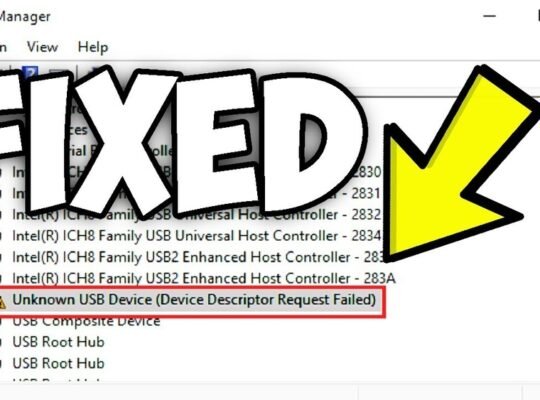
Update Your Microphone Drivers
Old or missing drivers can cause mic problems.
- Right-click the Start button and select Device Manager.
- Find Audio inputs and outputs.
- Right-click your microphone device and select Update driver.
- Choose Search automatically for updated driver software.
- Windows will look for new drivers and install them if found.

Credit: www.mykaraoke.video
Check Your App Settings
Sometimes the problem is inside the app you use to record or talk.
- Open the app’s audio settings.
- Make sure the correct microphone is selected.
- Look for volume or gain settings inside the app.
- Increase the volume if it is low.
Apps like Zoom, Skype, or Discord have their own audio controls. Check these if your mic is quiet only in that app.
Extra Tips to Make Your Mic Louder
- Speak Clearly: Talk close to the mic and speak clearly.
- Use a Pop Filter: It stops popping sounds and improves sound quality.
- Use External Mic: If your laptop mic is very quiet, try an external microphone.
- Check Background Noise: Quiet room means better mic quality.
- Restart Your Laptop: Sometimes a simple restart fixes sound issues.
Summary Table: Quick Fix Checklist
| Step | What to Do | Why |
|---|---|---|
| 1 | Check mic is plugged in correctly | Wrong port or loose cable causes low sound |
| 2 | Move mic closer to mouth | Mic picks up sound better when close |
| 3 | Increase mic volume in Windows Sound Settings | Volume slider may be too low |
| 4 | Increase mic boost in Device Properties | Boost raises mic gain for louder sound |
| 5 | Disable audio enhancements | Enhancements sometimes lower mic volume |
| 6 | Run Windows microphone troubleshooter | Fix common software issues automatically |
| 7 | Update microphone drivers | Old drivers can cause mic problems |
| 8 | Check app microphone settings | App may use wrong mic or low volume |
Final Thoughts
Fixing a quiet laptop microphone is usually easy. Check the hardware first. Then adjust settings in Windows. Use the boost option carefully. Disable enhancements if needed. Update drivers and check app settings. If you follow these steps, your microphone will sound better.
Sound is important when you talk online or record. A louder mic helps others hear you well. Take your time and try these tips. Soon you will have clear, louder microphone sound on your laptop.
Frequently Asked Questions
How Can I Make My Laptop Microphone Louder?
Open Start > Settings > System > Sound. Select your microphone under Input, then increase the input volume slider. Disable audio enhancements in microphone properties. Move the mic closer and check physical connections. Run the microphone troubleshooter and update audio drivers for better volume.
Why Is My Microphone So Quiet On My Laptop?
Your microphone sounds quiet due to low input volume or gain settings. Check physical connections, increase mic volume in sound settings, disable audio enhancements, and update drivers. Moving the mic closer and ensuring correct port use also improves sound levels.
Run the troubleshooter for further help.
How To Boost A Quiet Mic?
Boost a quiet mic by increasing its volume in Windows Sound Settings under Input. Adjust Levels and disable enhancements. Move mic closer and check connections. Run the troubleshooter and update drivers for better performance.
How To Fix Microphone Volume Too Low?
Check physical connections and volume knobs on your microphone. Open Sound Settings, select your mic, and increase the input volume. Disable audio enhancements and exclusive mode in Advanced settings. Run the microphone troubleshooter and update audio drivers. Adjust in-app mic settings if needed.