

Laptop touchscreens are very useful. They let you use your fingers to work. But what if your touchscreen stops working? It can be very frustrating. Don’t worry. This guide will help you fix your laptop touchscreen.
Sometimes, the problem is with calibration. Other times, it is with drivers. Both are different things. Knowing the difference helps you fix the problem fast.
Does Your Laptop Have a Touchscreen?
First, check if your laptop has a touchscreen. Not all laptops have this feature. You can check the laptop manual or the model details online. If your laptop does not have a touchscreen, then it will not respond to touch.
Simple Checks Before Fixing
- Is your screen clean? Dirt or oil can stop the screen from sensing your touch.
- Make sure your fingers are dry and clean.
- Remove any screen protector if it blocks touch.
- Restart your laptop. Sometimes, this fixes small issues.
What Is Calibration?
Calibration means adjusting the touchscreen. This makes sure the screen knows where you touch. Sometimes, the screen thinks you touched in one place, but you touched another. This can make the touchscreen act wrong.
Calibration fixes this by matching your touch with the right spot on the screen. It is like teaching the laptop how to read your finger’s position correctly.
When To Try Calibration?
- If the touchscreen works but the pointer or action happens in the wrong place.
- If the touchscreen does not respond correctly to your touch.
How To Calibrate Your Laptop Touchscreen
Follow these steps to calibrate your touchscreen:
- Open the Control Panel on your laptop.
- Find Tablet PC Settings or Pen and Touch option.
- Click on Calibrate the screen for pen or touch input.
- Follow the on-screen instructions. Tap the points as asked.
- Save the calibration when done.
If calibration does not fix the problem, it may be a driver issue.

Credit: support.hp.com
What Are Drivers?
Drivers are small programs. They help your laptop talk to hardware like the touchscreen. Without the right driver, the touchscreen may not work right. Drivers need to be up to date and installed correctly.
When To Check Drivers?
- If the touchscreen does not respond at all.
- If the touchscreen stops working after a system update.
- If calibration does not help.
How To Fix Touchscreen Drivers
Here is how to check and fix touchscreen drivers:
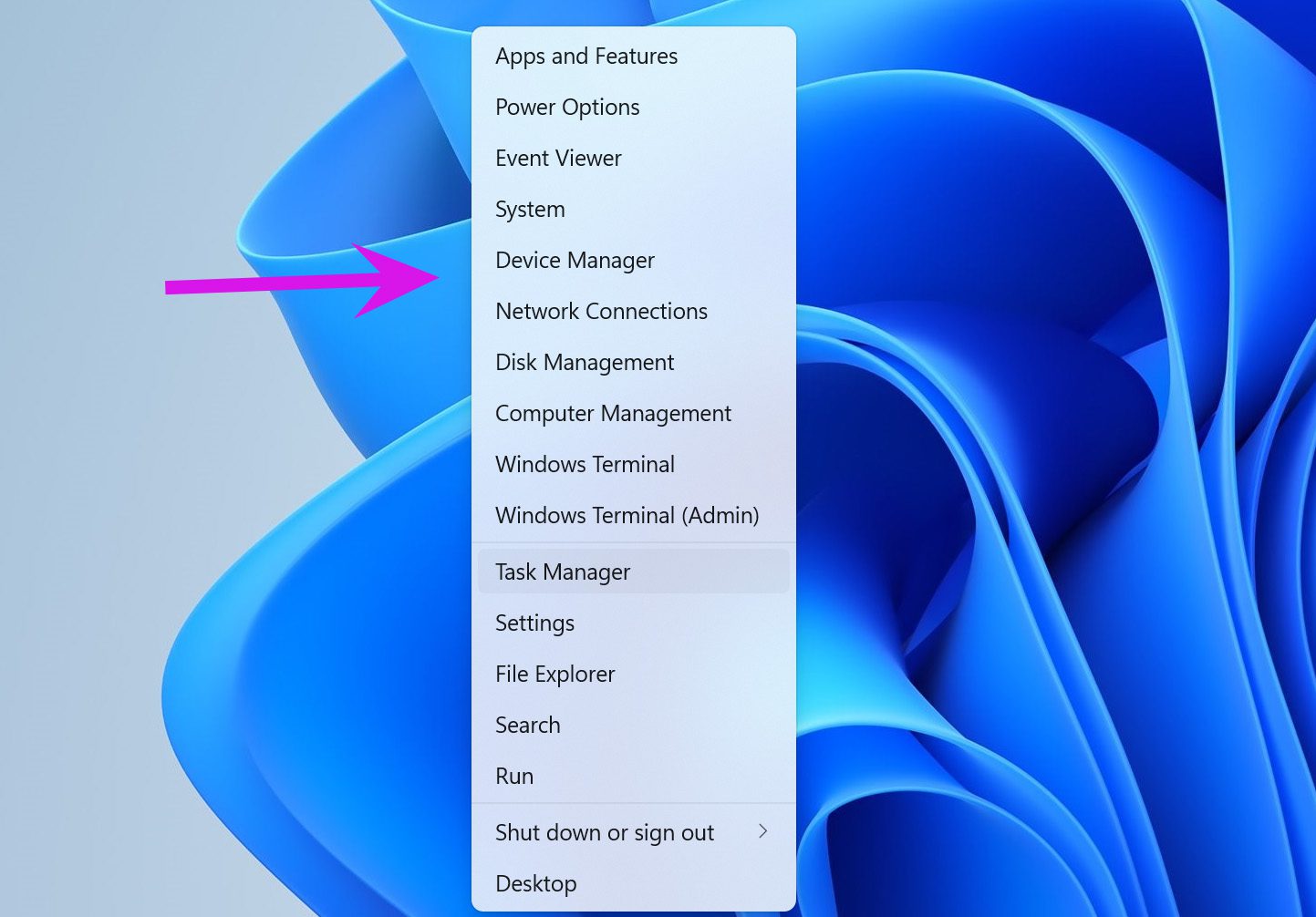
- Right-click the Start button and open Device Manager.
- Look for Human Interface Devices or Touchscreen.
- Find HID-compliant touch screen.
- Right-click it and select Disable device. Wait a few seconds.
- Right-click again and select Enable device.
- If this does not work, right-click and choose Uninstall device.
- Restart your laptop. The driver will reinstall automatically.
If the touchscreen still does not work, update the driver:
- Go back to Device Manager.
- Right-click the touchscreen device and choose Update driver.
- Select Search automatically for updated driver software.
- Follow the instructions if an update is found.
Update Windows and BIOS
Sometimes, your Windows or BIOS needs updates. These updates can fix touchscreen problems.
- Go to Settings > Update & Security > Windows Update.
- Click Check for updates and install any available updates.
- Check your laptop maker’s website for BIOS updates.
- Follow the instructions to update BIOS carefully.
Reset Touchscreen Calibration
If calibration is wrong, reset it to default settings. This can help your touchscreen work again.
- Open Control Panel.
- Go to Tablet PC Settings.
- Click Reset to clear calibration.
- Calibrate the screen again if needed.
Other Tips to Try
- Make sure your laptop screen is not cracked or damaged.
- Check if touchscreen is disabled in BIOS or UEFI settings.
- Try safe mode to see if a program is causing the issue.
- Use an external mouse or keyboard to check if the laptop is working.
- If nothing works, contact your laptop’s support center.
Credit: www.guidingtech.com
Summary: Calibration Vs. Drivers
| Aspect | Calibration | Drivers |
|---|---|---|
| What It Does | Adjusts touch position accuracy | Software that controls touchscreen hardware |
| When to Use | If touch is off or wrong place | If touchscreen does not respond or stops working |
| How to Fix | Use Control Panel’s calibration tool | Update, disable, enable, or reinstall drivers in Device Manager |
| Problem Type | Touch mapping problem | Hardware communication problem |
Final Thoughts
Fixing a laptop touchscreen is not always hard. Start with simple steps like cleaning and restarting. Then try calibration if the touch is wrong. If the touchscreen does not work, check drivers. Keep your Windows and BIOS updated.
With patience, you can solve most touchscreen problems. If the issue stays, seek expert help. Your touchscreen can work again soon.
Frequently Asked Questions
How To Fix Unresponsive Touch Screen On Laptop?
Restart the laptop first. Clean the screen and confirm touchscreen is enabled. Update or reinstall touchscreen drivers via Device Manager. Calibrate touch settings in Control Panel. Check for Windows and BIOS updates to ensure compatibility.
How To Fix An Unresponsive Touch Screen?
Restart your device and clean the screen. Enable or reinstall the touchscreen driver via Device Manager. Update your system and recalibrate touch settings. Check BIOS or UEFI to ensure the touchscreen is enabled.
How Do I Recalibrate My Touchscreen?
Open Control Panel, go to Tablet PC Settings, select “Calibrate,” and follow on-screen prompts to recalibrate the touchscreen. Restart your device afterward.
How To Reset Touch Screen Driver?
Open Device Manager, right-click the HID-compliant touch screen, and select Uninstall. Restart your computer to reinstall the driver automatically. Test the touchscreen response and adjust calibration if needed.







