

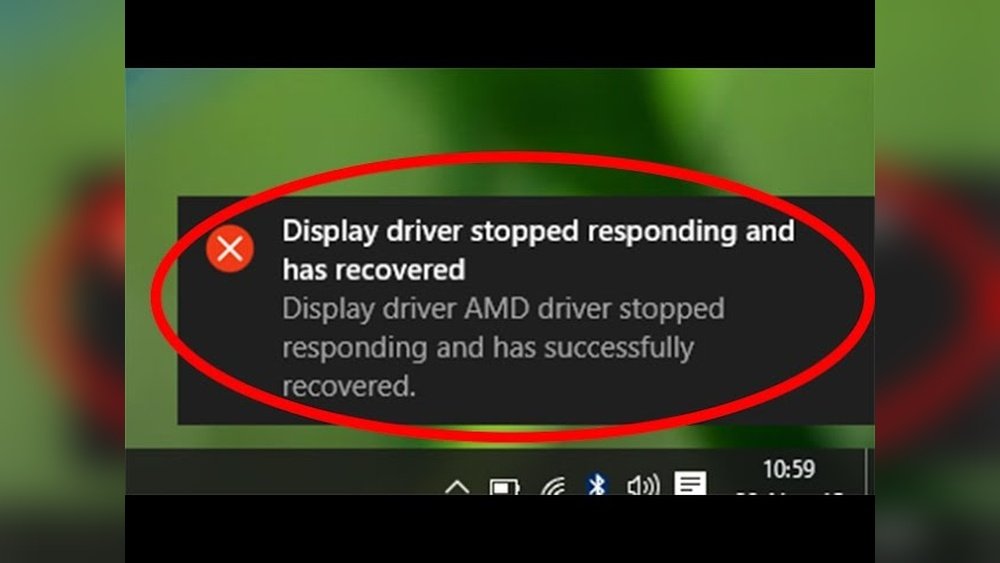
If you use a Windows computer, you might see an error that says, “Display driver stopped responding and has recovered.” This message means your computer had a problem with the graphics driver. The driver is the software that helps your computer show images and videos on the screen.
This error can make your screen freeze or flash. It may happen while playing games, watching videos, or working on your PC. But don’t worry. This guide will help you fix this problem step by step.
What Causes This Error?
Understanding the cause helps to fix the error better. Here are some common reasons:
- Old or corrupted graphics driver: If your driver is outdated or damaged, it can cause this issue.
- Overheating: Your computer or graphics card might get too hot.
- Hardware problems: Sometimes, the graphics card or other parts may have faults.
- Too high graphics settings: Running games or programs on very high settings may overload the driver.
- Software conflicts: Other software might interfere with the graphics driver.
How to Fix ‘Display Driver Stopped Responding And Has Recovered’ Error
Follow these simple steps to fix the problem. You do not need to be an expert to try them.
1. Restart Your Computer
This is the easiest step. Sometimes, a simple restart can clear small problems. Save your work and restart your PC.
2. Update Your Graphics Driver
Updating the driver can fix bugs and improve performance. Here is how to do it:
- Click the Start button and open Control Panel.
- Choose Hardware and Sound.
- Click on Device Manager under Devices and Printers.
- Find Display adapters and click the arrow to expand.
- Right-click your graphics card and choose Update driver.
- Select Search automatically for updated driver software.
- Follow the instructions to install any updates.
After updating, restart your computer and see if the error is gone.
3. Reinstall Your Graphics Driver
If updating does not work, try reinstalling the driver. This can fix corrupted files.
- Go to Device Manager as before.
- Right-click your graphics card under Display adapters.
- Select Uninstall device.
- Check Delete the driver software for this device if the option shows.
- Click Uninstall.
- Restart your PC. Windows will try to reinstall the driver automatically.
If Windows does not reinstall it, visit the website of your graphics card maker. Download the latest driver and install it manually.
4. Lower Your Graphics Settings
If the error happens during games or videos, try lowering the graphics quality. High settings use more power and can cause errors.
- Open your game or program.
- Find the graphics or video settings.
- Lower the resolution or quality.
- Save changes and restart the program.
5. Check For Windows Updates
Windows updates often fix bugs and improve your system. Make sure your PC has the latest updates.
- Click the Start button and open Settings.
- Go to Update & Security.
- Click Check for updates.
- If updates are found, download and install them.
- Restart your PC after the update.
6. Increase The Tdr Timeout Value
TDR stands for Timeout Detection and Recovery. Increasing its value can give your driver more time to respond. Here is how to do it:
- Press Windows key + R to open the Run box.
- Type regedit and press Enter to open Registry Editor.
- Navigate to:
HKEY_LOCAL_MACHINE\SYSTEM\CurrentControlSet\Control\GraphicsDrivers - Right-click on the right side and select New > DWORD (32-bit) Value.
- Name it TdrDelay.
- Double-click on TdrDelay and change its value to 8.
- Click OK and close the editor.
- Restart your computer.
This change lets the driver have 8 seconds to respond instead of 2 seconds.
7. Disable Hardware Acceleration In Browsers
Sometimes, the browser’s hardware acceleration causes the error. Turning it off may help.
For Google Chrome:
- Open Chrome.
- Click the three dots at the top right.
- Select Settings.
- Scroll down and click Advanced.
- Under System, turn off Use hardware acceleration when available.
- Restart Chrome.
8. Check Your Computer’s Temperature
Overheating can cause the display driver to stop working. Check if your PC or graphics card is too hot.
- Keep your PC in a cool place.
- Clean dust from fans and vents.
- Use a program to monitor temperatures like HWMonitor or SpeedFan.
If your computer is hot, try to cool it down before using heavy programs.
9. Run A System File Check
Windows has a tool that fixes broken system files. It can help if the driver error is caused by system problems.
- Press Windows key + X and select Command Prompt (Admin) or Windows PowerShell (Admin).
- Type
sfc /scannowand press Enter. - Wait for the scan to finish. It may take some time.
- If it finds issues, it will fix them automatically.
- Restart your PC.
10. Check For Hardware Issues
If none of the above works, your graphics card or other hardware might be the problem.
- Make sure the graphics card is properly seated in the slot.
- Try cleaning the card and slots from dust.
- If possible, test the card in another computer.
- Ask a professional to check your PC.
Summary Table of Fixes
| Fix Method | Short Description | Difficulty Level |
|---|---|---|
| Restart Computer | Simple reboot to clear errors | Easy |
| Update Graphics Driver | Install latest driver version | Easy |
| Reinstall Graphics Driver | Remove and install driver again | Medium |
| Lower Graphics Settings | Reduce game or app graphics quality | Easy |
| Windows Updates | Install latest system updates | Easy |
| Increase TDR Timeout | Change registry setting for driver delay | Medium |
| Disable Hardware Acceleration | Turn off in browser settings | Easy |
| Check Temperature | Ensure PC and GPU are cool | Easy |
| Run System File Check | Fix broken system files | Medium |
| Check Hardware | Inspect graphics card and PC parts | Hard |
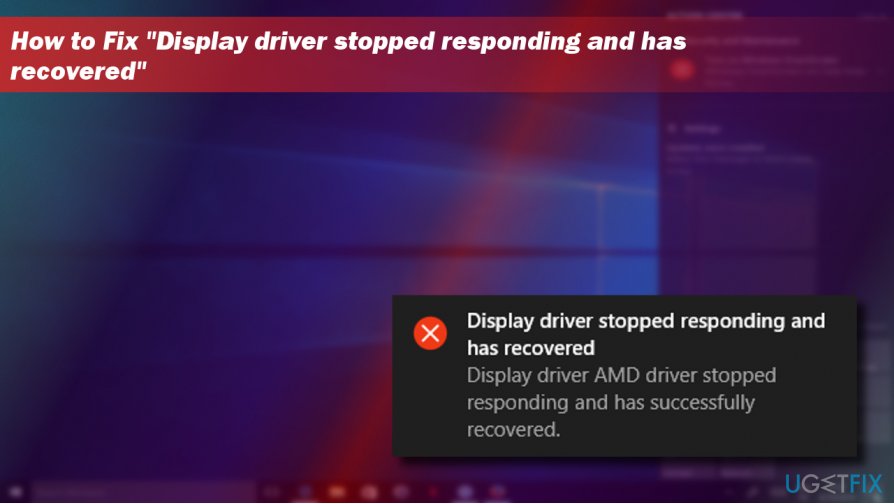
Credit: federicopilliphoto.com

Credit: www.youtube.com
Final Thoughts
The “Display driver stopped responding and has recovered” error can be annoying. But most times, you can fix it by following simple steps.
Start with easy fixes like restarting and updating drivers. Then try more advanced steps if needed. Always keep your computer cool and clean. If your PC still has problems, ask for help from a technician.
With patience and care, your display should work smoothly again.
Frequently Asked Questions
How To Fix Nvidia Display Driver Stopped Responding And Has Recovered?
Update your NVIDIA driver via Device Manager or NVIDIA GeForce Experience. Lower graphics settings and disable hardware acceleration. Restart your PC to apply changes.
How To Fix Display Driver Igfx Stopped Responding And Has Successfully Recovered?
Update your IGFX display driver via Device Manager. Disable hardware acceleration in apps. Increase TDR delay in registry. Restart your PC to apply changes.
What Does Amd Driver Stopped Responding But Has Recovered?
The AMD driver stopped responding but recovered means the graphics driver temporarily failed but restarted successfully. This often indicates a driver or hardware issue. Updating or reinstalling AMD drivers usually fixes the problem and prevents crashes or freezes during gaming or graphics tasks.
How To Fix Display Driver Not Working?
Open Device Manager, expand Display adapters, right-click your graphics card, and select Update Driver. Restart your PC. Disable hardware acceleration if issues persist. Reinstall the driver if updating fails. This fixes most display driver problems quickly and effectively.







