
Does your laptop stay asleep and never wake up? You press the keys or move the mouse, but nothing happens. This can be very frustrating. Many people face this problem. The good news is you can fix it yourself. This article will show you how to adjust power plan settings to solve this issue.
Credit: www.easeus.com
Why Does My Laptop Not Wake from Sleep?
Before we fix the problem, let’s understand what sleep mode means. Sleep mode saves power by turning off some parts of your laptop. It lets you start fast when you want to use your laptop again. But sometimes, the laptop does not wake up correctly. This can happen because of power plan settings or hardware issues.
Power plans control how your laptop uses energy. They decide when the screen turns off, when the laptop sleeps, and how it wakes up. If these plans are not set well, your laptop might not wake from sleep.

Credit: www.reddit.com
What Is a Power Plan?
A power plan is a set of settings. These settings help your computer save power or work faster. Windows has three main power plans:
- Balanced: Saves power but keeps good performance.
- Power Saver: Saves the most power but can slow the laptop.
- High Performance: Uses more power but makes the laptop fast.
Each plan changes how your laptop sleeps and wakes up. We will learn how to adjust these plans to fix the wake-up problem.
Steps to Fix Laptop That Won’t Wake from Sleep
Follow these simple steps. They help you change power plan settings to make your laptop wake up easily.
1. Open Power Options
First, you need to find the Power Options on your laptop:
- Click the Start button (the Windows icon).
- Type Control Panel and press Enter.
- Find and click Power Options. If you do not see it, change the view to Large icons or Small icons.
You will see your current power plans here.
2. Select Your Active Power Plan
Your active plan has a filled circle. Click Change plan settings next to it.
3. Change Advanced Power Settings
- Click Change advanced power settings.
- A small window will open with many settings.
4. Adjust Sleep Settings
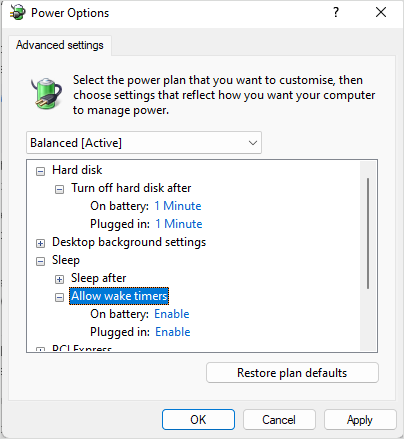
Find the Sleep section and expand it by clicking the plus sign (+).
- Sleep after: Set this to a time you like (for example, 15 minutes).
- Allow hybrid sleep: Set this to Off.
- Hibernate after: You can set this to a longer time or Never.
- Allow wake timers: Set this to Enable to let your laptop wake up on time.
5. Adjust Usb Settings
Expand USB settings and then USB selective suspend setting.
- Set this to Disabled. Sometimes USB devices stop waking your laptop.
6. Adjust Power Buttons And Lid
- Expand Power buttons and lid.
- Check Power button action and Lid close action settings.
- Make sure they are set to Sleep or Do nothing as you prefer.
7. Adjust Pci Express Settings
- Expand PCI Express and then Link State Power Management.
- Set this to Off. This can help if your laptop uses PCI devices that stop waking it.
8. Save Changes
Click Apply and then OK to save all your changes.
Extra Tips to Help Your Laptop Wake from Sleep
If power plan changes do not fix the problem, try these tips:
Check Device Settings
Some devices can stop your laptop from waking up. You can change their settings:
- Right-click the Start button and choose Device Manager.
- Find Keyboards, Mice and other pointing devices, and Network adapters.
- Right-click each device and select Properties.
- Go to the Power Management tab.
- Check Allow this device to wake the computer.
- Click OK.
Update Your Drivers
Old or wrong drivers can cause sleep problems. To update drivers:
- Go back to Device Manager.
- Right-click a device and choose Update driver.
- Select Search automatically for updated driver software.
Do this for important devices like display adapters and network adapters.
Disable Fast Startup
Fast startup can cause sleep issues on some laptops. To disable it:
- Open Control Panel and go to Power Options.
- Click Choose what the power buttons do.
- Click Change settings that are currently unavailable.
- Uncheck Turn on fast startup.
- Click Save changes.
Perform A Power Reset
If your laptop still does not wake up, try a power reset:
- Turn off your laptop.
- Unplug the AC adapter.
- If the battery is removable, take it out.
- Press and hold the power button for 15 seconds.
- Put the battery back in and plug in the AC adapter.
- Turn on your laptop and check if it wakes from sleep.
Summary Table: Power Plan Settings to Fix Sleep Wake Issue
| Setting | Recommended Value | Why? |
|---|---|---|
| Sleep after | 15 minutes or your choice | Allows laptop to enter sleep properly |
| Allow hybrid sleep | Off | Prevents conflicts during wake-up |
| Hibernate after | Never or longer time | Stops early hibernation |
| Allow wake timers | Enable | Lets laptop wake on time or events |
| USB selective suspend | Disabled | Stops USB devices from blocking wake |
| PCI Express Link State Power Management | Off | Prevents PCI device sleep conflicts |
Final Words
Fixing a laptop that won’t wake from sleep takes time but is possible. Start with power plan changes. Check device settings and update drivers. If needed, try a power reset. Most laptops wake up easily after these steps.
Remember, patience helps. If the problem stays, you may need expert help. But first, try these steps. They are simple and often fix the issue fast.
Good luck! Your laptop can wake up like new again.
Frequently Asked Questions
How To Force A Laptop Out Of Sleep Mode?
Press the power button, a keyboard key, or move the mouse to force your laptop out of sleep mode. Opening the laptop lid also wakes it.
What Do I Do If My Laptop Refuses To Turn On?
Unplug the charger and remove the battery if possible. Reconnect the charger only and try powering on. Check the power outlet and charger light. Reseat RAM and test with one stick if comfortable. Inspect the power jack for damage. Seek professional help if these steps fail.
How Do You Force Your Computer To Wake Up?
Press the power button, a keyboard key, or move/click the mouse to force your computer to wake up. Opening the laptop lid also works for some models. Ensure ACPI support is enabled for full power management features.
Why Is My Laptop Screen Black After Sleep Mode?
A black screen after sleep mode often results from outdated graphics drivers or power settings conflicts. Adjust power plan settings and update drivers to fix it. Press the power button or any key to wake the laptop. Check hardware connections if the problem persists.