

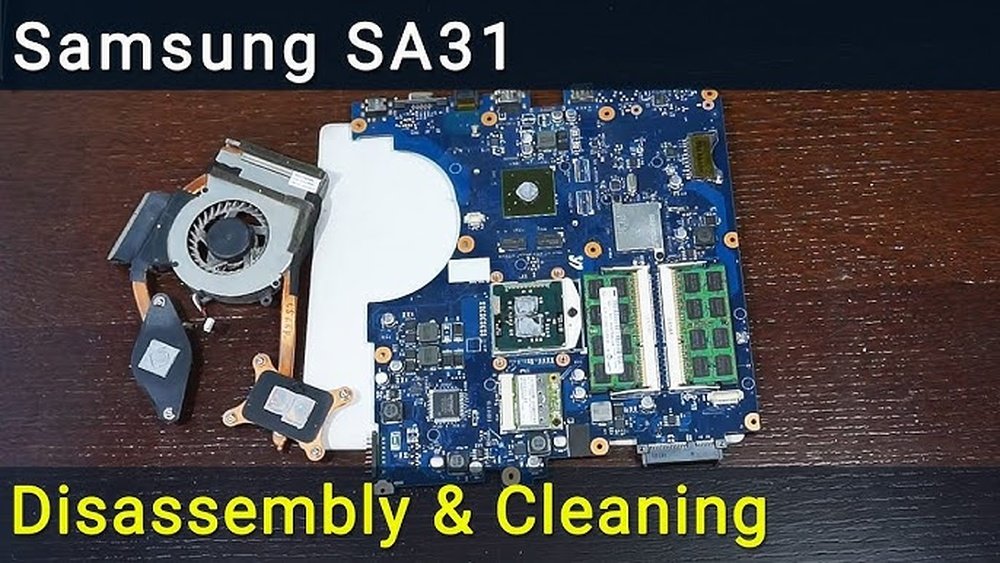
Laptop overheating is a common problem many people face. When a laptop gets too hot, it can slow down or even turn off suddenly. But why does this happen? And how can you fix it? Two big reasons are dirty fans and old thermal paste. This article will explain both and help you choose the best way to cool your laptop.
Why Does a Laptop Overheat?
Inside your laptop, the processor and other parts create heat when working. The laptop has fans and other ways to move heat away. If these parts do not work well, heat builds up. The laptop gets very hot and may stop working properly.
- Dust and dirt can block fans and vents.
- Thermal paste can dry out or get old.
- Fans can get stuck or slow down.
When these things happen, your laptop will get too hot. So, fixing these parts can help cool it down.

Credit: www.youtube.com
What is Thermal Paste?
Thermal paste is a special, soft material. It sits between the processor and the heat sink. The heat sink is a part that pulls heat away from the processor. Thermal paste helps move heat from the processor to the heat sink quickly.
If the thermal paste is old or bad, heat can’t move well. This causes the laptop to get hot fast.
How Does Thermal Paste Wear Out?
- It can dry up over time.
- It may crack or become hard.
- Low-quality paste does not last long.
When thermal paste is not working well, replacing it helps the laptop cool down.
Cleaning Fans and Vents
Laptop fans blow hot air out. Vents are holes where air moves in and out. Dust can block fans and vents. This stops air from moving well. The laptop gets hotter.
Cleaning fans and vents is easy and often fixes overheating.
How To Clean Fans And Vents
- Turn off the laptop and unplug it.
- Use a can of compressed air to blow dust out.
- Blow air through vents and near fans.
- Use a soft brush to remove stuck dust.
- Do this carefully to avoid damage.
Cleaning fans lets air flow better. This cools the laptop.
Thermal Paste Vs. Cleaning Fans: Which to Choose?
Both thermal paste and fan cleaning help. But which one should you try first?
| Fix | What It Does | When to Use | How Hard It Is |
|---|---|---|---|
| Cleaning Fans and Vents | Removes dust to improve airflow | When laptop is hot and fans sound loud | Easy to medium (no opening needed in some cases) |
| Replacing Thermal Paste | Improves heat transfer from processor | When cleaning fans does not help or paste is old | Medium to hard (requires opening laptop) |
Start With Cleaning Fans
Cleaning fans is simple and safe. Dust is the most common cause of overheating. Most laptops get dust inside after months of use. Cleaning often lowers temperature a lot.
When To Replace Thermal Paste
If cleaning fans does not fix overheating, thermal paste might be the problem. Thermal paste lasts a few years before needing replacement. But it is harder to replace because you must open your laptop carefully.
Signs Your Laptop Needs Fan Cleaning
- Fan makes loud or strange noises.
- Laptop feels very hot even after cleaning vents.
- Laptop shuts down suddenly.
- Performance drops when using simple programs.
If you see these signs, cleaning fans is a good first step.

Credit: www.shoshitamam.com
Signs Your Laptop Needs New Thermal Paste
- Laptop still gets hot after fan cleaning.
- Processor temperature is very high.
- Laptop is old (more than 3 years).
- You notice poor laptop performance despite fan cleaning.
If these happen, replacing thermal paste can help.
How to Replace Thermal Paste (Basic Steps)
Warning: Opening a laptop can be tricky. Follow guides for your laptop model.
- Turn off and unplug the laptop.
- Remove the bottom cover carefully.
- Locate the processor and heat sink.
- Remove the heat sink.
- Clean off old thermal paste with alcohol and a cloth.
- Apply a small amount of new thermal paste on the processor.
- Put the heat sink back in place and tighten screws.
- Close the laptop and turn it on.
If unsure, ask a professional to help.
Tips to Prevent Laptop Overheating
- Use your laptop on hard, flat surfaces.
- Keep vents and fans clean regularly.
- Do not block air vents with pillows or blankets.
- Use a cooling pad if possible.
- Do not leave your laptop in hot places.
Following these tips helps keep your laptop cool longer.
Summary
Laptop overheating happens when heat builds up inside. Dust and old thermal paste are common causes. Cleaning fans and vents is the first step. It is simple and fixes many problems. If this does not help, replacing thermal paste is next. Thermal paste helps move heat from the processor to the heat sink. Old paste stops this, causing heat to rise.
Try cleaning fans first. If your laptop still overheats, consider replacing thermal paste. Both methods help your laptop run cooler and last longer.
Remember, keeping your laptop clean and cool is important. It protects your device and improves performance.
Frequently Asked Questions
Will Thermal Paste Fix Overheating?
Thermal paste improves heat transfer between the CPU and cooler, reducing overheating. Poor or old paste can cause high temperatures. Replace it for better cooling, but also clean fans and vents for optimal results. Thermal paste alone may not fix all overheating issues.
How To Fix A Laptop That Overheats?
Clean laptop vents and fans using compressed air. Replace old thermal paste on the CPU. Ensure proper ventilation during use. Monitor temperature regularly.
Why Is My Laptop Overheating Even After Cleaning?
Your laptop may overheat after cleaning due to old or dried thermal paste, faulty fans, or blocked vents. Reapplying thermal paste and checking fan function improves cooling.
How To Know If A Laptop Fan Needs Cleaning?
A laptop fan needs cleaning if it makes grinding or scraping noises. Frequent overheating or sudden shutdowns also indicate clogged fans. Reduced performance during light tasks signals poor airflow. Check for visible dust buildup on vents. Regular cleaning improves cooling and prevents hardware damage.







