

Is your laptop camera showing only a black screen? You want to use the camera, but all you see is black. It is a common problem. Many people face it. The good news is you can fix it. One simple reason might be app permissions. Your apps may not have permission to use the camera.
In this article, you will learn easy steps to check and fix camera permissions. We will also look at other simple ways to help your camera work again.
Why Does Your Laptop Camera Show a Black Screen?
Before fixing, it helps to know why the camera shows a black screen. Here are some common reasons:
- The camera is blocked or covered.
- Camera drivers are old or missing.
- App permissions are not given.
- Another app is using the camera.
- Lighting is very poor.
We focus on app permissions here because it is a simple fix. Many times, the camera is fine but apps cannot use it.
What Are App Permissions?
Apps on your laptop need permission to use some parts of the computer. For example, to use the camera or microphone, apps must ask for permission. You can say yes or no. If you say no, the app cannot use the camera.
Sometimes, permissions change by mistake. Or updates reset them. So the camera shows a black screen because the app cannot access it.
How to Check Camera Permission on Windows Laptop
If you use Windows, follow these steps to check camera permissions:
- Click the Start button (bottom left corner).
- Select Settings (gear icon).
- Click Privacy.
- Find and click Camera in the left menu.
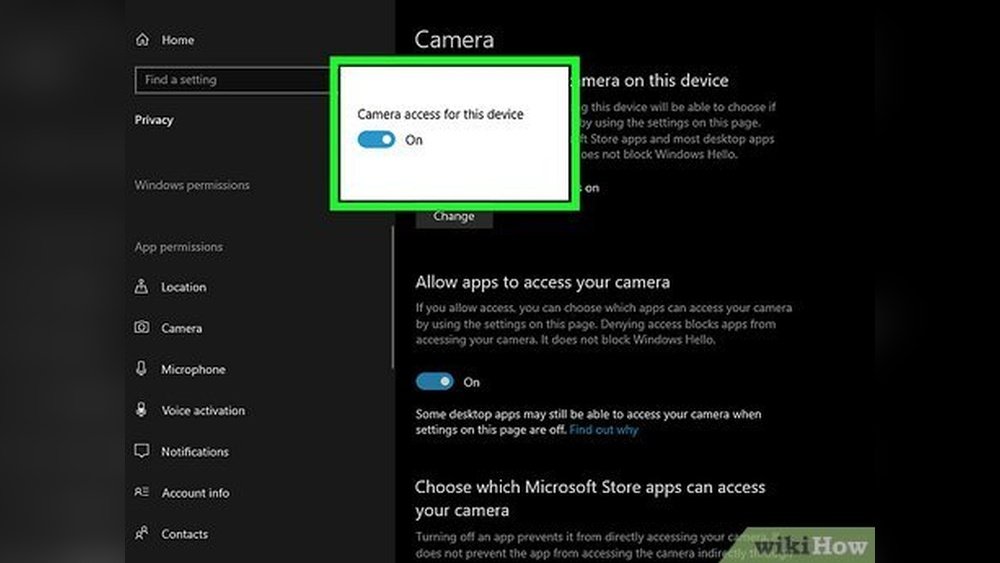
- Look for “Allow access to the camera on this device”.
- If it says off, click the Change button and turn it on.
- Below that, make sure “Allow apps to access your camera” is turned on.
- Scroll down to see which apps can use the camera. Turn on the ones you want to allow.
After these steps, open the camera app again. The black screen might go away.

Credit: learn.microsoft.com

Credit: www.wikihow.com
How to Allow Camera Access for Specific Apps
Sometimes, apps need special permission to use the camera. You can check app permissions like this:
- Open Settings again.
- Go to Privacy > Camera.
- Scroll to the list of apps under “Choose which apps can access your camera”.
- Find the app you want to use.
- Turn on the switch next to the app name.
Try your camera app now. It should work if permissions were the problem.
What If You Use a Web Browser?
Many people use the camera through browsers like Google Chrome or Microsoft Edge. Browsers also ask for camera permission.
How To Check Camera Permissions In Google Chrome
- Open Google Chrome browser.
- Click the three dots in the top right corner for the menu.
- Select Settings.
- Click Privacy and security on the left.
- Select Site settings.
- Click Camera under Permissions.
- Make sure “Sites can ask to use your camera” is on.
- Look at the Allowed and Blocked sites lists.
- If your website is blocked, click it and change to Allow.
After this, reload the webpage you want to use. The camera should work.
How To Check Camera Permissions In Microsoft Edge
- Open Microsoft Edge.
- Click the three dots in the top right corner.
- Select Settings.
- Click Cookies and site permissions.
- Find and click Camera.
- Make sure “Ask before accessing (recommended)” is on.
- Check allowed and blocked sites as in Chrome.
Reload the site and try the camera again.
How to Fix Camera Permissions on Mac Laptops
If you have a Mac laptop, follow these steps:
- Click the Apple menu in the top left.
- Select System Preferences.
- Click Security & Privacy.
- Go to the Privacy tab.
- Click Camera in the left list.
- Check the box next to apps you want to allow to use the camera.
Close the window and open the app again.
How to Fix Camera Permissions on Android Devices
If you use your Android laptop or tablet, here is what to do:
- Open Settings.
- Go to Apps or Apps & notifications.
- Find the app that uses the camera.
- Tap Permissions.
- Find Camera and set it to Allow.
Try the app again. The camera should show your face now.
How to Fix Camera Permissions on iOS Devices
For iPads or iPhones, follow these steps:
- Open Settings.
- Scroll down to find your app.
- Tap the app name.
- Turn on the switch next to Camera.
Now open the app and check the camera.
Other Tips to Fix Black Screen on Laptop Camera
If app permissions are correct but the camera still shows black, try these tips:
- Restart your laptop. Sometimes a simple restart helps.
- Close other apps. Another app may be using the camera.
- Check for camera driver updates. Go to Device Manager > Imaging Devices > update the camera driver.
- Make sure the camera lens is not covered. Clean it if it is dirty.
- Test the camera in a different app. It helps to see if the problem is app-specific.
- Check the lighting. A very dark room can cause a black screen.
Summary Table: Fixing Laptop Camera Black Screen
| Step | What to Do | Why |
|---|---|---|
| 1 | Check camera access on Windows Settings | Ensures device allows camera use |
| 2 | Allow camera permission for apps | Makes apps able to use camera |
| 3 | Check browser camera permissions | Fixes black screen in browser apps |
| 4 | Restart your laptop | Fixes temporary glitches |
| 5 | Update camera drivers | Fixes problems caused by old software |
| 6 | Test camera with different apps | Finds if app is the problem |
Final Thoughts
Camera problems can be frustrating. But usually, they are easy to fix. Check app permissions first. It is often the cause of the black screen. Then try other simple solutions.
Follow the steps here slowly and carefully. You will see your camera working again. No need to buy new hardware or call an expert. Just check your settings and permissions.
Good luck! Your camera will work soon.
Frequently Asked Questions
Why Is My Laptop Camera Showing A Black Screen?
Your laptop camera shows a black screen due to blocked app permissions, outdated drivers, hardware issues, or poor lighting. Enable camera access in Settings > Privacy > Camera. Update drivers via Device Manager. Remove any physical obstructions and ensure proper lighting for clear video.
How To Allow Camera Permissions On Laptop?
Open Settings on your laptop and go to Privacy > Camera. Click Change and turn on camera access. Then, allow apps permission to use the camera.
Why Does My Camera App Show A Black Screen?
A camera app shows a black screen due to blocked permissions, outdated drivers, or hardware issues. Check app and device camera permissions, update drivers, and remove any physical obstructions. Restart your device and ensure proper lighting for the camera to work correctly.
How Do You Unblock Camera Permissions?
Go to your device’s Settings > Privacy > Camera. Turn on camera access for the device and desired apps. In browsers, allow camera use under Privacy & Security > Site Settings > Camera. Refresh the page to apply changes.







