

A blurry laptop screen can be annoying. It makes reading and working hard. But good news! You can fix this problem easily. The two main things to check are resolution and scaling settings.
In this guide, you will learn why your screen looks blurry. Then, you will see how to change resolution and scaling to make your screen sharp and clear.
Why Is My Laptop Screen Blurry?
First, let’s understand why your screen is blurry. There are a few common reasons:
- Wrong screen resolution: If your screen resolution is not set to the best value, the display looks fuzzy.
- Scaling problems: Windows and other systems use scaling to make text and icons bigger. Sometimes, this causes blur.
- Old or bad graphics drivers: Drivers help your laptop show images. Old drivers can cause blur.
- Loose or damaged cables: Inside your laptop, cables connect the screen to the system. If loose, the screen may flicker or blur.
Most blurry screens happen because of resolution or scaling settings. Let’s focus on these two.
Credit: www.dell.com
What Is Screen Resolution?
Screen resolution means how many tiny dots (pixels) your screen shows. More pixels mean sharper images.
For example, a common resolution is 1920 x 1080. This means the screen has 1920 dots across and 1080 dots down.
Each laptop screen has a native resolution. This is the best and sharpest resolution for that screen. If you use a different resolution, the screen looks blurry.
What Is Scaling?
Scaling makes things on the screen bigger or smaller. It helps people read text and see pictures easily.
For example, if text is too small to read, you can increase scaling to make text bigger.
However, if scaling is too high or set wrong, the screen can look fuzzy or blurry.
Credit: www.alibaba.com
How to Check and Fix Screen Resolution
Follow these steps to check and change your screen resolution:
- Right-click on the desktop (the empty space on your screen).
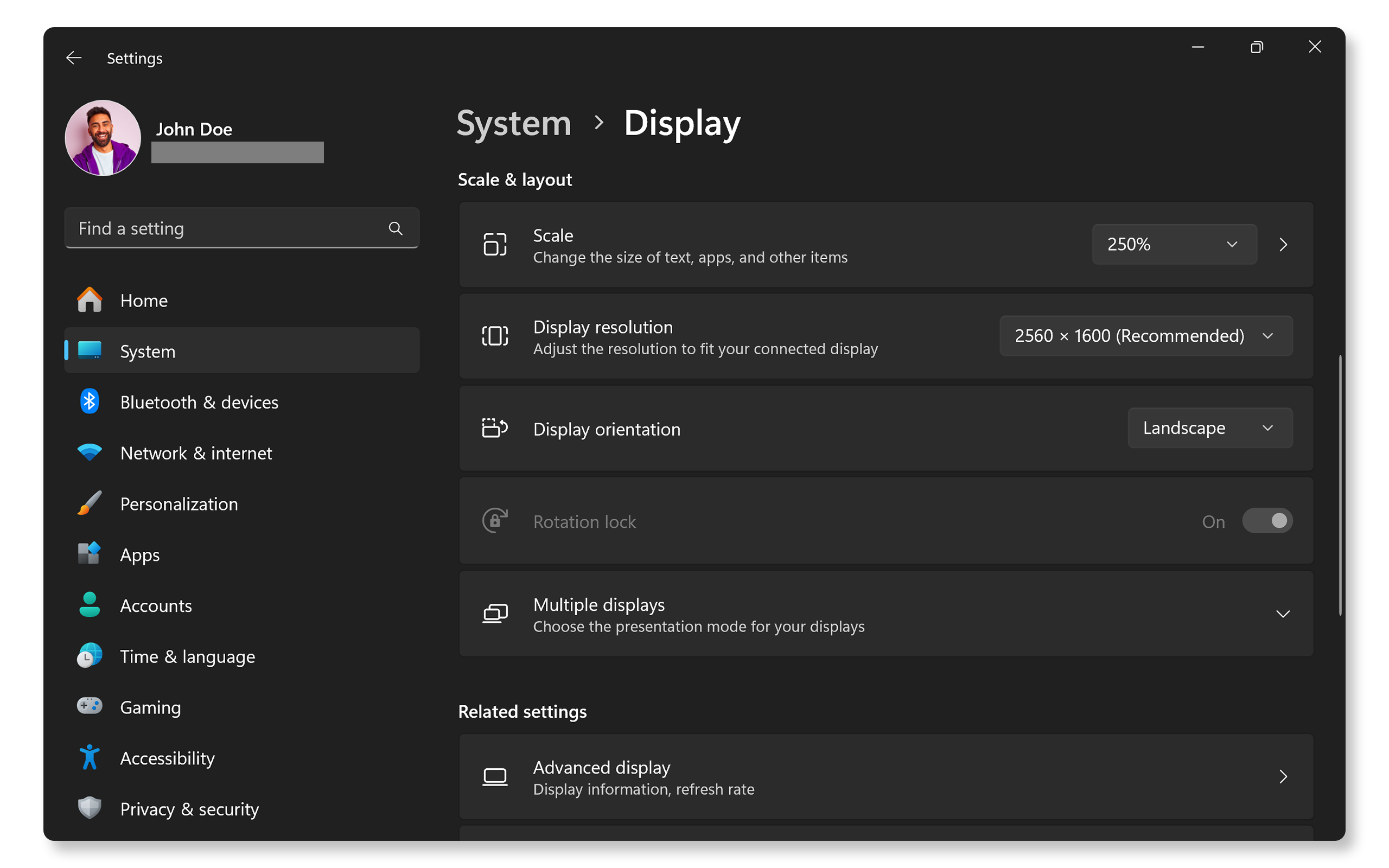
- Select Display settings from the menu.
- Look for the Display resolution section.
- You will see a dropdown menu with numbers like 1920 x 1080, 1366 x 768, etc.
- Select the resolution marked (Recommended). This is the native resolution.
- Your screen will change to the new resolution.
- If the screen looks better, keep this setting.
- If it looks worse, try another resolution.
Using the recommended resolution usually fixes most blurry screen problems.
How to Check and Adjust Scaling
Now, let’s look at scaling. Follow these steps:
- Open Display settings as before.
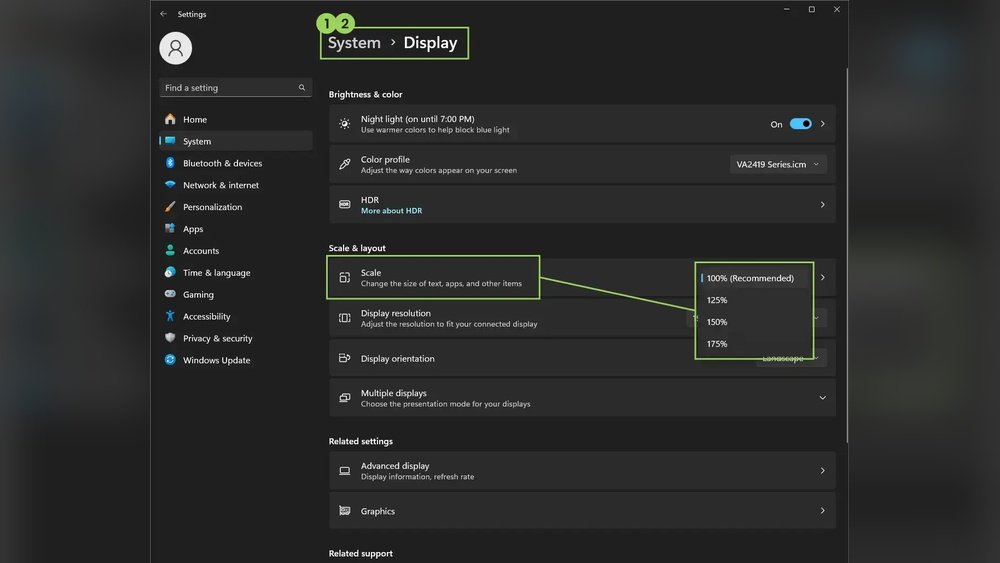
- Find the section called Scale and layout.
- Under Change the size of text, apps, and other items, you will see a percentage like 100%, 125%, 150%, etc.
- Try selecting the Recommended scaling value.
- After changing scaling, Windows may ask you to sign out and sign back in. Do this to apply changes.
- Check if the screen looks clearer now.
If the screen is still blurry, try changing scaling to other values until you find a clear view.
Why Resolution and Scaling Work Together
Resolution and scaling are linked. Resolution sets the sharpness. Scaling sets the size.
For example, if you set the right resolution but scaling is too high, text can look fuzzy.
Or, if scaling is good but resolution is wrong, images will still look blurry.
So, you need to check both settings for the best screen clarity.
Other Tips to Fix a Blurry Laptop Screen
If adjusting resolution and scaling does not fix the problem, try these tips:
- Update graphics drivers: Drivers help your laptop display images. Old drivers can cause blur.
- Check display cables: If you can open your laptop safely, check if the cables are loose.
- Adjust refresh rate: Refresh rate is how often the screen updates each second. Set it to the recommended value.
- Run Windows troubleshooter: Windows has tools to fix display problems.
How to Update Graphics Drivers
Old drivers can cause screen problems. Here is how to update them:
- Press the Windows key + X on your keyboard.
- Select Device Manager from the menu.
- Find Display adapters and click to expand.
- Right-click on your graphics device and select Update driver.
- Choose Search automatically for updated driver software.
- Follow the instructions to install any new drivers.
- Restart your laptop after updating.
How to Check Refresh Rate
Refresh rate is important for screen clarity. Follow these steps:
- Go to Display settings.
- Scroll down and click Advanced display settings.
- Look for Refresh rate (Hz).
- Select the rate marked as (Recommended).
Setting refresh rate to the right value can reduce flicker and blur.
Summary Table: Resolution Vs. Scaling
| Setting | What It Does | Effect on Screen | How to Fix Blurry Screen |
|---|---|---|---|
| Resolution | Sets the number of pixels on screen | Wrong resolution makes images fuzzy | Set to native (recommended) resolution |
| Scaling | Makes text and icons bigger or smaller | Wrong scaling causes blurry text | Set scaling to recommended value |
Final Thoughts
A blurry laptop screen is often fixable with simple steps. First, set your screen to the recommended resolution. Then, adjust scaling to make text clear and easy to read.
If these steps do not help, update your graphics drivers. Also, check cables and refresh rate.
Remember, your screen’s native resolution is key. Always try to use it for the best image quality.
Now, you can enjoy a clear and sharp laptop screen. No more struggling with blurry text or pictures!
Frequently Asked Questions
Why Is My Laptop Resolution Blurry?
A blurry laptop resolution often results from incorrect display settings or outdated graphics drivers. Update your drivers, set resolution to your screen’s native size, and adjust scaling in Display Settings. Also, check for loose display cables or mismatched refresh rates to improve clarity.
How To Fix Resolution Scaling?
Open Display settings, go to Scale & layout, and select the recommended scaling option. Adjust resolution to match your screen’s native setting. Update graphics drivers and check cable connections for best clarity.
Why Is My Screen Blurry When Scaling Windows 11?
Blurry screens in Windows 11 often occur when scaling doesn’t match your display’s native resolution. Use the recommended scaling and update graphics drivers. Adjust resolution and scaling in Display settings for the sharpest image. Check cables and refresh rates if blurriness persists.
How To Adjust A Blurry Computer Screen?
Open Display Settings on your computer. Set the resolution to the recommended native value. Adjust scaling to 100% or recommended. Update graphics drivers. Check and secure display cables if possible. Match refresh rate to your screen’s native rate for clarity.







