

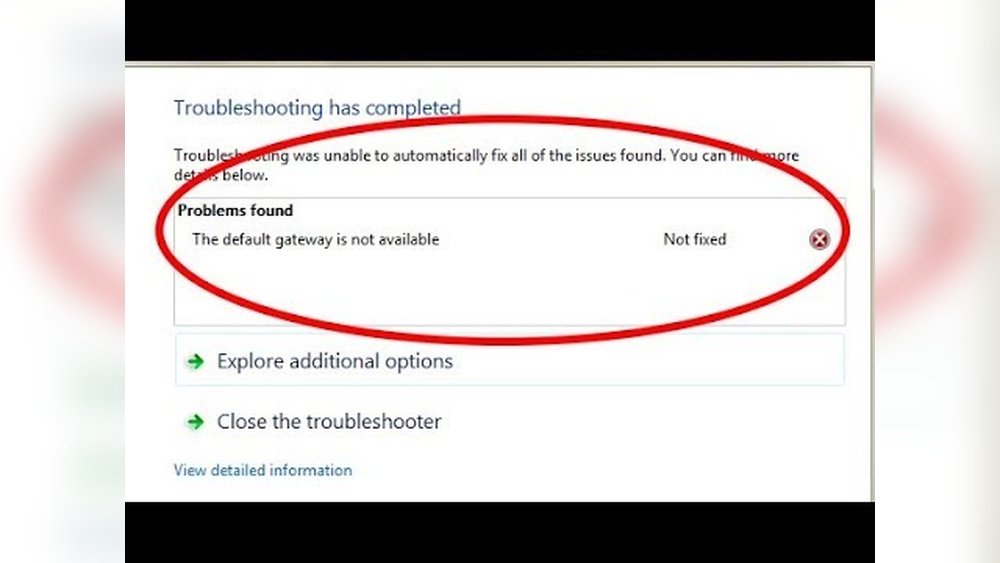
Have you ever seen the message “Default Gateway Not Available” on your Windows laptop? It can stop your internet from working. This article will help you fix this problem step by step.
What Is a Default Gateway?
The default gateway is the address your computer uses to connect to the internet. Think of it as the door to the internet. If this door is closed or broken, you cannot go online.
When the message says the default gateway is not available, your laptop cannot find this door. So, it cannot connect to the internet or other networks outside your home or office.
Why Does This Problem Happen?
There are several reasons for this issue. Here are some common ones:
- Your router or modem may have a temporary problem.
- Your network adapter driver may be old or broken.
- Your laptop’s network settings might be wrong.
- Power settings may turn off your network adapter to save energy.
- Wireless router settings can cause conflicts, especially with Wi-Fi.
Do not worry. Most of these problems can be fixed easily.
How to Fix “Default Gateway Not Available”
Follow these easy steps. You do not need to be a computer expert.
1. Restart Your Router And Laptop
Sometimes, the problem is temporary. Restarting your devices can help.
- Turn off your router and modem.
- Wait for 30 seconds.
- Turn them back on.
- Restart your laptop too.
Try to connect to the internet again. If it still does not work, try the next step.
2. Update Your Network Adapter Driver
Your network adapter is the part that connects your laptop to the internet. If its driver is old or broken, problems happen.
To update the driver:
- Click on the Start button.
- Type Device Manager and open it.
- Find Network Adapters and click the arrow to expand.
- Right-click your network adapter (Wi-Fi or Ethernet).
- Select Update driver.
- Click Search automatically for updated driver software.
Windows will look for a new driver and install it if found. Restart your laptop after this.
3. Disable And Re-enable Your Network Adapter
Sometimes, turning the network adapter off and on fixes the problem.
- Open Device Manager again.
- Find your network adapter under Network Adapters.
- Right-click it and choose Disable device.
- Wait a few seconds.
- Right-click it again and choose Enable device.
Try to connect to the internet again.
4. Reset Tcp/ip Stack Using Command Prompt
TCP/IP is the set of rules that your computer uses to talk to the internet. Resetting it can fix network problems.
To reset TCP/IP:
- Click the Start button.
- Type cmd.
- Right-click Command Prompt and select Run as administrator.
- In the black window, type these commands one by one. Press Enter after each:
| Commands to Type |
|---|
| netsh winsock reset |
| netsh int ip reset |
| ipconfig /release |
| ipconfig /renew |
| ipconfig /flushdns |
After running these commands, restart your laptop. Check if the problem is fixed.
5. Change Power Management Settings
Windows can turn off your network adapter to save power. This can cause the error.
To stop this:
- Open Device Manager.
- Find your network adapter under Network Adapters.
- Right-click and select Properties.
- Go to the Power Management tab.
- Uncheck Allow the computer to turn off this device to save power.
- Click OK.
Restart your laptop and check your internet connection again.
6. Change Wireless Router Frequency (for Wi-fi Users)
Wi-Fi routers work on two main frequencies: 2.4 GHz and 5 GHz. Some laptops work better on one frequency than the other.
If you use Wi-Fi, try switching the router to the other frequency. You can do this by logging into your router’s settings page.
Usually, open your browser and type 192.168.1.1 or 192.168.0.1 in the address bar.
Login with your username and password (check your router label or manual).
Find the wireless settings and switch from 2.4 GHz to 5 GHz or the other way. Save the settings and reconnect your laptop to Wi-Fi.
Credit: www.makeuseof.com
Extra Tips to Avoid This Problem
- Keep your Windows updated. Go to Settings > Update & Security > Windows Update.
- Use a good antivirus to keep your laptop safe.
- Do not change network settings unless you know what they do.
- Keep your router in a good place with less interference.
Summary Table of Fixes
| Fix Method | How to Do It | Why It Helps |
|---|---|---|
| Restart Router and Laptop | Turn off devices, wait 30 seconds, turn on again | Fixes temporary network issues |
| Update Network Driver | Use Device Manager to update adapter driver | Fixes driver bugs or old software |
| Disable and Enable Adapter | Turn off and on network adapter in Device Manager | Resets network hardware |
| Reset TCP/IP Stack | Run commands in Command Prompt as admin | Fixes network communication rules |
| Change Power Settings | Stop Windows from turning off network adapter | Keeps network adapter always active |
| Change Router Wi-Fi Frequency | Switch between 2.4 GHz and 5 GHz in router settings | Reduces Wi-Fi interference and connection issues |

Credit: www.geeksforgeeks.org
Final Words
The “Default Gateway Not Available” error is common but fixable. Take it one step at a time. If one step does not work, try the next.
If none of these fixes help, you may ask a friend or technician for help. Remember, computers can be tricky, but patience helps a lot.
Now, you know how to fix this problem and get back online fast.
Frequently Asked Questions
How Do You Fix The Default Gateway Is Not Available?
Restart your router and PC. Update or reinstall your network adapter driver. Reset TCP/IP using Command Prompt with “netsh int ip reset”. Disable power saving for the network adapter. Change Wi-Fi frequency band if using wireless connection.
What If There Is No Default Gateway?
Without a default gateway, your device cannot access the internet or other external networks. Network communication stays limited to the local network only. To restore connectivity, configure a proper default gateway in your network settings or contact your network administrator.
How To Get Default Gateway On Windows?
Open Command Prompt, type `ipconfig`, and press Enter. Find “Default Gateway” under your network adapter to see its IP address.
How To Solve Gateway Problem?
Restart your router and computer to reset the connection. Update or reinstall your network adapter driver. Reset TCP/IP settings via Command Prompt. Disable and re-enable the network adapter. Adjust power management and router frequency to improve stability.







