

Is your laptop power button not working? It can be very frustrating. You press the button, but nothing happens. Do not worry! There is a simple way to fix this problem. It is called the static discharge method. In this article, you will learn how to do it step by step. This guide uses easy words. Anyone can follow it.
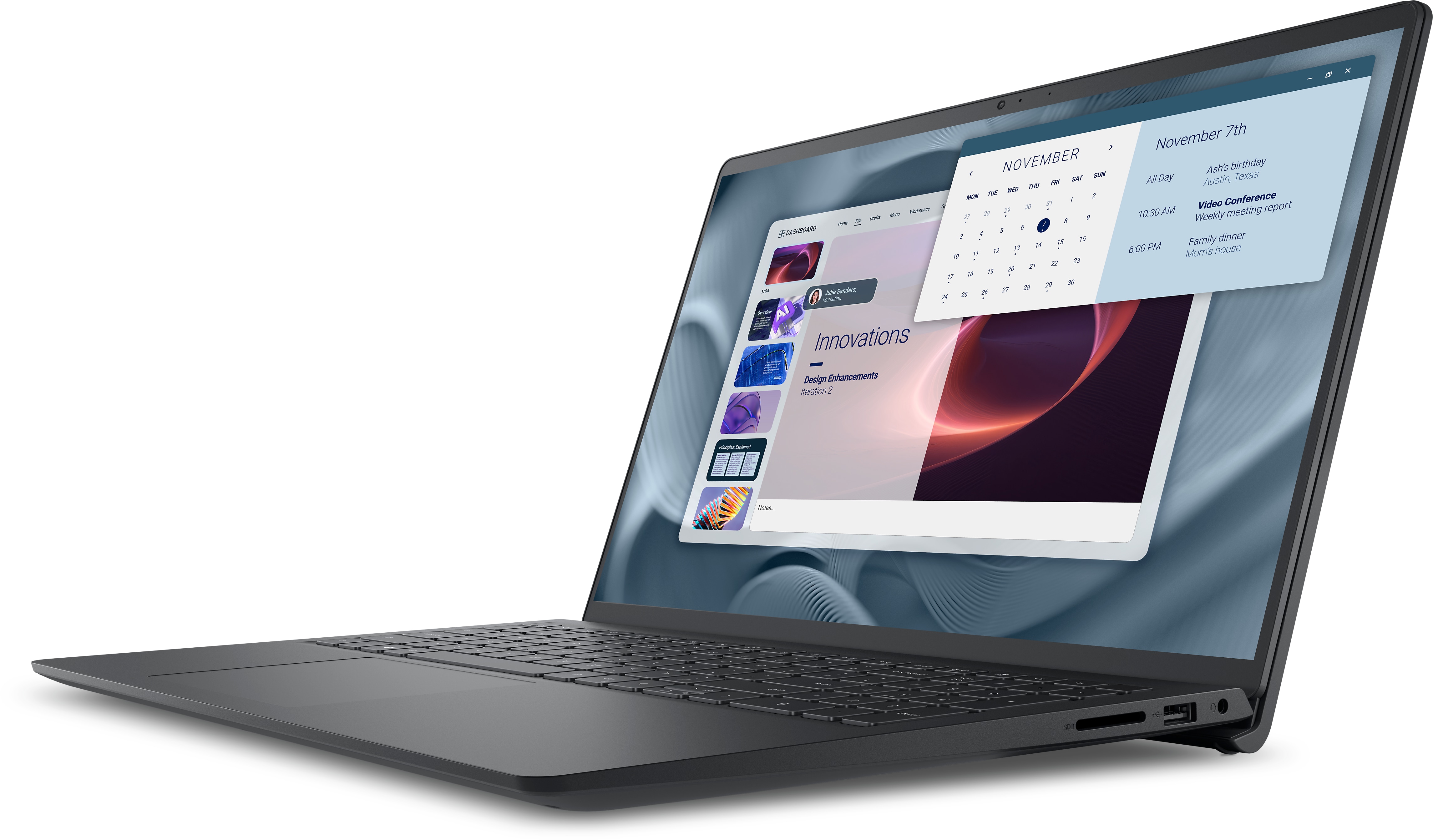
Credit: www.dell.com
Why Does a Laptop Power Button Stop Working?
Before fixing the problem, it is good to know why it happens. Sometimes, the laptop power button stops working because of:
- Static electricity inside the laptop.
- Loose or bad cable connections.
- Physical damage to the button.
- Battery or power supply problems.
- Internal hardware issues.
Most often, the cause is static electricity. When you use your laptop, small electric charges build up inside. This can stop the laptop from turning on. The static discharge method removes these charges.
What Is Static Discharge?
Static discharge means removing stored electric energy from a device. It is like letting air out of a balloon. When the energy leaves, the laptop can start working again. This method is safe and easy. It does not need special tools.
Tools You Need for Static Discharge Method
You do not need many things. Just have these ready:
- Your laptop
- Charger (if you want to test with power)
- Patience and a clean, flat surface
No need to open your laptop or use tools. Just follow these steps carefully.
Step-by-Step Guide: How to Fix Your Laptop Power Button
Step 1: Turn Off And Unplug Everything
First, make sure your laptop is off. If it is on, press and hold the power button for about 10 seconds to force it off. Then, unplug the charger from the laptop. Remove all other devices like USB sticks, mouse, or keyboard.
Step 2: Remove The Battery (if Possible)
If your laptop has a removable battery, take it out. This stops power from going to the laptop. If you cannot remove the battery, skip this step.
Step 3: Press And Hold The Power Button
Now, press and hold the power button for 15 to 30 seconds. This step lets the laptop lose the static electricity inside. You may feel some warmth, but that is normal.
Step 4: Wait A Few Minutes
After holding the button, wait for 2-3 minutes. This helps the laptop rest and lose any leftover charge.
Step 5: Reconnect The Battery And Charger
Put the battery back in if you removed it. Then, connect the charger to the laptop. Make sure the charger is plugged into a working wall outlet.
Step 6: Press The Power Button Again
Now, press the power button once. Your laptop should start working. If it does not, repeat steps 2 to 6 one more time. Sometimes, it takes two tries to work.
Extra Tips to Try if Static Discharge Does Not Work
If your laptop still does not turn on, try these tips:
- Check the power cable: Make sure the charger cable is not broken.
- Look at the power button: See if it is stuck or broken.
- Use a different charger: Sometimes, the charger can be the problem.
- Try turning on without the battery: Just connect the charger and press power.
If none of these work, your laptop might need professional repair. But most of the time, static discharge fixes the problem.
Why Does Static Electricity Affect Laptops?
Static electricity builds when you move or touch things. It can enter your laptop parts. This causes the laptop to freeze or not start. The static discharge method removes this electricity safely. It helps your laptop work again.

Credit: typecase.co
Important Safety Notes
- Always unplug your laptop before doing static discharge.
- Do not open your laptop if you do not know how.
- Do not use water or liquids near your laptop.
- If you feel unsure, ask a computer expert.
How Long Does This Fix Last?
This fix can last a long time. Sometimes, static electricity builds again. If this happens, repeat the static discharge steps. Most users find their laptop works well after this process.
Summary Table: Static Discharge Method Steps
| Step | Action | Reason |
|---|---|---|
| 1 | Turn off laptop and unplug all devices | Stops power and prepares for discharge |
| 2 | Remove battery (if possible) | Removes all power sources |
| 3 | Hold power button 15-30 seconds | Drains static electricity inside |
| 4 | Wait 2-3 minutes | Lets laptop rest and discharge fully |
| 5 | Reconnect battery and charger | Provides power to laptop again |
| 6 | Press power button to start | Turns on laptop after discharge |
Final Thoughts
A laptop with an unresponsive power button can cause stress. But the static discharge method is simple. It helps many laptops start working again. You do not need special tools or skills.
Remember to do the steps carefully. If your laptop still does not work, seek help from a computer technician. But try static discharge first. It might be the quick fix you need.
Thanks for reading. We hope your laptop powers on soon!
Frequently Asked Questions
Why Is My Laptop Not Responding To The Power Button?
Your laptop may not respond if the power button is stuck, damaged, or internal cables are loose. Perform a static discharge by unplugging, removing the battery, and holding the power button for 15 seconds to reset power. Check all power connections securely.
How To Discharge Laptop Static Electricity?
Unplug the laptop and remove the battery if possible. Hold the power button for 15-30 seconds to drain static electricity. Reconnect the battery and power cable, then turn on the laptop. This discharges residual static and can fix unresponsive power issues.
How To Fix Static Discharge?
Unplug your device and remove the battery. Hold the power button for 15-30 seconds to drain static electricity. Reconnect and power on. Repeat if needed.
Can Static Discharge Damage A Laptop?
Yes, static discharge can damage a laptop’s internal circuits, causing hardware failure or malfunction. Avoid static buildup before handling.







