

Sometimes, your laptop or device shows a message: “Battery Not Detected”. This can be very frustrating. You want to use your device, but the battery does not work. This problem can happen on many brands like Dell, Lenovo, HP, or others.
Don’t worry. This error does not always mean your battery is broken. Often, the laptop just needs a small reset inside. This reset can help the computer see the battery again.
What Does ‘Battery Not Detected’ Mean?
This message means your laptop does not see the battery. It thinks the battery is missing or not connected. But your battery is there. It just does not talk to the computer correctly.
There are many reasons for this:
- Battery is not connected well.
- Battery contacts are dirty or dusty.
- Internal battery link inside the laptop needs reset.
- Software or driver problems.
Today, we focus on resetting the internal battery link. This is a common and easy fix.
Why Reset the Internal Battery Link?
Your laptop has a small battery inside. It helps keep settings and power management working. Sometimes, this small battery or link gets stuck. The laptop then cannot see the main battery.
Resetting this link can fix the problem. It tells the laptop to look for the battery again. This reset is like restarting a small part of the laptop.
Things You Need Before Starting
- A screwdriver (if your laptop needs to open the cover).
- A clean, flat surface to work on.
- Patience and care to avoid damage.
It is important to turn off your laptop and unplug it before you start.
Step-by-Step Guide to Reset the Internal Battery Link
Step 1: Turn Off And Unplug Your Laptop
First, shut down your laptop fully. Do not put it to sleep or hibernate. Then, unplug the power charger from the laptop.
This stops any power going to your laptop during the reset.
Step 2: Remove The Main Battery (if Removable)
Many laptops have a battery you can take out. Look at the bottom of your laptop. You might see a battery cover or latch.
Use your fingers or a screwdriver to unlock and remove the battery. Keep it safe on your desk.
Step 3: Open The Laptop Back Cover (for Internal Battery Reset)
If your battery is not removable, you must open the laptop cover. Use a screwdriver to remove the screws on the back.
Carefully lift the cover. You will see the inside of your laptop.
Step 4: Locate The Internal Battery Or Cmos Battery
Inside, look for a small round battery. This is often called the CMOS battery. It looks like a coin.
This battery helps the laptop keep time and settings. It also helps with power management.
Step 5: Disconnect The Internal Battery
Gently unplug the small wire or connector from the motherboard. If it is a coin cell battery, carefully remove it from the holder.
Leave it unplugged or out for about 1 to 2 minutes. This pause helps reset the battery link.
Step 6: Reconnect The Internal Battery
After waiting, plug the connector back in or put the coin cell battery back in place. Make sure it fits well.
Step 7: Close The Laptop Cover
Put the back cover on the laptop. Screw all screws back tightly but gently.
Step 8: Reinstall The Main Battery (if Removed)
Put the main battery back in its place. Lock it with the latch or screw if needed.
Step 9: Plug In The Charger And Turn On Your Laptop
Connect your charger to the laptop. Press the power button to turn it on.
Watch if the battery icon appears or the error message disappears.
What to Do If the Problem Continues
If you still see “Battery Not Detected,” try these tips:
- Check Battery Connection: Make sure the battery is clean and fits well.
- Clean Battery Contacts: Use a soft cloth or cotton swab to clean contacts.
- Update Battery Drivers: Go to Device Manager and reinstall battery drivers.
- Run Battery Diagnostics: Many laptops have built-in tests for battery health.
- Check BIOS Settings: Sometimes updating BIOS helps detect the battery.
If nothing works, your battery or motherboard may need repair.
Important Tips to Remember
- Always turn off and unplug your laptop before opening it.
- Be gentle when handling internal parts.
- Do not use water or wet cloth near electronics.
- Keep screws and small parts safe to avoid loss.
- If unsure, ask a professional to help.

Credit: battlebornbatteries.com

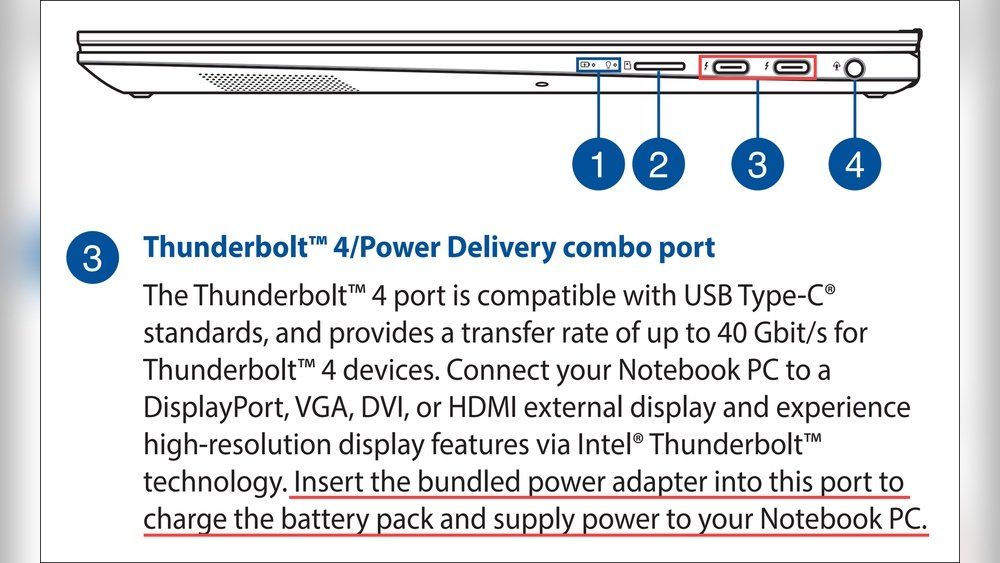
Credit: support.hp.com
Summary Table: Steps to Reset Internal Battery Link
| Step | Action | Purpose |
|---|---|---|
| 1 | Turn off and unplug laptop | Ensure safety and no power flow |
| 2 | Remove main battery (if removable) | Disconnect power source |
| 3 | Open laptop back cover | Access internal battery |
| 4 | Find internal or CMOS battery | Locate power reset part |
| 5 | Unplug or remove internal battery | Reset internal battery link |
| 6 | Reconnect internal battery | Restore power connection |
| 7 | Close back cover | Protect internal parts |
| 8 | Reinstall main battery | Restore battery power |
| 9 | Plug in charger and turn on | Check if battery is detected |
Final Words
The “Battery Not Detected” error can seem scary. But often, it is a simple fix. Resetting the internal battery link helps many laptops see their batteries again.
Follow the steps carefully. Take your time. You can do it yourself.
If the problem is still there, look for help from a repair shop. Sometimes, the battery or computer needs a new part.
Remember, your laptop needs good care to work well. Keep it clean and safe.
Frequently Asked Questions
How To Solve Battery Not Detected Problem?
Turn off the laptop and unplug power. Remove and reseat the battery. Perform a hard reset. Update battery drivers and BIOS. Clean battery contacts to ensure proper connection.
Why Does My Roomba Say Battery Not Detected?
Your Roomba says “battery not detected” due to poor battery contact or a faulty battery. Remove, clean, and reseat the battery. Clean terminals with isopropyl alcohol to fix debris or corrosion. Check for battery damage or replace if needed.
How To Fix Lenovo Battery Not Detected?
Turn off the Lenovo laptop and unplug it. Remove and reseat the battery. Perform a hard reset by pressing the reset button. Uninstall and reinstall battery drivers via Device Manager. Update BIOS and drivers. Check battery contacts for dirt or corrosion.
Restart the laptop to detect the battery.
How Do I Fix My Dell Laptop Battery Not Detected?
Turn off the Dell laptop and unplug the charger. Remove and reseat the battery. Perform a hard reset by holding the power button for 30 seconds. Update BIOS and battery drivers via Device Manager. Run Dell diagnostics to check battery health.







