

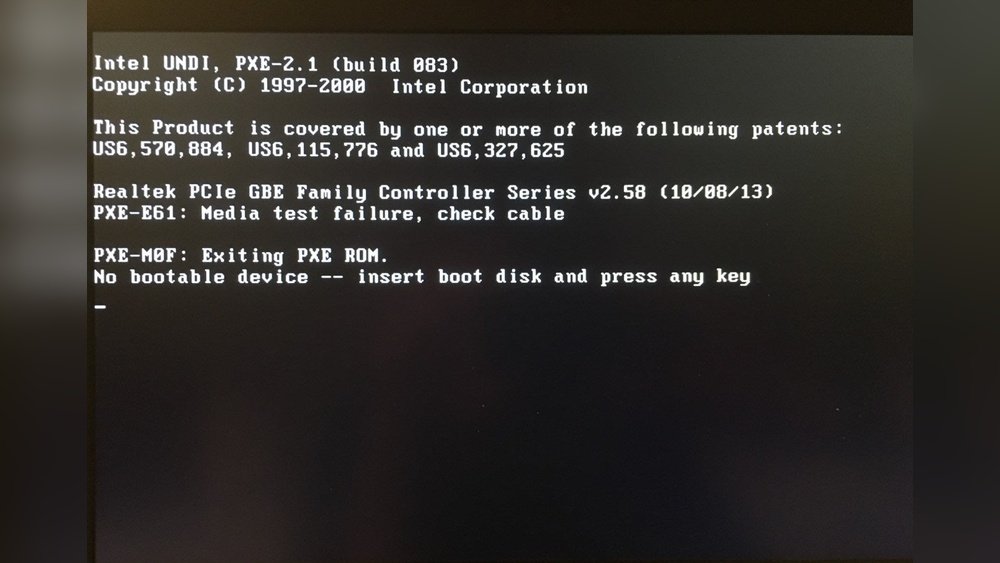
Have you ever turned on your computer only to see a message saying, “No Bootable Device”? It means your computer cannot find the hard drive or SSD with the operating system. This problem can stop you from using your computer. Don’t worry. This article will help you fix it step by step. We will check your hard drive and SSD connections first. Let’s start!
What Does “No Bootable Device” Mean?
This message means the computer cannot find a device to start from. Usually, it looks for your hard drive or SSD. The hard drive or SSD has your Windows or other operating system. Without it, your computer cannot start.
There are many reasons for this message. Sometimes the hard drive is not connected well. Sometimes the BIOS settings are wrong. Other times, the operating system is damaged. Here, we focus on checking the hard drive or SSD connection first. This is easy and often solves the problem.
What You Need Before Starting
- A small screwdriver (if your computer needs it)
- Patience and care
- Basic computer knowledge (how to open your laptop or PC case)
If you are not sure, ask someone for help. Opening a computer can be tricky for beginners.
Step 1: Turn Off Your Computer and Unplug It
Before opening the computer, turn it off completely. Unplug the power cable from the wall. If you have a laptop, remove the battery if possible. This step is very important for your safety and to protect your computer.
Step 2: Open the Computer Case or Laptop Back
Use a screwdriver to open the back cover of your laptop or the side panel of your desktop computer. Be gentle. Keep the screws safe so you can close the case later.
If you do not know how to open your device, look for a guide online. Search for your computer model + “how to open.”
Step 3: Locate the Hard Drive or SSD
Inside your computer, look for the hard drive or SSD. It looks like a small box or a flat card. It will have cables connected to it. Usually, it is near the motherboard (the big board inside).
Credit: www.reddit.com
Step 4: Check the Hard Drive or SSD Connections
Look at the cables connected to the hard drive or SSD. There are two main cables:
- Power Cable: This cable gives power to the drive.
- Data Cable: This cable sends data between the drive and the motherboard.
Make sure both cables are firmly connected. Sometimes cables get loose, especially if you move your computer often.
How To Check The Connection
- Gently pull each cable and push it back in.
- Make sure the connectors fit snugly.
- If the cables look damaged, you may need to replace them.
For SSDs, especially M.2 types, make sure the small screw holding the SSD is tight. If the SSD is loose, the computer may not detect it.
Step 5: Close the Case and Power On
After checking and fixing the cables, close your computer case or laptop back. Put the screws back in place. Plug in the power cable and battery (for laptops). Turn on your computer.
If the “No Bootable Device” error disappears, congratulations! You fixed the problem. If not, keep reading.
Step 6: Check BIOS Settings
Your computer’s BIOS controls which device it uses to start. Sometimes, the BIOS does not see the hard drive or SSD correctly. You can check and fix this.
How To Enter Bios
- Turn on your computer.
- Press the BIOS key quickly (often F2, F10, DEL, or ESC).
- If you see the BIOS screen, you are inside.
Look for the section called Boot or Boot Order. This section shows the devices your computer tries to start from.
What To Do In Bios
- Find your hard drive or SSD in the list.
- If it is not there, the drive may be damaged or not connected well.
- If it is there, make sure it is set as the first boot device.
- Save the changes and exit BIOS.
Step 7: Use Diagnostics Tools
Some computers have built-in diagnostics tools. These tools check your hard drive or SSD for problems.
To run diagnostics:
- Turn off your computer.
- Turn it on and press the key for diagnostics (often F12 or F9).
- Run the hard drive test.
If the test finds errors, your hard drive or SSD may need repair or replacement.
Step 8: Other Things to Try
If the problem stays, try these steps:
- Disconnect all USB devices: Sometimes USB drives confuse the boot order.
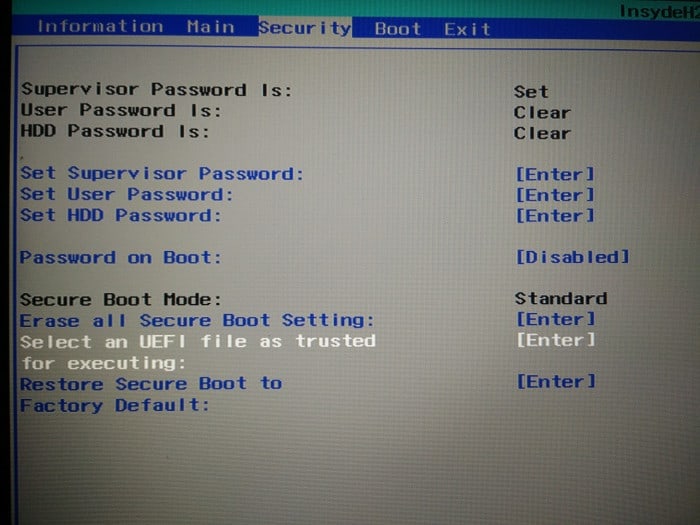
- Reset BIOS to default: Find the option in BIOS to reset settings.
- Update BIOS: Visit your computer maker’s website for updates.
Credit: itsfoss.com
Summary Table: Quick Checklist
| Step | What to Do | Why |
|---|---|---|
| Turn Off and Unplug | Power off and unplug computer | Safety first |
| Open Case | Remove cover carefully | Access hard drive/SSD |
| Locate Drive | Find hard drive or SSD inside | Identify problem device |
| Check Connections | Secure power and data cables | Loose cables cause errors |
| Close Case and Boot | Close case and start computer | Test if problem is fixed |
| Check BIOS | Set drive as boot device | BIOS controls boot order |
| Run Diagnostics | Test hard drive health | Detect hardware errors |
| Other Fixes | Reset BIOS, update BIOS, disconnect USB | Eliminate other causes |
When to Ask for Professional Help
If you tried all steps and still see the error, the hard drive or SSD may be damaged. It might need repair or replacement. In this case, take your computer to a service center.
Also, if you feel uncomfortable opening your computer, ask a trusted technician to help. It is better to be safe than sorry.
Final Words
The “No Bootable Device” error can be scary. But most of the time, it is a simple problem. Checking the hard drive or SSD connection often solves it. Remember to be careful and patient. Follow the steps one by one.
After fixing the problem, your computer will start normally. You can use it again without worries. If you want to prevent this in the future, avoid moving your computer too much. Keep the cables tight inside. And always turn off your computer properly.
Good luck! Your computer is ready to boot again.
Frequently Asked Questions
Why Is My Ssd Detected But No Bootable Device?
Your SSD shows but no bootable device appears due to incorrect BIOS boot order or corrupted OS. Check BIOS settings, set SSD as primary boot drive, update/reset BIOS, or reinstall the operating system to fix the issue.
How To Solve The Problem Of No Bootable Device?
Check BIOS settings to ensure the internal hard drive is enabled and set as the primary boot device. Adjust boot order to Legacy mode if needed. Disconnect all external devices and perform a hard reset. Run hardware diagnostics and repair or reinstall the operating system if necessary.
How To Fix Dell Computer Booting Error?
Restart the Dell PC after unplugging all peripherals. Check BIOS boot order and ensure the SSD/HDD is first. Run Dell Diagnostics to test hardware. Use SupportAssist OS Recovery to repair or reinstall Windows if needed. Perform a hard reset by removing power and battery before rebooting.
Can I Fix A 3f0 Error Myself?
Yes, you can try fixing a 3f0 error yourself by checking HDD/SSD connections and BIOS boot order. Restart after disconnecting peripherals. Run hardware diagnostics and use recovery tools if needed. Reinstall the operating system as a last step to resolve boot issues.







