

Is your laptop fan running all the time? It can be noisy and annoying. You may wonder why it happens. Many things cause this problem. But two main reasons are power plan settings and malware infection. In this article, we will explain how to check and fix these causes. This way, your laptop will be quiet again.
Why Does Your Laptop Fan Run Constantly?
The laptop fan helps keep your computer cool. When the laptop gets hot, the fan turns on to cool it down. If your fan runs all the time, it means your laptop is hot or working hard.
Common reasons for constant fan running:
- High CPU usage
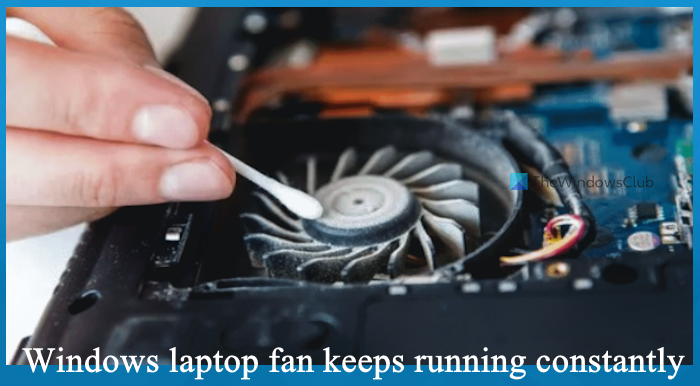
- Dust inside the fan
- Incorrect power plan settings
- Malware or virus infection
- Old or broken fan
In this article, we focus on two easy steps: power plan and malware check.
Step 1: Check Your Power Plan Settings
Your laptop has different power plans. These plans control how your laptop uses power and runs the hardware. Some plans make the laptop faster but hotter. Others save power and run cooler.
If you use a high-performance plan, your fan may run more. This is because the CPU works harder and produces more heat.
How To Check And Change Power Plan
Follow these steps:
- Click the Start button and open the Control Panel.
- Find and click on Power Options.
- You will see different power plans: Balanced, Power Saver, and High Performance.
- Choose Balanced or Power Saver to reduce fan noise.
- Click Change plan settings next to your chosen plan.
- Click Change advanced power settings.
- Find Processor power management and expand it.
- Change the maximum processor state to 80-90% for both battery and plugged in.
- Click OK to save changes.
This limits how hard your CPU works, so it produces less heat. The fan will not run as much.
Why Balanced Or Power Saver Works
| Power Plan | CPU Usage | Heat Generated | Fan Activity |
|---|---|---|---|
| High Performance | High | High | Runs Often |
| Balanced | Medium | Medium | Runs Less |
| Power Saver | Low | Low | Runs Rarely |
Choosing Balanced or Power Saver helps your fan stay quiet.

Credit: v2cloud.com
Credit: www.thewindowsclub.com
Step 2: Run a Malware Check
Malware can make your laptop slow and hot. It uses your CPU without telling you. This causes the fan to run all the time.
Malware is bad software. It can steal your data or break your laptop. It also makes your computer work harder.
How To Check For Malware
Follow these simple steps:
- Open the Start menu and search for your antivirus program.
- If you don’t have one, download a free antivirus like Microsoft Defender.
- Open the antivirus program.
- Find the option to run a full system scan.
- Start the scan and wait until it finishes.
- If malware is found, follow instructions to remove it.
- Restart your laptop after removing malware.
Running this scan stops malware from using your CPU.
Why Malware Causes Fan Problems
- Malware runs many hidden tasks.
- This uses your CPU power.
- CPU heats up quickly.
- Fan runs to cool the CPU.
- Fan noise stays loud until malware is removed.
Extra Tips to Keep Your Laptop Fan Quiet
Besides power plan and malware, these tips help reduce fan noise:
- Clean the Fan: Dust blocks airflow. Use compressed air to clean inside.
- Use Laptop on Hard Surface: Soft surfaces block air vents.
- Close Unused Programs: Too many apps use CPU power.
- Check for Software Updates: Updates fix bugs that cause high CPU use.
- Use Cooling Pads: Extra fans help cool your laptop.
When to See a Technician
If the fan still runs loudly after these steps, it may be broken. The fan can wear out or the thermal paste can dry. This causes poor cooling.
Take your laptop to a professional if:
- Fan noise is very loud and constant
- Laptop shuts down because it gets too hot
- Cleaning and software fixes do not help
Summary
Your laptop fan runs constantly because your CPU is hot or working hard. Two common reasons are power plan settings and malware.
First, check your power plan. Choose Balanced or Power Saver. This lowers CPU work and heat.
Second, run a malware scan. Remove any harmful software that uses CPU power.
Also, keep your laptop clean and use it on a hard surface. Close unused apps and update software.
If problems continue, see a technician. They can fix hardware problems like broken fans.
Follow these easy steps. Your laptop will be quieter and cooler soon.
Frequently Asked Questions
Why Is My Laptop Fan Running Continuously?
Your laptop fan runs continuously because the CPU works hard, generating heat. Background apps, malware, or dust increase fan activity. Adjust power settings to Balanced or Power Saver, clean vents, and scan for malware to reduce constant fan noise.
How Do I Stop My Laptop From Sounding Like A Jet Engine?
Clean dust from vents and fan regularly. Adjust power plan to Balanced or Power Saver. Scan for malware and close unnecessary apps. Use a cooling pad and place the laptop on a hard, flat surface. Replace faulty fans if noise persists.
How To Fix A Malfunctioning Laptop Fan?
Clean dust from the fan and vents to improve airflow. Check for malware and close heavy apps. Adjust power plan to Balanced. Replace the fan if it still malfunctions. Use a cooling pad to reduce overheating and noise.
Why Is My Laptop Fan So Loud When Nothing Is Running?
A loud laptop fan when idle often means high CPU usage, dust buildup, or a faulty fan. Check background apps, clean vents, and adjust power settings to reduce noise. Malware or overheating can also cause constant fan noise.







