

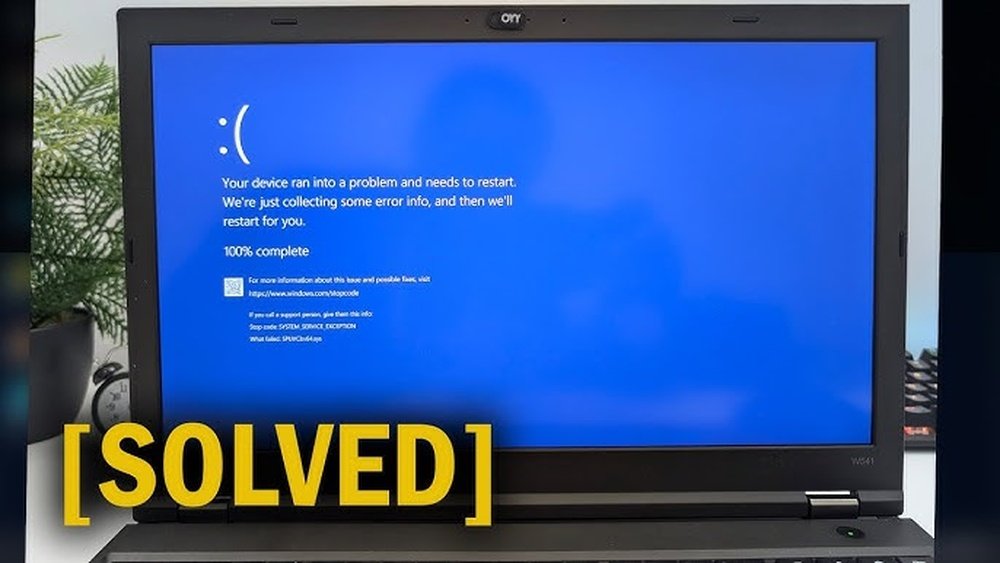
The Blue Screen of Death, also called BSOD, is a scary error. It happens when Windows faces a big problem. The screen turns blue. Then, the computer stops working. It may restart alone or stay stuck.
Many people see BSOD on Windows 10 or Windows 11. It can happen for many reasons. But the good news is, you can often fix it. This article will guide you step by step.
What is the Blue Screen of Death (BSOD)?
BSOD happens when Windows finds a serious error. This error cannot be fixed while the system runs. So, Windows stops everything to protect your files and computer.
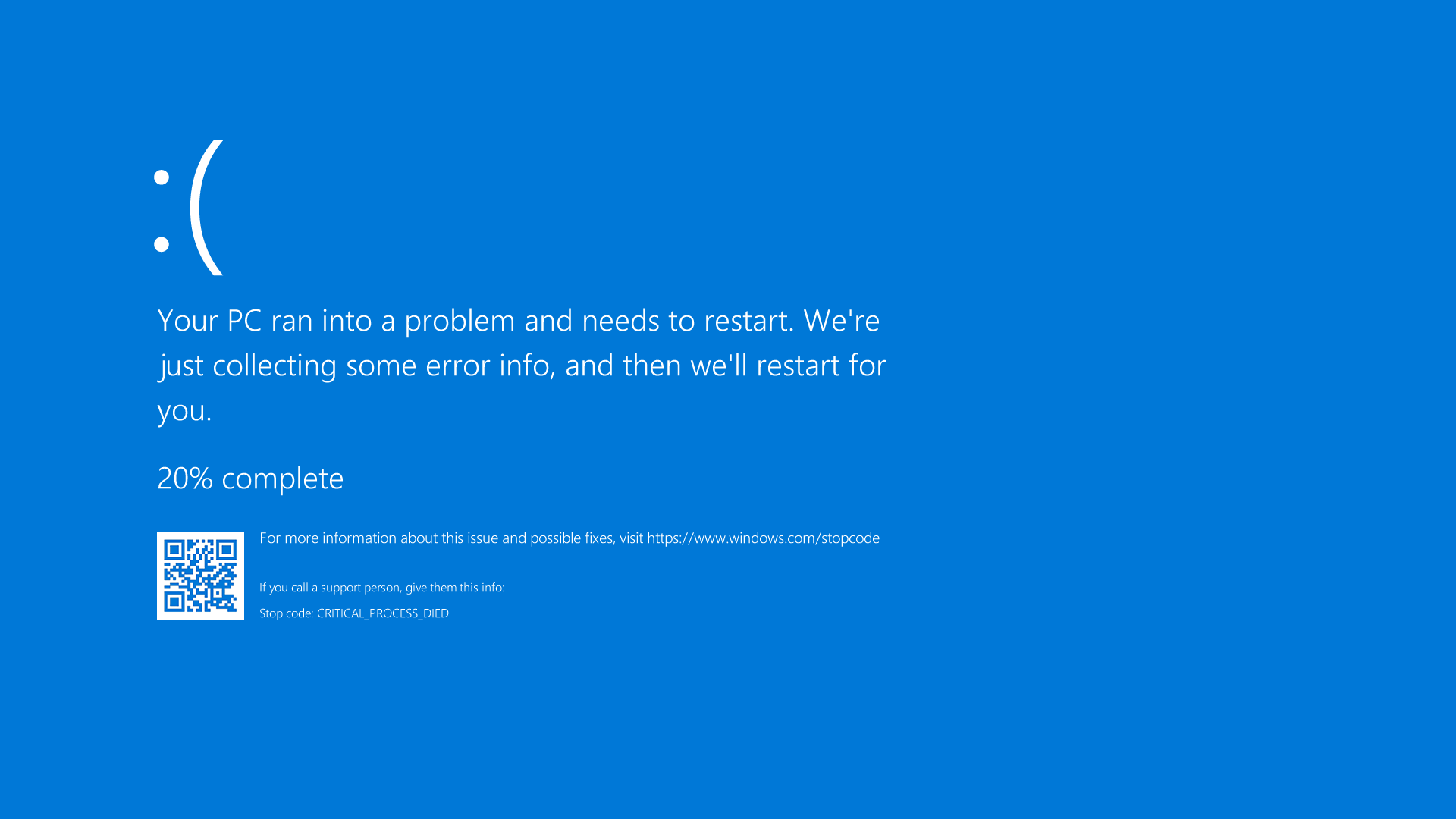
On the blue screen, you will see some text. This text tells you what went wrong. It may show a “Stop Code” or error name. This code helps find the cause.
Common Causes of BSOD
- Hardware problems: Broken parts like RAM, hard drive, or graphics card.
- Driver errors: Drivers that control hardware may be old or wrong.
- Software conflicts: New programs may not work well with Windows.
- Corrupt system files: Windows files may get damaged or lost.
- Overheating: If your PC gets too hot, it may crash.
Step 1: Try Simple Fixes First
Before you do anything hard, try these easy steps. They often fix the problem fast.
| Step | What to do |
|---|---|
| 1 | Restart your PC: Sometimes, a quick reboot clears errors. |
| 2 | Write down the Stop Code: Look at the blue screen. Note the error name or number. |
| 3 | Disconnect new devices: Remove USB sticks, printers, or other new hardware. |
| 4 | Start in Safe Mode: This runs Windows with only needed drivers. |
Safe Mode helps to check if a driver or program is causing the problem.
How to Enter Safe Mode
To enter Safe Mode in Windows 10 or 11:
- Hold the Shift key and click Restart.
- Choose Troubleshoot > Advanced options > Startup Settings.
- Click Restart.
- When the options appear, press 4 or F4 for Safe Mode.
Step 2: Check Device Drivers
Drivers help Windows talk to hardware. Bad or old drivers cause BSOD.
In Safe Mode, do this:
- Open Device Manager (search it in Start).
- Look for devices with a yellow triangle. These may have problems.
- Right-click and choose Update driver or Uninstall device.
- If BSOD started after a driver update, choose Roll back driver.
Step 3: Run System File Checker (SFC) and Disk Check
Sometimes Windows files get damaged. SFC tool finds and fixes these.
To run SFC and check disk:
- Open Command Prompt as Administrator. Search, right-click, and pick “Run as admin.”
- Type
sfc /scannowand press Enter. - Wait for the scan to finish. It may fix files automatically.
- Next, type
chkdsk /rand press Enter. - You may need to restart your PC to let disk check run.
These tools help fix file and disk problems that cause BSOD.
Step 4: Remove Recent Updates and Programs
New Windows updates or apps can cause conflicts.
Try uninstalling them:
- Go to Settings > Update & Security > Windows Update > View update history.
- Click Uninstall updates.
- Remove recent updates, one by one, then restart.
- Also, uninstall new apps installed just before BSOD appeared.
Step 5: Use System Restore
System Restore brings Windows back to a time when it worked well.
To use it:
- Search System Restore and open Create a restore point.
- Click System Restore button.
- Follow the steps and choose a restore point from before the BSOD started.
- Let Windows restore and restart your PC.
Step 6: Check Hardware
If software fixes fail, hardware might be the cause.
- Test RAM: Use Windows Memory Diagnostic. Search and run it.
- Check hard drive health: Use software like CrystalDiskInfo or your PC’s tools.
- Look for overheating: Make sure fans work and vents are clean.
- Remove and reinsert parts: Sometimes loose parts cause errors.
Step 7: When Windows Won’t Start
If BSOD stops Windows from starting, use recovery tools:
- Boot from a Windows installation USB or DVD.
- Choose Repair your computer at setup screen.
- Try Startup Repair to fix boot problems.
- Open Command Prompt to run SFC and disk checks.
Credit: www.dell.com
Step 8: Reset or Reinstall Windows
If nothing else works, you can reset Windows.
This removes apps and fixes many problems but keeps your files.
To reset:
- Go to Settings > Update & Security > Recovery.
- Click Reset this PC.
- Choose to keep your files or remove everything.
- Follow instructions to finish the reset.
If even reset does not fix BSOD, a clean reinstall might be needed.
Tips to Avoid BSOD in the Future
- Keep Windows updated: Install updates regularly.
- Update drivers: Use official sources for new drivers.
- Install trusted apps: Avoid unknown or unsafe software.
- Run antivirus: Scan often to keep malware away.
- Keep hardware clean: Dust and heat can cause problems.
- Backup data: Save your files regularly to avoid loss.

Credit: www.asus.com
Frequently Asked Questions
How To Fix A Blue Screen Of Death On Windows 10 11?
Restart your PC and note the stop code. Remove new hardware and boot into Safe Mode. Update or rollback drivers. Run sfc /scannow and chkdsk. Use System Restore or uninstall recent updates to fix the Blue Screen of Death on Windows 10/11.
How To Solve Bsod In Windows 11?
Restart your PC to clear temporary errors. Note the stop code for troubleshooting. Remove new devices and boot into Safe Mode. Update or roll back drivers. Run sfc /scannow and chkdsk. Use System Restore or uninstall recent updates. Check hardware and overheating issues.
What Causes The Blue Screen Of Death In Windows 11?
The Blue Screen of Death in Windows 11 occurs due to hardware failures, driver conflicts, corrupt system files, or software errors. It signals a critical system error that forces an abrupt restart to prevent damage.
Is The Blue Screen Of Death Fixable?
Yes, the Blue Screen of Death (BSOD) is fixable. Restart your PC, update drivers, run system scans, or use System Restore. Troubleshoot hardware or software issues based on error codes to resolve the problem effectively.
Conclusion
Blue Screen of Death can feel scary and confusing.
But most of the time, it can be fixed by simple steps.
Start with easy fixes like restarting and safe mode.
Check drivers, system files, and recent changes next.
If needed, test hardware and use recovery tools.
Last, reset or reinstall Windows if no other fix works.
Take your time and follow the steps carefully.
You can solve the BSOD and make your PC work again.







