

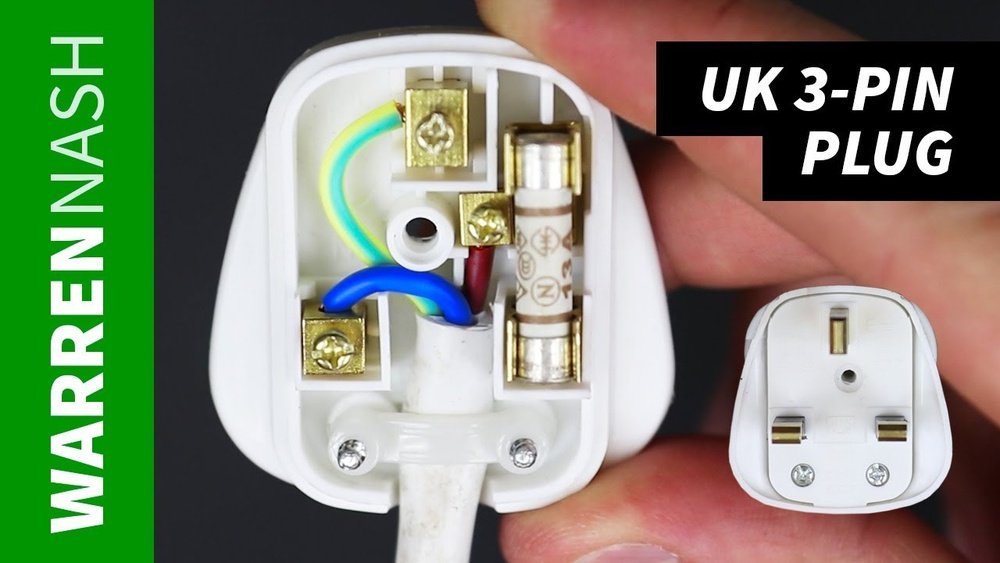
Have you ever seen the message “Plugged In” on your laptop or phone but the battery does not charge? This can be very frustrating. But don’t worry. This article will help you fix this problem in easy steps.
What Does “Plugged In” But Not Charging Mean?
When your device says “Plugged In,” it means the charger is connected. But if the battery is not charging, the device is not getting power to fill the battery. This can happen for many reasons. It can be a simple problem or a more serious one.

Credit: www.youtube.com
Why Does This Problem Happen?
- Your charger or power cord might be broken.
- The charging port on your device may be dirty or damaged.
- The battery might be old or damaged.
- Battery drivers or power settings on your device could be wrong.
- Sometimes, a software update can cause this issue.
Easy Steps to Fix “Plugged In” But Not Charging
Follow these simple steps one by one. They can help your device start charging again.
1. Check The Power Connection
Make sure the charger is properly plugged into the wall socket.
Try a different wall outlet to see if the problem is with the power source.
If you use a power strip or surge protector, plug the charger directly into the wall.
2. Inspect The Charger And Cable
Look at the charger and cable carefully. Check for any cuts, breaks, or bent pins.
If you see damage, try another charger if you have one.
Using a charger that is not compatible can cause charging problems.
3. Clean The Charging Port
Dust and dirt can block the charging port on your device.
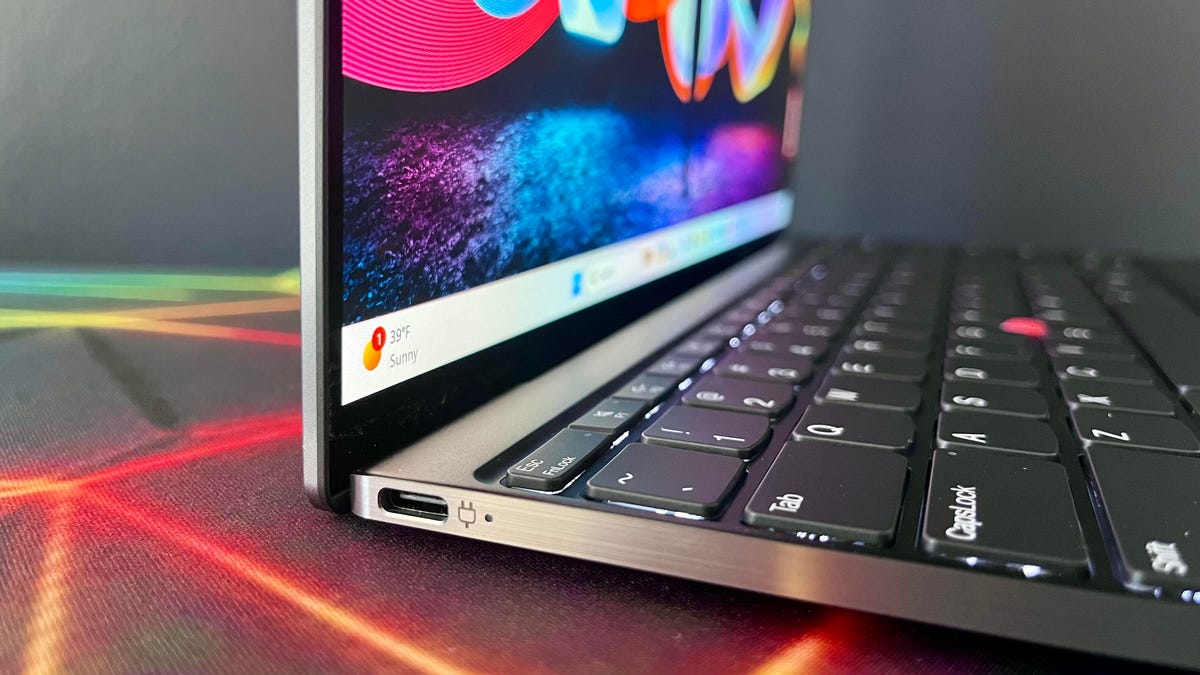
Turn off your device first. Then use a dry cotton swab or toothpick to clean the port.
Be gentle to avoid damage. After cleaning, try to charge again.
4. Remove And Reattach The Battery (if Possible)
If your laptop has a removable battery, turn off the device.
Take out the battery carefully. Wait a few seconds, then put it back in.
Turn on the device and check if it charges now.
5. Restart Your Device
Sometimes, a simple restart can fix charging issues.
Turn your device off and then on again.
Check if the battery is charging after restart.
6. Update Or Reinstall Battery Drivers
Battery drivers help your device manage the battery.
Sometimes drivers can become corrupted or outdated.
Here is how to update or reinstall battery drivers on Windows:
- Press the Windows key and type “Device Manager.”
- Open Device Manager and find “Batteries.”
- Right-click on “Microsoft ACPI-Compliant Control Method Battery.”
- Select “Update driver” and follow the steps.
- If update does not work, select “Uninstall device.”
- Restart your computer. Drivers will reinstall automatically.
7. Check Power Management Settings
Power settings can stop charging to save battery life.
To check these settings on Windows:
- Open Device Manager and find “Batteries.”
- Right-click “Microsoft AC Adapter” and choose “Properties.”
- Go to the “Power Management” tab.
- Make sure “Allow the computer to turn off this device to save power” is unchecked.
8. Run Power Troubleshooter
Windows has a tool that can find and fix power issues.
To run it:
- Click the Start button and open “Settings.”
- Go to “Update & Security” then “Troubleshoot.”
- Find and run the “Power” troubleshooter.
9. Check Battery Health
Old batteries may not charge well or at all.
You can check battery health in Windows using a command:
- Press Windows key + R to open the Run box.
- Type
cmdand press Enter. - In the command window, type
powercfg /batteryreportand press Enter. - A report will be saved in your user folder.
- Open it and look for battery health details.
If the battery health is poor, it may need replacement.
Credit: www.cnet.com
When to Ask for Help
If none of these steps work, the problem might be hardware damage.
Contact a professional technician or the device manufacturer.
Do not try to open your device if you are not sure how.
Summary Table: Quick Fix Checklist
| Step | What to Do | Why |
|---|---|---|
| 1 | Check power outlet and plug charger directly | To ensure power source works |
| 2 | Inspect charger and cable for damage | Damaged parts may stop charging |
| 3 | Clean charging port gently | Dirt can block charging connection |
| 4 | Remove and reattach battery (if removable) | Reset battery connection |
| 5 | Restart device | Fix minor software glitches |
| 6 | Update or reinstall battery drivers | Fix driver-related charging issues |
| 7 | Check power management settings | Prevent settings from blocking charging |
| 8 | Run power troubleshooter | Automatic fix for common problems |
| 9 | Check battery health report | Identify if battery needs replacement |
Extra Tips
- Use only the charger made for your device.
- Avoid charging in very hot or cold places.
- Keep your device and charger dry and clean.
- Do not bend or twist charging cables.
- If your battery is old, consider replacing it.
Fixing “Plugged In” but not charging can be simple. Start with easy checks and move step-by-step. Most problems are easy to solve with patience. Your device will be charging again soon.
Frequently Asked Questions
How To Fix Plugged In Not Charging?
Check all connections and use the correct charger and port. Clean charging ports gently. Update or reinstall battery drivers. Test the battery health and run power troubleshooter. Remove and reattach the battery if possible. Try a different power outlet or charger to isolate the issue.
How To Fix Battery 0 Plugged In?
Check all cable connections and charger compatibility. Clean charging port gently. Update or reinstall battery drivers. Run power troubleshooter. Test battery health and replace if faulty.
How To Fix Plugged In Can’t Charge Right Now?
Check the charger and cable for damage. Clean the charging port carefully. Update or reinstall battery drivers. Test with another power outlet. Remove and reattach the battery if possible. Run your device’s power troubleshooter to identify issues.
Why Is My Power Plugged In But Not Charging?
Your battery may not charge due to a faulty charger, loose connections, or outdated battery drivers. Check ports, clean contacts, and update drivers. Battery health or power settings might also block charging. Try a different outlet or remove and reattach the battery if possible.







