

Many people use HDMI to connect their laptops to monitors or TVs. HDMI lets you see your laptop screen on a bigger display. But sometimes the HDMI port stops working. This can be very frustrating. This guide will help you fix your laptop HDMI port. We will talk about cable standards and display settings too.
First Step: Check the HDMI Cable and Port
When your HDMI port does not work, the first thing is to check the cable. Sometimes the cable is broken or loose. Follow these steps:
- Unplug the HDMI cable from the laptop and the monitor or TV.
- Look carefully at the cable ends. Are they bent or broken?
- Look inside the laptop HDMI port. Is there dirt or dust?
- Try to plug the cable back in firmly on both ends.
If you see any damage on the cable, try a new HDMI cable. Also, try another HDMI port on your TV or monitor if available.

Credit: www.amazon.com
Understanding HDMI Cable Standards
Not all HDMI cables are the same. There are different standards. Using the right one is important.
| HDMI Cable Type | Supports | Good For |
|---|---|---|
| Standard HDMI | Up to 1080i resolution | Basic TV and monitor connections |
| High-Speed HDMI | 1080p and 4K at 30Hz | Most modern laptops and TVs |
| Premium High-Speed HDMI | 4K at 60Hz with HDR | Better image quality and smooth video |
| Ultra High-Speed HDMI | 8K and higher resolutions | Future-proof for very high-quality displays |
Use at least a High-Speed HDMI cable for normal HD and 4K video. If your cable is older, it may not work well with new devices.
Check Your Laptop’s HDMI Port
Sometimes the laptop’s HDMI port has problems. Here is what to do:
- Look inside the port for dirt or bent pins.
- Use a flashlight to see clearly.
- If dirty, blow gently or use a soft brush.
- Do not push hard to avoid damage.
If the port looks damaged, you may need professional repair.
Make Sure Your Monitor or TV Input is Correct
Your TV or monitor has many input sources. You need to select the right one. The steps are simple:
- Turn on your TV or monitor.
- Use the remote or buttons to open the input menu.
- Select the HDMI input you connected to.
If you pick the wrong input, the screen will say “No Signal.”
Restart Your Devices
Sometimes, a simple restart fixes many problems. Try this:
- Turn off your laptop and TV or monitor.
- Unplug the HDMI cable from both devices.
- Wait for 30 seconds.
- Plug the HDMI cable back in.
- Turn on the laptop and TV or monitor.
This can reset the connection and fix errors.
Update Graphics Drivers on Your Laptop
Your laptop uses software called drivers to control hardware. If drivers are old, HDMI may not work right.
Follow these steps to update your graphics drivers:
- Press the Windows key on your keyboard.
- Type “Device Manager” and open it.
- Find “Display adapters” and click to expand.
- Right-click your graphics card name.
- Choose “Update driver”.
- Click “Search automatically for updated driver software.”
If Windows does not find a new driver, visit your graphics card maker’s website. Common makers are NVIDIA, AMD, and Intel.
Check Display Settings on Windows
Your laptop may not send the image to the HDMI device by default. You must tell it to use the second screen.
Try this simple way:
- Press the Windows key + P on your keyboard.
- A menu will appear with options:
- PC screen only: Use only laptop screen.
- Duplicate: Show the same screen on laptop and TV.
- Extend: Use the TV as a second screen.
- Second screen only: Use only the TV or monitor.
Choose “Duplicate” or “Extend” to see your laptop screen on the HDMI display.
Adjust Screen Resolution
Sometimes the screen resolution is too high or low for your TV or monitor. It can cause no display.
To change resolution on Windows:
- Right-click on the desktop.
- Select “Display settings.”
- Scroll down to “Display resolution.”
- Choose a resolution supported by your monitor or TV.
- Click “Apply” and check the screen.
If you do not know the right resolution, start with 1920 x 1080. It is common for most screens.
For Mac Users: HDMI Settings
If you have a Mac laptop, follow these steps:
- Click the Apple menu at the top left.
- Select “System Preferences.”
- Click “Displays.”
- If the external display is connected, you will see options for resolution and arrangement.
- Choose “Mirror Displays” to show the same screen on both.
Make sure your HDMI cable is connected to the Mac and external display.
Check Graphics Card Connection
Some laptops have two graphics processors: integrated and dedicated. The HDMI port usually connects to the dedicated one.
If your laptop has a dedicated graphics card, make sure the HDMI cable is plugged into that card. This is important for correct video output.
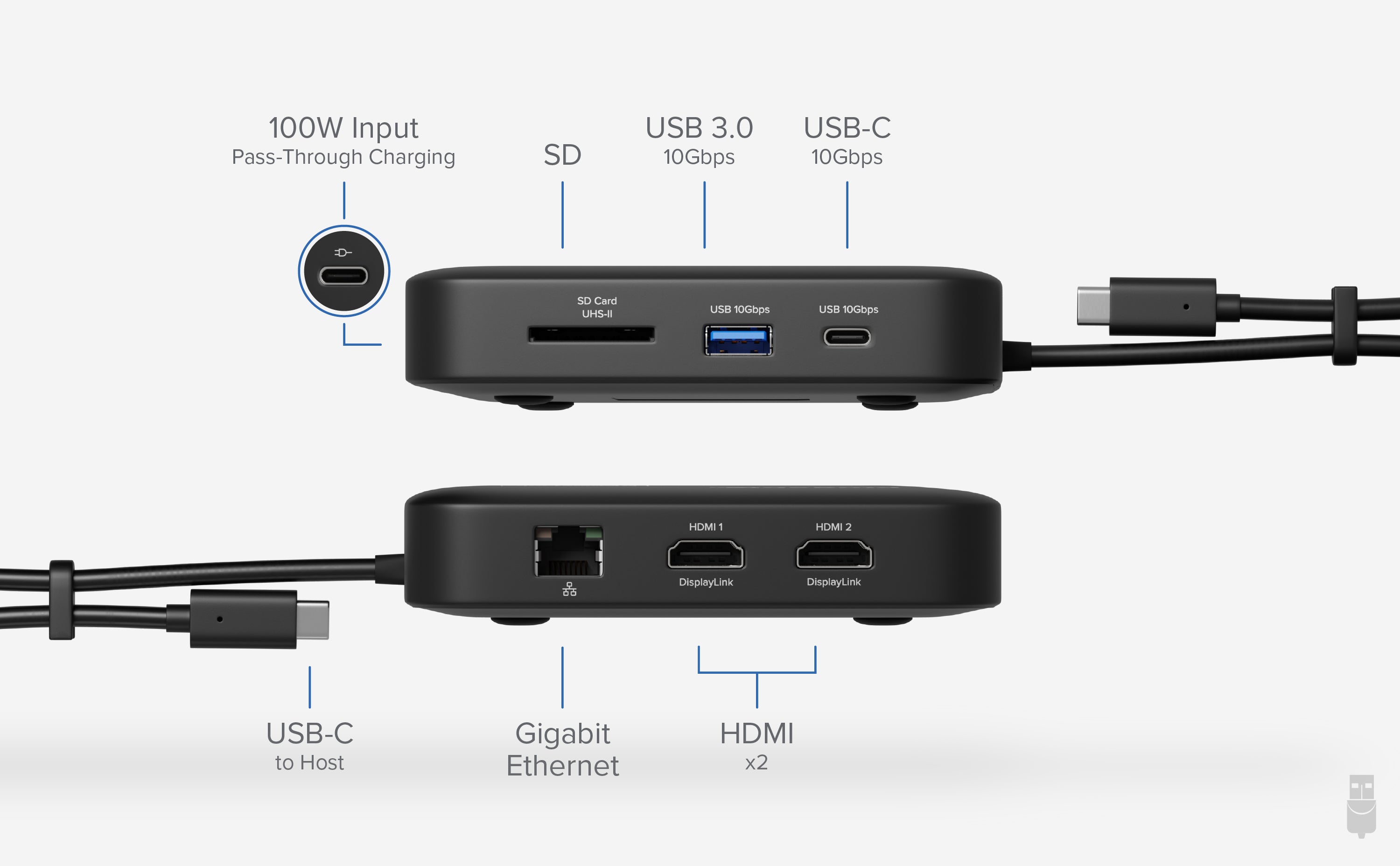
Credit: plugable.com
Power Cycle Your Devices
Power cycling means turning off and unplugging devices. This helps clear errors.
- Turn off your laptop and monitor or TV.
- Unplug the power cables from both devices.
- Wait for 1-2 minutes.
- Plug the power cables back in.
- Turn on the devices and check HDMI connection.
Try a Different HDMI Cable or Port
If you still have no signal, try another cable or port. This helps find the problem.
- Use a known good HDMI cable.
- Try a different HDMI port on your TV or monitor.
- Try connecting your laptop to another TV or monitor.
If the problem goes away, the old cable or port is bad.
Summary of Steps to Fix HDMI Not Working
| Step | What to Do |
|---|---|
| 1 | Check HDMI cable and port for damage or dust. |
| 2 | Make sure TV or monitor input is set to HDMI. |
| 3 | Restart your laptop and display devices. |
| 4 | Update your laptop’s graphics drivers. |
| 5 | Set the display mode using Windows + P keys. |
| 6 | Adjust the screen resolution to match the display. |
| 7 | Try different HDMI cables or ports if needed. |
Final Tips
Take your time when checking connections. Be gentle with cables and ports. Always use good quality HDMI cables. Keep your laptop’s drivers up to date. If problems continue, ask a technician for help.
HDMI is a simple way to connect your laptop to big screens. With these steps, you can fix most problems. Remember, many HDMI issues are easy to solve with the right approach.
Frequently Asked Questions
How To Fix Hdmi Port Not Working On Laptop?
Check and firmly reconnect the HDMI cable on both laptop and display. Test with another HDMI cable or port. Restart your laptop. Update your graphics drivers from the manufacturer’s site. Adjust display settings by pressing Windows + P and selecting the correct mode.
How To Reset Hdmi Settings?
To reset HDMI settings, unplug the HDMI cable, restart your device, and reconnect the cable. Update your graphics drivers next. Adjust display settings via your system’s display menu to ensure the correct input and resolution are selected. This refreshes the HDMI connection effectively.
How To Change Settings For Hdmi On Laptop?
Right-click the desktop and select “Display settings” on Windows. On macOS, open Apple menu > System Preferences > Displays. Adjust resolution, multiple displays, or input source to configure HDMI settings.
Why Is My Pc Not Displaying Hdmi?
Check HDMI cable and port for damage or loose connections. Confirm correct monitor input source. Restart PC and try another cable or port. Update or reinstall graphics drivers to fix common issues. Adjust display settings to detect the HDMI output properly.







