

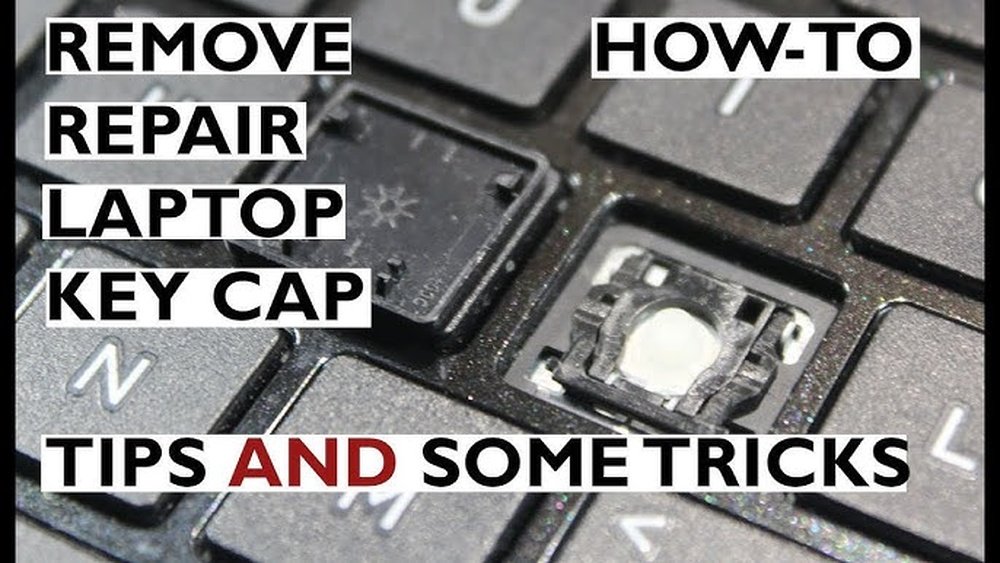
Do you have a stuck key on your laptop? It can be very annoying. When a key does not work well, typing becomes hard. But don’t worry. There are two simple ways to fix it. You can either clean the key or replace the keycap. This guide will help you understand both options. Then, you can choose the best way to fix your stuck key.
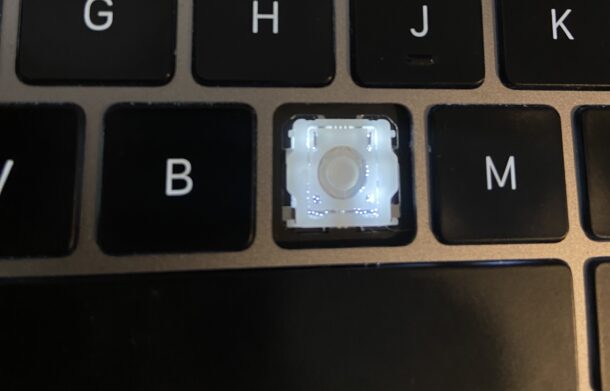
Credit: osxdaily.com
Why Do Laptop Keys Get Stuck?
Before we fix the key, let’s know why it gets stuck. Some common reasons are:
- Dirt or dust under the key
- Food crumbs or sticky liquids
- Broken or loose key parts
- Wear and tear over time
Knowing the cause helps you pick the right fix. Sometimes, cleaning is enough. Other times, you need a new keycap.
Option 1: Cleaning the Stuck Laptop Key
Cleaning is the first thing to try. It is safe and easy. Many stuck keys get better after cleaning. Here are the steps:
What You Need
- Soft cloth or microfiber cloth
- Compressed air (optional)
- Isopropyl alcohol (70% or more)
- Cotton swabs
- Small brush (like a clean toothbrush)
Steps To Clean The Key
- Turn off your laptop and unplug it. This is for safety.
- Hold the laptop upside down and gently shake it. This may remove loose dirt.
- Use compressed air to blow air under the stuck key. This helps clear dust.
- Dip a cotton swab in isopropyl alcohol. It should be damp, not wet.
- Gently clean around and under the key with the cotton swab. Be careful not to push dirt further in.
- Use a soft brush to clean edges and gaps around the key.
- Let the key dry for a few minutes before turning on the laptop.
- Test the key to see if it moves freely and works well.
Tips For Cleaning
- Never use water or wet cloth on your keyboard.
- Do not remove keys unless you know how to put them back.
- Use gentle pressure to avoid damage.
- Clean your keyboard regularly to prevent sticking keys.
Option 2: Replacing the Keycap
If cleaning does not fix the key, the keycap might be broken. In that case, you can replace the keycap. This means removing the old keycap and putting a new one in its place.
What Is A Keycap?
The keycap is the top part of a key that you press. It sits on a small mechanism called the key switch. Sometimes, the keycap pops off or breaks. You can buy a new keycap to fix this.
When Should You Replace The Keycap?
- If the keycap is loose or comes off easily.
- If the keycap is cracked or missing.
- If the key does not press down properly even after cleaning.
How To Replace A Keycap
Follow these simple steps carefully:
- Turn off your laptop and unplug it.
- Look for a replacement keycap for your laptop model. You can find these online.
- Use a small flat tool or your fingernail to gently lift the broken keycap. Be careful not to break the key switch below.
- Check the key switch for damage. If it looks broken, you may need professional help.
- Align the new keycap with the key switch.
- Press the new keycap firmly but gently until it clicks into place.
- Test the key to make sure it works and feels right.
Important Notes About Keycap Replacement
- Not all laptop keys can be removed easily.
- Some laptop keyboards are one piece and do not allow key removal.
- If unsure, check your laptop’s manual or online guides.
- If you damage the key switch, you may need keyboard replacement.
Cleaning Vs. Keycap Replacement: Which One to Choose?
Both ways can fix a stuck key. But which is better? It depends on the problem.
| Cleaning | Keycap Replacement |
|---|---|
| Good for dirt, dust, or sticky keys. | Best for broken, loose, or missing keycaps. |
| Safe and easy to do at home. | Needs careful handling and correct replacement parts. |
| Usually low cost or free. | May cost money to buy new keycaps. |
| Can fix most sticky keys. | Fixes physical damage to the key. |
| Does not fix broken key switches. | Does not fix internal keyboard problems. |
When to Consider Full Keyboard Replacement
Sometimes, one key is not the only problem. If many keys stick or stop working, cleaning or replacing keycaps may not help. Then, you may need a full keyboard replacement.
Also, if your laptop has liquid damage or old parts, a new keyboard might be better. Full replacement can be done by a repair shop or yourself if you have skills.

Credit: www.youtube.com
Extra Tips to Keep Your Laptop Keyboard Working Well
- Clean your keyboard often with a soft cloth.
- Avoid eating or drinking near your laptop.
- Use keyboard covers to protect keys from dust and spills.
- Handle your laptop gently to avoid key damage.
- If a key feels sticky, clean it before it gets worse.
Summary
A stuck laptop key can be fixed. Start with cleaning. Use soft cloth, alcohol, and air to remove dirt. If that fails, try replacing the keycap carefully. Only replace the keycap if it is broken or loose. Know your laptop model well before removing keys. If many keys have issues, consider a full keyboard replacement. Protect your keyboard to avoid future problems. With these steps, your laptop keyboard can work well again.
Frequently Asked Questions
How To Get A Laptop Key Unstuck?
Gently clean around the stuck key with a slightly damp cloth. Avoid removing keys unless designed for it. Use compressed air to clear debris. Press the key firmly to reseat it. If stuck persists, consider professional repair or keycap replacement.
Can Laptop Keys Be Removed For Cleaning?
Laptop keys can often be gently removed for cleaning, but many models have fragile clips. Avoid forcing keys off to prevent damage. Use a soft, slightly damp cloth to clean without removing keys when unsure. Check your laptop’s manual for specific key removal instructions.
Is It Worth Fixing Broken Laptop Keys?
Fixing broken laptop keys is worth it for minor issues or single key damage. It costs less than buying new laptops. DIY keycap replacements suit models like Dell or ThinkPad. Replace the whole keyboard if multiple keys fail or liquid damage occurs.
Always compare repair costs before deciding.
How To Get Sticky Keys Off Without Keycap Remover?
Use a thin, flat tool like a credit card to gently pry the sticky keycap. Clean around the key with a slightly damp cloth. Press the key repeatedly to loosen debris. Avoid excessive moisture to prevent damage. Repeat until the key moves smoothly.







