

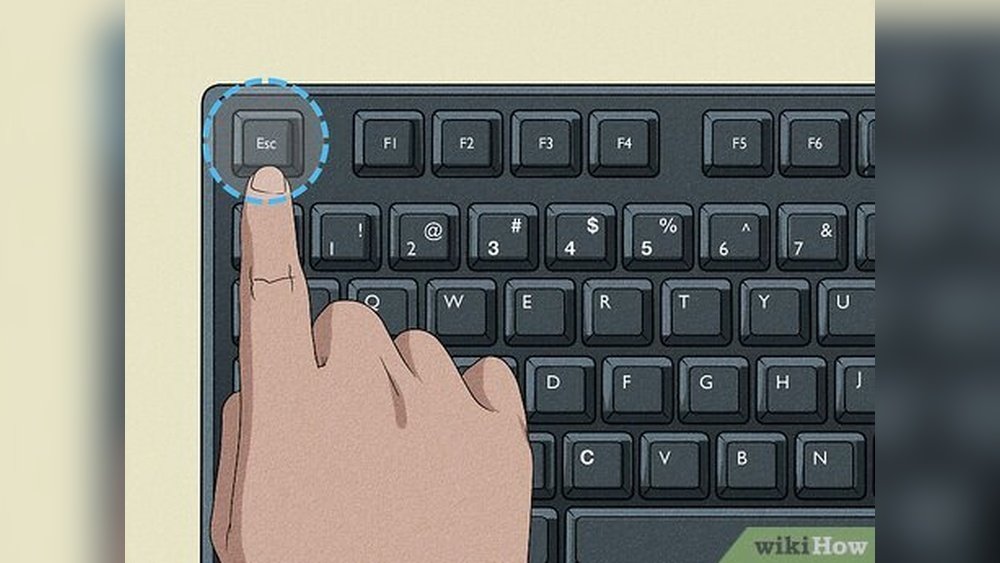
Is your laptop keyboard not typing? This can be very frustrating. But don’t worry. You can fix it with a few simple steps. In this guide, we explain two main causes and fixes. These are the ribbon cable and the driver reset. We will help you find the right solution for your problem.

Credit: www.amazon.com
Why Does a Laptop Keyboard Stop Typing?
When a laptop keyboard stops working, it can be due to many reasons. Some are easy to fix. Others might need help from a technician. The two main reasons are:
- Hardware problems – like a loose ribbon cable
- Software problems – like driver issues
Let’s talk about both and how to fix them.
What Is the Ribbon Cable?
Inside your laptop, the keyboard connects to the computer’s main board. This connection is through a thin, flat cable. It is called the ribbon cable. It looks like a small flat wire. It carries the signals from your keys to the computer.
If this cable is loose, dirty, or damaged, your keyboard will not work well. Sometimes, keys stop working or the entire keyboard stops typing. Fixing the ribbon cable can solve the problem.
How To Check The Ribbon Cable
Checking the ribbon cable needs some care. You will open the laptop’s back panel to see the inside. Follow these steps carefully:
- Turn off your laptop completely.
- Unplug the power cable and remove the battery if possible.
- Use a small screwdriver to open the back panel.
- Look for the ribbon cable connecting the keyboard to the motherboard.
- Check if the cable is loose or out of place.
- If loose, carefully push it back into the connector.
- Close the panel and put back the battery and power cable.
- Turn on the laptop and test the keyboard.
If you are not sure or afraid to open your laptop, ask a technician for help. Doing this wrong can cause damage.
Signs Of Ribbon Cable Problems
- Some keys work; others do not.
- Keyboard stops working after moving the laptop.
- Keyboard works sometimes and fails other times.
These signs may mean the ribbon cable is loose or damaged.
Credit: www.asurion.com
What Is a Driver Reset?
Every keyboard needs software to work. This software is called a driver. Drivers help the computer understand the keyboard’s signals.
Sometimes the driver can get corrupted or outdated. This can stop your keyboard from working. Resetting or updating the driver can fix this problem.
How To Reset Or Update Keyboard Drivers
Follow these easy steps to reset or update your keyboard driver:
- Restart your laptop first. Sometimes a restart solves the problem.
- Open Device Manager. You can do this by right-clicking the Start button and selecting it.
- Find the section called Keyboards and click the arrow to expand it.
- Right-click your keyboard device.
- Select Update driver and follow the instructions to search automatically.
- If updating does not work, right-click the keyboard device again.
- Select Uninstall device.
- Restart your laptop. Windows will reinstall the driver automatically.
This process often fixes driver problems and restores keyboard function.
Using The Keyboard Troubleshooter
Windows has a tool called the Keyboard Troubleshooter. It can find and fix some keyboard issues. Here is how to use it:
- Click on the search bar and type troubleshoot settings.
- Open the settings page that appears.
- Go to Additional troubleshooters.
- Find and select Keyboard.
- Click Run the troubleshooter.
- Follow the steps the troubleshooter gives you.
This tool helps if the problem is with software.
Other Simple Software Solutions
Here are some other easy fixes you can try before opening your laptop:
- Disable Filter Keys: Sometimes Filter Keys stop the keyboard. Go to Settings > Ease of Access > Keyboard. Turn off Filter Keys.
- Power Drain: Shut down the laptop. Remove battery and power. Hold power button for 30 seconds. Reconnect and turn on.
- Clean Keyboard: Dust and crumbs can stop keys from working. Use a soft brush or compressed air to clean.
- Disconnect External Devices: Remove any USB keyboards or mice. They can cause conflicts.
Comparing Ribbon Cable Fix Vs. Driver Reset
It is important to know which problem you have. Here is a simple table to help you decide:
| Problem Type | Signs | Fix Method | Difficulty | When to Use |
|---|---|---|---|---|
| Ribbon Cable | Some keys fail; keyboard works sometimes | Check and reconnect ribbon cable inside laptop | Medium (needs opening laptop) | When hardware issues are suspected |
| Driver Reset | Keyboard not working at all; software glitches | Update or reinstall keyboard driver in Device Manager | Easy (no opening needed) | When keyboard stops after software updates |
What If None of These Fixes Work?
If you tried all these steps and your keyboard still does not type, the problem might be serious. The keyboard itself could be broken. In this case, you need professional help.
A technician can check for keyboard damage. They can replace the keyboard if needed. This is often the last step if all else fails.
Summary
When your laptop keyboard stops typing, stay calm. Try restarting your laptop first. Then check the software by resetting or updating drivers. Use the keyboard troubleshooter and disable Filter Keys.
If software fixes do not work, look at the hardware. The ribbon cable might be loose or dirty. Carefully open your laptop and check the cable. If you are not sure, ask an expert.
Remember, cleaning your keyboard and removing external devices can help. And sometimes, a full power drain resets the hardware.
By understanding the difference between ribbon cable issues and driver problems, you can fix your keyboard faster. If nothing helps, a professional repair may be needed.
Follow these simple steps and bring your keyboard back to life.
Frequently Asked Questions
How To Fix Laptop Keyboard Not Typing?
Restart your laptop to clear glitches. Run Keyboard Troubleshooter and disable Filter Keys. Update or reinstall keyboard drivers. Clean debris under keys and disconnect external devices. Perform a power drain by shutting down, removing power, then restarting. If unresolved, seek professional repair.
How Do I Reset My Laptop Keyboard Back To Normal?
Restart your laptop first. Run the Keyboard Troubleshooter in Settings. Disable Filter Keys under Accessibility. Update or reinstall keyboard drivers in Device Manager. Clean the keyboard and disconnect external devices. Perform a power drain by removing battery and power, then restart.
Check BIOS if needed.
Why Is My Laptop Suddenly Not Taking Keyboard Input?
Your laptop may not take keyboard input due to driver issues, stuck keys, or hardware faults. Restart, run the Keyboard Troubleshooter, disable Filter Keys, update or reinstall drivers. Clean the keyboard, disconnect external devices, and perform a power drain. Persistent issues might need professional repair.
Why Is My Keyboard Plugged In But Not Typing?
Your keyboard may not type due to driver issues, stuck Filter Keys, or hardware problems. Restart, update drivers, disable Filter Keys, clean keys, and disconnect external devices. Perform a power drain if needed. Persistent issues might require professional repair or keyboard replacement.







