

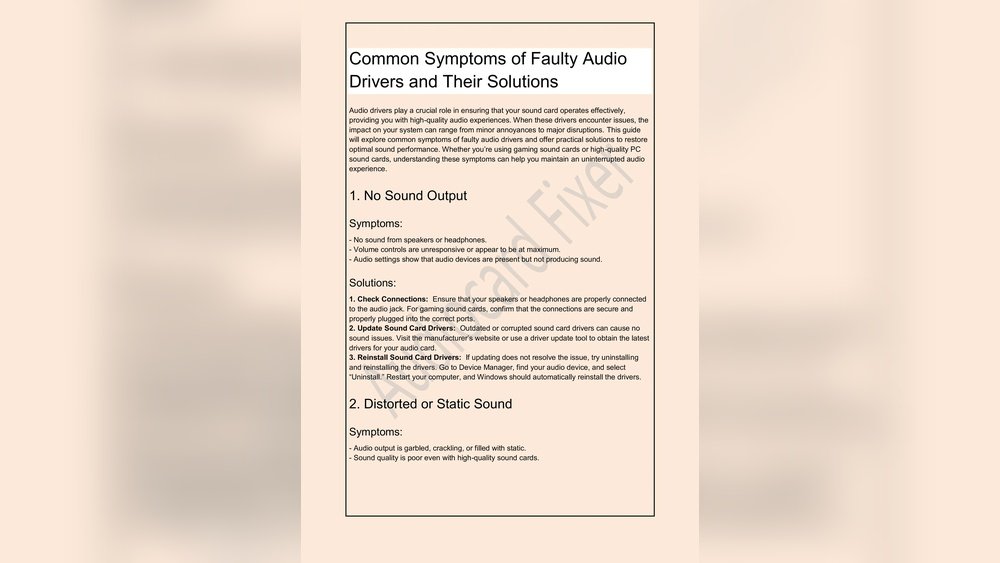
Does your laptop make strange sounds when you play music or videos? Maybe you hear static or crackling noises. These sounds can be very annoying. But don’t worry. You can fix these problems yourself. This guide will help you fix distorted laptop audio. It uses simple words and easy steps.
What Causes Static and Crackling Sounds?
First, we need to know why this happens. Static or crackling sounds can come from different places. Here are some common causes:
- Old or broken speakers: If your laptop speakers are old, they might not work well.
- Loose connections: Sometimes wires inside the laptop are loose.
- Wrong audio settings: Your laptop settings might not be correct.
- Problems with audio drivers: Drivers are small programs that help your sound work.
- Interference from other devices: Other electronics can cause noise.
- Dirty speaker grills: Dust can block the sound.
Now that we know the causes, let’s see how to fix them step by step.

Credit: alive-project.com
Step 1: Check Your Laptop Volume and Audio Settings
Sometimes the problem is simple. The volume might be too high or settings are wrong. Follow these steps:
- Click on the speaker icon on the bottom right of your screen.
- Make sure the volume is not too loud. Try lowering it a little.
- Right-click the speaker icon and select Sounds.
- Go to the Playback tab and check your speakers are the default device.
- Click on your speaker and then Properties.
- Go to the Enhancements tab and check Disable all enhancements.
- Click Apply and then OK.
This can stop extra sound effects that cause crackling.
Step 2: Run the Windows Audio Troubleshooter
Windows has a tool that can find sound problems and fix them. Here is how to use it:
- Click on the Start menu or press the Windows key.
- Type Troubleshoot settings and open it.
- Scroll down and click Additional troubleshooters.
- Find Playing Audio and click Run the troubleshooter.
- Follow the steps it shows on your screen.
This tool can fix many sound problems automatically.
Step 3: Update or Reinstall Your Audio Drivers
Audio drivers help your laptop play sound. If they are old or broken, sound can be bad. Here is how to update them:
- Press the Windows key and the letter X at the same time.
- Select Device Manager from the menu.
- Find Sound, video and game controllers and click the arrow to open it.
- Right-click your audio device (usually says Realtek or High Definition Audio).
- Choose Update driver.
- Select Search automatically for drivers.
- Wait for Windows to find and install updates.
If updating does not help, you can also try to uninstall and reinstall the driver.
To uninstall, right-click the audio device and select Uninstall device. Then restart your laptop. Windows will reinstall the driver automatically.
Step 4: Check for Loose or Damaged Speaker Connections
If your laptop still has crackling, the problem could be hardware. The speakers inside might be loose or damaged. Here’s what you can do:
- Turn off your laptop and unplug it.
- Look for the speaker grills on your laptop.
- Use a soft brush or cloth to clean dust from the speaker grills.
- If you feel comfortable, carefully open the laptop back panel.
- Check if the speaker wires are connected tightly.
- If you see loose wires, try to fix them gently.
- If you do not know how to open your laptop, ask a professional for help.
Loose wires can cause static and crackling sounds.
Step 5: Avoid Electronic Interference
Other devices can cause static noise. Try these tips:
- Move your laptop away from phones, routers, or microwaves.
- Turn off Bluetooth if you don’t use it.
- Use a wired internet connection instead of Wi-Fi if possible.
- Unplug any USB devices or headphones and check the sound again.
Interference can cause strange noises in your laptop speakers.
Step 6: Try Using External Speakers or Headphones
To find out if the problem is with the laptop speakers, try this:
- Plug in a pair of headphones or external speakers into your laptop.
- Play some sound or music.
- Listen carefully for any static or crackling sounds.
If the sound is clear in headphones, the problem is with your laptop’s internal speakers. You may need to replace them or get help from a technician.
Step 7: Adjust Sound Quality Settings
Sometimes sound settings can cause problems. You can change sound quality like this:
- Right-click the speaker icon and choose Sounds.
- Go to the Playback tab.
- Select your speakers and click Properties.
- Go to the Advanced tab.
- Under Default Format, try a lower quality setting, like 16 bit, 44100 Hz.
- Click Apply and test your sound.
Lowering sound quality can reduce crackling.
Step 8: Check for Software Conflicts
Sometimes other programs cause sound problems. Try these steps:
- Close all programs that use sound, like music players or video apps.
- Restart your laptop.
- Play sound again.
- If the problem stops, one program may be causing it.
You can also check for updates for your apps or reinstall them.
Summary Table: Quick Fixes for Distorted Laptop Audio
| Problem Cause | Fix |
|---|---|
| Volume too high or wrong settings | Lower volume; disable audio enhancements |
| Audio driver outdated or broken | Update or reinstall audio drivers |
| Loose or damaged speaker wires | Check inside laptop or get help |
| Electronic interference | Move devices away; turn off Bluetooth |
| Software conflicts | Close apps; restart laptop |
| Speaker grills dirty | Clean grills carefully |
Credit: www.reddit.com
When to Get Help From a Technician
If you try all these steps and the sound still cracks or has static, the problem might be serious. Here are signs you need professional help:
- Sound is always bad, even with headphones.
- You hear very loud crackling or popping.
- The speakers look broken or damaged.
- You are not comfortable opening your laptop.
Technicians can open your laptop safely and fix or replace parts.
Final Tips to Keep Your Laptop Sound Clear
- Keep your laptop clean and dust-free.
- Update your system and drivers regularly.
- Use good quality headphones or speakers when possible.
- Avoid spilling liquids on your laptop.
- Turn off your laptop properly to avoid software errors.
Following these tips will help your laptop sound better for a long time.
Static and crackling in laptop audio is common. But it is fixable. With a little care and these steps, your sound can be clear again. Try these solutions today and enjoy better sound on your laptop.
Frequently Asked Questions
How To Fix Crackling Audio In Laptop?
Open Sound Settings, select your speaker, and disable all audio enhancements. Update or reinstall audio drivers. Clean speaker grills and check hardware connections. Run the Windows Audio Troubleshooter to automatically detect and fix issues.
How To Fix Distorted Audio On Laptop?
Check audio settings and select the correct playback device. Disable all sound enhancements in speaker properties. Update or reinstall audio drivers. Run the Windows Audio Troubleshooter. Clean speaker grills and inspect hardware for damage or loose connections.
How To Fix Laptop Audio Static?
Update or reinstall your laptop’s audio drivers to reduce static noise. Disable audio enhancements in speaker properties. Clean speaker grills and check hardware connections. Run the Windows Audio Troubleshooter for automatic fixes. Select the correct playback device in sound settings to ensure clear audio output.
How Do I Get Rid Of Crackling Sound In Audio?
Disable audio enhancements in your sound settings. Update or reinstall audio drivers. Clean speaker grills and check hardware connections. Run audio troubleshooter for automatic fixes.







