

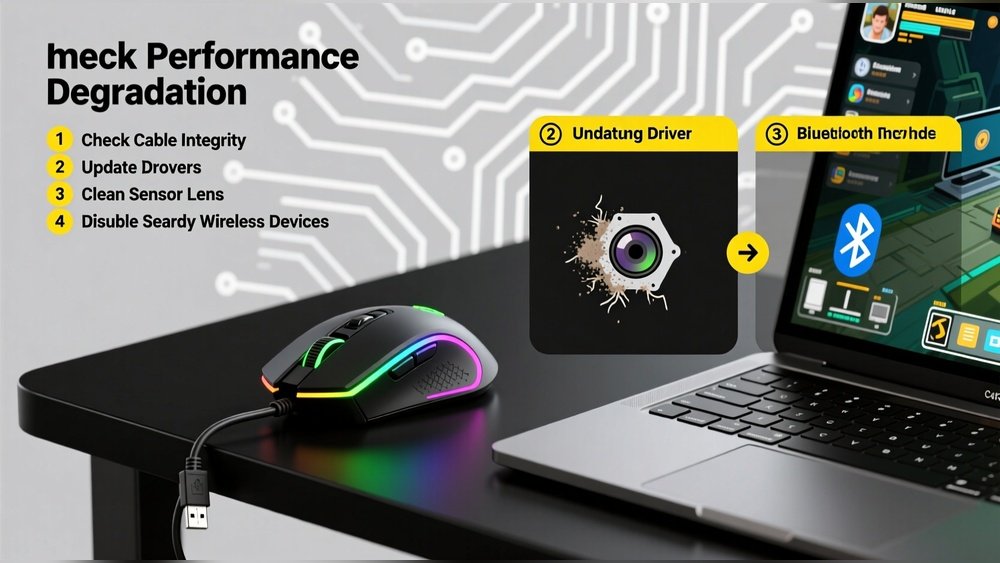
Is your laptop’s trackpad moving slowly or not working right? A lagging trackpad can make work hard. You want to fix it fast. But how? Should you update drivers or clean the hardware? This article will help you decide what to do.
What Is a Lagging Trackpad?
A lagging trackpad means the pointer moves slowly or jumps. Sometimes it stops responding. You may notice delays when you move your finger. This problem can be annoying and slow your work.
There are two main reasons for a lagging trackpad:
- Software problems like old or wrong drivers
- Hardware problems like dirt or damage
Understanding the cause helps you choose the right fix.
Driver Updates: What Are They?
Drivers are small programs that help your computer talk to the trackpad. If drivers are old or broken, the trackpad may lag. Updating drivers means installing new versions to fix bugs and improve speed.
Here is how to update your trackpad driver on Windows:
- Open Device Manager by right-clicking the Start button.
- Find the section called Mice and other pointing devices.
- Right-click your trackpad device (for example, Synaptics or ELAN) and choose Update driver.
- Select Search automatically for updated driver software.
- Wait while Windows looks for new drivers and installs them.
- Restart your computer.
If Windows cannot find a new driver, visit your laptop maker’s website. Search for your laptop model and download the latest trackpad driver.
Benefits Of Updating Drivers
- Fixes bugs that cause lagging
- Improves trackpad speed and response
- Adds new features or settings
- Ensures compatibility with new software
Driver updates are a simple software fix. They often solve the problem fast.

Credit: www.iolo.com
Hardware Cleaning: Why It Matters
Sometimes the trackpad lags because dirt or grease blocks its sensors. Dust, oils from fingers, or moisture can stop the trackpad from sensing your finger well.
Cleaning the hardware is easy and can help a lot.
How To Clean Your Trackpad
- Turn off your laptop and unplug it.
- Use a soft, clean cloth. Microfiber is best.
- Dampen the cloth slightly with isopropyl alcohol (70% or less).
- Gently wipe the trackpad surface to remove dirt and oils.
- Let it dry completely before turning the laptop back on.
Never spray liquid directly on the trackpad. Use only a damp cloth.
When To Clean The Trackpad
- You see visible dirt or grease on the trackpad.
- The cursor jumps or moves erratically.
- It feels sticky or unresponsive.
- You have not cleaned the laptop in a long time.
Cleaning often improves the trackpad’s response. It is a simple and safe step.

Credit: primismedical.com
Driver Updates Vs. Hardware Cleaning: Which to Try First?
It can be hard to know what to do first. Here is a simple guide:
| Condition | Try Driver Update | Try Hardware Cleaning |
|---|---|---|
| Trackpad lags after software update | Yes | No |
| Trackpad is visibly dirty or greasy | No | Yes |
| Cursor moves slowly or jumps without reason | Yes | Yes |
| Trackpad stops working after a spill | No | Yes (clean carefully) |
| Trackpad has software errors or warnings | Yes | No |
Try driver updates first if you think software is the problem. Clean the trackpad if it looks dirty or greasy. Sometimes you need both.
Other Tips to Fix a Lagging Trackpad
If updating drivers and cleaning don’t fix the lag, try these steps:
- Restart your laptop. This clears temporary bugs.
- Adjust trackpad settings. Increase sensitivity or lower palm rejection in settings.
- Check for external devices. Sometimes a connected mouse causes conflicts.
- Look for hardware damage. A loose cable or battery swelling can cause lag.
- Reinstall drivers. Remove then reinstall the trackpad driver.
How To Adjust Trackpad Settings On Windows
- Open Settings from the Start menu.
- Go to Bluetooth & devices and select Touchpad.
- Find the Sensitivity slider.
- Set it to Most sensitive or a higher level.
- Check other settings like Palm check and reduce it if needed.
- Test your trackpad again.
When to Seek Professional Help
If none of these steps work, the problem may be hardware failure. This can be a broken trackpad or internal cable issue. You might need to visit a repair shop or contact your laptop’s support.
Signs you need professional help:
- Trackpad does not respond at all
- Physical damage or cracks on trackpad surface
- Battery swelling under the trackpad area
- Unusual noises or smells from laptop
Professional repair can save your laptop if the issue is serious.
Summary: Fix Your Lagging Trackpad in Steps
Here is a quick checklist you can follow:
- Restart your computer to clear bugs.
- Clean the trackpad gently with a soft cloth.
- Update or reinstall the trackpad driver.
- Adjust touchpad sensitivity settings.
- Check for hardware damage or loose cables.
- Seek help from a professional if needed.
Start with simple steps. You can fix many problems yourself.
Final Thoughts
A lagging trackpad can slow you down. But fixing it is possible. Sometimes the problem is software. Sometimes it is dirt or hardware. Driver updates and hardware cleaning are both good solutions.
Try updating drivers if you think the computer software is old. Clean the trackpad if it looks dirty or sticky. If you do both, you increase your chances to fix the problem.
Patience is key. Follow the steps carefully. Your trackpad can work smoothly again soon.
Frequently Asked Questions
How To Fix A Laggy Trackpad?
Restart your computer to clear glitches. Clean the trackpad gently. Update touchpad drivers via Device Manager. Adjust sensitivity in Settings > Bluetooth & devices > Touchpad. If lag persists, check for hardware issues or consider professional repair.
How To Fix A Glitchy Trackpad?
Restart your computer to clear glitches. Clean the trackpad gently with isopropyl alcohol. Update or reinstall touchpad drivers. Adjust sensitivity in settings for smoother response. Check for hardware damage if issues persist.
How To Update Drivers For Trackpad?
Open Device Manager, expand “Mice and other pointing devices. ” Right-click your trackpad, select “Update driver,” then choose “Search automatically. ” Restart your PC if needed.
Why Is My Touchpad Not Moving Smoothly?
Your touchpad may lag due to dirt, outdated drivers, or incorrect sensitivity settings. Clean it, update drivers, and adjust sensitivity. Restart your PC to fix software glitches. Persistent issues might indicate hardware problems like a loose cable or battery swelling, requiring professional repair.







