

When you turn on your laptop, you expect it to start smoothly. But sometimes, you hear strange beeping sounds. What do these beeps mean? How can you fix the problem? This guide will help you understand the beeping noises and show simple steps to fix your laptop.
What Are Beep Codes?
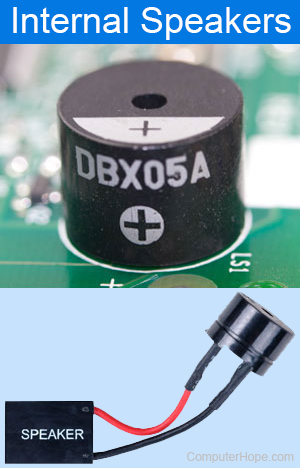
Beep codes are sounds your laptop makes when it starts. These sounds come from the computer’s BIOS. BIOS is a small program that checks your laptop parts before Windows starts.
If the BIOS finds a problem, it sends beep codes. These beeps tell you what is wrong inside your laptop. Each beep pattern means a different issue. Listening to beep codes helps you find the problem fast.
Why Does Your Laptop Beep on Startup?
Your laptop beeps to warn you about hardware problems. Some common causes are:
- RAM (memory) is loose or broken
- Graphics card is not working well
- Overheating of the CPU (processor)
- Keyboard or other parts have errors
- Motherboard or BIOS issues
These beeps help you avoid bigger damage by showing a problem early.
Credit: reneelab.zendesk.com
Common Beep Codes and Their Meanings
Different laptops use different beep codes. But some codes are common. Here is a table of common beep codes and what they mean:
| Beep Pattern | What It Means | Possible Fix |
|---|---|---|
| 1 beep | Memory (RAM) problem | Check and reseat the RAM sticks |
| 2 beeps | Memory parity error | Replace or reseat the RAM modules |
| 3 beeps | Base memory error | Test and replace the RAM if needed |
| 4 beeps | System timer failure | Check motherboard or seek professional help |
| Continuous beeping | Keyboard error or stuck key | Check keyboard connection or replace keyboard |
| High-frequency beeps | Overheating CPU | Clean laptop fans and vents |
| 1 long beep, 2 short beeps | Graphics card error | Reseat or replace graphics card |
Note that beep codes can vary by laptop brand and BIOS type. Always check your laptop manual for exact codes.
Step-by-Step Guide to Fix Beeping Laptop at Startup
Here are easy steps to fix your laptop when it beeps on startup.
Step 1: Turn Off Your Laptop
First, shut down your laptop completely. Remove the power cable and battery if possible. This keeps you safe and prevents more damage.
Step 2: Open The Laptop Case
Use a screwdriver to open the back cover. Look for the RAM slots and other parts.
Step 3: Check Ram Modules
RAM problems cause many beep codes. Remove each RAM stick gently. Clean the gold connectors with a soft cloth. Put the RAM back firmly into its slot.
If you have two RAM sticks, try starting the laptop with one stick at a time. This helps find a bad RAM module.
Step 4: Check The Graphics Card
If your laptop has a dedicated graphics card, make sure it is seated well. Remove and reinsert it carefully.
Step 5: Check The Keyboard
Sometimes the keyboard causes beeping. Look for stuck keys or dirt under the keys. Clean the keyboard or connect an external one to test.
Step 6: Clean The Laptop
Dust can make the laptop overheat. Use a can of compressed air to clean the fans and vents. Overheating causes beeps too.
Step 7: Reset Bios
Try resetting the BIOS to default. You can do this by removing the small battery on the motherboard for a few minutes. Then put it back.
Step 8: Test Your Laptop
Close the laptop case and connect the battery and power. Turn on your laptop and listen for beeps. If it still beeps, note the pattern again.
When to Ask for Professional Help
If you tried all steps and the laptop still beeps, it may need expert care. Some problems are hard to fix without tools.
Examples of tough problems:
- Broken motherboard
- Damaged BIOS chip
- Severe hardware failures
In these cases, visit a computer repair shop or contact your laptop brand service center.
Tips to Prevent Laptop Beeping Problems
Follow these tips to avoid startup beep codes in the future:
- Keep your laptop clean and dust-free
- Handle RAM and other parts carefully
- Use a cooling pad to avoid overheating
- Update BIOS and drivers regularly
- Protect laptop from power surges with a good power adapter
Credit: www.computerhope.com
Summary
Beeping on startup is your laptop’s way to say something is wrong. The beep codes tell you what needs fixing. Most often, the problem is RAM, graphics card, keyboard, or overheating.
Follow these steps:
- Turn off and open the laptop
- Check and reseat RAM and graphics card
- Clean keyboard and laptop fans
- Reset BIOS if needed
- Test laptop again
If the problem continues, ask a professional. Taking care of your laptop helps it run longer without problems.
Now you know what to do if your laptop beeps at startup. Don’t worry. With patience, you can fix it or get help easily.
Frequently Asked Questions
How To Fix Laptop Beeping On Startup Problem?
Turn off your laptop and disconnect power. Reseat RAM and graphics card firmly. Check beep code meanings online. Replace faulty hardware if needed.
How Do You Find Out The Meaning Of Beep Codes You Hear During Startup?
Check your laptop’s manual or manufacturer’s website for beep code meanings. Match beep patterns to specific hardware issues. Use trusted tech forums for additional help. This helps quickly identify startup problems like RAM or graphics card faults.
What Do 3 Long Beeps And 2 Short Beeps Mean On A Computer?
Three long beeps and two short beeps usually indicate a graphics card or video memory failure. Reseat or replace the graphics card to fix it. Check your laptop’s manual for exact beep code meanings, as they vary by manufacturer.
What Does It Mean When A Laptop Starts Beeping?
A laptop beeping at startup signals hardware issues like faulty RAM, overheating CPU, or graphics card problems. Count the beeps to identify the exact error. Reseating or replacing components often fixes the issue. Check your laptop’s beep code guide for precise troubleshooting.







