

Is your laptop not reading your SD card? It can be frustrating. Sometimes, the problem is easy to fix. Other times, it needs more work. This guide helps you understand the two main reasons why your SD card reader may stop working. These are driver problems and physical faults. Then, you will learn how to fix each one step by step.

Credit: www.amazon.com
What Is an SD Card Reader?
An SD card reader is a small part inside your laptop. It reads memory cards called SD cards. People use SD cards to store photos, videos, and files. When the reader works, you can open these files on your laptop easily.
Signs Your SD Card Reader Is Not Working
- Your laptop does not show the SD card.
- The SD card is not recognized by your computer.
- You get error messages when you insert the SD card.
- The card reader makes noise but no files appear.
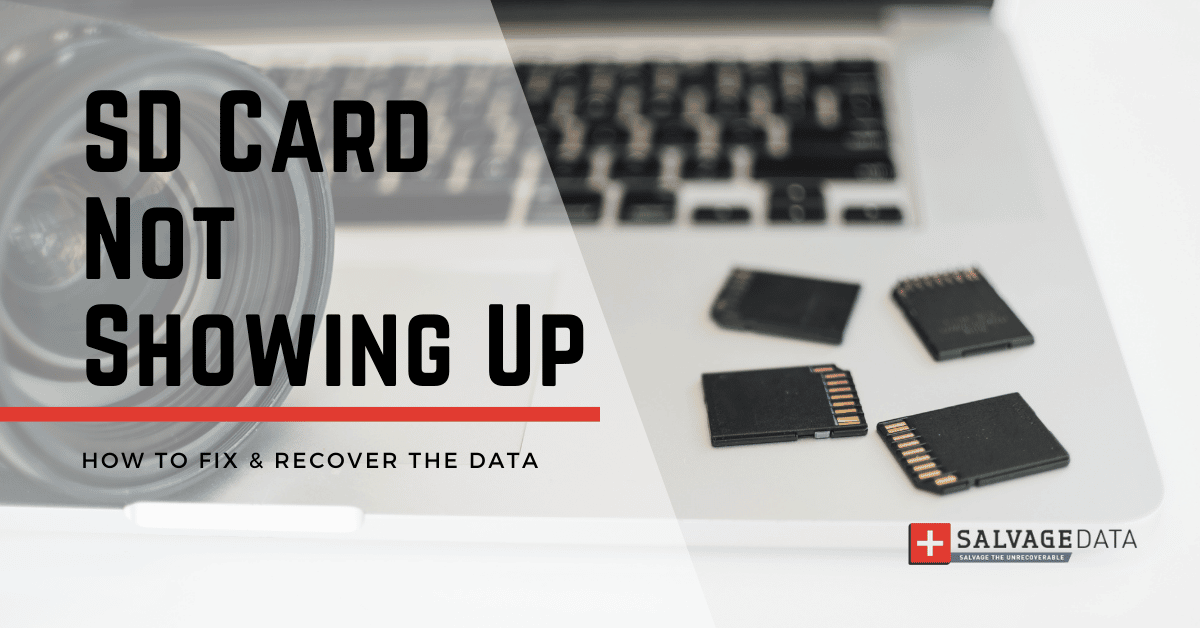
Credit: www.salvagedata.com
Driver Problems: What Are They?
Drivers are small programs. They help your laptop talk to hardware parts like the SD card reader. If the driver is old, missing, or broken, the reader may not work. Driver problems are common and easy to fix.
How To Check If The Problem Is A Driver
Try these steps:
- Right-click on the Start button on your laptop.
- Select Device Manager from the menu.
- Look for Memory technology devices or SD host adapters.
- Find your SD card reader in the list.
- If you see a yellow triangle or question mark, the driver has a problem.
If you do not see the card reader, it could mean the laptop does not detect it. This can be a physical issue or a driver problem.
How To Fix Driver Problems
Follow these easy steps:
- Right-click your SD card reader in Device Manager.
- Click Update driver.
- Choose Search automatically for updated driver software.
- Wait for Windows to find and install the driver.
- Restart your laptop and try the SD card again.
If updating does not work, try uninstalling the driver:
- Right-click the SD card reader in Device Manager.
- Click Uninstall device.
- Restart your laptop. Windows will reinstall the driver automatically.
Physical Faults: What Are They?
Sometimes, the card reader has a hardware problem. This means it is broken or dirty. Physical faults stop the reader from working no matter what the driver says.
How To Check For Physical Faults
Look at these points:
- Is the SD card reader slot dirty? Dust can block the connection.
- Is the SD card reader loose or broken?
- Does the SD card fit properly in the slot?
- Is the SD card itself damaged?
If the slot is dirty, the card cannot connect well. If it is broken or loose, the laptop may not see the card.
How To Fix Physical Faults
Try these solutions:
- Turn off your laptop and unplug it.
- Use a can of compressed air to blow dust out of the card reader slot.
- Insert the SD card gently but firmly to see if it fits better.
- If the slot feels loose, avoid forcing the card in.
- If possible, check your SD card on another device to see if it works.
If the reader is broken, you may need to take your laptop to a repair shop. Physical damage often needs expert help.
How to Tell If the Problem Is the SD Card
Sometimes, the SD card itself causes the problem. To check:
- Try the SD card in another laptop or camera.
- Try a different SD card in your laptop.
If your SD card does not work anywhere, it might be damaged or corrupted. If another card works in your laptop, the problem is with the SD card, not the reader.
Using Disk Management to Find the SD Card
Windows has a tool called Disk Management. It shows all drives connected to your laptop. It helps find the SD card if it does not show in File Explorer.
Steps To Use Disk Management
- Right-click the Start button.
- Select Disk Management.
- Look for your SD card in the list of drives.
- If you see the SD card, but no drive letter, right-click it.
- Choose Change Drive Letter and Paths.
- Click Add and assign a letter like “E:” or “F:”.
- Click OK and check if the SD card shows in File Explorer.
When to Repair or Replace Your SD Card
If your SD card is corrupted, some software can help fix it. One tool is chkdsk, a Windows program. It checks for errors and repairs them.
How To Use Chkdsk
- Press the Windows key and type cmd.
- Right-click Command Prompt and choose Run as administrator.
- Type this command:
chkdsk E: /f(replace E: with your SD card letter). - Press Enter and wait for the scan to finish.
This can fix some errors. But if the card is badly damaged, you may lose data.
Summary: Driver vs. Physical Faults
| Problem Type | Cause | How to Fix | Signs |
|---|---|---|---|
| Driver Issues | Old, missing, or broken software driver |
Update or reinstall driver via Device Manager Restart laptop |
SD card reader not detected Yellow warning in Device Manager |
| Physical Faults | Dirty or damaged card reader or SD card |
Clean card reader with compressed air Check for damage Visit repair shop if broken |
SD card does not fit properly Reader slot feels loose Dust or dirt inside slot |
Final Tips
- Always turn off your laptop before cleaning the card reader.
- Do not force the SD card into the slot.
- Use good quality SD cards to avoid damage.
- Keep your laptop and drivers updated regularly.
- Back up important data to avoid loss.
Fixing your laptop SD card reader can be easy. First, check the drivers. Then, look for physical problems. If needed, get help from a professional. With patience, your card reader can work again.
Frequently Asked Questions
Why Is My Laptop Not Reading My Sd Card Reader?
Your laptop may not read the SD card reader due to driver issues, physical damage, or dust blocking connections. Clean the reader, check for damage, and update or reinstall drivers via Device Manager to fix the problem.
How Do I Update My Card Reader Driver?
Open Device Manager, right-click your card reader under “Smart card readers,” and select “Update driver. ” Choose automatic or manual update.
How To Repair Sd Card On Laptop?
Clean the SD card and reader with compressed air. Check Disk Management for detection. Update or reinstall card reader drivers via Device Manager. Run “chkdsk” in Command Prompt to repair file system errors. Replace the card if physical damage persists.
How To Repair Sd Card With Chkdsk?
Open Command Prompt as admin. Type chkdsk X: /f (replace X with your SD card drive letter). Press Enter to fix errors.







