

Bluetooth is very useful for connecting devices like headphones, speakers, or phones to your laptop.
But sometimes, you may find Bluetooth missing from the Action Centre on Windows.
This can be frustrating, especially if you want to connect a device fast.
In this article, you will learn easy steps to fix this problem.
We will explain why Bluetooth disappears and how to make it come back.
What is the Windows Action Centre?
The Action Centre is a small panel on your Windows laptop.
It shows quick settings like Wi-Fi, Bluetooth, airplane mode, and more.
You can open it by clicking the icon at the bottom right of your screen.
It helps you turn Bluetooth on or off quickly without going to many menus.
Why is Bluetooth Missing from the Action Centre?
There are several reasons why Bluetooth may disappear from the Action Centre.
- Bluetooth is turned off in settings.
- Bluetooth driver is outdated or corrupted.
- Windows update caused some changes.
- Bluetooth service is stopped or disabled.
- Hardware problem with Bluetooth adapter.
Knowing these reasons helps to fix the problem better.
How to Fix Bluetooth Missing from Windows Action Centre
Follow these simple steps to bring back Bluetooth in your Action Centre.
1. Check If Bluetooth Is Enabled In Settings
Sometimes, Bluetooth is turned off in your laptop settings.
To check this:
- Click the Start button.
- Select Settings (the gear icon).
- Go to Devices > Bluetooth & other devices.
- See if Bluetooth is On. If it is off, turn it on.
If Bluetooth is missing here, continue to the next step.
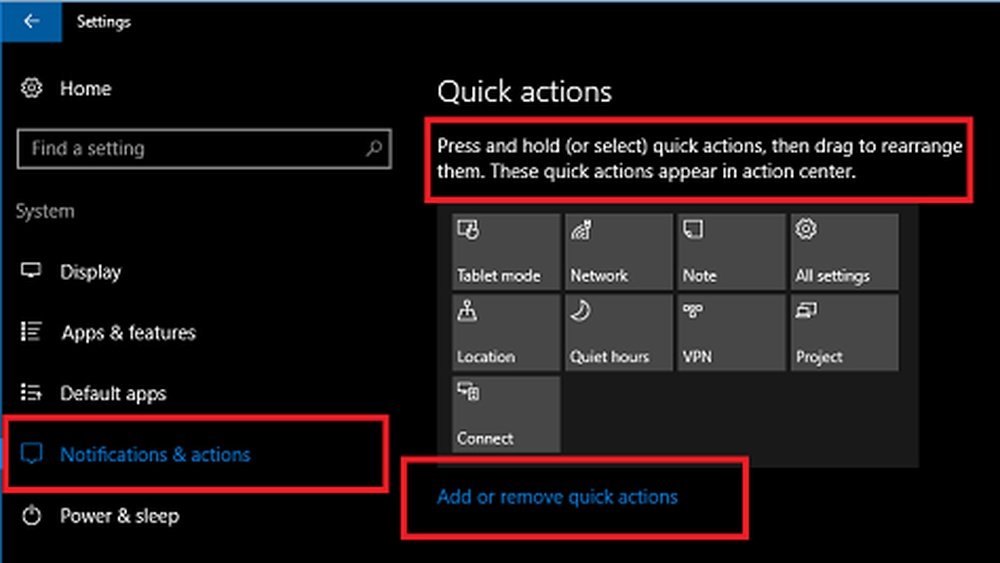
2. Add Bluetooth Button Manually To Action Centre
Sometimes, Bluetooth is not added to the quick actions in Action Centre.
Here is how to add it:
- Open Settings.
- Go to System > Notifications & actions.
- Click Add or remove quick actions.
- Find Bluetooth in the list and turn it on.
Now check if Bluetooth appears in the Action Centre.
3. Restart Bluetooth Service
Bluetooth needs a service running to work properly.
Sometimes, this service stops working.
To restart it:
- Press Windows + R keys together to open the Run box.
- Type services.msc and press Enter.
- Find Bluetooth Support Service in the list.
- Right-click it and select Restart.
- If it is not running, click Start.
- Also, double-click it and set Startup type to Automatic.
Close the window and check Bluetooth again.
4. Update Or Reinstall Bluetooth Drivers
Bluetooth drivers help your laptop talk to Bluetooth devices.
Old or broken drivers can hide Bluetooth from Action Centre.
To update or reinstall drivers:
- Right-click the Start button and select Device Manager.
- Find and expand Bluetooth in the list.
- Right-click your Bluetooth device and choose Update driver.
- Select Search automatically for updated driver software.
- If no update is found, right-click again and select Uninstall device.
- Restart your laptop. Windows will reinstall the driver automatically.
After restarting, check if Bluetooth is back in Action Centre.
5. Run Windows Troubleshooter For Bluetooth
Windows has a built-in tool to find and fix Bluetooth problems.
To use it:
- Click Start and open Settings.
- Go to Update & Security > Troubleshoot.
- Click Additional troubleshooters.
- Select Bluetooth and then click Run the troubleshooter.
- Follow the instructions on screen.
This can fix many Bluetooth problems automatically.
6. Check Windows Update
Sometimes, Windows updates fix bugs with Bluetooth.
To check for updates:
- Open Settings.
- Go to Update & Security > Windows Update.
- Click Check for updates.
- Install any updates found and restart your laptop.
After restart, see if Bluetooth icon returns.
7. Enable Bluetooth In Bios
Sometimes, Bluetooth can be turned off in BIOS settings.
This is rare but worth checking.
To check BIOS:
- Restart your laptop.
- Press the BIOS key (usually F2, Delete, or Esc) during startup.
- Look for Bluetooth or Wireless settings in BIOS menus.
- If Bluetooth is disabled, enable it.
- Save changes and exit BIOS.
Be careful in BIOS. Only change Bluetooth settings.

Credit: www.youtube.com
What if Bluetooth Still Does Not Show?
If Bluetooth is still missing, try these extra tips.
- Check if your laptop has a physical Bluetooth switch or button.
- Try uninstalling recent Windows updates that caused the problem.
- Use System Restore to go back to a time when Bluetooth worked.
- Contact your laptop manufacturer for help.

Credit: www.guidingtech.com
Summary of Steps to Fix Bluetooth Missing
| Step | What to Do |
|---|---|
| 1 | Turn on Bluetooth in Settings |
| 2 | Add Bluetooth button to Action Centre |
| 3 | Restart Bluetooth Support Service |
| 4 | Update or reinstall Bluetooth drivers |
| 5 | Run Windows Bluetooth troubleshooter |
| 6 | Check and install Windows updates |
| 7 | Enable Bluetooth in BIOS if needed |
Final Tips
Keep your Windows updated regularly.
Always use official drivers from your laptop maker.
Restart your laptop after making changes.
Bluetooth problems often fix with simple steps.
Try these fixes one by one, and be patient.
Now you know how to fix Bluetooth missing from your laptop’s Action Centre.
Enjoy connecting your devices again with ease.
Frequently Asked Questions
Why Is Bluetooth Not Showing In Action Center?
Bluetooth may not show in Action Center due to outdated drivers, disabled Bluetooth service, or missing quick action settings. Check Settings > System > Notifications & actions to add Bluetooth manually. Updating drivers and restarting Bluetooth services often resolves the issue quickly.
Why Has Bluetooth Disappeared From My Laptop?
Bluetooth may disappear from your laptop due to outdated or corrupted drivers, disabled services, or recent Windows updates. Check Device Manager and update or reinstall Bluetooth drivers. Also, verify Bluetooth settings in Action Center and system notifications to restore the missing Bluetooth option.
How To Add Bluetooth In Action Center Windows 10?
Open Settings > System > Notifications & actions. Click “Add or remove quick actions. ” Toggle Bluetooth on to add it to Action Center.
How To Fix Bluetooth Icon Missing From Windows 10?
Open Settings > Devices > Bluetooth & other devices, then add Bluetooth manually. Update or reinstall Bluetooth drivers via Device Manager. Restart Windows to restore the icon. Check Notifications & actions to enable Bluetooth quick action.







