

Laptop screens are very important for work and fun. Sometimes, you see strange vertical lines on the screen. These lines can be annoying and hard to ignore. But why do these lines appear? And how can you fix them? This article will help you understand the cause of these lines and show you how to fix them.
What Are Vertical Lines on a Laptop Screen?
Vertical lines are thin stripes that run from the top to the bottom of the screen. They can be one color or many colors. Sometimes they move or stay still. These lines make it hard to see what is on the screen.
Many people ask, “Why are there lines on my laptop screen?” The answer is usually a problem with the hardware inside the laptop. Two common parts cause this issue: the T-Con board and the ribbon cable.
Credit: www.ebay.com
What Is the T-Con Board?
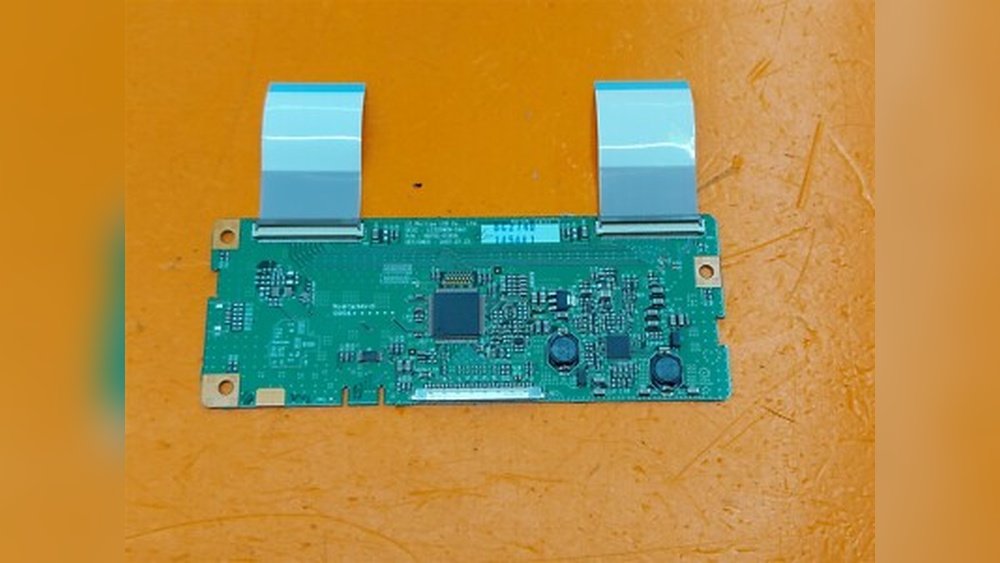
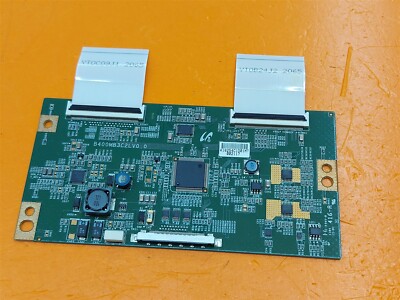
The T-Con board is a small electronic part inside your laptop. It controls how the image shows on the screen. “T-Con” stands for “Timing Controller.” This board sends signals to the screen to make pictures and videos appear correctly.
If the T-Con board is broken or damaged, the screen may show vertical lines. The board connects the laptop’s motherboard to the screen. It uses small connectors and cables to send information.
Signs Of A Bad T-con Board
- Vertical lines appear all the time.
- Lines stay the same even if you move the laptop.
- The screen flickers or has strange colors.
- Changing cables does not fix the problem.
.png "How to Fix Vertical Lines on a Laptop Screen: T-Con Board Vs. Ribbon Cable Explained 3")
Credit: www.fixxo.in
What Is the Ribbon Cable?
The ribbon cable is a thin, flat cable inside the laptop. It connects the T-Con board to the screen. This cable carries signals that tell the screen what to display.
If the ribbon cable is loose, damaged, or broken, vertical lines can show up on the screen. Sometimes, the cable moves when you open or close the laptop. This can cause the lines to appear or disappear.
Signs Of A Bad Ribbon Cable
- Lines appear only when the screen is moved.
- Lines disappear or change when you press on the screen or laptop case.
- Screen works fine sometimes, but lines come back later.
How to Check if It Is the T-Con Board or Ribbon Cable?
Before fixing your laptop, you must know the cause of the problem. Here are easy steps to check:
- Restart Your Laptop: Sometimes, the problem is temporary. Restart to see if lines disappear.
- Check the Screen Carefully: Move the screen back and forth. If lines change or go away, the ribbon cable may be loose or damaged.
- Connect to an External Monitor: Use an external screen with your laptop. If the external screen is clear, the problem is inside your laptop screen system.
- Inspect the Ribbon Cable: If you can open your laptop, check the ribbon cable connection. Make sure it is plugged in well.
- Test the T-Con Board: This is harder to do yourself. If you have tools, you can try replacing the T-Con board. If lines stay, the board may not be the problem.
Step-by-Step Guide to Fix Vertical Lines
Now, let’s learn how to fix the problem. You can try these steps at home if you feel comfortable.
1. Adjust The Screen Refresh Rate
Sometimes, the problem is not hardware but software. The screen refresh rate can cause lines.
- Right-click on the desktop.
- Select “Display Settings” or “Screen Resolution.”
- Go to “Advanced Settings.”
- Find the “Monitor” tab.
- Lower the refresh rate and see if lines disappear.
If this works, you do not need to open the laptop.
2. Check And Reconnect The Ribbon Cable
Be careful. You need to open the laptop carefully.
- Turn off the laptop and unplug it.
- Remove the battery if you can.
- Unscrew and open the back cover gently.
- Find the ribbon cable connecting the screen and T-Con board.
- Unplug the cable carefully.
- Clean the connectors with a soft cloth.
- Plug the ribbon cable back securely.
- Close the cover and turn on the laptop.
If the lines disappear, the problem was the cable.
3. Replace The Ribbon Cable
If reconnecting does not help, the cable may be broken.
- Buy a new ribbon cable for your laptop model.
- Remove the old cable carefully.
- Install the new cable securely.
- Test the screen for lines.
4. Replace The T-con Board
This part is harder to replace. It may need special tools.
- Find the T-Con board near the screen or inside the laptop.
- Remove the screws holding the board.
- Unplug the connectors carefully.
- Buy the correct T-Con board for your model.
- Install the new board and reconnect all cables.
- Test the laptop screen again.
If you are not sure, ask a professional to do this for you.
Other Possible Causes of Vertical Lines
Sometimes, vertical lines are not from the T-Con board or ribbon cable. Here are other causes:
| Cause | Description |
|---|---|
| Defective LCD Panel | The screen itself is broken. This needs a screen replacement. |
| Software Problems | Bad graphics drivers or settings can cause lines. |
| Graphics Card Issues | Problems with the laptop’s graphics hardware can cause lines. |
When to Ask for Professional Help
If you try fixing the ribbon cable and T-Con board but lines stay, it is time to seek help.
Also, if opening the laptop feels hard, do not force it. A professional technician can fix the problem safely.
Replacing the LCD screen or T-Con board needs experience and tools. Professionals can do this work faster and better.
Summary: T-Con Board Vs. Ribbon Cable
| Part | Role | Signs of Problem | How to Fix |
|---|---|---|---|
| T-Con Board | Controls image timing on screen | Lines stay constant, flickering, no change when moving screen | Replace the board, professional help recommended |
| Ribbon Cable | Connects T-Con board to screen | Lines appear or change when moving screen, loose connection | Reconnect or replace cable |
Final Tips to Avoid Screen Problems
- Do not drop or hit your laptop.
- Avoid closing the lid too hard.
- Keep the laptop clean and dry.
- Use a good quality charger to avoid electrical issues.
- Update your software and drivers regularly.
Vertical lines on a laptop screen can be fixed. Knowing the difference between the T-Con board and ribbon cable helps a lot. Try simple fixes first. Be careful when opening your laptop. When in doubt, ask a professional. Your laptop screen will look clear again.
Frequently Asked Questions
How To Get Rid Of Vertical Lines On Laptop Screen?
Check and adjust your laptop’s screen refresh rate via Display Settings to remove vertical lines. Inspect and reseat or replace the ribbon cable connecting the screen. If lines persist, test or replace the T-Con board. Seek professional repair if hardware faults continue.
How To Fix Screen Vertical Stripes?
Check and lower your screen’s refresh rate in Display Settings. Inspect and reseat or replace the ribbon cable. Replace the T-Con board if lines persist. Consult a professional for a defective LCD panel. Regularly update your graphics driver to avoid software issues causing vertical stripes.
What Does The Tcon Board Connect To?
The TCON board connects to the motherboard via one or more connectors. It also connects directly to the LCD screen.
Why Is My Lcd Screen Showing Vertical Lines?
Vertical lines on an LCD screen often result from a faulty T-Con board or damaged ribbon cable. Loose connections or software issues can also cause this. Check cables and refresh rate first. Persistent lines usually indicate hardware failure needing professional repair.







