

Do you have a grainy or blurry webcam on your laptop? It can be frustrating when your video looks fuzzy or unclear. But don’t worry. There are easy ways to make your webcam look better. This guide will help you fix the grainy webcam image using simple lighting tips and driver fixes.
Why Does a Webcam Look Grainy?
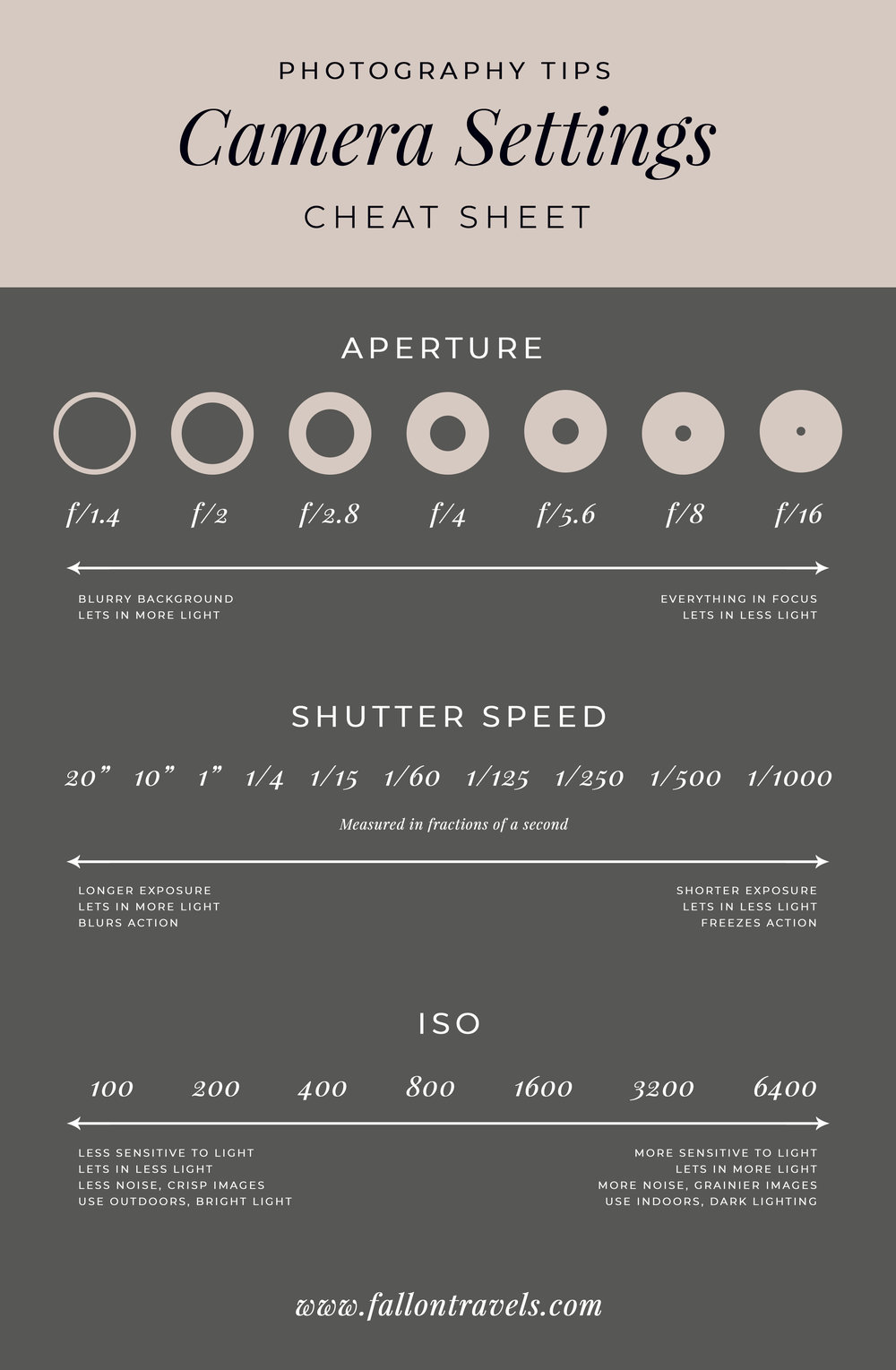
Webcams can look grainy for many reasons. The most common cause is low light. When there is not enough light, the camera tries hard to make the image bright. This causes “noise” or grain in the picture.
Another cause is a dirty or dusty camera lens. Dust can block the light and make the image unclear. Also, outdated or wrong camera drivers can cause poor video quality.
Step 1: Clean Your Webcam Lens
Before you do anything else, check your webcam lens. It might have dust or dirt. A dirty lens can make the picture fuzzy.
- Use a soft microfiber cloth to gently clean the lens.
- If needed, lightly dampen the cloth with water or lens cleaner.
- Do not use rough materials that can scratch the lens.
- You can also use compressed air to remove dust particles.
Cleaning your lens often helps improve the image quality instantly.
Step 2: Improve Your Lighting
Good lighting is the best way to fix grainy webcam video. Here’s why:
- More light lets the camera capture clear images.
- It reduces the camera’s need to boost brightness artificially.
- This lowers noise and grain in the video.
Try these lighting tips:
Use Natural Light
Sit near a window if you can. Daylight is bright and soft. It makes your face look clear and natural.
Make sure the light is in front of you, not behind. If the light is behind you, your face will look dark.
Add Lamps Or Desk Lights
If natural light is not available, use lamps. Place one or two lamps in front of you. Use soft white bulbs for even light.
Avoid harsh or direct light that causes shadows on your face.
Use A Ring Light
If you want to spend a little, you can get a ring light. It fits around your webcam and shines light evenly on your face.
This helps reduce grain and makes your video look sharper.
Avoid Backlight And Shadows
Backlight is light behind you. It makes your face dark and hard to see.
Shadows on your face also make the image unclear.
Try to keep the light source in front or slightly to the side.
Step 3: Adjust Webcam Settings
Your laptop webcam may have settings you can change. These help improve image quality.
- Open your camera app or video chat program.
- Look for settings like brightness, contrast, and resolution.
- Lower the brightness if your image looks too bright or washed out.
- Increase the contrast to make details clearer.
- Set the resolution to the highest option available.
Making these small changes can reduce grain and improve sharpness.
Step 4: Update or Reinstall Webcam Drivers
Drivers are software programs that let your computer use the webcam. If the drivers are old or broken, your video quality may suffer.
Here is how to update or reinstall your webcam drivers:
How To Update Webcam Drivers On Windows
- Right-click the Start button and choose Device Manager.
- Find Imaging Devices or Cameras and click it to expand.
- Right-click your webcam device and select Update driver.
- Choose Search automatically for updated driver software.
- Follow the instructions to install any updates.
How To Reinstall Webcam Drivers
- Open Device Manager again.
- Right-click your webcam and select Uninstall device.
- Restart your laptop.
- Windows will reinstall the driver automatically.
Updating drivers can fix bugs and improve camera performance.
Credit: fallontravels.com
Step 5: Change Video App Settings
Sometimes, your video chat app or software limits webcam quality.
Check the video settings inside apps like Zoom, Skype, or Teams.
- Look for video quality or resolution options.
- Set the video quality to high or HD if possible.
- Turn off any filters or effects that may lower quality.
Better app settings help your webcam show clearer video.
Extra Tips to Reduce Grain
- Keep still: Moving a lot can blur the image.
- Close unused apps: Free up computer power for better video.
- Use a stable internet connection: Slow internet can lower video quality.
- Try another program: Sometimes the app you use has limits.
Summary Table: How to Fix Grainy Webcam
| Step | Action | Why It Helps |
|---|---|---|
| 1 | Clean the webcam lens | Removes dust for a clearer image |
| 2 | Use good lighting (natural or lamps) | Reduces noise and grain by brightening your face |
| 3 | Adjust webcam brightness and contrast | Improves image sharpness and color |
| 4 | Update or reinstall webcam drivers | Fixes software problems affecting video quality |
| 5 | Set video app to highest quality | Allows better resolution and clearer video |

Credit: vimeo.com
Frequently Asked Questions
How To Fix A Grainy Laptop Camera?
Clean the camera lens gently with a microfiber cloth. Increase lighting using lamps or natural light. Update camera drivers via Device Manager. Adjust webcam settings for higher resolution and lower ISO if available. Use noise reduction software for post-processing if grain persists.
How To Get Rid Of Webcam Grain?
Improve webcam image by adding bright, even lighting near your face. Clean the lens gently with a microfiber cloth. Update webcam drivers for better performance. Lower camera ISO in settings to reduce grain. Use noise reduction software if available for clearer video quality.
How To Improve Laptop Webcam Quality?
Clean the webcam lens gently to remove dust. Improve lighting by using natural or LED lights. Update camera drivers regularly. Adjust video settings for higher resolution. Stabilize the laptop to prevent blur. These steps enhance webcam clarity and reduce grain effectively.
How To Fix Grainy Camera Quality?
Increase lighting by using natural light or lamps to brighten the scene. Lower the ISO setting to reduce sensor noise. Clean the lens gently with a microfiber cloth. Use a tripod to stabilize your camera and avoid shake. Apply noise reduction tools in editing software if needed.
Conclusion
A grainy laptop webcam image is often easy to fix. Start by cleaning your lens and improving lighting. Next, adjust webcam and app settings. Finally, update your drivers to fix software issues.
Good lighting is the most important step. Bright, soft light helps your camera work better. Even small changes can make a big difference.
Try these tips and enjoy clearer, sharper video calls and recordings. You don’t need to buy a new webcam. Just a little care and the right settings do the trick.







