

Is your laptop running slow? You are not alone. Many people face this problem every day. Slow laptops can make work and play frustrating. But the good news is you can fix this. Two main ways help a lot: upgrading your SSD and managing background apps.
Why Is My Laptop So Slow?
Before fixing your laptop, you should know why it is slow. Many things can cause slow performance. Here are some common reasons:
- Too many programs running at the same time
- Old or full hard drive
- Too many background apps using memory
- Outdated software or drivers
- Too many browser tabs open
These things can make your laptop feel like it is stuck in slow motion. But don’t worry. We will explain two ways to make it faster.

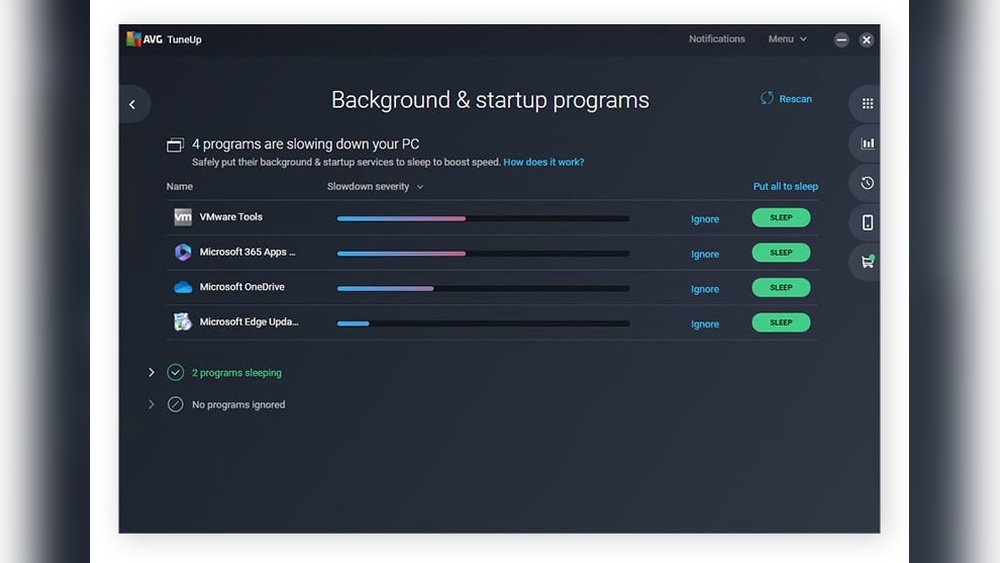
Credit: www.avg.com
What Is an SSD Upgrade?
SSD means Solid State Drive. It is a type of storage for your laptop. Older laptops usually have HDDs (Hard Disk Drives). These have moving parts. SSDs have no moving parts. This makes SSDs much faster.
When you upgrade from HDD to SSD, your laptop can start faster. It can open programs and files quickly. You will notice the difference right away.
Benefits Of Upgrading To Ssd
- Faster startup: Your laptop boots up quickly.
- Quick file access: Files open without delay.
- Better program speed: Apps run smoothly.
- Less noise: No moving parts means quieter laptop.
- Better battery life: SSD uses less power.
Upgrading your SSD is a great way to boost laptop speed. But it costs money and takes time to install.
What Are Background Apps?
Background apps are programs running even when you are not using them. They use your laptop’s memory and processor. This slows down your laptop.
Examples of background apps include:
- Chat tools
- Sync services like cloud backups
- Update checkers
- Unused browser extensions
These apps keep running quietly. But they use your laptop’s power. This can make your laptop slow and laggy.
How Background Apps Slow Your Laptop
When many apps run in the background, they use CPU and RAM. CPU is the brain of your laptop. RAM is the short-term memory. If these are busy, your laptop has less power for your work.
Too many background apps can cause:
- Slow program opening
- Lag when typing or clicking
- Long wait times for simple tasks
SSD Upgrade Vs. Managing Background Apps: What Helps More?
Both upgrading SSD and managing background apps improve laptop speed. But they work in different ways.
| Fix Method | How It Helps | Cost | Time to See Results | Best For |
|---|---|---|---|---|
| SSD Upgrade | Speeds up storage and program loading | Medium to High | Immediate after install | Old laptops with HDD |
| Managing Background Apps | Frees up CPU and RAM, reduces lag | Free | Immediate after changes | Any laptop with many apps running |
Which One Should You Try First?
Start with managing background apps. It is free and easy to do. You can clean up many apps quickly. This often helps a lot.
If your laptop still feels slow, think about upgrading to an SSD. This is a bigger change but gives a big speed boost.
How to Manage Background Apps to Speed Up Your Laptop
Here are easy steps to find and stop background apps:
- Open Task Manager by pressing Ctrl + Shift + Esc.
- Click on the Processes tab.
- Look for apps using high CPU, memory, or disk space.
- Select apps you do not need and click End Task.
- Go to the Startup tab.
- Disable apps that you don’t want to start with Windows.
This frees up your laptop’s memory and processor. You will see better performance soon.
Other Tips To Manage Background Apps
- Close browser tabs you are not using.
- Uninstall programs you never open.
- Turn off sync services if you don’t need them.
- Check for malware or viruses that can slow your laptop.
How to Upgrade Your Laptop to SSD
If you want a faster laptop, upgrading to an SSD is a good choice. Here is a simple guide:
- Check if your laptop supports SSD upgrade.
- Buy the right SSD size for your laptop.
- Back up all your important data.
- Remove the old hard drive carefully.
- Install the new SSD in the same slot.
- Install your operating system on the new SSD.
- Restore your files and programs.
If you do not feel confident, ask a computer expert to help. It is important to do it right.
Things To Remember About Ssd Upgrade
- Not all laptops allow SSD upgrades.
- Some SSDs need special tools for installation.
- Make sure to buy an SSD with enough space for your needs.
- Keep your laptop’s drivers and software updated for best speed.
Other Ways to Fix Slow Laptop Performance
Besides SSD and background apps, try these tips:
- Restart your laptop: This clears temporary files and frees memory.
- Run disk cleanup: Deletes junk files that slow your laptop.
- Update Windows and drivers: Fix bugs and improve speed.
- Check your antivirus: Remove malware that can slow your laptop.
- Adjust visual effects: Turn off fancy display features to save power.
Credit: blog.paessler.com
Summary
Slow laptops can be fixed in many ways. Managing background apps is free and simple. It helps free up memory and CPU power. Upgrading to SSD costs money but gives a big speed boost. Try managing background apps first. Then think about SSD if needed. Follow the simple steps here. Your laptop will feel faster and better.
Remember, a clean and well-maintained laptop works best. Take care of it, and it will serve you well.
Frequently Asked Questions
Why Is My Laptop Slow Even With Ssd?
Your laptop may slow despite an SSD due to too many background apps, insufficient RAM, outdated drivers, or low free disk space. Closing unnecessary programs and updating software can improve speed.
Why Are Background Apps Slowing Down My Computer?
Background apps consume CPU, memory, and disk resources, leaving less available for active tasks. This overload slows your computer’s performance.
Does Upgrading Laptop Ssd Improve Performance?
Upgrading your laptop SSD significantly improves performance by speeding up boot times, file transfers, and app loading. It reduces lag compared to traditional hard drives.
Why Is My Laptop Suddenly So Laggy And Slow?
Your laptop may lag due to too many background apps, low memory, outdated drivers, or insufficient storage. Close unused programs and update software to improve speed.







