

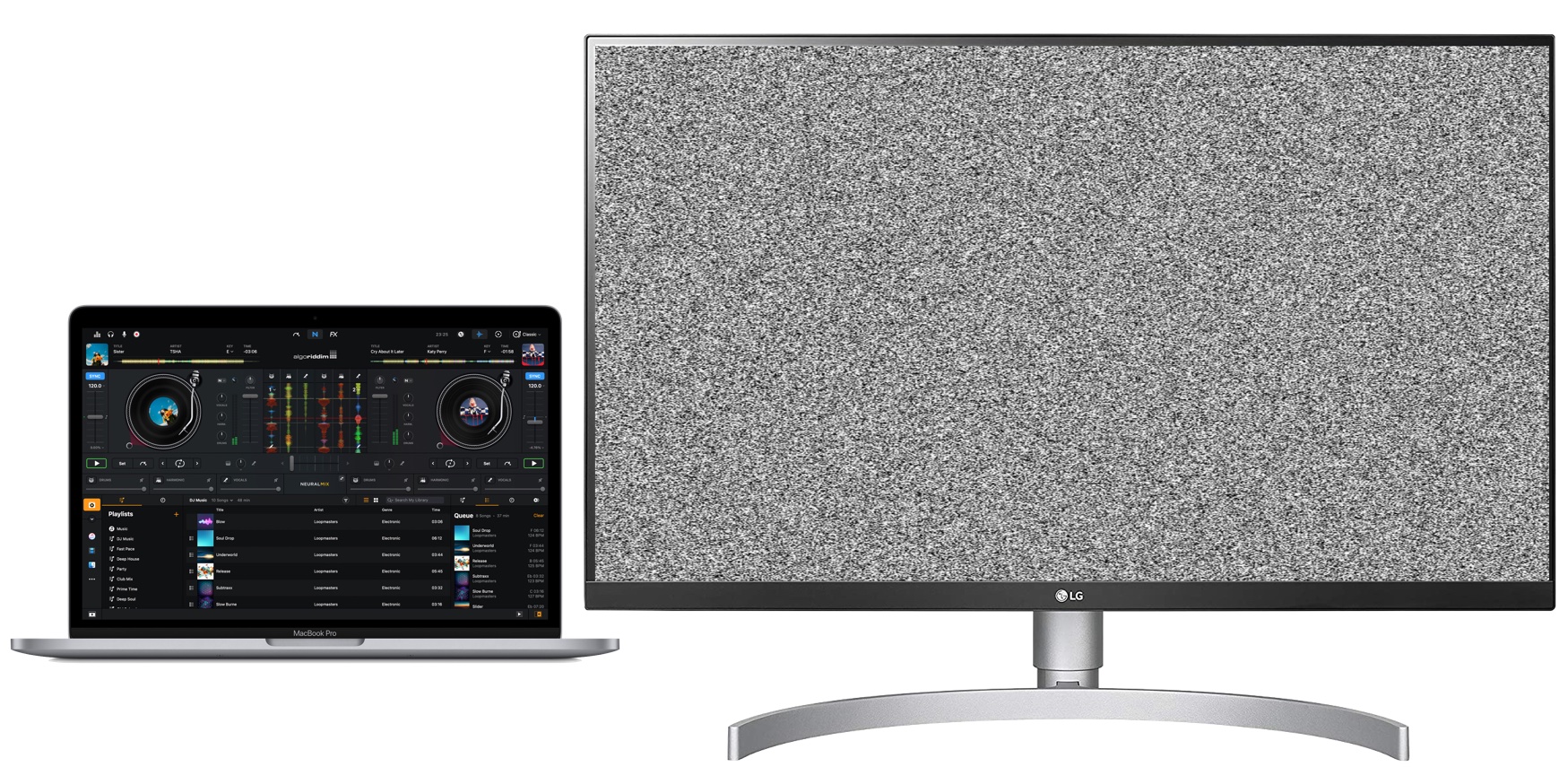
Are you using a laptop with an external monitor? Does your monitor flicker? Flickering means the screen blinks or flashes quickly. This problem can be annoying and hard to work with. But don’t worry. We will talk about how to fix flickering using the right cable specs.
What Causes Monitor Flickering?
First, you need to know why flickering happens. There are many reasons:
- Loose or bad cable connection
- Old or damaged cables
- Wrong cable type or poor quality
- Graphics driver problems
- Wrong display settings
In this article, we focus on the cable and its specs. The cable is very important for a clear picture.
Credit: osxdaily.com
Why Cable Specs Matter
Cables carry video signals from the laptop to the monitor. If the cable is bad, the signal can break or weaken. This causes flickering or image loss.
Good cable specs ensure the right speed and signal quality. This keeps your image stable and clear.
Types of Cables for External Monitors
There are many cables to connect a laptop to an external monitor. The common ones are:
| Cable Type | Common Use | Max Resolution | Comments |
|---|---|---|---|
| HDMI | Most monitors and TVs | Up to 4K at 60Hz | Widely supported and easy to use |
| DisplayPort | High-end monitors | Up to 8K at 60Hz | Good for high refresh rates |
| USB-C (with DisplayPort Alt Mode) | Modern laptops and monitors | Up to 4K at 60Hz or higher | Also charges laptop and transfers data |
| VGA | Older monitors | Up to 1080p | Analog signal, lower quality |
Check Your Cable Quality
Not all cables are the same. Cheap or old cables can cause flickering. Here is what to check:
- Look for damage: Check if the cable has cuts or bends.
- Check the connectors: Make sure the ends fit tightly and are clean.
- Use certified cables: Buy cables that meet standards like HDMI 2.0 or DisplayPort 1.4.
- Length matters: Very long cables can lose signal quality.
How to Fix Flickering Using Cable Specs
Follow these steps to fix flickering caused by cables:
1. Check And Tighten Connections
Loose cables cause flickering. Unplug and plug the cable back in firmly. Check both laptop and monitor ends.
2. Replace Old Or Damaged Cables
If the cable looks worn out, replace it. Use new cables with good specs. This often fixes flickering.
3. Use The Right Cable Type
Match your cable to the best port on your laptop and monitor. For example, use DisplayPort for high refresh rates.
4. Avoid Very Long Cables
Long cables can lose signal strength. Use shorter cables or signal boosters if needed.
5. Choose Good Quality Certified Cables
Buy cables from trusted brands. Look for HDMI 2.0 or DisplayPort 1.4 labels. These support high video quality.
Extra Tips to Prevent Flickering
Cable specs are important, but other things matter too:
- Update Graphics Drivers: Old drivers can cause flicker.
- Adjust Display Settings: Set correct resolution and refresh rate.
- Close Unnecessary Programs: High CPU use can affect display.
- Check Power Settings: Use high performance mode for better graphics.

Credit: www.dell.com
How to Update Graphics Drivers
Drivers help your laptop talk to the monitor. If they are old, flicker may occur.
- Go to your laptop brand’s website.
- Find the support or drivers section.
- Enter your laptop model number.
- Download and install the latest graphics driver.
- Restart your laptop after installation.
How to Adjust Display Settings
Sometimes your laptop sends wrong signals to the monitor.
- Right-click on the desktop and select “Display settings”.
- Find the external monitor in the settings.
- Set the resolution to the monitor’s native resolution.
- Set the refresh rate to 60Hz or more if supported.
- Save the changes and check for flickering.
Summary Table: Quick Fix Checklist
| Step | What to Do | Why |
|---|---|---|
| 1 | Check and tighten cable connections | Loose cables cause flicker |
| 2 | Replace old or damaged cables | Bad cables degrade signal |
| 3 | Use correct cable type for your monitor | Right cable supports better signal |
| 4 | Use quality certified cables | Good cables maintain image clarity |
| 5 | Update graphics drivers | Fixes software-related flickering |
| 6 | Adjust display resolution and refresh rate | Matches monitor capability |
When to Ask for Help
If you try all steps and flickering stays, it may be a hardware issue. The monitor or laptop port could be damaged.
In this case, ask a technician or visit a service center. They can check and fix hardware problems.
Final Thoughts
Flickering external monitors are often caused by cable problems. Using the right cable specs helps a lot. Always use good quality, certified cables. Check connections and update drivers too.
Fixing flickering takes time, but it is possible. Follow these steps carefully. Your screen will look stable and clear again.
Frequently Asked Questions
Why Does My Monitor Keep Flickering When Connected To My Laptop?
Your monitor flickers due to loose cables, outdated graphics drivers, or poor-quality cables. Check connections, update drivers, and use high-quality cables to fix it.
How Do I Fix My External Monitor From Flickering?
Check and secure all cable connections between your monitor and laptop. Update or reinstall your graphics drivers. Replace poor-quality or damaged cables. Disable unnecessary background apps that may strain your GPU. Adjust refresh rate settings to match your monitor’s specifications.
Can Displayport Cable Cause Flickering?
Yes, a faulty or low-quality DisplayPort cable can cause screen flickering. Signal loss or damage often leads to unstable video. Replacing the cable usually fixes flickering issues and ensures a clear, stable display.
Does Cable Quality Affect Flickering?
Yes, cable quality affects flickering. Poor cables cause signal loss, video distortion, and intermittent flickering. Use high-quality cables for stable display.







