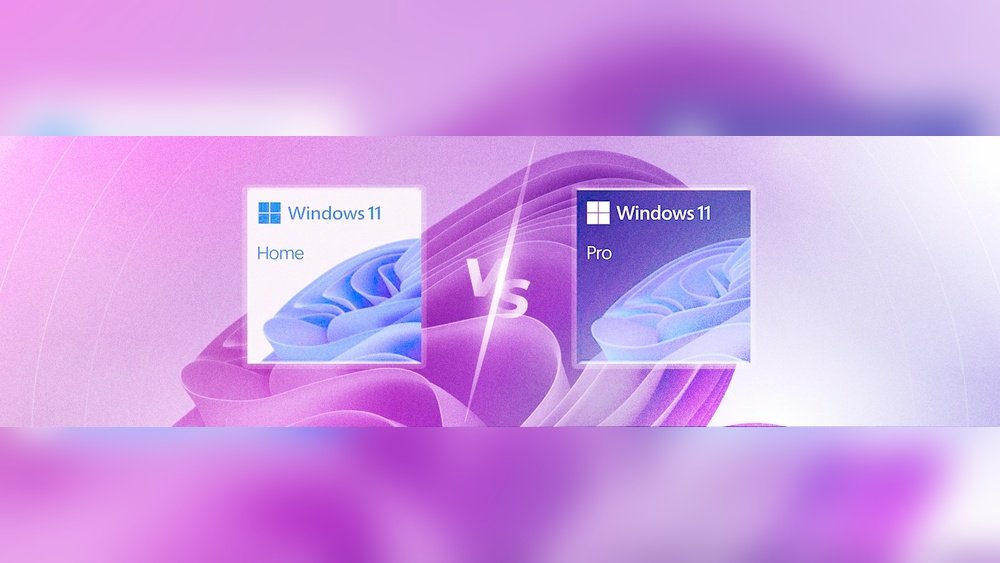
Are you a student in the UK wondering whether Windows 11 Home or Pro is the better choice for your studies in 2026? Picking the right version can make a big difference in how smoothly your laptop runs and how secure your data stays.
Maybe you need basic features for writing essays and browsing, or perhaps you want advanced tools like encryption and remote access for more complex tasks. This guide breaks down the key differences between Windows 11 Home and Pro, helping you decide which version fits your needs and budget perfectly.
Keep reading to find out which one will truly boost your productivity and protect your work throughout your student journey.
Student Needs In Windows
Students require a Windows version that supports their daily academic tasks efficiently. The operating system should offer essential tools for study, strong security, and smooth performance. Both Windows 11 Home and Pro provide features tailored for students but differ in capabilities. Understanding these differences helps students pick the right version for their needs in the UK by 2026.
Basic Features For Study
Windows 11 Home includes core apps like Microsoft Edge and Office integration. It supports multiple desktops to organize study sessions. Snap Layouts improve multitasking by arranging windows easily. Widgets keep students updated with news and calendar events. The Start menu is simple and user-friendly, perfect for quick access to files and apps.
Security Essentials
Windows 11 Home offers essential security like Windows Defender and device encryption. It protects against viruses and malware, keeping data safe. Pro adds BitLocker for full disk encryption, ideal for sensitive assignments. Pro also includes Windows Information Protection to secure work apps. These extra layers benefit students handling confidential research or projects.
Both versions run efficiently on standard student laptops and tablets. Windows 11 Pro supports virtualization with Hyper-V, useful for advanced courses. Pro allows connection to corporate or school networks via Azure AD. This helps students access shared resources and remote files easily. Home covers most compatibility needs for everyday study and media use.
Key Features Of Windows 11 Home
Windows 11 Home offers a solid set of features designed for everyday use. It suits students who need a reliable and easy-to-use operating system. This version focuses on essential tools, smooth performance, and basic security. It supports entertainment and learning without overwhelming users with complex options.
User Interface And Usability
The user interface in Windows 11 Home is clean and simple. The Start menu is centred and easy to navigate. Snap Layouts help arrange open apps quickly. Widgets provide quick access to news, weather, and calendar. Touch, pen, and voice inputs work smoothly. These features make it easy for students to stay organised and focused.
Core Security Functions
Windows 11 Home includes essential security tools to protect your data. It has Secure Boot and Windows Defender Antivirus. Firewall and device encryption help keep files safe. Parental controls allow families to manage screen time and app usage. These features ensure a safe environment for students working online.
Gaming And Multimedia Support
Gaming gets strong support with DirectX 12 Ultimate and Xbox Game Pass integration. The system handles video and audio well for streaming and projects. Auto HDR enhances visuals in games. Windows 11 Home is ideal for students who enjoy gaming and multimedia activities during breaks.
Key Features Of Windows 11 Pro
Windows 11 Pro offers several powerful features designed for advanced users. It suits students who need enhanced security and more control over their devices. These features help protect data, manage devices, and support remote work and learning environments. Below, we explore the key features that make Windows 11 Pro stand out.
Advanced Security Tools
Windows 11 Pro includes BitLocker, a tool that encrypts your files. This keeps data safe from theft or loss. It also has Windows Defender Application Guard, which protects against malware and harmful websites. Secure Boot helps prevent unauthorized software from loading during startup. These tools provide stronger security than the Home version.
Business And Management Features
Windows 11 Pro allows access to the Group Policy Editor. This lets users customize system settings easily. It supports Windows Update for Business, which controls when updates install. Mobile Device Management helps manage multiple devices in one place. These features help students organize their work and control system behavior effectively.
Virtualization And Remote Access
Windows 11 Pro supports Hyper-V, a feature for running virtual machines. Students can create test environments or run other operating systems. The Remote Desktop feature allows remote access to the PC from anywhere. This is useful for studying or collaborating on projects with others. These tools add flexibility and convenience for modern learning needs.
Security Differences
Security plays a key role in choosing between Windows 11 Home and Pro for students in the UK. Both versions protect devices, but Pro offers stronger security tools. These tools help safeguard sensitive data and manage devices better. Understanding these security differences can guide students to pick the right edition for their needs.
Bitlocker And Data Encryption
Windows 11 Pro includes BitLocker, a powerful encryption tool. BitLocker locks your drive to stop others from accessing data without permission. Home version lacks this feature, relying on basic device encryption. For students handling private files or research, BitLocker offers added peace of mind. It encrypts everything on the hard drive quickly and securely.
Group Policy And Device Management
Group Policy Editor comes only with Windows 11 Pro. It allows users to control system settings and security policies. Students can customize device behavior and restrict certain apps or features. This helps maintain focus and security, especially on school-managed laptops. Home users do not have this control, limiting advanced management options.
Windows Defender Enhancements
Both versions have Windows Defender for antivirus and threat protection. Pro has extra features like Windows Defender Application Guard. It isolates risky websites and files to prevent infections. Pro also supports Windows Defender Credential Guard, protecting login details from theft. These enhancements give Pro users stronger defenses against cyber threats.
Performance And Compatibility
Performance and compatibility play a key role in choosing between Windows 11 Home and Pro for students in the UK. These factors affect how smoothly the system runs and how well it works with other software and hardware. Understanding these differences helps students pick the right version for study and projects.
Hardware Requirements
Both Windows 11 Home and Pro need similar hardware to run well. They require a 1 GHz or faster processor with two or more cores. At least 4 GB of RAM and 64 GB of storage are necessary. Graphics must support DirectX 12 or later with a WDDM 2.0 driver. Windows 11 Pro may benefit from extra RAM if you use virtualization tools.
Software And Driver Support
Windows 11 Home supports most software used by students, including office apps and creative tools. Driver support is broad, covering common printers and accessories. Windows 11 Pro adds features like Hyper-V for running virtual machines, which can be useful for advanced tasks. Both versions receive regular updates to keep software and drivers compatible.
Legacy System Considerations
Windows 11 Home and Pro require newer hardware, so very old devices might not be compatible. Pro offers better support for legacy business apps through virtualization. Students using older software may find Pro more flexible. Home version suits most students with modern devices and basic software needs.
User Experience And Customization
Windows 11 Home and Pro editions offer distinct user experiences and customization options tailored for students in the UK. Understanding these differences helps students choose the right version for their needs. Both versions focus on ease of use but vary in control and flexibility. This section explores key areas where the user experience and customization differ.
Interface Changes And Learning Curve
Windows 11 introduced a fresh, modern interface. Both Home and Pro share this design with centered taskbar icons and rounded corners. Students find this look clean and less cluttered. The learning curve is gentle for Home users, ideal for everyday tasks and study. Pro adds some advanced settings that may need extra time to explore. Overall, both versions maintain a user-friendly feel with minor differences in complexity.
Taskbar And Start Menu Options
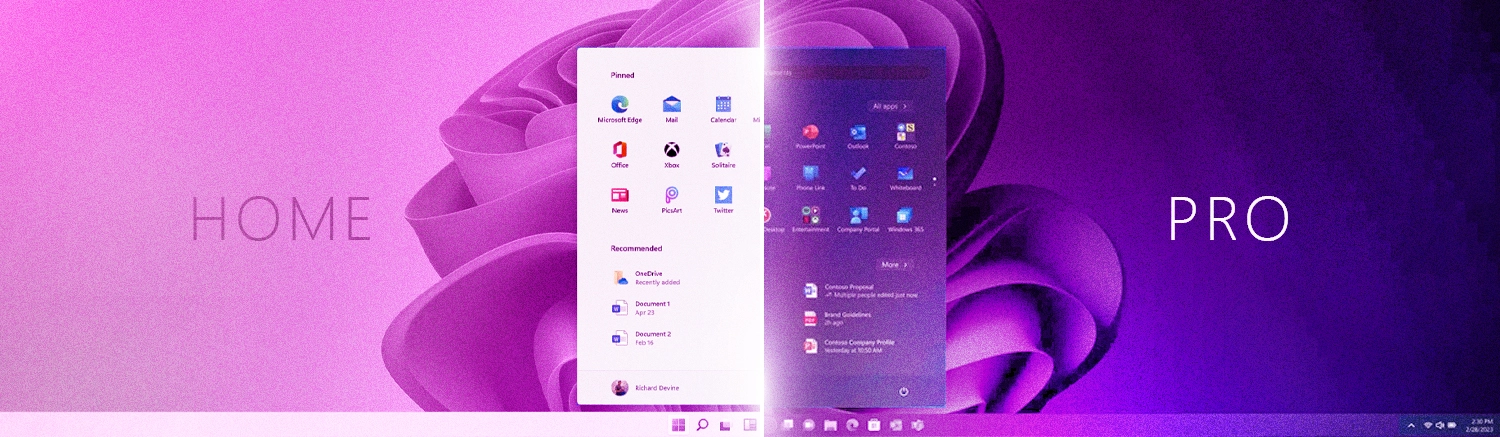
The taskbar and Start menu are central to navigation. Home offers a simplified taskbar with core features like pinned apps and widgets. Pro allows more customization, such as hiding or showing system icons and using group policies to control taskbar behavior. Start menu in both versions supports pinned apps and recommended files, but Pro users can manage app policies more strictly. Students benefit from Home’s straightforward setup, while Pro suits those who want more control.
Default App Settings
Default apps handle everyday tasks like browsing, emailing, and media playback. Windows 11 Home sets defaults to popular apps, making setup quick and easy. Pro users can change default apps through group policies and system settings, offering more customization. This is helpful for students who prefer specific software for study or projects. Both versions allow manual changes, but Pro provides tools for managing defaults across multiple devices, useful in shared or school environments.
Privacy And Data Collection
Privacy and data collection remain key concerns for students choosing between Windows 11 Home and Pro. Both editions collect data to improve user experience and security. Understanding how each version handles privacy helps students protect their information. Windows 11 introduces new features that balance convenience with privacy risks.
Microsoft Services Integration
Windows 11 Home tightly integrates Microsoft services like OneDrive, Microsoft 365, and Cortana. This means more data sync and cloud storage use. Windows 11 Pro offers the same services but allows better control over data sharing. Pro users can delay or limit some cloud features, reducing automatic data exchange.
Ai Features And Copilot
AI-powered tools like Copilot assist with tasks and learning. Both Home and Pro include these features, which collect usage data to improve responses. Pro users get enhanced privacy controls to manage AI data sharing. Students may prefer Pro to limit AI data collection during sensitive projects.
Adjusting Privacy Settings
Windows 11 provides clear privacy settings to control data collection. Home users can adjust basic options such as location and diagnostic data. Pro users have advanced settings, including Group Policy Editor, for deeper privacy customization. Students can tailor their privacy level to balance safety and functionality.
Credit: www.techvertu.co.uk
Choosing The Right Edition
Choosing the right Windows 11 edition can shape a student’s experience. The Home and Pro versions offer distinct benefits. Knowing which fits your needs saves time and money. Focus on features that support study habits and daily tasks. Consider security, management tools, and cost before deciding.
When Home Fits Best
Windows 11 Home suits most students well. It covers essential tasks like writing, research, and browsing. The user interface is simple and easy to navigate. It includes basic security features such as device encryption and firewall. Perfect for casual users who do not need advanced controls or business tools.
When Pro Is Worth It
Windows 11 Pro adds value for students needing more control. It offers advanced security like BitLocker encryption. Useful for protecting sensitive school projects or personal data. Pro supports virtualization tools like Hyper-V for running multiple operating systems. Ideal for students in IT, programming, or business management courses. It also allows remote desktop access, handy for group projects or remote work.
Cost Considerations For Students
Price plays a big role for students on a budget. Windows 11 Home costs less and covers basic needs. Pro edition is pricier but includes extra features. Check if your school offers discounts or free upgrades. Sometimes, educational licenses provide Pro at a lower cost. Balance your needs against your budget before purchasing.
Tips For Students Using Windows 11
Students using Windows 11 benefit from features that boost learning and productivity. Knowing how to use these features well makes study easier. Simple tips help keep devices safe, updated, and ready for remote work.
Optimizing Security Settings
Set strong passwords or use Windows Hello for quick sign-in. Enable Windows Defender for real-time virus protection. Turn on firewall to block unwanted network access. Use device encryption to keep data safe on lost laptops. Check privacy settings to control app permissions and data sharing.
Managing Updates And Backups
Keep Windows updated to get the latest security fixes. Schedule updates for times when you are not using the PC. Use OneDrive or external drives to back up important files. Create restore points before major changes for easy recovery. Regular backups prevent data loss during system errors.
Using Virtualization And Remote Features
Use Hyper-V in Windows 11 Pro to run virtual machines for testing software. Try Windows Sandbox for safe app testing without risking the main system. Remote Desktop allows access to your PC from anywhere. These features help students study remotely and try new programs safely.

Credit: blogs.microsoft.com

Credit: www.costco.com
How The Laptop Scout Can Help You with Windows 11 Home Vs Pro for Students: Feature Comparison Uk 2026
Bridging Features with Practical Learning for Students
When deciding between Windows 11 Home and Pro, it’s helpful to think beyond just features and consider how they impact your day-to-day student life. For instance, the enhanced security options in Windows 11 Pro, like BitLocker encryption and Group Policy Editor, offer real peace of mind when handling sensitive coursework or research data. Meanwhile, Windows 11 Home covers the essentials well, including Snap Layouts and Widgets, which can boost productivity during study sessions without the complexity of advanced management tools.
From my experience at The Laptop Scout, it’s key to match your choice with actual needs—whether that’s seamless multitasking, privacy controls, or compatibility with specific software you’ll use. Remember, performance and user experience differences can influence how smoothly your assignments and projects run. If you’re unsure, feel free to reach out via our contact page; we’re here to help break down these tech details without the hype.
Frequently Asked Questions
Which Is Better For Students, Windows 11 Home Or Pro?
Windows 11 Home suits most students with essential features and basic security. Pro offers advanced security, virtualization, and management for power users or business needs. Choose Home for everyday use and Pro if you require enhanced data protection or remote management.
What Is The Difference Between Windows 11 Home And Windows 11 Pro?
Windows 11 Home suits everyday users with basic security and features. Windows 11 Pro adds advanced security like BitLocker, virtualization, and business management tools. Pro supports domain join, Group Policy, and remote desktop hosting, ideal for IT professionals and businesses needing enhanced control and data protection.
Which Is Better, 11 Pro Or 11 Home?
The 11 Pro offers advanced security, virtualization, and business features. The 11 Home suits everyday use, gaming, and basic tasks. Choose Pro for professional needs and Home for casual users.
What Are The Disadvantages Of Windows 11 Pro?
Windows 11 Pro has strict hardware requirements, limiting older PC support. It offers less taskbar and Start Menu customization. Some users face a learning curve with the new interface. Privacy concerns arise due to data collection. Forced Microsoft Account use can inconvenience some users.
Conclusion
Choosing between Windows 11 Home and Pro depends on your study needs. Home suits students who want simple, everyday features. Pro offers extra security and management tools for advanced users. Consider if you need data encryption or remote desktop access.
Budget also matters; Home is more affordable. Both versions support essential apps and tools for learning. Pick the edition that fits your tasks and preferences best. This way, you get the right balance of features and cost for 2026.