Webcams are very useful. We use them for video calls, meetings, and fun chats. But what if your webcam is not detected? This means your computer cannot find or use the camera. It can be very frustrating. Don’t worry. This guide will help you fix this problem. We will look at two main causes. Privacy settings and driver faults.
Why Is My Webcam Not Detected?
Before we fix the problem, we need to understand why it happens. Usually, two main reasons cause this:
- Privacy settings block your camera.
- Driver faults stop the webcam from working.
Let’s talk about each cause. Then, you will know how to fix it step by step.
Privacy Settings: How They Affect Your Webcam
Privacy is very important. Your computer wants to protect your data. So, it may block some apps from using the camera. This is a good thing, but sometimes it causes problems.
If your webcam is not detected, it might be because the privacy settings are off. The apps you want to use may not have permission to use the camera.
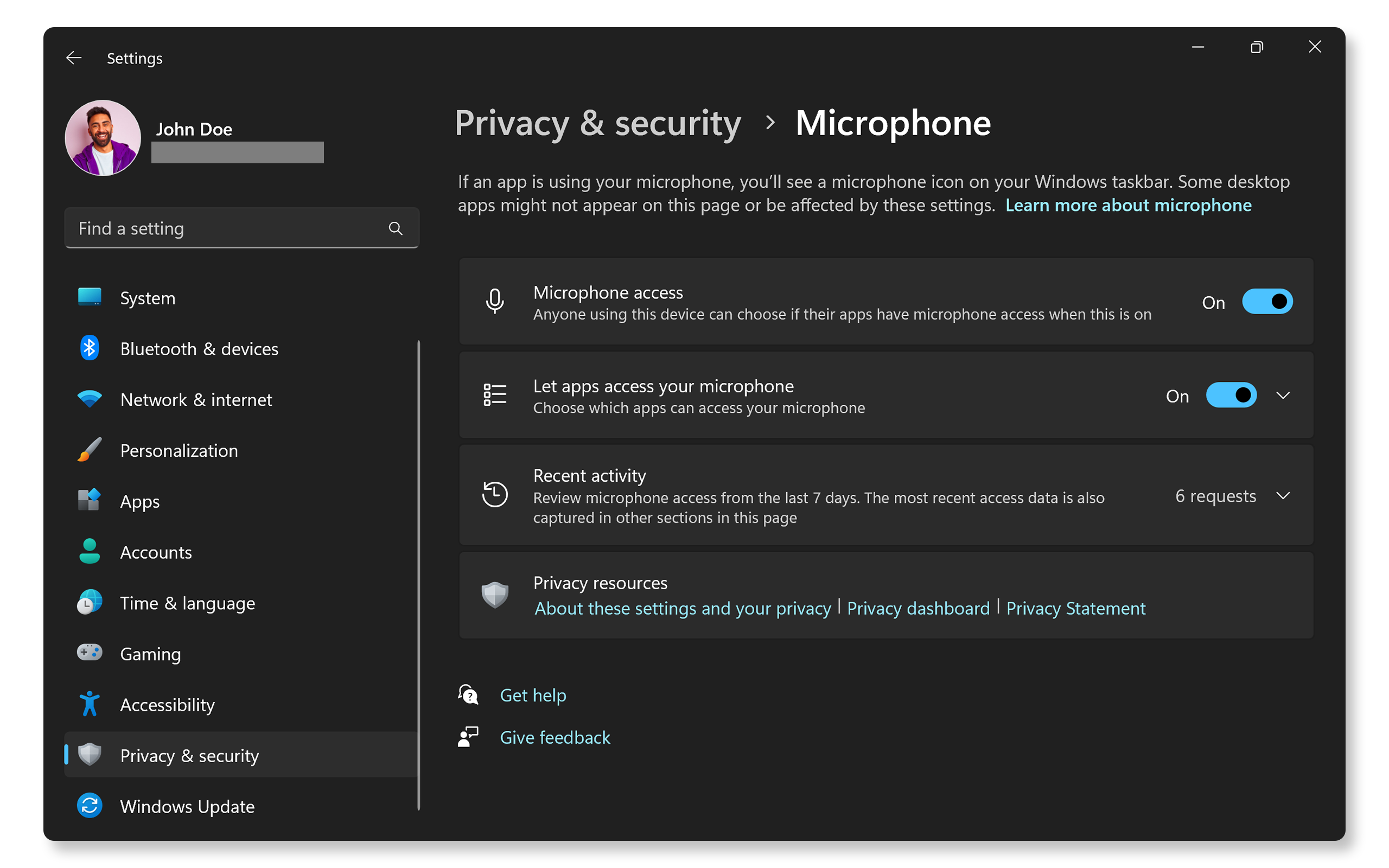
How To Check And Change Privacy Settings On Windows
Follow these easy steps:
- Click the Start button on your computer.
- Type Camera privacy settings in the search bar.
- Click on the result that says Camera privacy settings.
- Look for the option Allow apps to access your camera.
- Make sure this is On.
- Scroll down to see the list of apps.
- Turn on the camera permission for the apps you want to use.
After this, try using your webcam again. It may work now.
Other Privacy Settings To Check
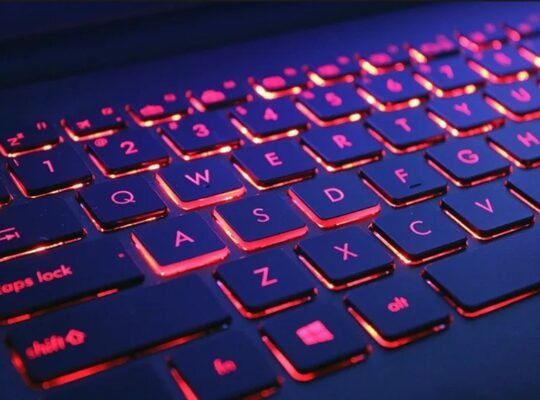
Some computers have a special button or switch to turn the webcam on or off. Check your keyboard or laptop body. You may see a camera icon on one of the function keys (like F6 or F10). Press it with the Fn key to turn the webcam on.
Also, some antivirus software may block the camera. Check your antivirus settings. Make sure it does not block the webcam.
Driver Faults: What They Are and How to Fix Them
Your webcam needs special software called a driver to work. The driver helps the computer talk to the webcam. If the driver is old, missing, or broken, the webcam may not be detected.
How To Check Webcam Drivers In Windows
Here is how you can check your webcam driver:
- Click the Start button.
- Type Device Manager and open it.
- Look for Cameras or Imaging Devices in the list.
- Click the arrow next to it to expand the list.
- Find your webcam device name.
- If you see a yellow triangle or question mark, it means there is a driver problem.
How To Update Your Webcam Driver
Follow these steps to update the driver:
- Right-click on your webcam device in Device Manager.
- Select Update driver.
- Click Search automatically for updated driver software.
- Wait while Windows searches and installs any updates.
After updating, restart your computer. Then test the webcam again.
Reinstall The Webcam Driver
If updating does not work, try reinstalling the driver:
- Right-click your webcam device in Device Manager.
- Select Uninstall device.
- Confirm the uninstall.
- Restart your computer.
- Windows will reinstall the driver automatically after restart.
This can fix many driver-related problems.
Using Windows Troubleshooter For The Camera
Windows has a tool to fix camera problems automatically:
- Click Start and open Settings.
- Go to System, then click Troubleshoot.
- Choose Other troubleshooters.
- Find Camera and click Run.
- Follow the instructions on the screen.
This tool can find and fix many issues with your webcam.

Credit: www.reddit.com
Additional Tips to Fix Webcam Not Detected
Here are some more simple steps you can try:
| Step | What to Do | Why It Helps |
|---|---|---|
| 1 | Check if the webcam is properly connected. | If it is loose, the computer won’t detect it. |
| 2 | Try plugging the webcam into a different USB port. | Sometimes the port may be faulty. |
| 3 | Test the webcam in another app like Skype or Zoom. | See if the problem is app-specific. |
| 4 | Restart your computer and try again. | Simple restart can fix temporary glitches. |
| 5 | Check for Windows updates and install them. | Updates often fix bugs and improve drivers. |
| 6 | Disable any app or software that may block the camera. | Some security apps block cameras to protect privacy. |
Credit: www.dell.com
Summary: Privacy Settings Vs. Driver Faults
When your webcam is not detected, check privacy settings first. Make sure apps have permission to use the camera. Also, check for any hardware switches or antivirus blocks.
If privacy settings are okay, look at the drivers. Update or reinstall webcam drivers using Device Manager. Use Windows troubleshooter to find problems. Restart your PC after changes.
Try the extra tips to check connections and test different apps. Often, one of these simple steps will fix your webcam.
Final Thoughts
Webcam problems can be annoying. But most issues are easy to fix. Privacy settings and driver faults cause most webcam detection problems.
By following this guide, you can fix your webcam step by step. Take your time. Don’t rush. If one step does not work, try the next.
Good luck! Your webcam will work again soon.
Frequently Asked Questions
How To Fix Webcam Not Detected?
Check the webcam connection and ensure the camera is enabled via privacy settings. Update or reinstall webcam drivers. Restart your PC and test the camera in different apps. Run Windows camera troubleshooter and disable antivirus blocking the webcam. Use function keys to toggle the camera on if needed.
How Do I Update The Driver For My Webcam?
Open Device Manager, expand Cameras, right-click your webcam, and select Update Driver. Choose Search automatically for drivers to update.
What Causes The “nocamerasareattached” Error?
The “NoCamerasAreAttached” error occurs when the system fails to detect a connected camera. Causes include disabled camera access in privacy settings, disconnected or faulty hardware, and outdated or missing drivers. Check camera connection, enable camera access, and update drivers to resolve this error.
How Do I Restart The Webcam Driver?
Unplug your webcam from the computer. Restart your PC. Plug the webcam back in to reinstall the driver automatically.