Do your laptop speakers make crackling sounds when you play music loud? This problem is common. It can be very annoying. But don’t worry. This article will help you fix the crackling sound. We will focus on driver latency fixes. These fixes are easy and safe to do.
What Causes Laptop Speakers to Crackle?
First, let’s understand why the speakers crackle. The main reasons are:
- Driver problems: The software that controls your sound can be old or broken.
- High latency: This means delays in the audio signal processing.
- Audio enhancements: Sometimes, extra sound effects cause issues.
- Hardware issues: Speakers or cables may be damaged.
In most cases, driver and software issues cause crackling. Hardware problems are less common but still possible.
What is Driver Latency?
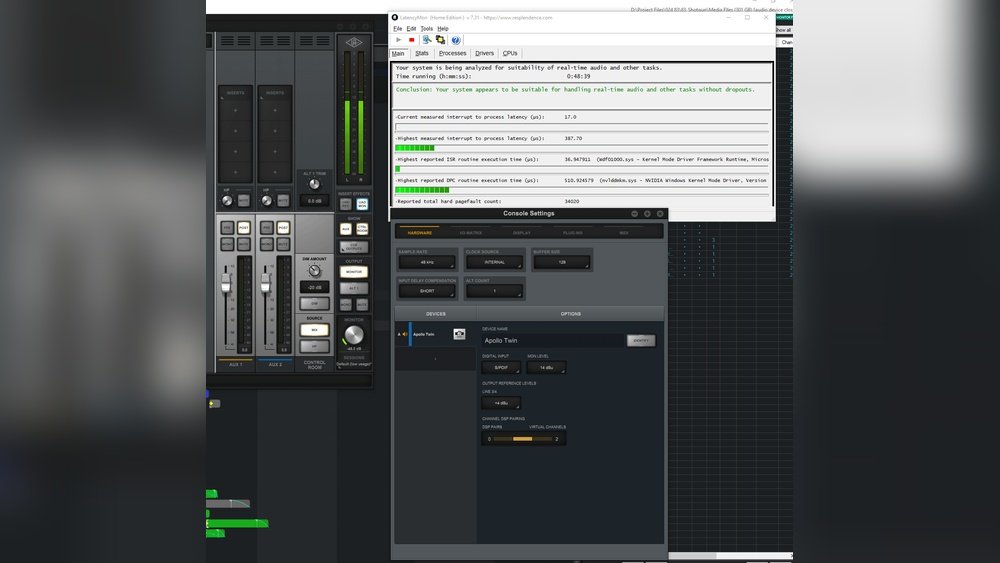
Latency means delay. In sound systems, it is the time audio takes to travel from the computer to the speaker. High latency can cause popping or crackling sounds. This happens because sound data is not processed fast enough. Fixing latency helps stop crackles.
Step-by-Step Driver Latency Fixes
Here are easy steps to fix your laptop speakers crackling due to driver latency.
1. Run Windows Audio Troubleshooter
Windows has a tool to find and fix sound problems. To run it:
- Click the Start button.
- Type troubleshoot and select Troubleshoot settings.
- Click Playing Audio and then Run the troubleshooter.
- Follow the on-screen instructions.
This tool may fix your crackling automatically.
2. Disable Audio Enhancements
Audio enhancements try to improve sound. But they may cause crackling. To turn them off:
- Right-click the speaker icon on the taskbar.
- Select Sounds.
- Go to the Playback tab.
- Select your playback device (like Speakers).
- Click Properties.
- Go to the Enhancements tab.
- Check the box Disable all enhancements.
- Click Apply and OK.
Test your sound again to see if crackling stops.
3. Change The Audio Format
Sometimes, the audio format causes problems. You can try a different one:
- Repeat the steps above to open Speakers Properties.
- Go to the Advanced tab.
- Under Default Format, pick a different quality.
- Click Test to hear if it sounds better.
- Click Apply and OK if it works.
4. Update Sound Drivers
Drivers help your computer talk to speakers. Old drivers cause crackling. To update drivers:
- Right-click the Start button.
- Choose Device Manager.
- Find Sound, video and game controllers.
- Right-click your audio device (like Realtek High Definition Audio).
- Select Update driver.
- Choose Search automatically for updated driver software.
- Follow the instructions to install updates.
If no update is found, visit your laptop maker’s website. Download the latest driver there.
5. Roll Back Sound Driver
If crackling started after a driver update, roll back to an old driver:
- Open Device Manager again.
- Right-click your audio device.
- Click Properties.
- Go to the Driver tab.
- Click Roll Back Driver if available.
- Follow instructions to restore old driver.
Restart your laptop and test sound.
6. Disable Third-party Software
Some apps may cause sound problems. Try to stop or uninstall them:
- Check if any audio tools or mixers are running.
- Close them and see if crackling stops.
- If yes, uninstall or update the app.
7. Use Microsoft Hd Audio Drivers
Some users fix crackling by switching to Microsoft drivers. To do this:
- Open Device Manager.
- Right-click your audio device.
- Click Update driver.
- Choose Browse my computer for drivers.
- Select Let me pick from a list of available drivers.
- Choose High Definition Audio Device by Microsoft.
- Click Next and install.
This driver is simple and may fix latency issues.

Credit: forums.developer.nvidia.com
Extra Tips to Prevent Speaker Crackling
- Keep your laptop clean: Dust can block speakers.
- Check speaker wires: Loose cables make noise.
- Lower the volume: Very high volume can cause distortion.
- Use external speakers or headphones: If laptop speakers still crackle.
- Update Windows regularly: Updates fix bugs and improve sound.
Summary Table: Quick Fixes for Crackling Laptop Speakers
| Fix | How to Do It | Effect |
|---|---|---|
| Run Audio Troubleshooter | Use Windows troubleshooter tool | Fixes common sound problems |
| Disable Audio Enhancements | Turn off extra sound effects | Stops sound distortion |
| Change Audio Format | Select different sound quality | Reduces crackling noise |
| Update Sound Drivers | Use Device Manager or website | Fixes driver-related issues |
| Roll Back Driver | Restore previous driver version | Undo bad updates |
| Disable Third-Party Apps | Close or remove apps causing noise | Removes software conflicts |
| Use Microsoft HD Audio Driver | Switch to basic Microsoft driver | Improves latency and stability |
When to Check Hardware
If the steps above do not fix crackling, your speakers or hardware might be faulty. Try these:
- Play sound with headphones. If crackling stops, laptop speakers may be bad.
- Use external speakers to test sound.
- Check for physical damage or loose wires.
- Clean speaker holes gently with a soft brush.
If hardware is damaged, you may need to repair or replace it.
Credit: www.xmg.gg
Final Words
Speaker crackling at high volume is frustrating. But most of the time, software fixes work. Driver latency is a common cause. By updating drivers, disabling enhancements, or changing audio settings, you can stop crackling.
Try each step carefully. Take your time. If one fix does not work, try another. Soon, your laptop sound will be clear and loud without noise.
Good luck and enjoy your music and videos!
Frequently Asked Questions
How To Fix Speaker Crackling Sound In Laptop?
Run Windows Audio Troubleshooter to detect issues. Update or roll back sound drivers via Device Manager. Disable audio enhancements. Change audio format to reduce latency. Clean volume controls or test with external speakers to isolate hardware problems.
How To Fix Speaker Crackling At High Volume?
Clean the volume knob or replace the potentiometer. Update or roll back audio drivers. Disable audio enhancements. Test with different speakers. Maintain wiring and amp controls regularly.
How To Fix Realtek Audio Crackling?
Update or roll back Realtek audio drivers via Device Manager. Disable audio enhancements and change audio format. Run Windows Audio Troubleshooter. Check and clean volume controls or test different speakers. This resolves most Realtek audio crackling issues efficiently.
Why Do I Hear A Crackling Sound From My Laptop?
A crackling sound from your laptop often comes from audio driver issues or speaker hardware problems. Update sound drivers, disable audio enhancements, and check connections to fix it.