Do you hear your laptop fan noise when you speak? It can make calls and recordings hard to hear. Fan noise is common in laptops. But don’t worry. This guide will help you fix this problem. We will share easy tips to reduce or stop fan noise from your microphone.
Why Does Your Laptop Microphone Pick Up Fan Noise?
Your laptop has a small fan inside. It cools the computer parts. When the fan runs, it makes noise. The microphone on your laptop is very close to the fan. So, it can record the sound of the fan. This makes your voice sound less clear.
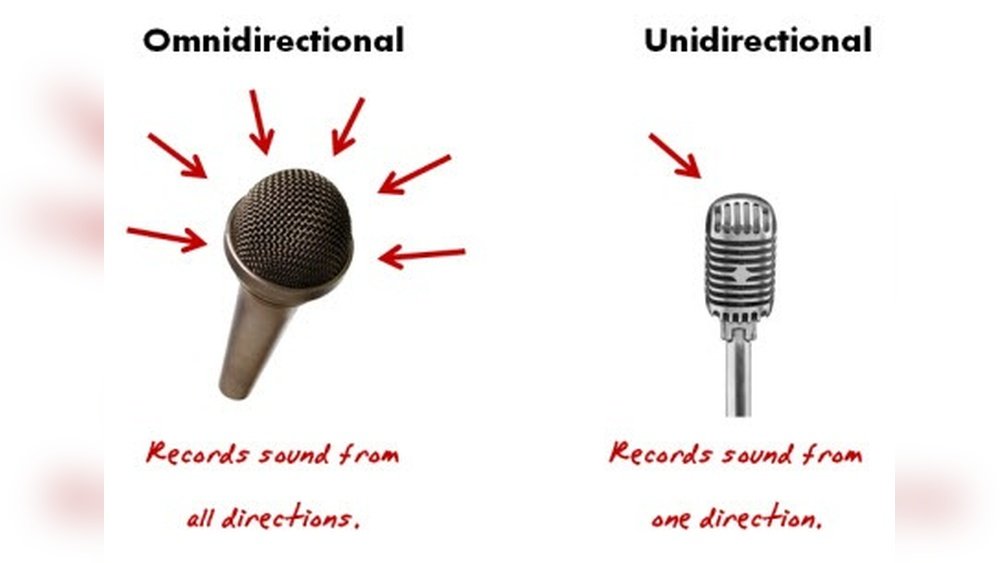
Also, some microphones are very sensitive. They pick up all sounds around, including fan noise.

Credit: www.amazon.com
Simple Ways to Stop Fan Noise from Your Laptop Microphone
Here are some easy steps you can try. These will help reduce or remove fan noise during your calls or recordings.
1. Move The Microphone Away From The Fan
If your microphone is built into the laptop, this is hard. But if you use an external microphone, try to place it far from the fan. Use a microphone stand or a boom arm. Put the mic closer to your mouth. This way, it picks your voice better and less fan noise.
2. Use A Headset Or External Microphone
Laptop microphones are near the fan. Headsets or external mics can help. They are closer to your mouth and away from the fan. This means less noise picked up.
3. Lower Your Laptop Fan Speed
When your laptop works hard, the fan runs fast. This makes more noise. You can try to reduce the fan speed. Use laptop software tools to control fan speed. But be careful. Don’t let your laptop get too hot.
4. Clean Your Laptop Fan
Dust makes the fan louder. It also makes it work harder. Clean your laptop fan to reduce noise. Use a small brush or compressed air. Turn off your laptop first. Be gentle and careful inside.
5. Use Noise Cancellation Software
There are many apps that can remove background noise. These apps work while you talk or record. They reduce fan sounds and other noises.
Popular Noise Cancellation Software
| Software | Features | Notes |
|---|---|---|
| OBS Studio | Noise Suppression and Noise Gate filters | Free and easy to use |
| Krisp.ai | AI noise removal in real-time | Works with many apps, free and paid versions |
| NVIDIA Broadcast | High-quality noise cancellation (requires NVIDIA RTX GPU) | Best for users with NVIDIA RTX graphics cards |
These tools can help you get clearer sound. You do not need to be a tech expert to use them.
6. Adjust Microphone Settings
Change your mic settings to reduce noise. Here is how:
- Open sound settings on your laptop.
- Find your microphone settings.
- Lower the microphone gain or volume.
- Turn on any noise suppression or echo cancellation options.
Lower gain means the mic picks up less sound from far away. This helps reduce fan noise.
7. Use Physical Accessories
Some accessories help reduce noise. These include:
- Pop filter: Stops popping sounds from your voice.
- Shock mount: Reduces vibrations and handling noise.
- Windscreen: Blocks wind or air noise near the mic.
Using these can make your sound cleaner.
8. Find A Quiet Place
Choose a quiet room for calls and recordings. Close doors and windows. Turn off noisy devices. Soft materials like curtains and carpets help reduce echo and noise.
How to Use OBS Studio Noise Filters
OBS Studio is free and popular. It lets you add noise filters easily. Here are steps to add noise suppression:
- Open OBS Studio.
- Right-click on your microphone source.
- Select “Filters.”
- Click the plus (+) sign to add a filter.
- Choose “Noise Suppression.”
- Pick the noise suppression method (RNNoise works well).
- Close the filter window. Your mic will now reduce background noise.
You can also add a “Noise Gate” filter. This blocks sounds below a certain volume. Fan noise is usually quiet and can be blocked this way.
Choosing the Right Microphone for Noisy Rooms
Microphones come in many types. Some are better for noisy places.
| Microphone Type | Best For | Noise Pickup |
|---|---|---|
| Dynamic Microphones | Noisy rooms or live use | Low pickup of background noise |
| Condenser Microphones | Studio or quiet rooms | High sensitivity, picks up more noise |
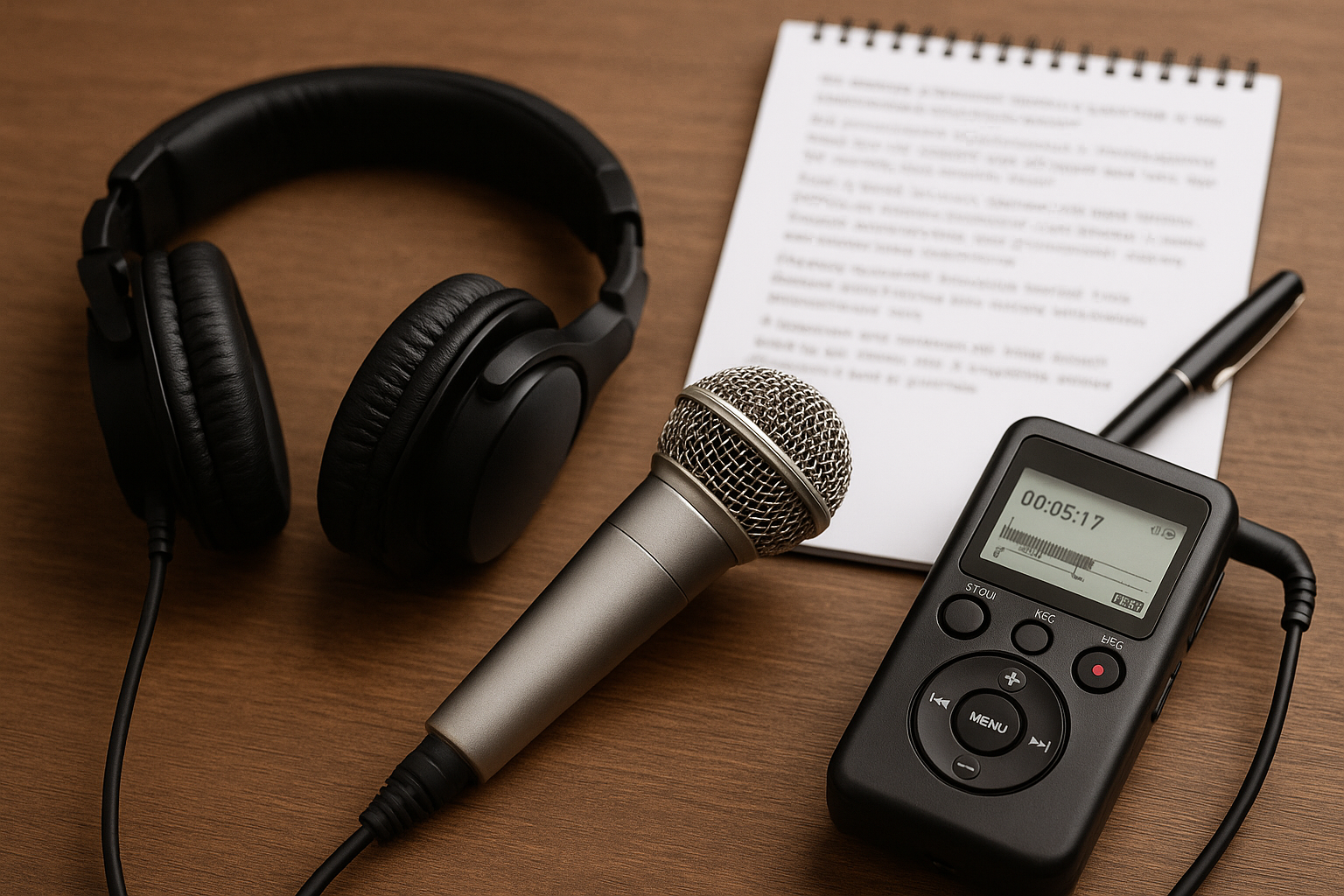
If your laptop microphone is noisy, try a dynamic external mic. It picks your voice clearly and blocks fan noise better.
Credit: escribers.net
Extra Tips to Keep Your Laptop Quiet
- Keep your laptop on a hard, flat surface for good airflow.
- Close unused programs to reduce CPU load and fan speed.
- Use a cooling pad to help lower laptop temperature.
- Update your laptop’s BIOS and drivers for better fan control.
Summary
Fan noise in laptop microphones is common. But it can be fixed. Move the mic away from the fan. Use an external or headset microphone. Clean and lower your fan speed carefully. Use noise cancellation software like OBS, Krisp, or NVIDIA Broadcast. Adjust your mic settings to reduce noise. Use accessories like pop filters and shock mounts. Find a quiet place to work. Choose the right microphone type for your room. Follow these simple steps for better sound quality.
With patience, your voice will sound clear. Fan noise will be less or gone. Now, you can enjoy better calls and recordings.
Frequently Asked Questions
How To Stop A Microphone From Picking Up A Fan?
Place the microphone away from the fan using a boom arm or stand. Use noise suppression software like OBS or Krisp. Lower mic gain and choose a dynamic mic for noisy settings. Add soft furnishings to reduce ambient noise. Use pop filters and shock mounts to minimize vibrations.
How To Get Rid Of Computer Fan Noise On Mic?
Place your microphone away from the computer fan using a boom arm or stand. Use noise suppression software like OBS Noise Gate, Krisp, or NVIDIA Broadcast. Lower microphone gain and choose a dynamic mic for noisy environments. Record in a quiet room with soft furnishings to reduce background noise.
How Do I Stop My Mic From Picking Up So Much Background Noise?
Place your microphone closer to your mouth and away from noise sources like fans. Use noise suppression software like OBS filters, Krisp, or NVIDIA Broadcast. Lower mic gain and choose a dynamic mic for noisy spaces. Record in quiet rooms with soft furnishings to reduce background noise.
Why Is My Laptop Fan Picking Up My Mic?
Your laptop fan creates noise that your mic picks up due to proximity and vibration. Position the mic away from the fan. Use noise suppression software like Krisp or OBS filters. Lower mic gain and add physical dampeners like shock mounts or pop filters to reduce fan noise.