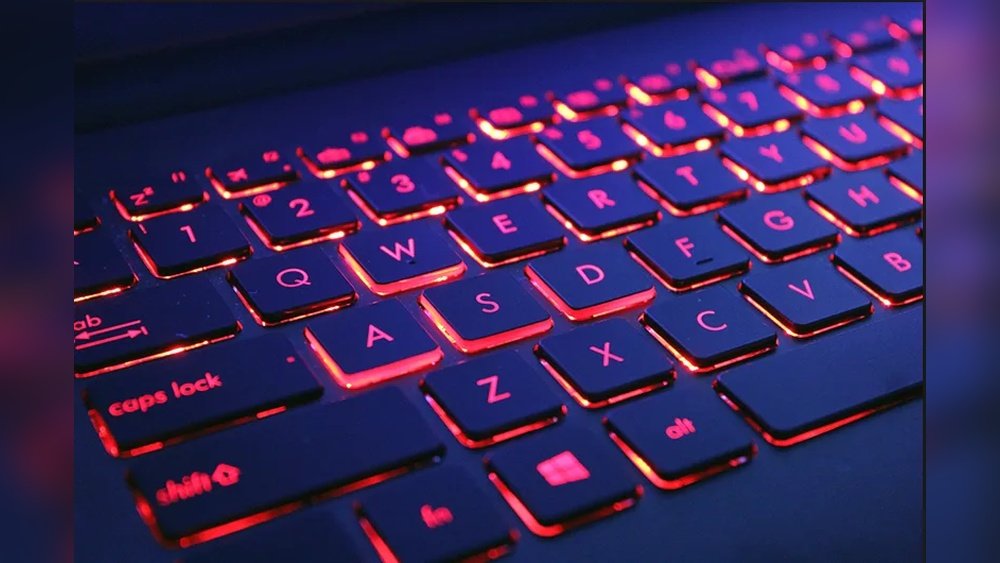
The keyboard backlight on your laptop is useful. It helps you see the keys in the dark. But what if your keyboard backlight stops working? This can be very frustrating, especially when you work at night. In this article, we will explain how to fix this problem. We will look at software and hardware causes. Then, we will give you simple steps to fix the issue.
Why Is My Laptop Keyboard Backlight Not Working?
First, we must understand why the backlight might stop working. There are two main reasons:
- Software problems: These are issues with the programs or settings on your laptop.
- Hardware problems: These are physical problems with the keyboard or laptop parts.
Knowing the cause helps us find the right fix. Let’s start with software issues.
Software Problems and How to Fix Them
Software problems are common. Sometimes, a simple change in settings or updating software can fix the backlight.
1. Check Keyboard Backlight Settings
Some laptops have a key or keys to turn the backlight on or off. Usually, you press the Fn key plus a function key (like F3 or F4). Look for a key with a light icon on it.
Try pressing Fn + that key to turn the backlight on. Sometimes, the backlight is off by mistake.
2. Check Power Settings
Your laptop may turn off the keyboard light to save battery. You can check power settings:
- Go to Settings.
- Click on Power & Sleep or Battery.
- Look for any option about keyboard backlight and make sure it is on.
3. Check Bios Or Uefi Settings
BIOS is a program that runs before Windows starts. Sometimes, keyboard backlight is disabled here.
To check BIOS:
- Restart your laptop.
- Press the BIOS key quickly (usually F2, DEL, or ESC).
- Look for keyboard backlight settings.
- Make sure the backlight is enabled.
- Save and exit BIOS.
4. Update Or Reinstall Keyboard Drivers
Drivers are small programs that help your laptop parts work. If the keyboard driver is old or broken, the backlight may stop working.
To update or reinstall drivers:
- Press Windows + X and select Device Manager.
- Find Keyboards and expand it.
- Right-click on your keyboard device.
- Click Update driver or Uninstall device.
- If you uninstall, restart your laptop to reinstall the driver automatically.
5. Run The Keyboard Troubleshooter
Windows has a tool that finds and fixes keyboard problems.
To run troubleshooter:
- Go to Settings.
- Click Update & Security.
- Select Troubleshoot.
- Find and run Keyboard troubleshooter.
6. Perform A System Update
Sometimes, Windows updates fix bugs that stop keyboard backlight.
To update Windows:
- Go to Settings.
- Click Update & Security.
- Click Check for updates.
- Install any updates found.
- Restart your laptop.
Credit: www.dell.com
Hardware Problems and How to Fix Them
If software fixes do not work, the problem may be hardware. This means a part inside your laptop is broken.
1. Clean Your Keyboard
Sometimes, dust or dirt can block the backlight. Clean your keyboard gently:
- Turn off your laptop.
- Use compressed air to blow under the keys.
- Do not press hard or remove keys.
2. Check Keyboard Connection
If you are comfortable opening your laptop, you can check the keyboard cable. This cable connects the keyboard to the laptop’s main board.
If it is loose, the backlight may not work.
Warning: Opening your laptop may void warranty. Ask a technician if unsure.
3. Reset Embedded Controller (ec)
The Embedded Controller controls keyboard functions. Resetting it can fix hardware issues.
To reset EC:
- Turn off your laptop.
- Unplug the power and remove the battery if possible.
- Press and hold the power button for 15 seconds.
- Put the battery back and turn on the laptop.
4. Test With External Keyboard
If you have an external keyboard with backlight, connect it to your laptop.
If the external keyboard light works, the problem is with your laptop’s keyboard hardware.
5. Contact Support Or Repair Center
If none of the above works, the keyboard backlight hardware may be broken. You should contact a service center.
Sometimes, parts need to be replaced. Professionals can fix this safely.
Summary Table: Software vs. Hardware Fixes
| Problem Type | Cause | Fix Steps | Tools Needed |
|---|---|---|---|
| Software | Settings off or driver issues |
| Keyboard, laptop software |
| Hardware | Loose cable, broken parts, dirt |
| Compressed air, screwdriver (optional) |

Credit: www.reddit.com
Additional Tips
- Always back up your files before making big changes.
- Be gentle when cleaning or opening your laptop.
- Use the right tools if you open your laptop.
- Ask for help if you don’t feel confident.
- Keep your laptop updated to avoid software bugs.
Final Thoughts
Fixing your laptop keyboard backlight may be easy or need help. Start with simple software fixes. Check settings and drivers first. If that does not work, look at hardware. Clean your keyboard and reset the controller. If you still have problems, ask a technician.
Remember, your keyboard backlight is a small but useful feature. Keeping it working makes typing in the dark easier.
Frequently Asked Questions
Why Is My Laptop Keyboard Backlight Not Working?
Your laptop keyboard backlight may not work due to disabled BIOS settings, outdated drivers, or power-saving modes. Press the backlight toggle key, update or reinstall drivers, check BIOS, and run hardware troubleshooters to fix the issue. Clean dust under keys if needed.
Restart the laptop.
How To Fix Laptop Keyboard Hardware Issue?
Run the built-in hardware troubleshooter via Settings > Update & Security > Troubleshoot > Keyboard. Clean debris under keys gently. Update or reinstall keyboard drivers. Check BIOS settings to ensure keyboard is enabled. Perform a hardware reset if needed. Replace the keyboard if hardware damage persists.
How To Fix Keyboard Rgb Not Working?
Press the keyboard backlight toggle (usually Fn + function key). Update or reinstall keyboard drivers. Check BIOS settings for backlight enablement. Clean keys gently with compressed air. Run hardware troubleshooter and restart your device to resolve RGB lighting issues.
How To Reset Keyboard Lights?
Press the keyboard backlight toggle key (usually Fn + a function key) to reset lights. Restart your laptop if needed. Check BIOS settings to enable backlight. Update or reinstall keyboard drivers via Device Manager. Perform an Embedded Controller (EC) reset for hardware reset.
Clean keys gently if obstructed.