Having only 8GB of RAM on your laptop can sometimes feel limiting. When your computer runs slow, the problem often is high RAM usage. But why does this happen? And how can you fix it? In this article, we will talk about two main ways to improve your laptop’s memory use: optimisation and virtual memory.
Credit: www.bestbuy.com
What is RAM and Why Does High Usage Matter?
RAM stands for Random Access Memory. It is the space your laptop uses to run programs right now. When RAM is full, your laptop slows down. It cannot open new programs fast. It may freeze or crash.
On an 8GB laptop, many programs can fill up the RAM quickly. Some apps use more memory than others. Even your internet browser can use a lot of RAM if you open many tabs.
Step 1: Check Which Apps Use the Most RAM
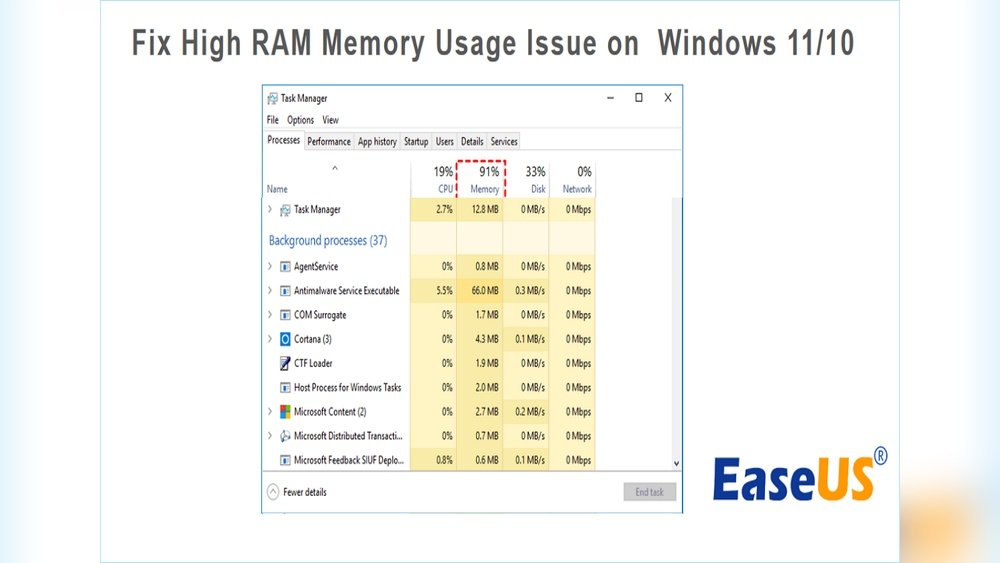
Before you fix the problem, you must know what causes it. Here is how to check your RAM use:
- Windows: Press
Ctrl + Shift + Escto open the Task Manager. - Go to the Processes tab.
- Click the Memory column to sort apps by RAM use.
- Look for apps that use the most memory.
For Mac users, open Activity Monitor and check the Memory tab.
Step 2: Close Unnecessary Programs and Tabs
Many times, you run apps that you do not need right now. Closing these will free RAM quickly. Also, close browser tabs you do not use. Each tab uses memory.
Step 3: Restart Your Laptop
This is the easiest fix. Restart your laptop to clear temporary files and stop background apps. This frees up RAM fast.
Optimisation: How to Make Your Laptop Use RAM Better
Optimisation means making your laptop work smarter, not harder. Here are simple ways to optimise your 8GB laptop:
Disable Startup Programs
Many apps start automatically when you turn on your laptop. This uses RAM even if you don’t need the apps right now.
- On Windows, open Task Manager.
- Go to the Startup tab.
- Right-click and disable apps you don’t need at startup.
This change helps your laptop start faster and use less RAM.
Clean Up Temporary Files And Cache
Temporary files and cache take space and slow down your laptop. Cleaning them frees memory.
- Use Windows Disk Cleanup tool to remove temporary files.
- Clear your browser’s cache and cookies.
- Uninstall programs you do not use anymore.
Update Drivers And Operating System
New updates fix bugs and improve performance. Make sure your laptop has the latest updates.
- Check for Windows updates in Settings > Update & Security.
- Update your device drivers from your laptop maker’s website.
Reduce Visual Effects
Windows has many visual effects like animations and shadows. These look nice but use RAM.
- Open System Properties.
- Go to Performance Options.
- Select Adjust for best performance.
This setting turns off extra visuals and helps your laptop use RAM better.
Scan For Malware
Malware uses your laptop’s resources without your knowledge. It can cause high RAM usage.
- Run a full virus scan with trusted antivirus software.
- Remove any threats found.
Advanced Optimisation: Disabling SysMain (Superfetch)
Windows runs a service called SysMain (used to be Superfetch). It tries to speed up your laptop by preloading apps.
But sometimes, it uses too much RAM. You can stop it to save memory:
- Press
Win + R, typeservices.msc, and press Enter. - Find SysMain in the list.
- Right-click it, select Properties.
- Click Stop and change Startup type to Disabled.
- Click OK to save.
Virtual Memory: What Is It and How Does It Help?
Virtual memory is like extra RAM. When your real RAM is full, Windows uses part of your hard drive as “fake” RAM.
This space is called the paging file. It is slower than real RAM, but it helps your laptop keep working when RAM is full.
Should You Increase Virtual Memory?
Sometimes, increasing virtual memory helps your laptop run better. But this is not the same as adding more physical RAM.
It can stop apps from crashing when RAM is full. But it will not make your laptop faster.
How To Adjust Virtual Memory On Windows
- Right-click This PC and choose Properties.
- Click Advanced system settings.
- Under Performance, click Settings.
- Go to the Advanced tab.
- Under Virtual memory, click Change.
- Uncheck Automatically manage paging file size.
- Select your main drive (usually C:).
- Choose Custom size.
- Set the initial and maximum size in megabytes (MB). A good rule is 1.5 to 3 times your RAM size.
- Click Set, then OK.
- Restart your laptop to apply changes.
Example Table: Virtual Memory Sizes For 8gb Ram
| RAM Size | Initial Virtual Memory Size (MB) | Maximum Virtual Memory Size (MB) |
|---|---|---|
| 8 GB | 12288 (8GB x 1.5) | 24576 (8GB x 3) |
Optimisation Vs. Virtual Memory: Which is Better?
Both methods help with high RAM usage. But they work differently.
- Optimisation helps your laptop use RAM more efficiently.
- Virtual memory gives extra space when RAM is full.
Optimisation should be your first step. It stops RAM from filling too fast.
If you still have problems after optimisation, adjust virtual memory next.

Credit: www.youtube.com
Other Tips to Reduce RAM Usage
- Use lighter apps instead of heavy ones. For example, use a simple text editor instead of a big software.
- Limit the number of browser tabs open at the same time.
- Restart your laptop regularly to clear RAM.
- Keep your laptop clean from dust to avoid overheating. Overheat can slow down your laptop.
- Consider upgrading RAM if possible. 8GB may not be enough for some tasks.
Summary
High RAM usage on an 8GB laptop can slow your computer down. You can fix this by:
- Checking which apps use the most RAM.
- Closing programs and browser tabs you don’t need.
- Restarting your laptop often.
- Optimising your system by disabling startup apps, cleaning temporary files, updating software, reducing visuals, and scanning for malware.
- Disabling SysMain service if it uses too much RAM.
- Adjusting virtual memory to give your laptop extra space.
Try these steps one by one. Start with simple optimisations. Then, adjust virtual memory if needed.
With care, your 8GB laptop can feel faster and smoother. It is about managing your resources well.
Frequently Asked Questions
What Is The Optimal Virtual Memory For 8gb Ram?
The optimal virtual memory for 8GB RAM is typically 1. 5 to 3 times the RAM size. Set it between 12GB and 24GB. Adjust manually in system settings for best performance and stability. Avoid letting Windows manage it automatically for more control.
How To Optimize 8gb Ram On A Laptop?
Optimize 8GB RAM by closing unused apps and browser tabs. Disable startup programs via Task Manager. Clear caches and uninstall unnecessary software. Update your OS and drivers regularly. Adjust virtual memory settings for better performance. Scan for malware and reduce visual effects to free up RAM.
How To Fix High Ram Usage?
To fix high RAM usage, close unnecessary apps, disable startup programs, clear caches, and uninstall unused software. Update your OS and drivers, run malware scans, and adjust virtual memory settings. Restart your computer regularly and use lightweight alternatives to heavy applications.
How To Reduce Virtual Ram Usage?
Reduce virtual RAM usage by closing unused apps, disabling startup programs, clearing caches, and uninstalling unnecessary software. Adjust virtual memory settings manually and disable background services like SysMain. Keep your OS and drivers updated, scan for malware, and limit visual effects for better performance.