Have you seen a blue screen with the message ‘Critical Process Died’? It can stop your computer and make it hard to use. This error means something important in Windows stopped working. But don’t worry. You can fix it yourself. This guide will show you how.
What is the ‘Critical Process Died’ Error?
This error shows a blue screen. It happens when a key Windows process stops. This process is needed for the computer to run smoothly. If it fails, Windows cannot work right. This causes the blue screen, also called BSOD (Blue Screen of Death).
The error code looks like this: CRITICAL_PROCESS_DIED. It means a critical system process ended unexpectedly.
Why Does This Error Happen?
There are several reasons why this error shows up. Here are some common causes:
- Corrupted system files: Some files Windows needs may be damaged.
- Bad drivers: Drivers help devices work. If they are old or broken, problems can occur.
- Hardware issues: Problems with your hard drive or memory can cause errors.
- Malware or viruses: Bad software can harm system files.
Fixing the error means checking and repairing these problems. Two tools can help: SFC and DISM.
What Are SFC and DISM?
SFC stands for System File Checker. It looks for broken Windows files and tries to fix them.
DISM means Deployment Image Servicing and Management. It checks the Windows system image and repairs it if needed.
Think of SFC as a tool that fixes small file problems. DISM fixes bigger, more complex system image problems.

Credit: www.youtube.com
How to Use SFC to Fix ‘Critical Process Died’ Error
Follow these steps to run the SFC scan:
- Open Command Prompt as Administrator.
- Click the Start button.
- Type
cmd. - Right-click Command Prompt and choose Run as administrator.
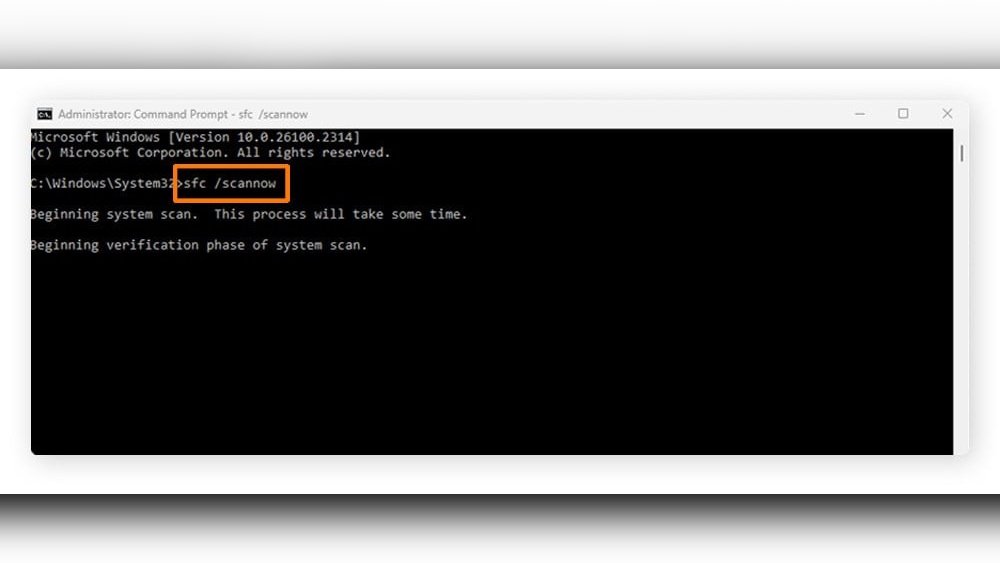
- Type the command:
sfc /scannowand press Enter. - Wait for the scan to finish. It may take some time.
- If it finds errors, it will try to fix them automatically.
- When done, restart your computer.
This tool often fixes corrupted files that cause the error.
How to Use DISM to Fix ‘Critical Process Died’ Error
If SFC cannot fix all problems, use DISM. It repairs the Windows image itself. Follow these steps:
- Open Command Prompt as Administrator (same as before).
- Type this command and press Enter:
dism /online /cleanup-image /scanhealth - This checks for problems in the system image.
- Next, type this command and press Enter:
dism /online /cleanup-image /restorehealth - This will try to fix any found problems.
- Wait for the process to finish. It may take a while.
- After it is done, restart your computer.
Now, run the sfc /scannow command again to fix any remaining file issues.
Step-by-Step Summary Table
| Step | Action | Purpose |
|---|---|---|
| 1 | Open Command Prompt as Administrator | To run system repair commands with full rights |
| 2 | Run sfc /scannow | Scan and fix broken system files |
| 3 | Run dism /online /cleanup-image /scanhealth | Check Windows image health |
| 4 | Run dism /online /cleanup-image /restorehealth | Repair the Windows image |
| 5 | Run sfc /scannow again | Fix any remaining file problems |
| 6 | Restart your computer | Apply all fixes and check for error |
What If the Error Still Happens?
If the blue screen returns, try these tips:
- Update your drivers: Go to Device Manager and update all drivers.
- Run a virus scan: Use your antivirus to check for malware.
- Check your hardware: Use tools to test your hard drive and RAM.
- Use System Restore: Go back to a time before the error started.
- Reset Windows: As a last step, reinstall Windows to fix deep problems.
Extra Tips to Avoid This Error
- Keep Windows updated with the latest patches.
- Do not install unknown software or drivers.
- Use good antivirus software and scan regularly.
- Backup your important files often.
- Keep your hardware clean and dust-free.
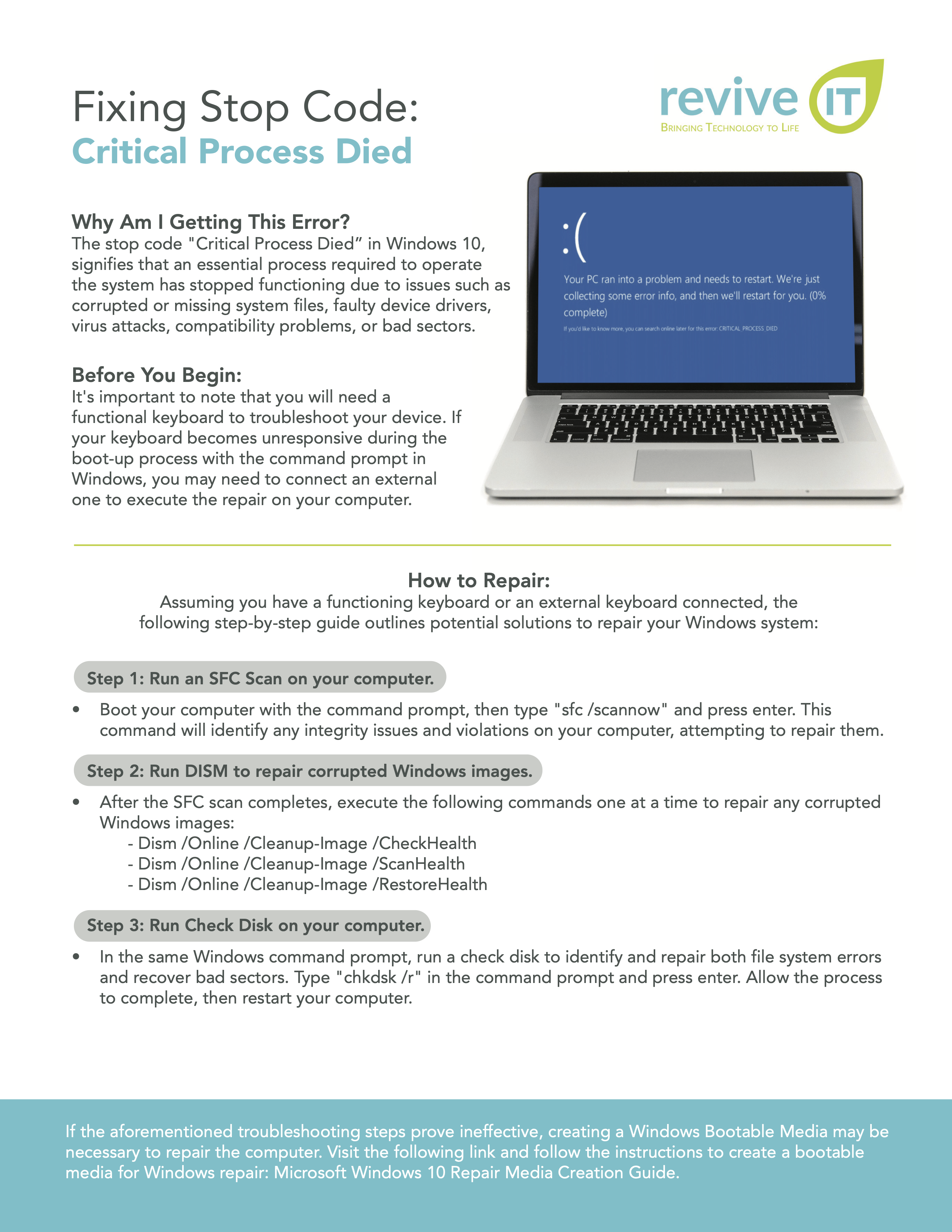
Credit: reviveit.io
Final Thoughts
The ‘Critical Process Died’ error can be scary. But with patience, you can fix it. Start with the SFC tool. If needed, use DISM for deeper repairs. These tools are built into Windows and free to use.
Remember, running these commands takes time. Let them finish fully. Restart your computer after each fix. This helps Windows apply changes correctly.
If problems continue, look into drivers, malware, or hardware issues. Sometimes, a full Windows reset is needed. But often, these simple steps solve the error.
Take your time. Follow the steps one by one. Soon, your computer should work without the blue screen error.
Frequently Asked Questions
Can Critical Process Died Be Fixed?
Yes, the “Critical Process Died” error can be fixed. Use SFC and DISM tools to repair corrupted system files. Update drivers and scan for malware. If needed, perform a system restore or reset to resolve the issue.
How To Repair Corrupted Windows System Files With The Sfc And Dism Commands?
Open Command Prompt as Administrator. Run `dism /online /cleanup-image /restorehealth` to fix the system image. Then type `sfc /scannow` to repair corrupted system files. Restart your PC after both commands complete. This restores Windows system integrity efficiently.
How To Fix Critical Process Died Using Cmd?
Open Command Prompt as Administrator. Run `dism /online /cleanup-image /scanhealth` and then `dism /online /cleanup-image /restorehealth`. Next, execute `sfc /scannow` to repair system files and fix the “Critical Process Died” error. Restart your PC after completion.
What’s The Difference Between Dism And Sfc?
DISM repairs the Windows OS image, fixing deeper issues. SFC scans and fixes corrupted system files only. Use DISM first, then run SFC for thorough repair.